Adobe Captivate 2019 – Steps to create custom Play – Pause button using Advanced Actions
adobe captivate 2019 - steps to create custom play - pause button using advanced actionsIn this blog, we will look at a step-by-step procedure to create a custom Play/Pause button using custom buttons placed on the master slide or timed for the rest of the project.
Rest of Project options:

Step 1:
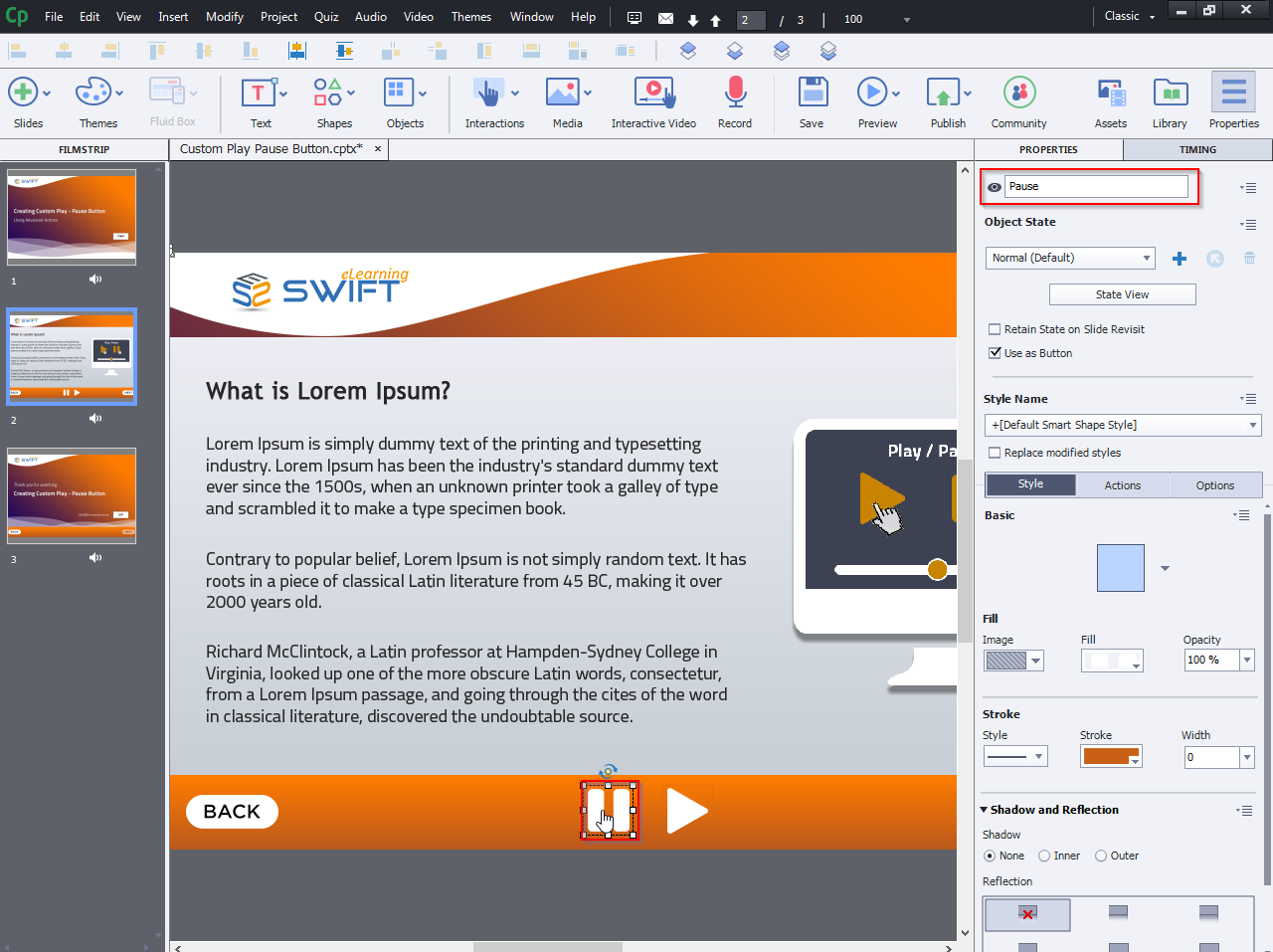
To get started, select two icons for the Play and Pause button state.

Step 2:
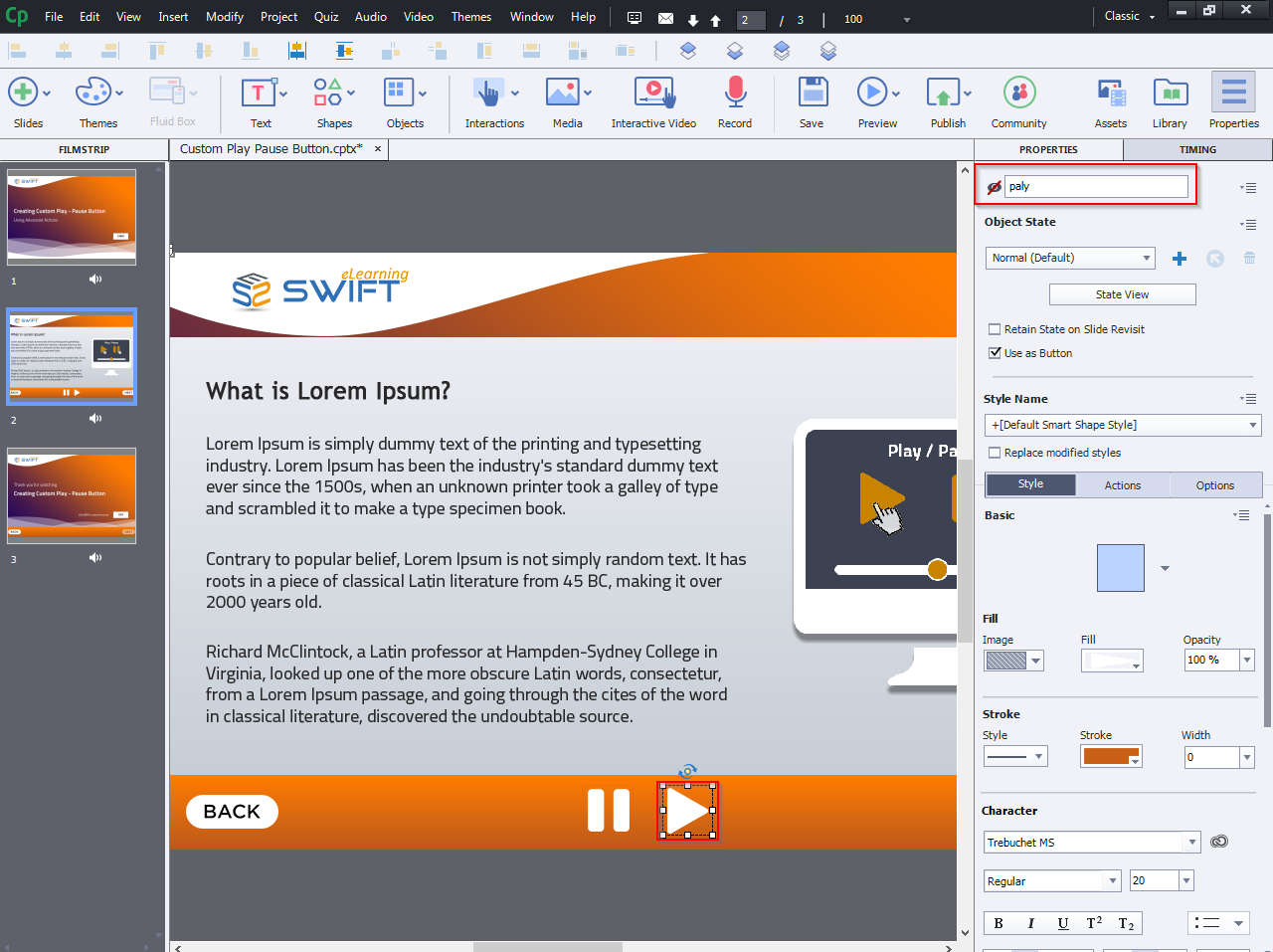
Define a unique name for the Play and Pause icons.

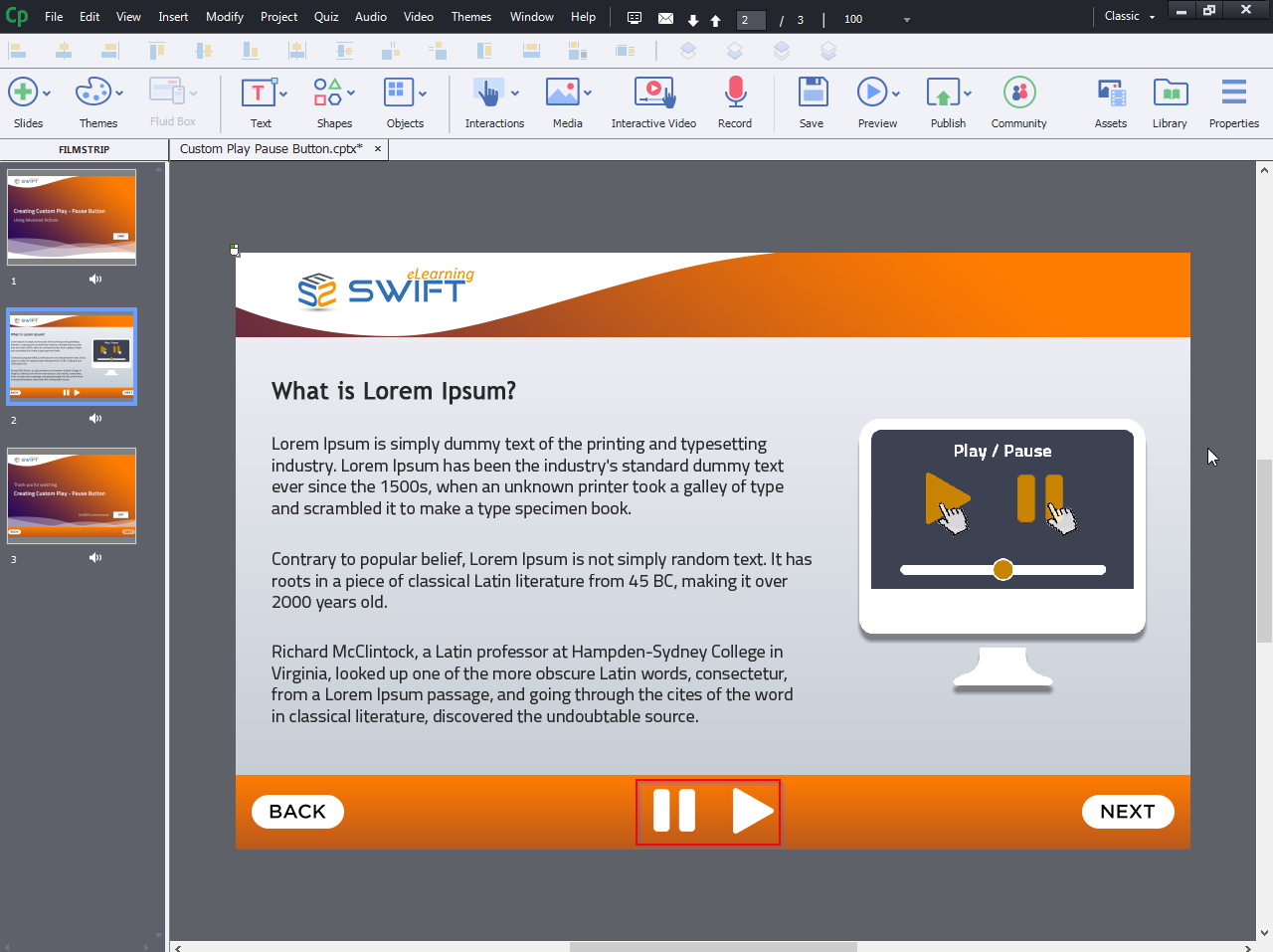
On the first slide, the Pause button eye should be visible, and the Play button should be hidden as shown in the image.

Step 3:
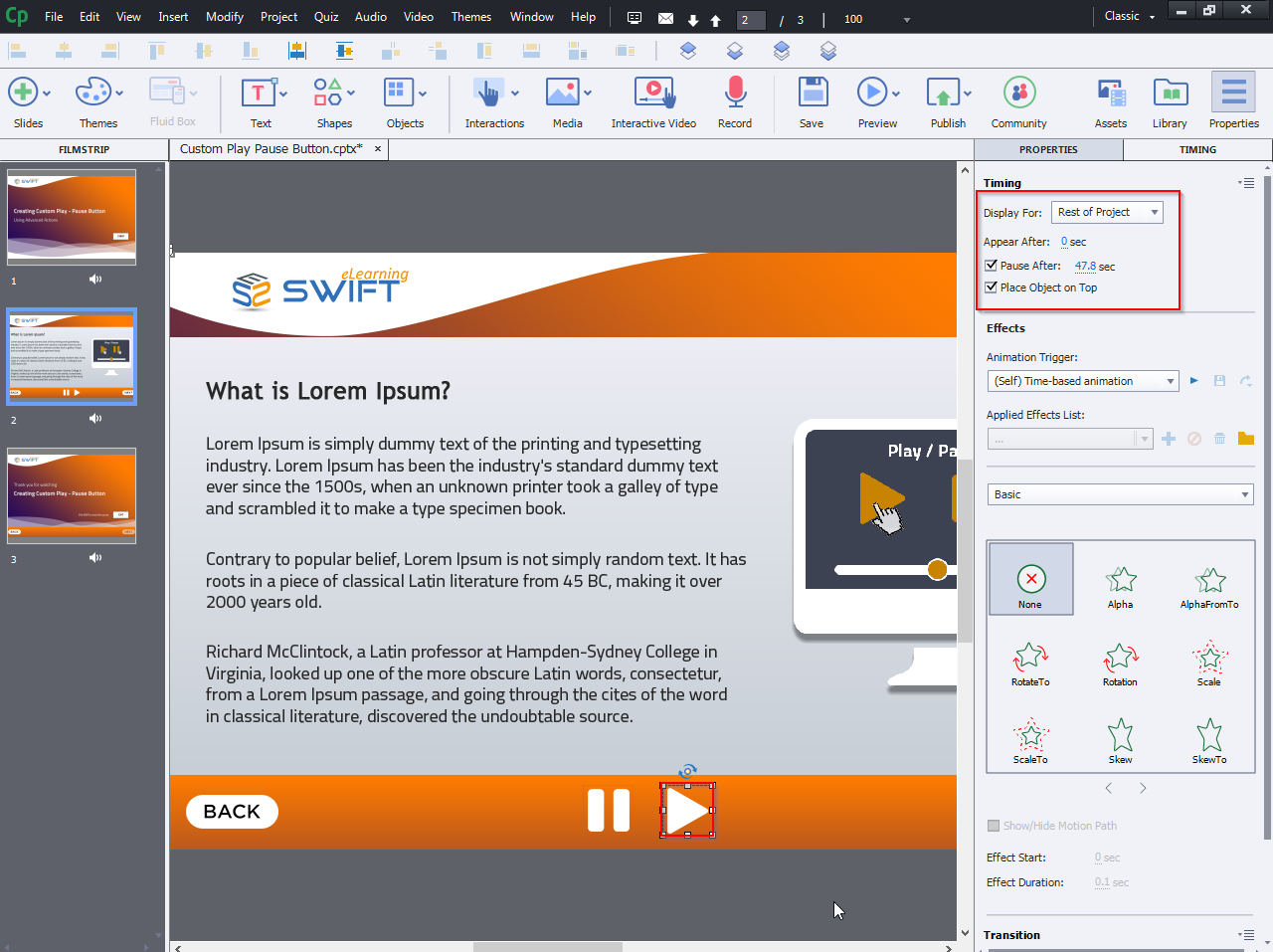
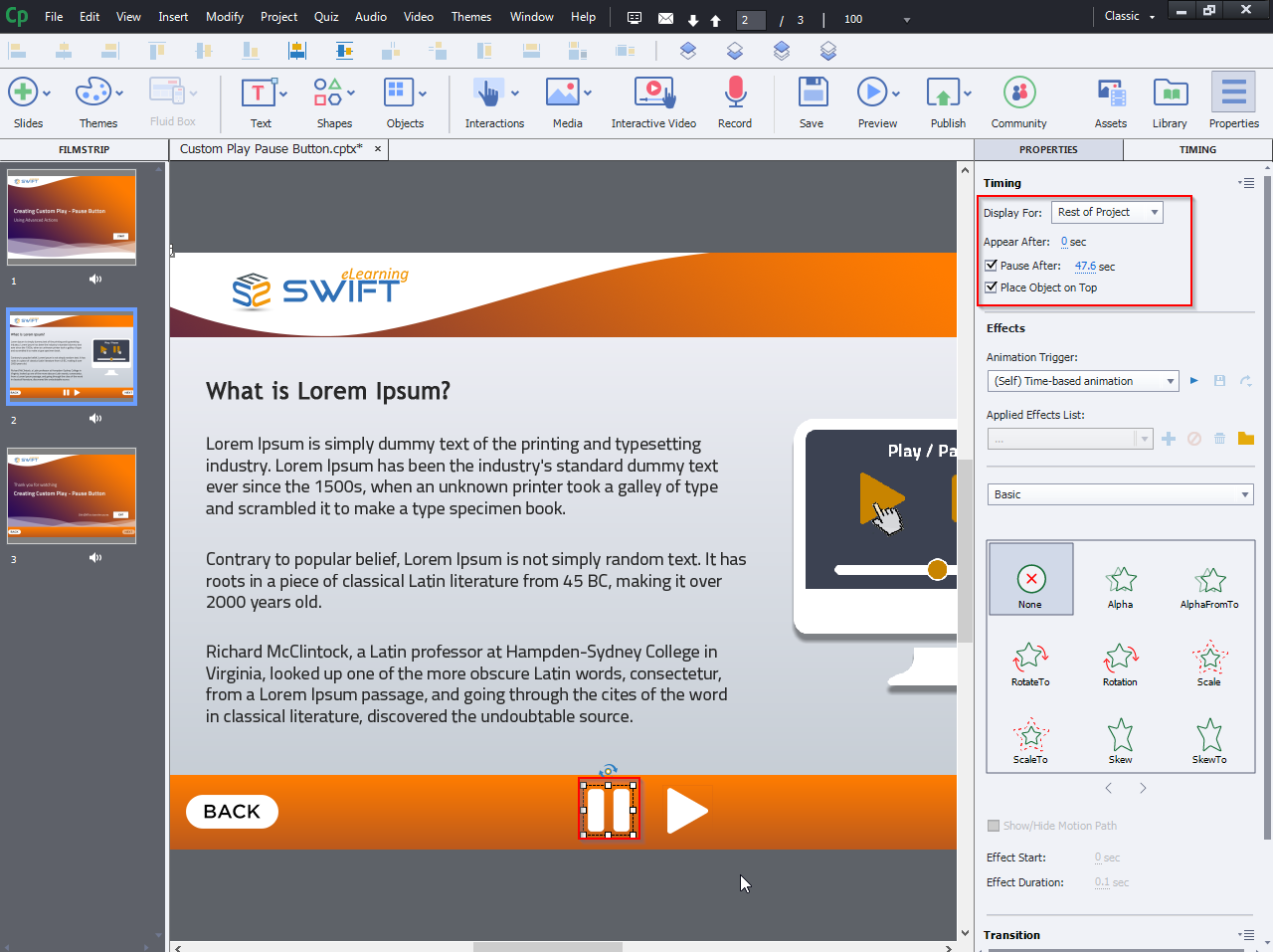
Select the “Rest of Project” from the “Display For” dropdown.

When the Rest of Project option is selected, make sure the option “Place Object on Top” is selected which prevents the object from being hidden by other items on subsequent slides.

Step 4:
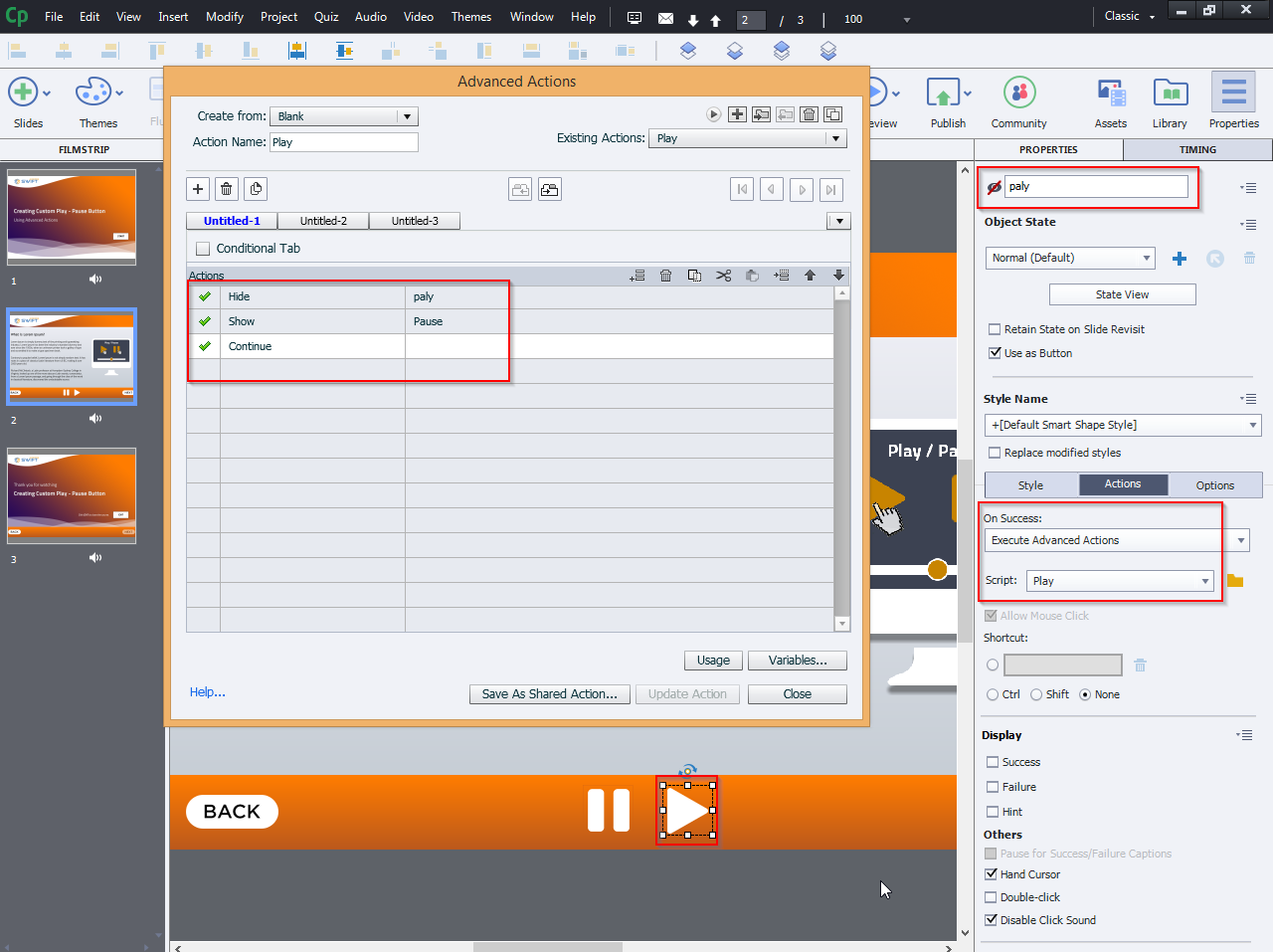
Now go to Execute Advanced Actions and add the following actions.

Play button Action:

Hide: Play
Show: Pause
Continue

Step 5:
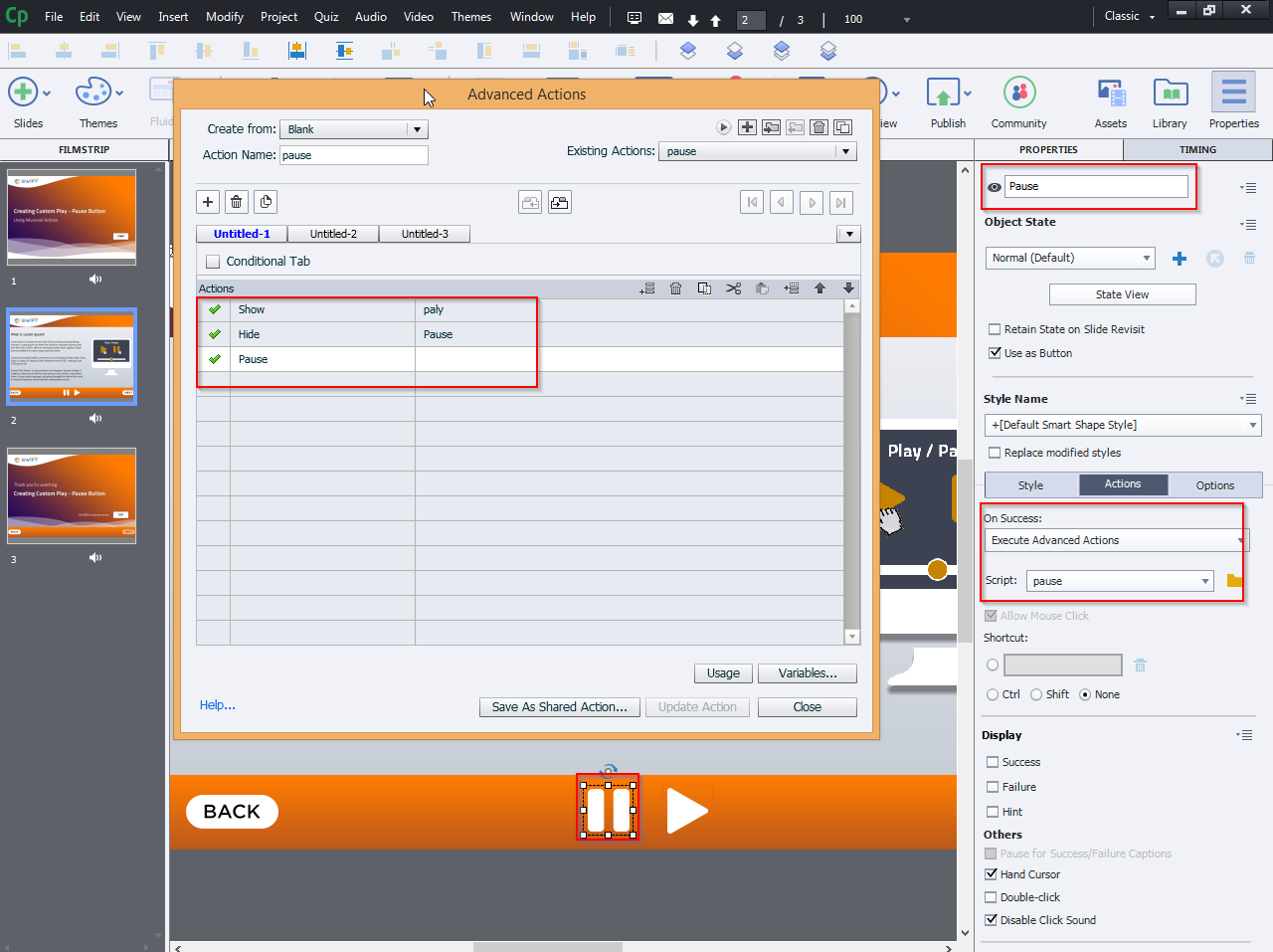
Pause button Action:

Hide: Pause
Show: Play
Pause

Step 6:
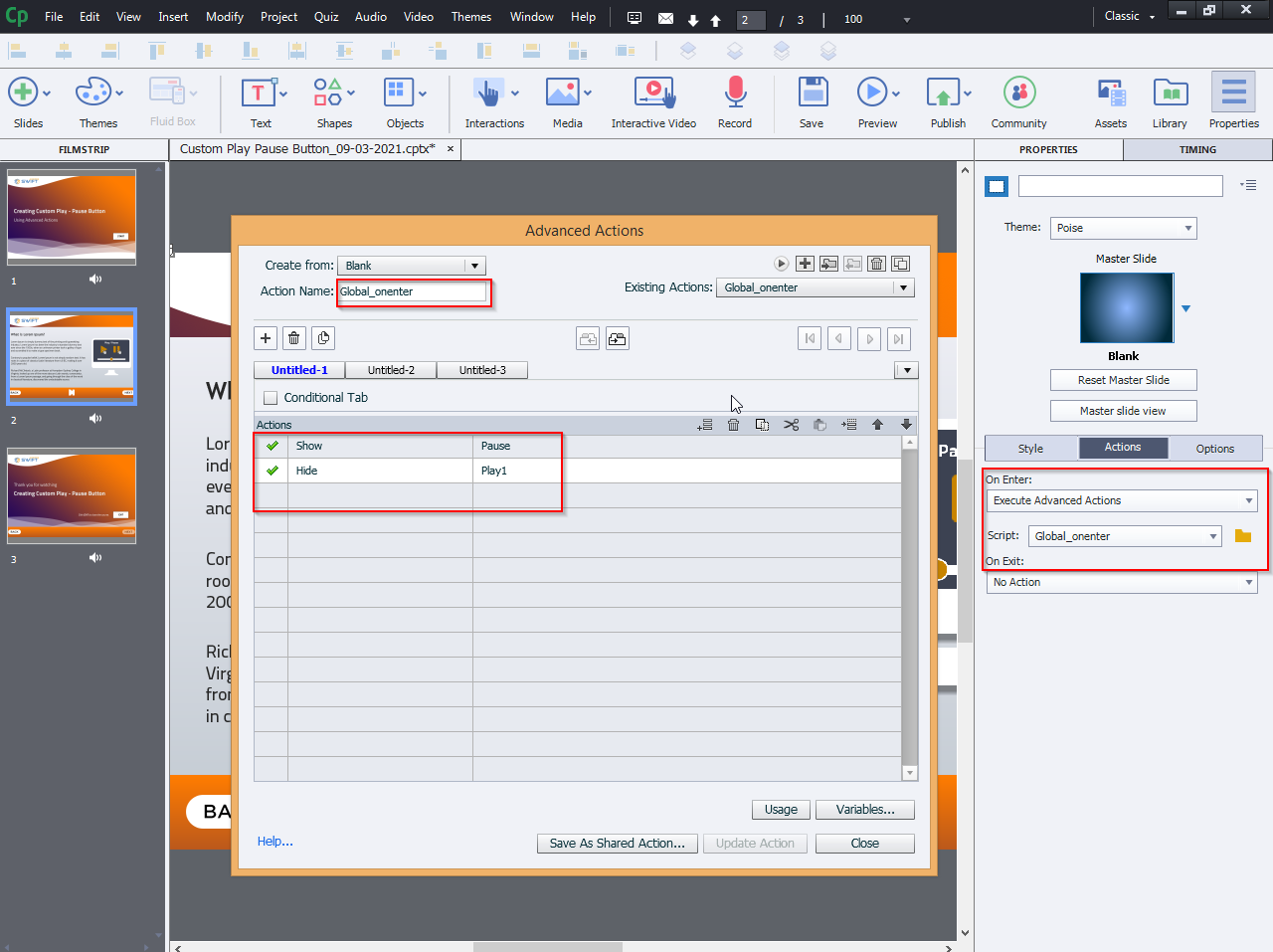
Global On-enter Action: This action must be applied to all slides on-Enter.
Show: Play
Hide: Pause

custom elearning development