
When to Use Custom JavaScript Score Tracking
- ✓Custom Scoring Logic:
Awarding weighted scores, partial credit, or non-standard points calculated outside default quiz templates.
- ✓Multi-Branching Scenarios:
Aggregating dynamic points gathered across complex narrative choices or interactive simulation paths.
- ✓Pre-Assessment Overrides:
Sending customized diagnostic or baseline scores directly to the LMS reporting table.
Step-by-Step Configuration Guide
-
01
Create the Custom Score Variable
Open the Variables Manager in Storyline and create a new Number variable (e.g.,
Score) to hold your custom calculated point total. -
02
Configure the Execution Trigger
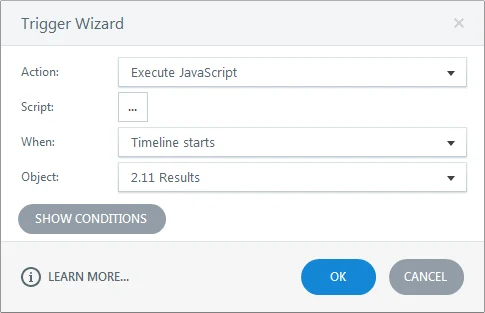
- On your custom results or submission slide, add a new trigger.
- Set the trigger properties:
- Action: Execute JavaScript
- When: Timeline starts
- Object: Results slide (or target submission slide)
-
03
Insert the SCORM API Script
Click the JavaScript link in the trigger wizard and insert the following code snippet:
var player = GetPlayer(); // Syntax: lmsAPI.SetScore(Score, MaxScore, MinScore) lmsAPI.SetScore(player.GetVar('Score'), 100, 80); lmsAPI.CommitData(); -
04
Adjust Publishing Tracking Settings
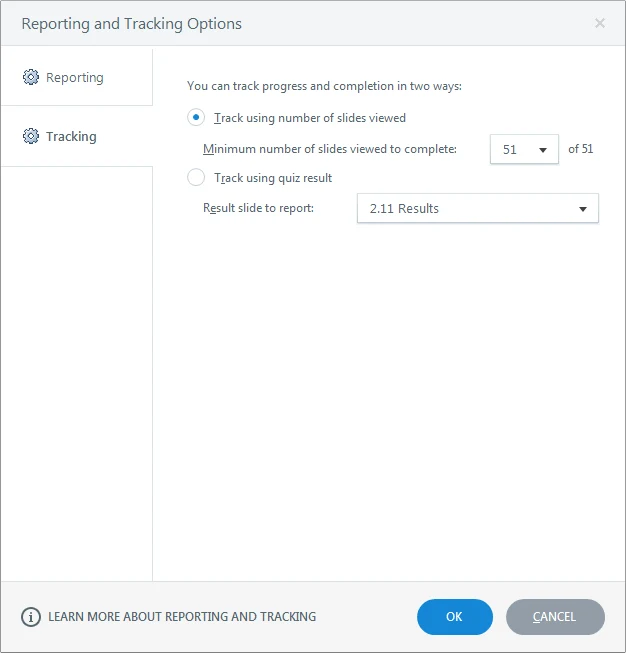
To prevent Storyline from overwriting your custom JavaScript score with its default quiz calculation:
- Click Publish and select the LMS tab.
- Under Tracking Options, select Track using number of slides viewed instead of Track using quiz results.
-
05
Handle Legacy Exit Score Overrides (Optional)
In legacy output builds (such as Storyline 2 Update 9 and earlier), clicking a native "Exit Course" trigger can reset reported scores to zero when tracking by slides viewed. To bypass this, replace the native exit trigger with a Jump to URL trigger targeting:
./lms/goodbye.html.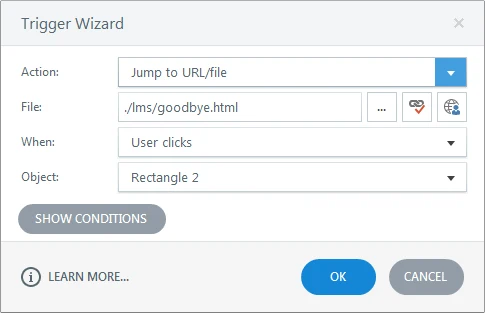
Code Breakdown and Function Reference
| Function / Object | Technical Description |
|---|---|
GetPlayer() |
Fetches the active Storyline player instance, granting access to internal project variables. |
lmsAPI |
The core SCORM API interface object handling communication between the Storyline package and the LMS. |
SetScore(score, maxScore, minScore) |
Sends score parameters to the LMS: earned score, maximum possible score, and passing threshold. |
CommitData() |
Forces the LMS API to immediately save all queued tracking data into the database. |
Frequently Asked Questions
Will this script work with both SCORM 1.2 and SCORM 2004 LMS packages?
Yes. The lmsAPI object abstracts the underlying SCORM wrapper calls, ensuring standard score reporting across SCORM 1.2, SCORM 2004, and AICC publishing formats.
Can I pass dynamic values for maxScore and minScore using variables?
Yes. You can replace the hardcoded numbers (100, 80) with variables fetched via player.GetVar('MaxScore') and player.GetVar('MinScore').