
What Is Non-Live Text vs. Live Text?
Non-Live Text
Text flattened into a raster graphic (e.g., JPEG, PNG) or converted into outlined vector paths. It cannot be edited with the Type tool.
Live Text
Active font typography that can be selected, retyped, formatted, and styled dynamically in Illustrator.
Step-by-Step Guide: Converting Image Text Using Retype
-
01
Open Your Image in Adobe Illustrator
Launch Adobe Illustrator, open your project file, and place or open the image file containing the text you wish to convert.
-
02
Access the Retype Tool
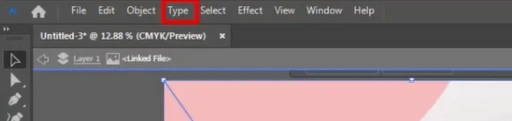
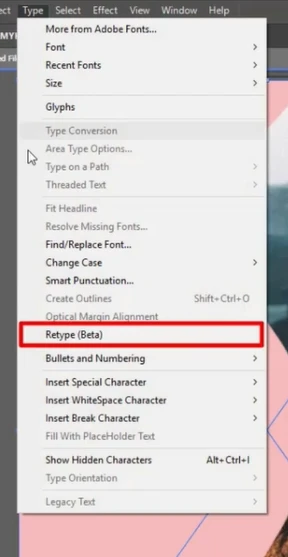
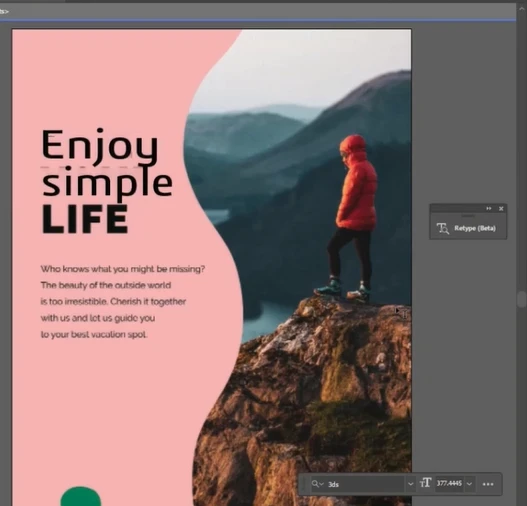
"Select the image on your artboard, navigate to the top menu bar, click Type, and select Retype" from the dropdown.
-
03
Initialize Text Recognition
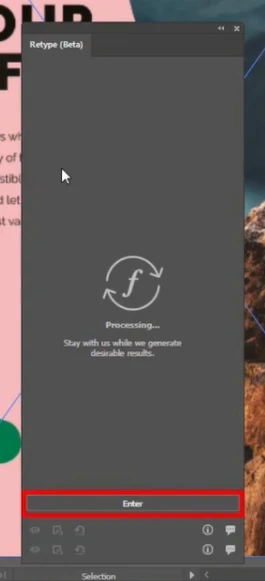
In the Retype panel, select Enter (or click on the detected text region). Illustrator will analyze the image pixels to identify the letterforms and search for matching or similar font styles from your Adobe Fonts library and local system.
-
04
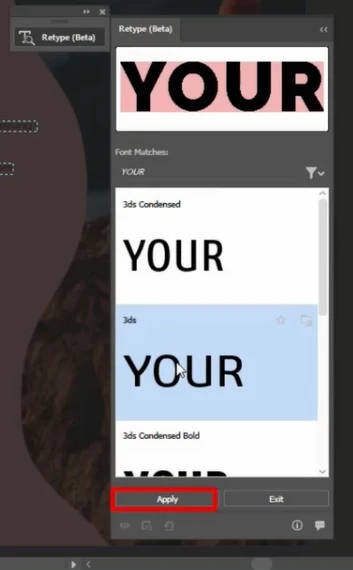
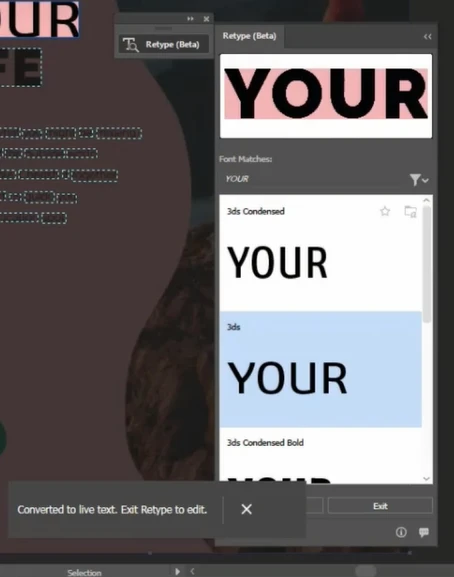
Match and Apply Your Preferred Font
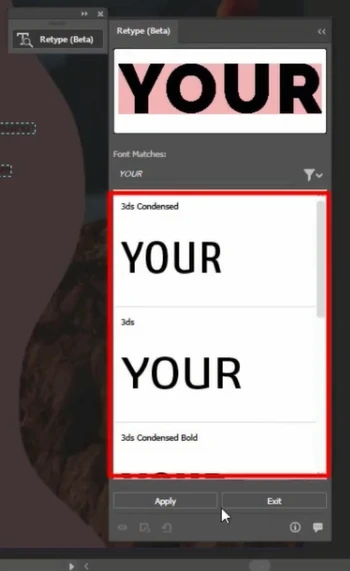
Select the suggested matching font from the panel list. Clicking the font applies it instantly to the recognized text box area.
-
05
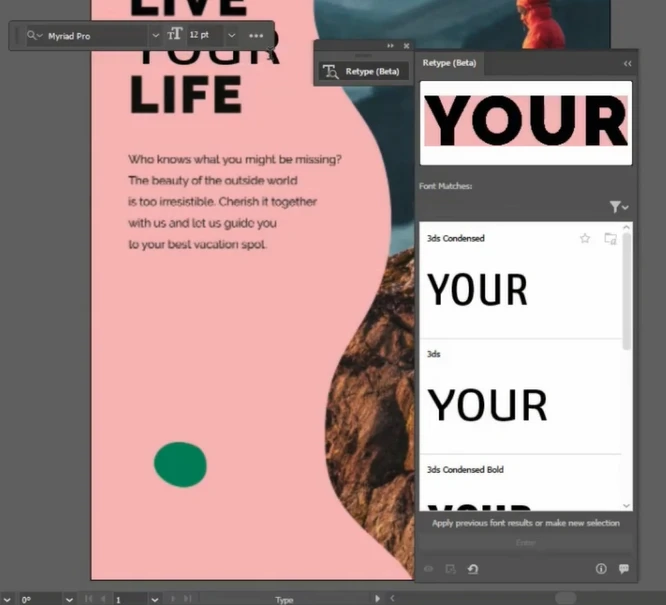
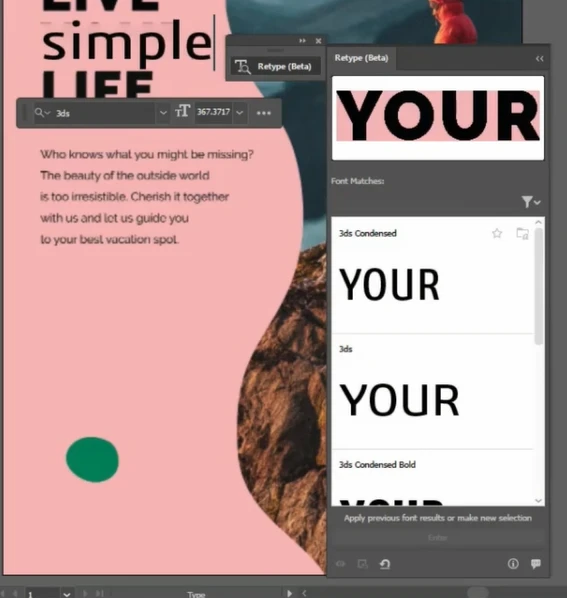
Edit and Format Your Text
"Double-click the converted text area to open active editing mode." You can now change words, fix typos, adjust font weights, modify line spacing, or update brand colors directly with the Type tool (T).
Frequently Asked Questions
What is the Retype feature in Adobe Illustrator?
"Retype is an AI-powered typography tool" that identifies fonts in raster images or outlined graphics and converts them into editable live text using Adobe Fonts matches.
What if the exact font in the image is not installed on my computer?
The Retype panel scans your local system and the Adobe Fonts library to suggest identical or visually matching alternative typefaces that you can activate with a single click.
Can I convert outlined vector shapes back into live text using Retype?
Yes. Retype works on both rasterized image files (JPEGs, PNGs) and outlined vector text paths that have lost their active font data.