
Storyline 360 Tutorial

How to Add a Custom Course Timer in Articulate Storyline 3 or 360

While native assessment tools in Articulate Storyline 3 and Storyline 360 include timed quiz options, Storyline does not feature an out-of-the-box global course timer to track total time spent across non-quiz content.

By leveraging a 1-second looping layer on the Slide Master alongside variable triggers, instructional designers can construct a functional, real-time course timer (HH:MM:SS) without external plugins or complex coding.

Watch Tutorial
See the layer loop and variable triggers built step by step.

Primary Use Cases for Custom Course Timers

  • Compliance Requirements

    Ensure corporate learners spend mandated time quotas on regulatory topics before completing modules.

  • Self-Paced Trackers

    Help learners monitor their pace across comprehensive multi-topic modules.

  • Timed Case Studies

    Introduce time-sensitive problem-solving constraints into scenario-based learning activities.

Step-by-Step Configuration Guide

  1. 01

    Create the Master Layer Loop

    • Open your project in Storyline 360 and navigate to View > Slide Master.
    • Create a new layer on the top Master layout and name it Time Loop.
    • Adjust the timeline length of the Time Loop layer to exactly 1 second.

    Storyline 360 Slide Master timeline with the Time Loop layer selected, set to a 1-second duration
  2. 02

    Define Numerical Variables

    Open the Variables Manager and create three Number variables with baseline values of 0:

    • ss (Seconds)
    • mm (Minutes)
    • hh (Hours)

    Optional: Create string padding variables s0, m0, and h0 to format single digits with leading zeros like 01:05:09.
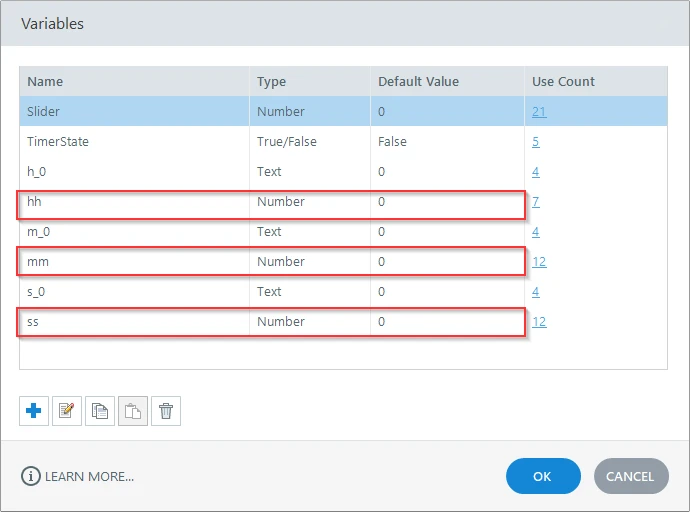
    Storyline 360 Variables Manager with the hh, mm, ss, and padding variables highlighted
  3. 03

    Add Layer Loop Triggers

    Add the following sequential triggers to the Time Loop layer:

    • Increment Seconds: Add 1 to ss when Time Loop layer timeline ends.
    • Rollover Minutes: Add 1 to mm when ss changes, on condition that ss == 60.
    • Reset Seconds: Set ss = 0 when ss changes, on condition that ss == 60.
    • Rollover Hours: Add 1 to hh when mm changes, on condition that mm == 60.
    • Reset Minutes: Set mm = 0 when mm changes, on condition that mm == 60.
    • Loop Hide Layer: Hide Time Loop layer when Time Loop layer timeline ends.
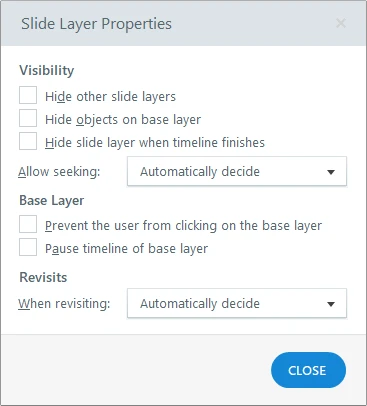
    • Loop Show Layer: Show Time Loop layer when Time Loop layer timeline ends.
    Storyline 360 Slide Layer Properties dialog showing visibility, base layer, and revisit options for the Time Loop layer
  4. 04

    Display the Timer on the Master Canvas

    • On the Base Layer of your Master Slide, create a text box where you want the timer displayed.
    • Insert variable references into the text box: %hh% : %mm% : %ss% (or %h0%%hh%:%m0%%mm%:%s0%%ss% for padded formatting).
    • Add a trigger to the Base Layer: Show Layer Time Loop when Master Slide timeline starts.
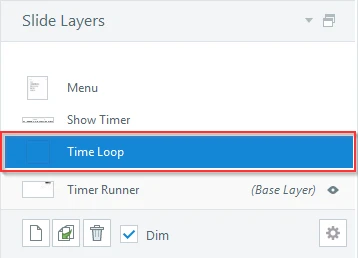
    Storyline 360 Slide Layers panel with the Time Loop layer highlighted, referenced by the Base Layer's Show Layer trigger
  5. 05

    Test and Verify

    Close the Slide Master view and preview the course. The timer will automatically update every second across all slides that inherit the Master layout.
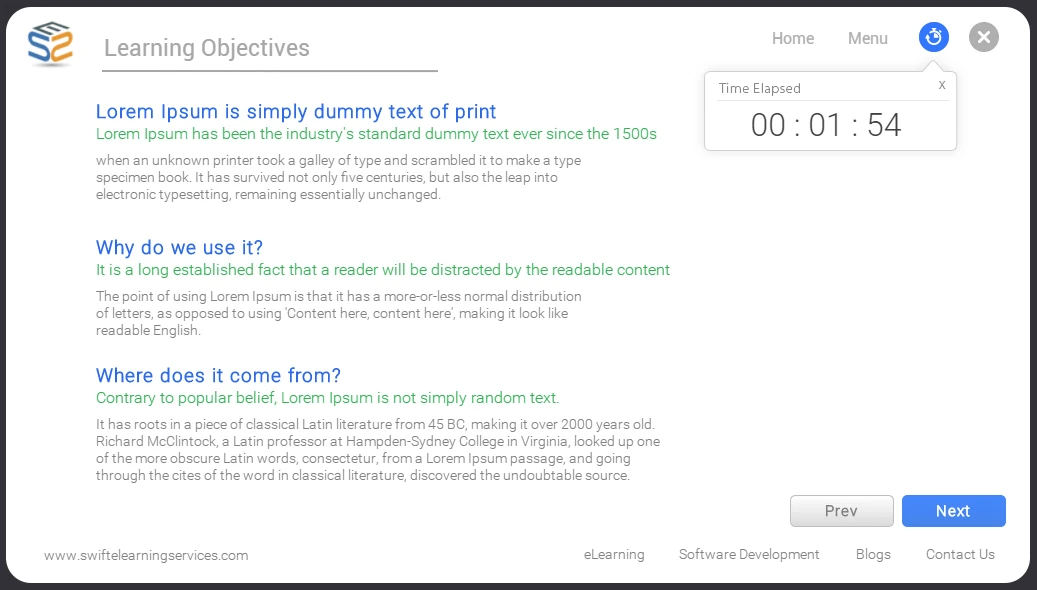
    Published Storyline 360 course preview showing a working Time Elapsed 00:01:54 timer display in the top-right corner

Video Walkthrough

Watch the visual demonstration of variable initialization and trigger sequencing:

Troubleshooting & Logic Summary

Challenge Cause Resolution
Timer Pauses on New Slide Master layer fails to re-trigger. Ensure the base Master slide has a trigger to display the Time Loop layer on timeline start.
Timer Counts Too Fast Layer duration is less than 1 second. Verify that the Time Loop layer timeline is set to precisely 1.00s.
Single-Digit Formatting (0:1:5) Standard numbers suppress leading zeros. Implement padding triggers to set s0 / m0 to "0" when values fall below 10.
FAQ

Frequently Asked Questions

How does this custom timer differ from Storyline's built-in quiz timer?

Built-in quiz timers track test completion windows and auto-submit assessments upon expiration. This custom workaround acts as a continuous elapsed-time counter across standard informational slides.

Can I embed Storyline modules with custom timers into Articulate Rise 360?

Yes. Publish the Storyline course to Articulate 360 and embed it directly into Rise 360 using a Storyline Block. The timer will run natively within the embedded container.

Will the custom timer reset if a learner revisits a previously viewed slide?

No. Because the hh, mm, and ss variables are globally stored at the project level, the timer maintains its cumulative count throughout the learner's session.

Enterprise Safety and Leadership Solutions

Workplace Health and Safety (OHS) Suite

SCORM-compliant compliance courses structured for immediate LMS integration across operations, manufacturing, and distribution:

  • WHMIS compliance protocols, chemical safety standards, and spill response procedures.
  • Workspace ergonomics, proper manual lifting techniques, personal protective equipment (PPE), and first-aid response.
  • Elevated work protection, high-altitude safety protocols, extreme weather guidelines, and LOTO standards.

Free Professional Leadership and Corporate Catalog

Targeted professional development modules for corporate teams and enterprise leaders:

  • Strategic executive leadership, modern crisis communication, and cross-functional team management.
  • Dispute resolution frameworks, project management fundamentals, and corporate ethics standards.
Related Solutions

Instructional Design & eLearning Services

Custom Storyline Development

Modern eLearning architectures tailored to corporate performance standards, interactive decision trees, and custom variables.

Learn more about Custom Storyline Development

Learning Management System (LMS)

Simplify training administration, track employee compliance effortlessly, and deliver engaging digital learning.

Learn more about Learning Management System (LMS)

Global Course Localization

Multi-language content translation, audio dubbing, right-to-left UI adjustment, and WCAG accessibility compliance.

Learn more about Global Course Localization
Get in Touch

Ready to Transform Your Training?

Get a tailored project proposal, custom timeline, and a free SCORM sample built directly from a slice of your existing training materials.

  • Free Proof-of-Concept

    Send us a short document or presentation, and we'll transform it into an interactive SCORM sample so you can judge our instructional design.

  • Expert Consultation

    Talk directly with our eLearning specialist to align your business goals with the right technology stack.

  • Transparent Pricing

    Clear cost estimates and realistic project milestones delivered with zero hidden fees.

Prefer direct email? Reach our lead team at [email protected].

Send Us a Message

Fill in a few details and we'll get straight back to you.