
Step-by-Step Guide: How to Bypass the Play Button in Chrome
To enable smooth auto play without the play button overlay, insert a silent, non-media cover screen at the very beginning of your project timeline:
-
01
Insert a Silent Title/Intro Screen
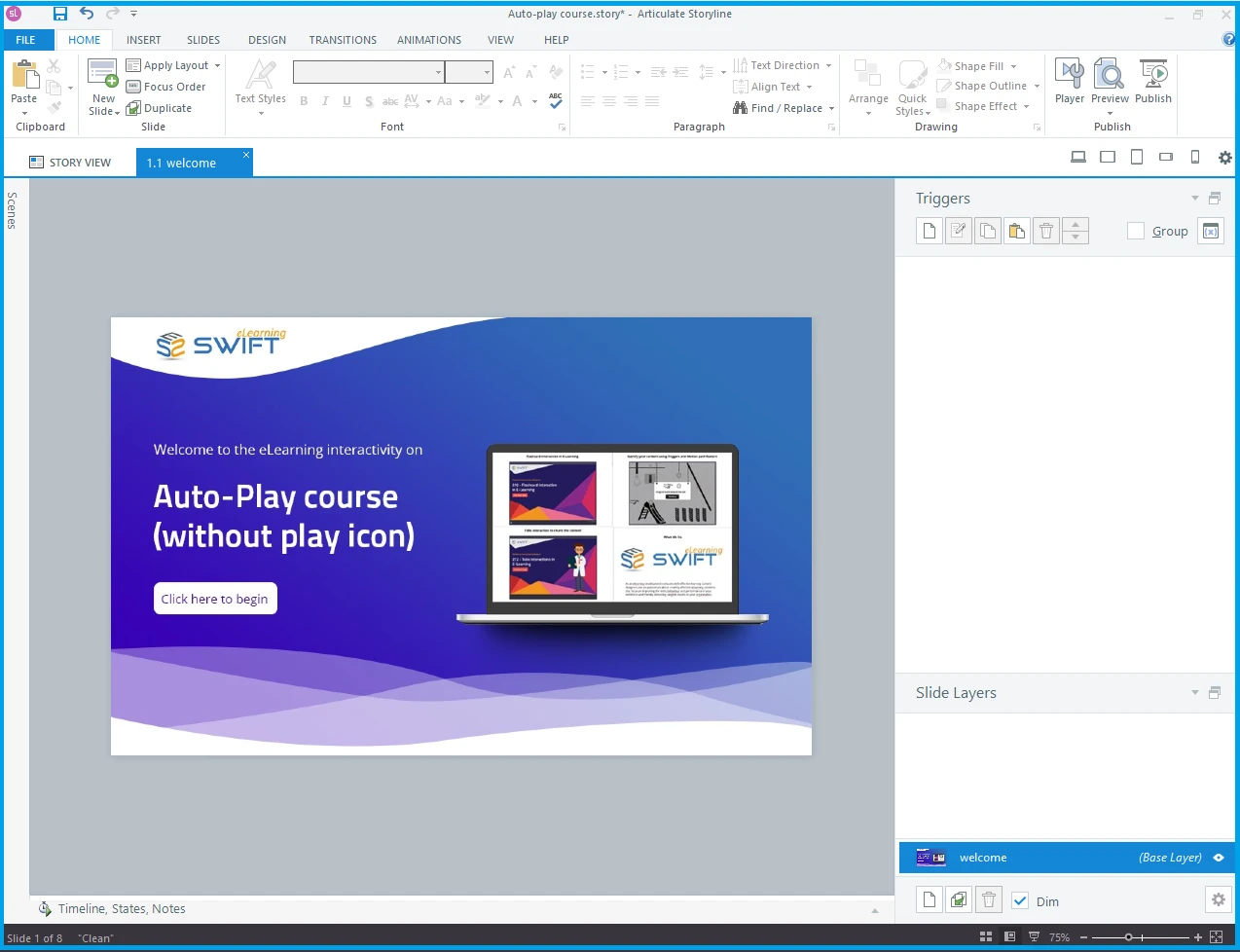
Add a new blank slide before your main course title or opening slide. Maintain the exact visual background design and branding as your main title screen so the transition is imperceptible.
-
02
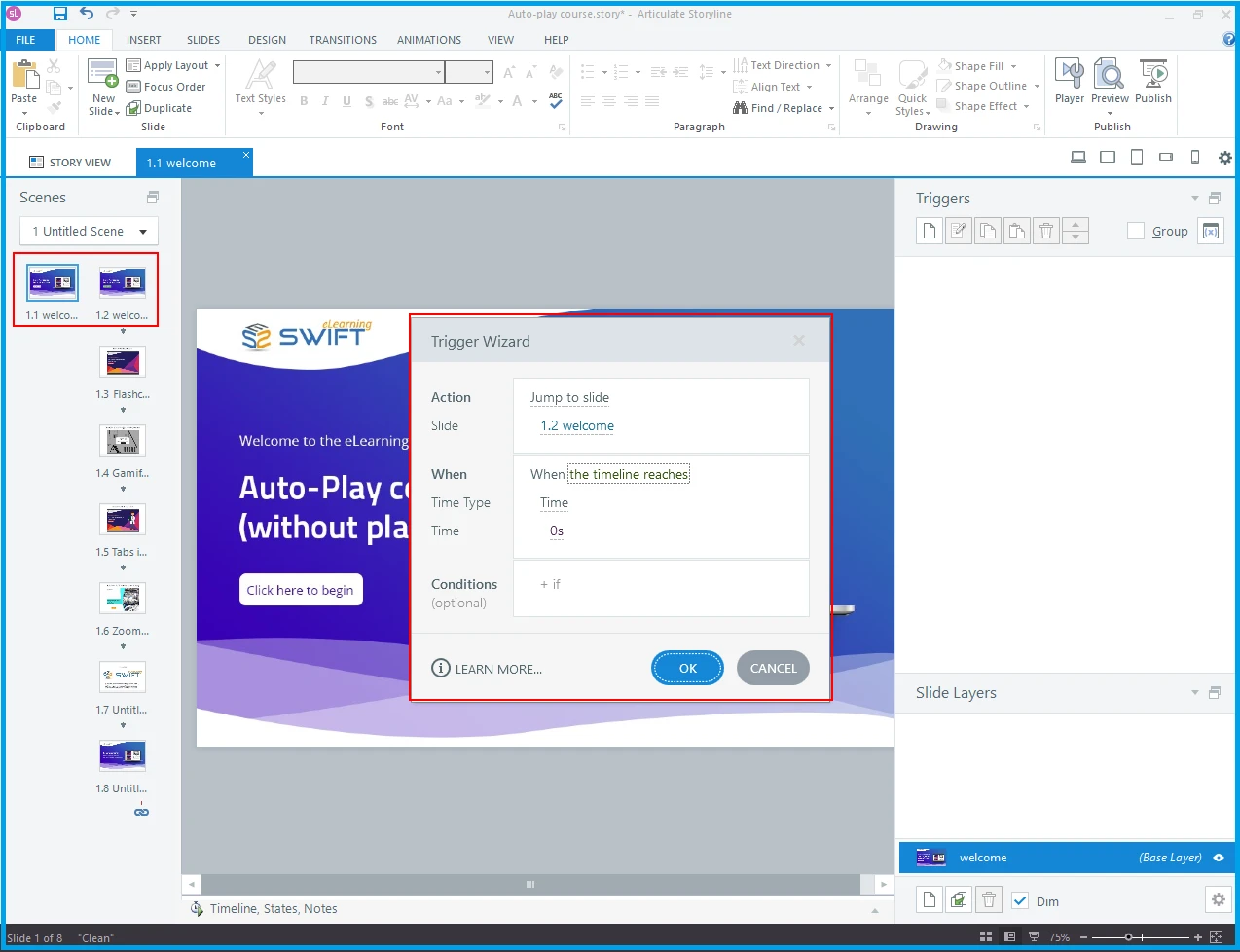
Add an Automated Jump Trigger
On this new initial slide, set a trigger: Jump to slide [Next Slide] when timeline starts.
-
03
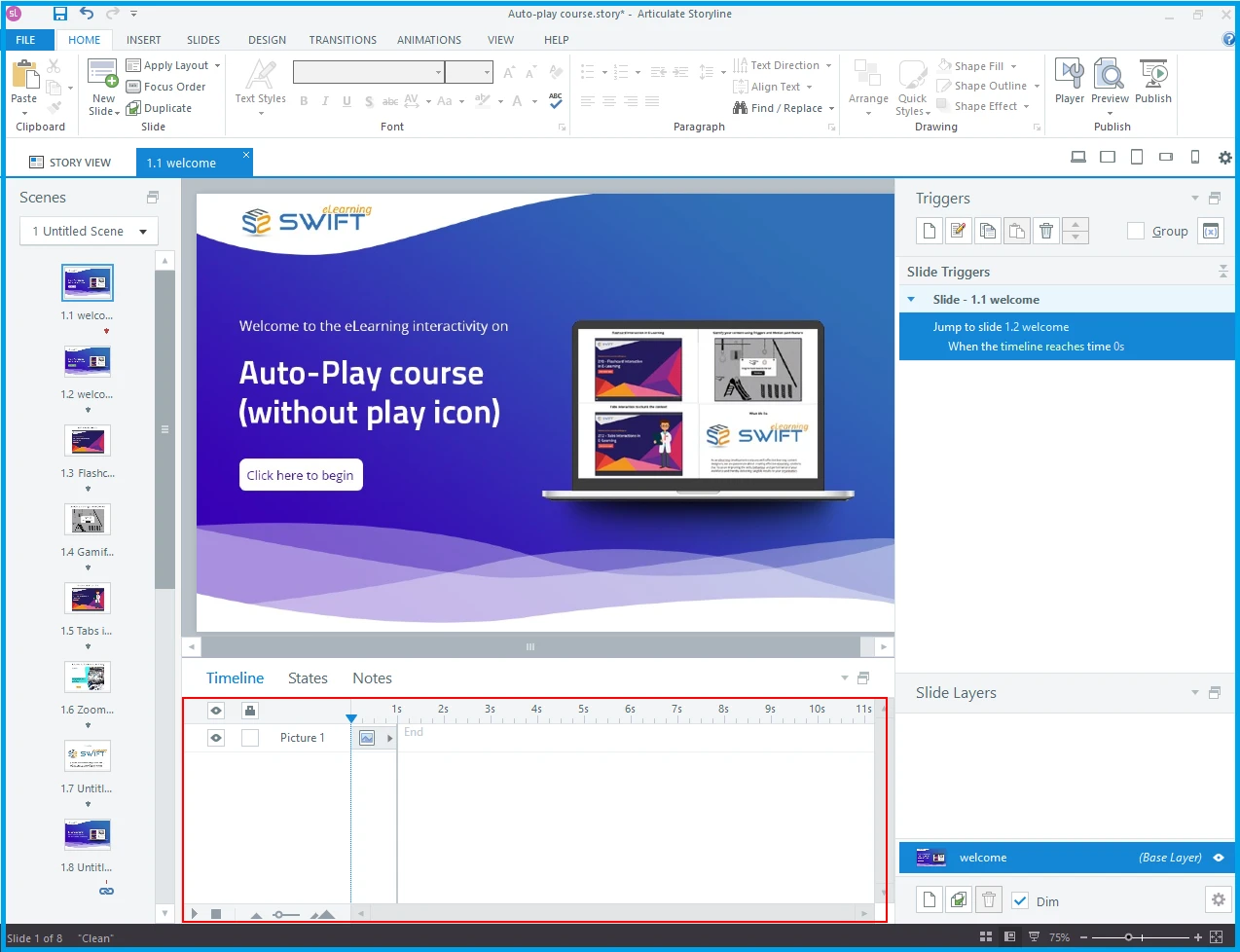
Ensure Zero Audio/Video Media on Slide 1
Verify there are no MP3, MP4, background audio, or video files placed on this newly inserted slide. Because no media is present, the browser will not trigger the media autoplay policy block.
-
04
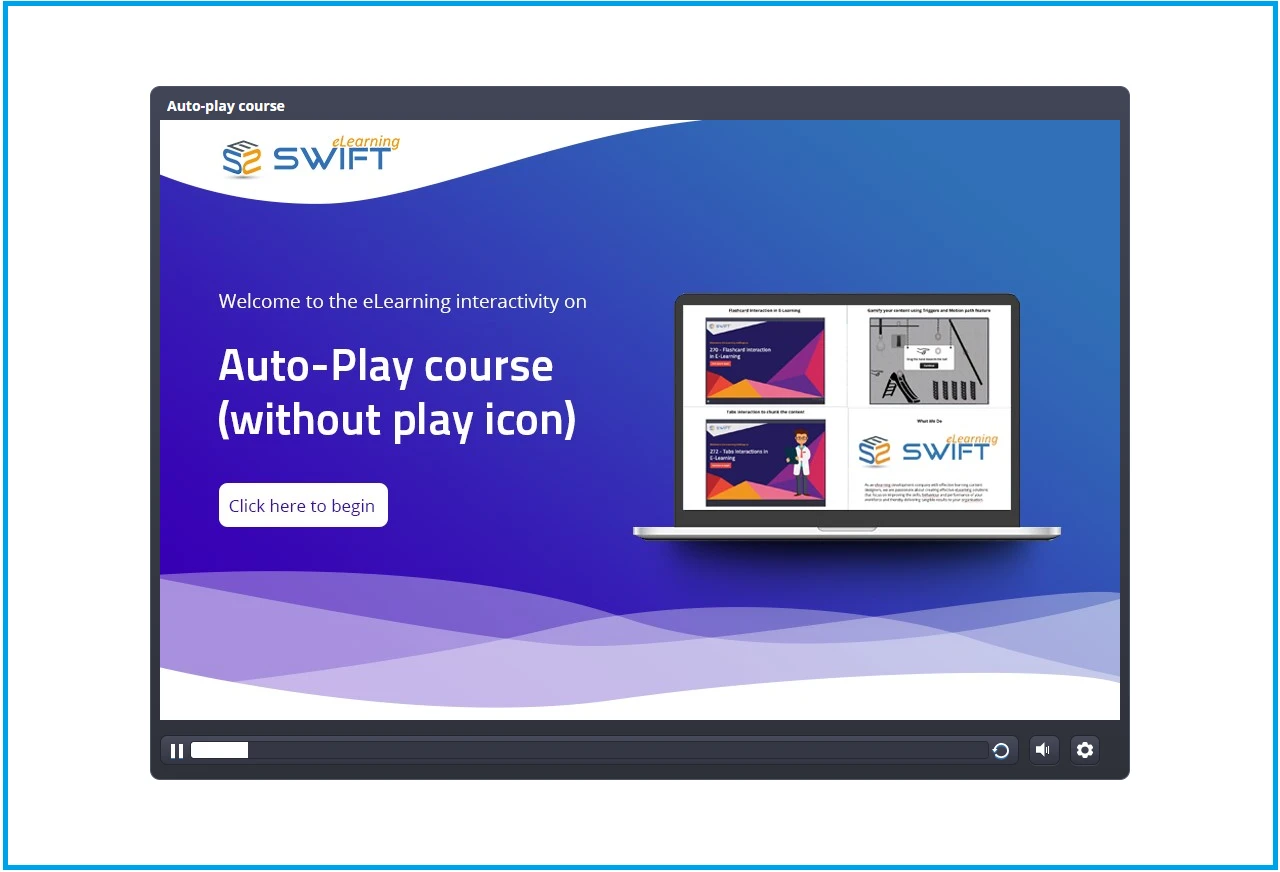
Publish and Test Your Course
Publish your project to Web or SCORM/xAPI for your LMS. When launched in Chrome, the browser will instantly execute the silent slide trigger and jump straight into your main course content smoothly.
Free Articulate Storyline 360 Video Tutorials
Looking to master course authoring in Storyline 360? Access our step-by-step video training library covering custom animations, trigger logic, variables, branching scenarios, and quiz development.
Frequently Asked Questions
Why does the play button appear in Chrome but not in other browsers?
"Media autoplay restrictions vary by browser version and user settings. Google Chrome and Safari enforce strict interaction policies" for media playback, whereas other browsers may allow unmuted auto play based on domain engagement scores.
How do I turn off player controls in Articulate Storyline 360?
"Go to the Home tab on the Storyline ribbon, click Player, select Features, and uncheck the Play/Pause option under Controls."
Why does the play button still appear in preview mode after making changes?
Ensure you saved your changes in the Player Properties window before testing. Additionally, local preview environments may handle media triggers differently than published HTML5 web servers or SCORM LMS packages.
Can I remove the play button by editing the published HTML5 output files?
"While custom JavaScript or HTML edits can alter player behavior, using the zero-media trigger slide method is the safest, standard-compliant solution" that persists without breaking after software updates.