
Step-by-Step Guide: Configuring Sidebar and Player Controls
-
01
Open Player Properties
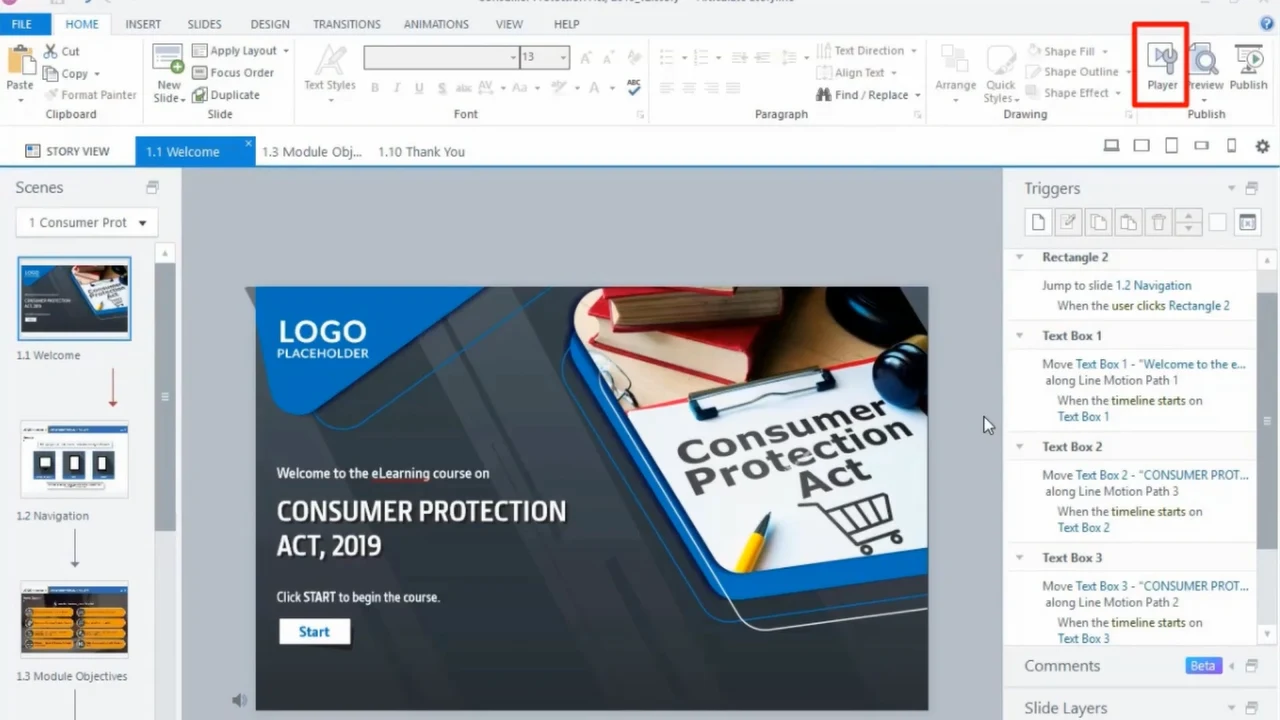
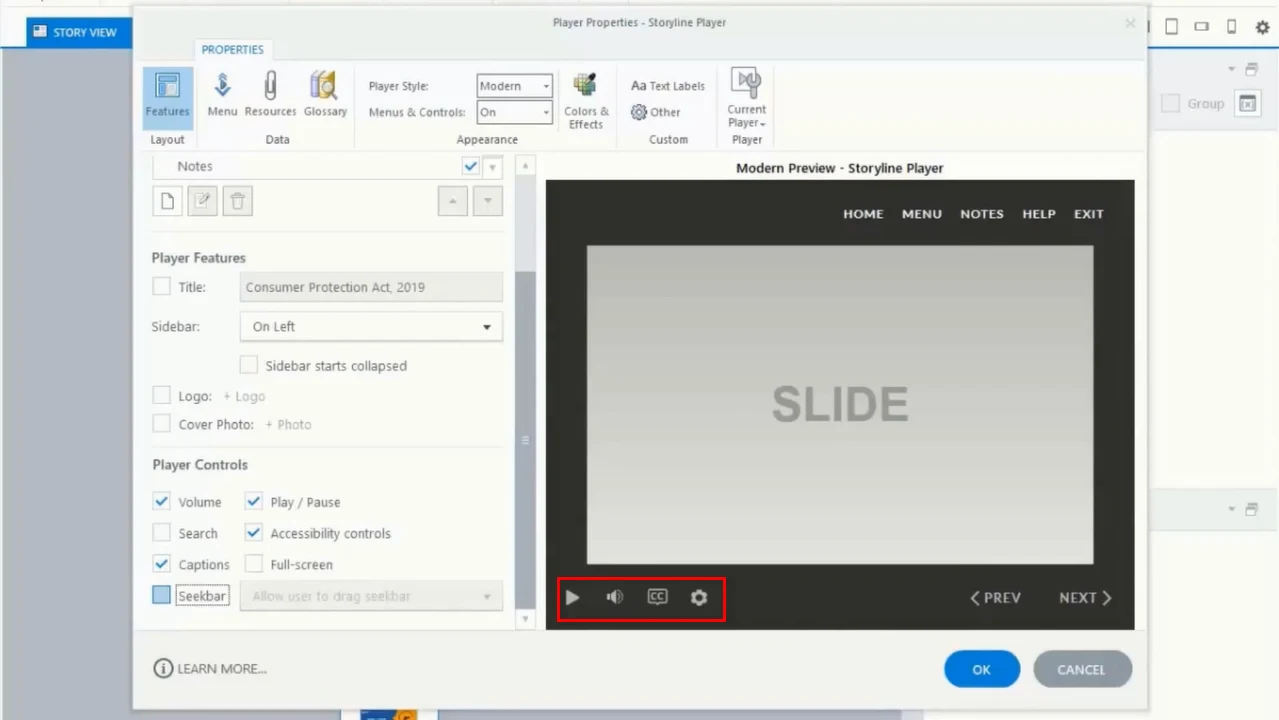
Launch your project in Articulate Storyline 360. On the top ribbon, select the Home tab and click the Player icon to open the Player Properties window.
-
02
Access Sidebar Options
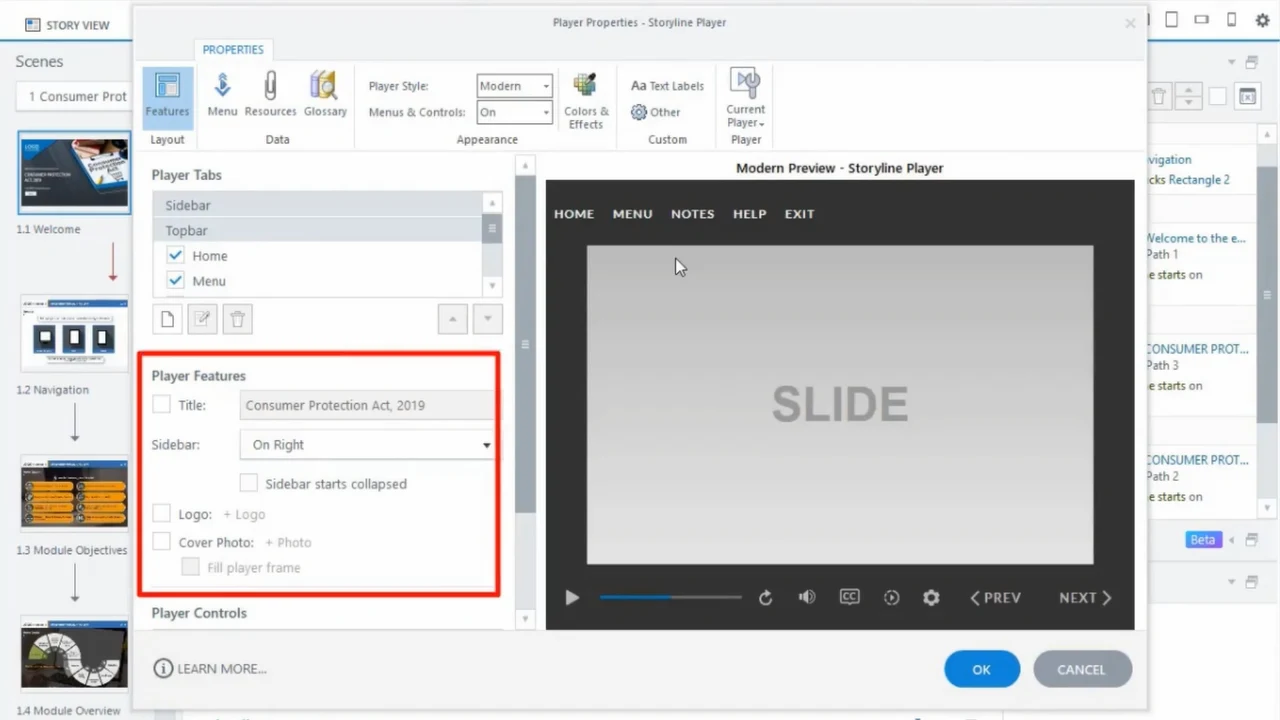
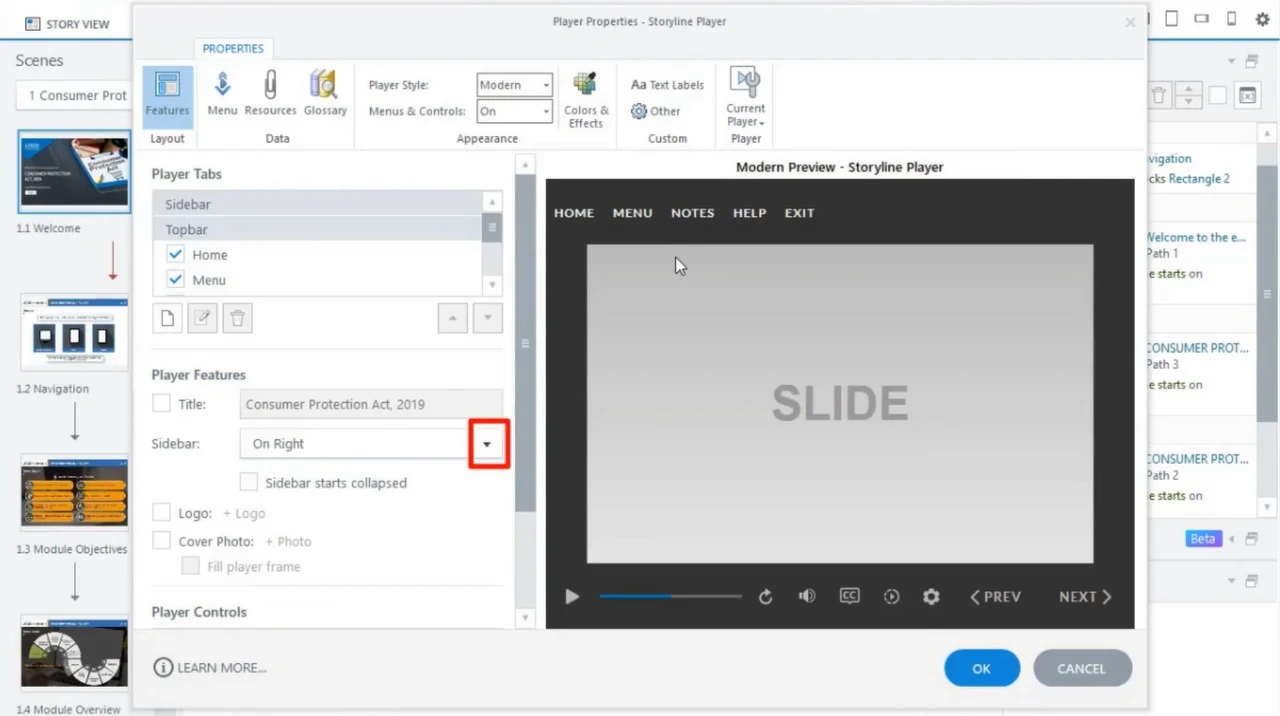
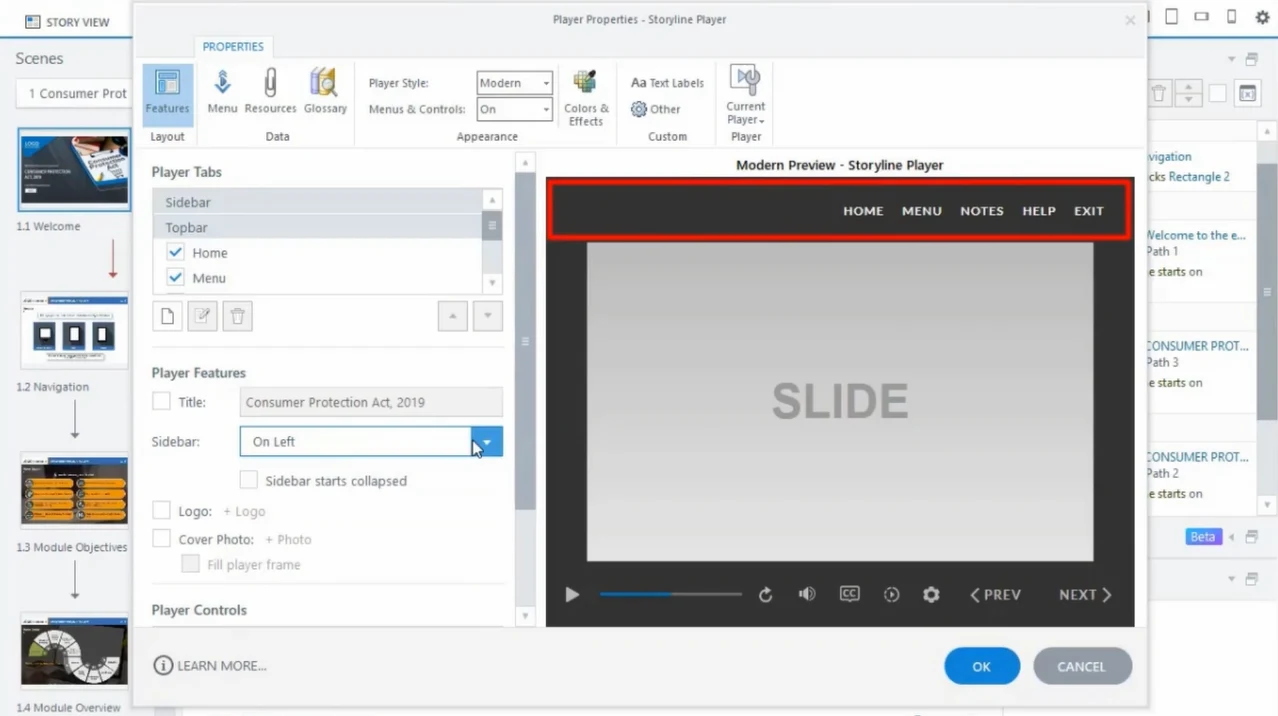
In the Player Features window, locate the Sidebar section and click the drop-down menu next to the Sidebar setting.
-
03
Reposition the Sidebar Menu
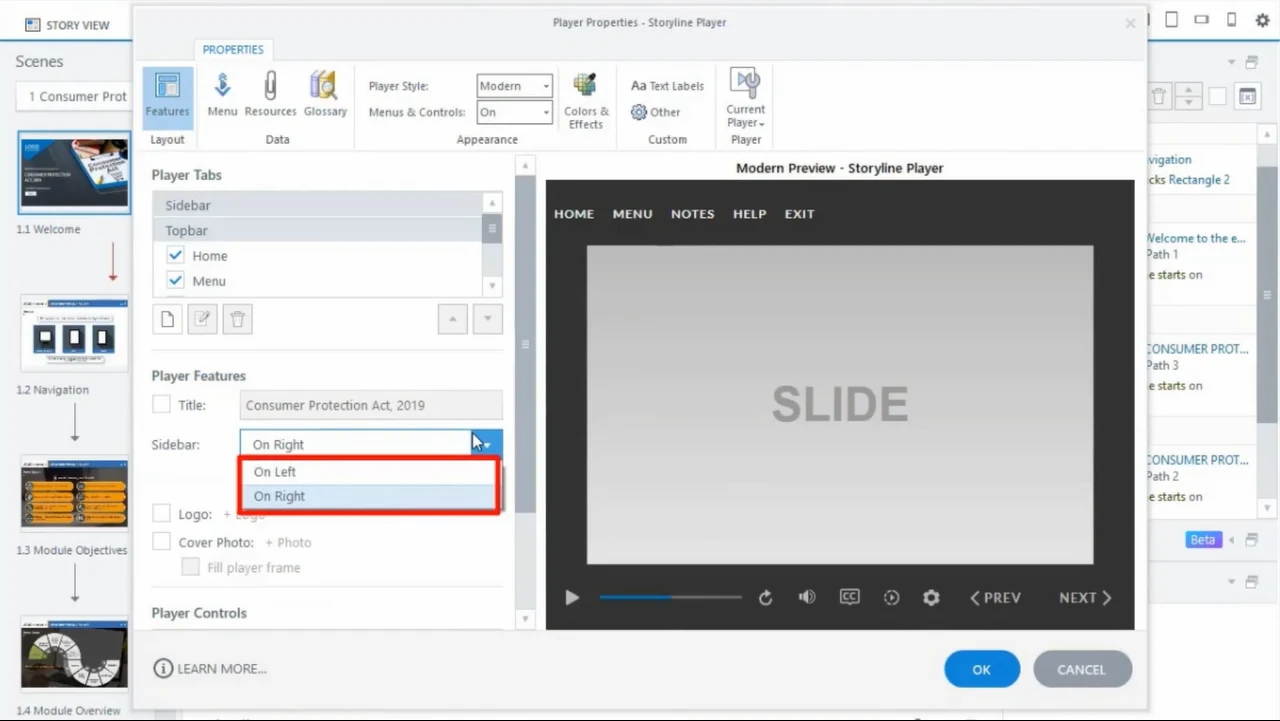
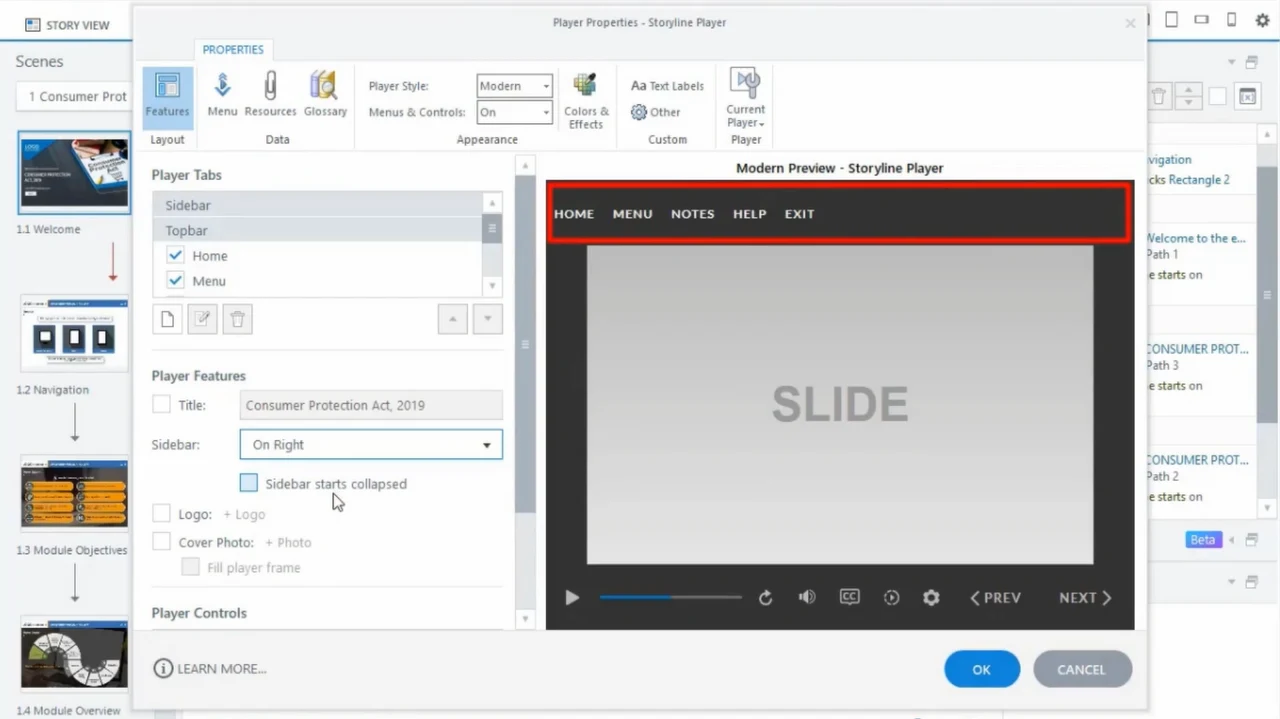
Select either On Left or On Right from the drop-down choices.
- Selecting On Left shifts the course navigation menu and resource tabs to the left side of the slide frame.
- Selecting On Right moves the menu and tabs to the right side.
-
04
Understanding Modern Player Control Alignment (Updates)
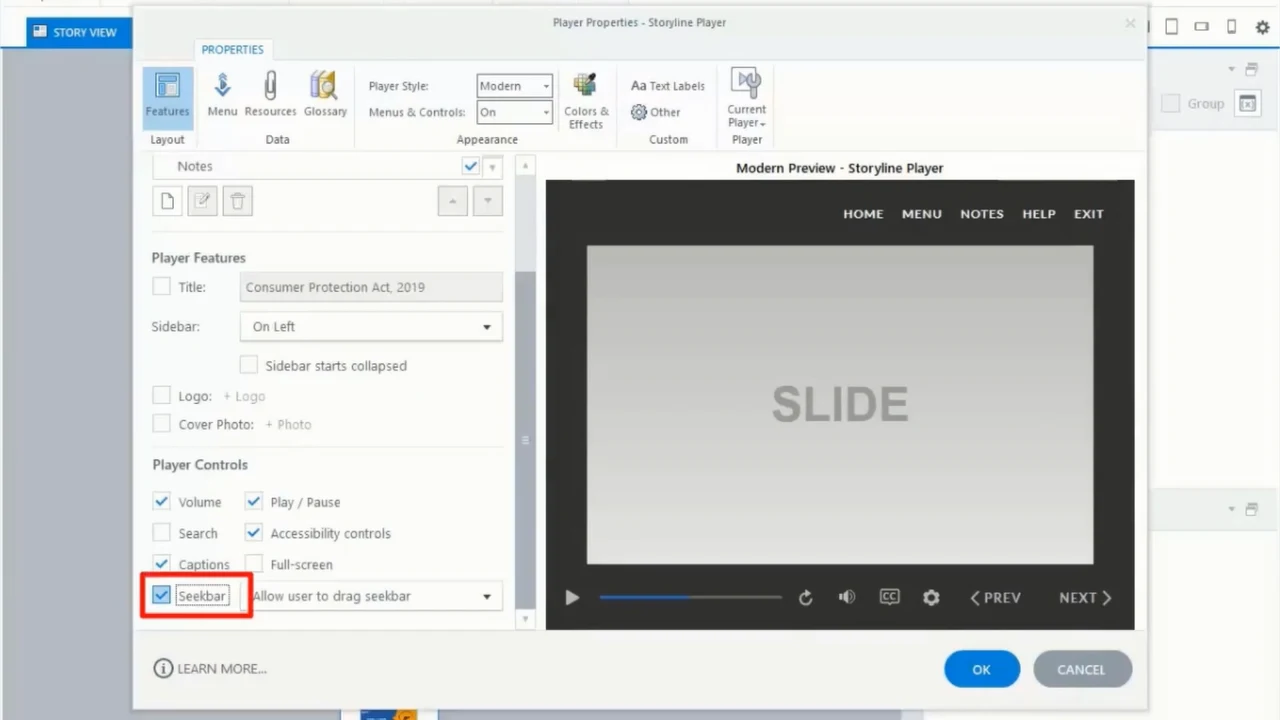
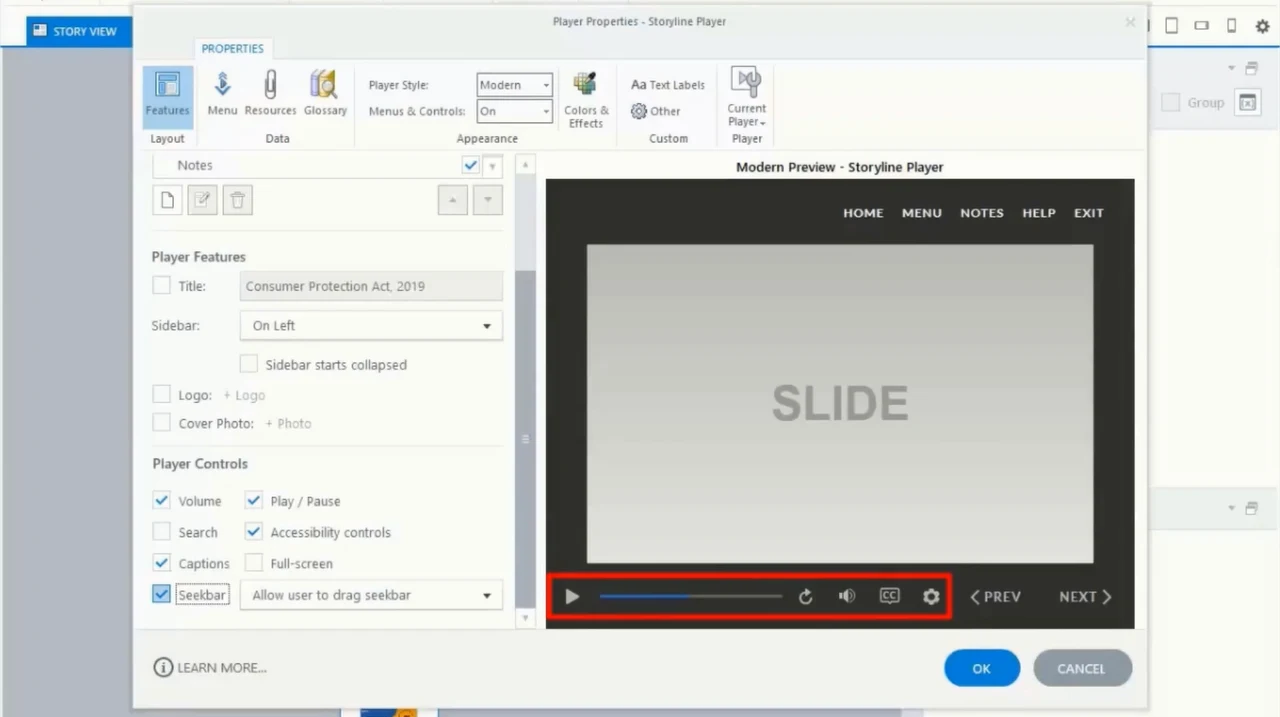
When customizing player controls (such as turning off the seekbar), Storyline 360 handles icon alignment differently compared to older legacy player builds:
- Legacy Behavior: In older Storyline versions, disabling the seekbar caused the Volume, Captions, and Accessibility icons to shift positions across the bottom bar dynamically, creating inconsistent UI alignment.
- Modern Player Behavior: In current releases of Storyline 360, deselecting the seekbar keeps the player controls locked in a consistent, left-aligned layout without shifting surrounding elements.
Frequently Asked Questions
How do I switch between the Modern Player and Classic Player in Storyline 360?
Open Player Properties, click Player Style on the ribbon, and choose either Modern or Classic from the drop-down menu.
Can I completely hide the sidebar to create a full-screen slide view?
Yes. In the Player Properties window under Features, uncheck the Menu and other sidebar tabs, or set the sidebar position to off to maximize the slide viewing area.
How do modern player controls adapt to mobile devices?
The Modern Player automatically responds to screen orientation and size. On mobile phones in portrait mode, the sidebar collapses into a drawer icon to optimize slide space.