
Why Use Custom Drop-down Menus in eLearning?
Because Articulate Storyline 360 does not offer a native drop-down menu form control, you can construct fully interactive drop-down menus using standard layers, custom object states, and triggers without writing complex JavaScript or using variables.
- ✓Optimized Real Estate
Frees up visual space on crowded slides by hiding selection options until the learner clicks.
- ✓Enhanced Engagement
Keeps interaction consistent with standard web forms, mobile apps, and user interfaces.
- ✓Structured Assessment
Allows learners to match terms, select definitions, or identify image labels systematically.
- ✓Conditional Submission
Enables submit controls only after all drop-down fields have been actively populated by the learner.
Step-by-Step Guide: Building a Drop-down Menu
-
01
Set Up Slide Graphics and Input Rectangles
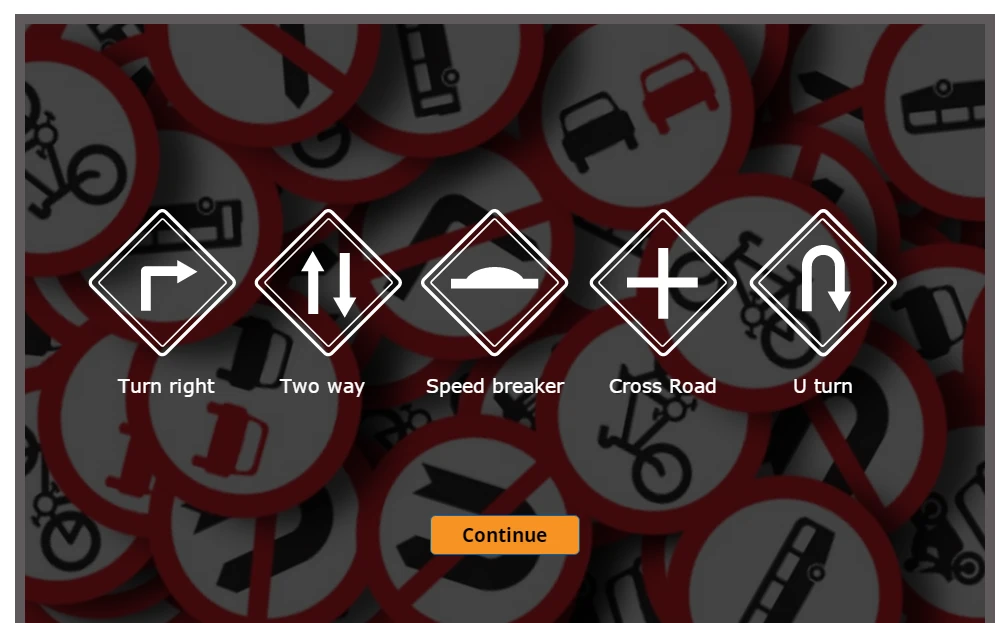
Create your slide background and place initial rectangular shapes where the drop-down select boxes should reside. For example, if you are creating a visual matching exercise for traffic signs, place an image asset next to each drop-down shape.
-
02
Create Slide Layers for Each Drop-down Menu
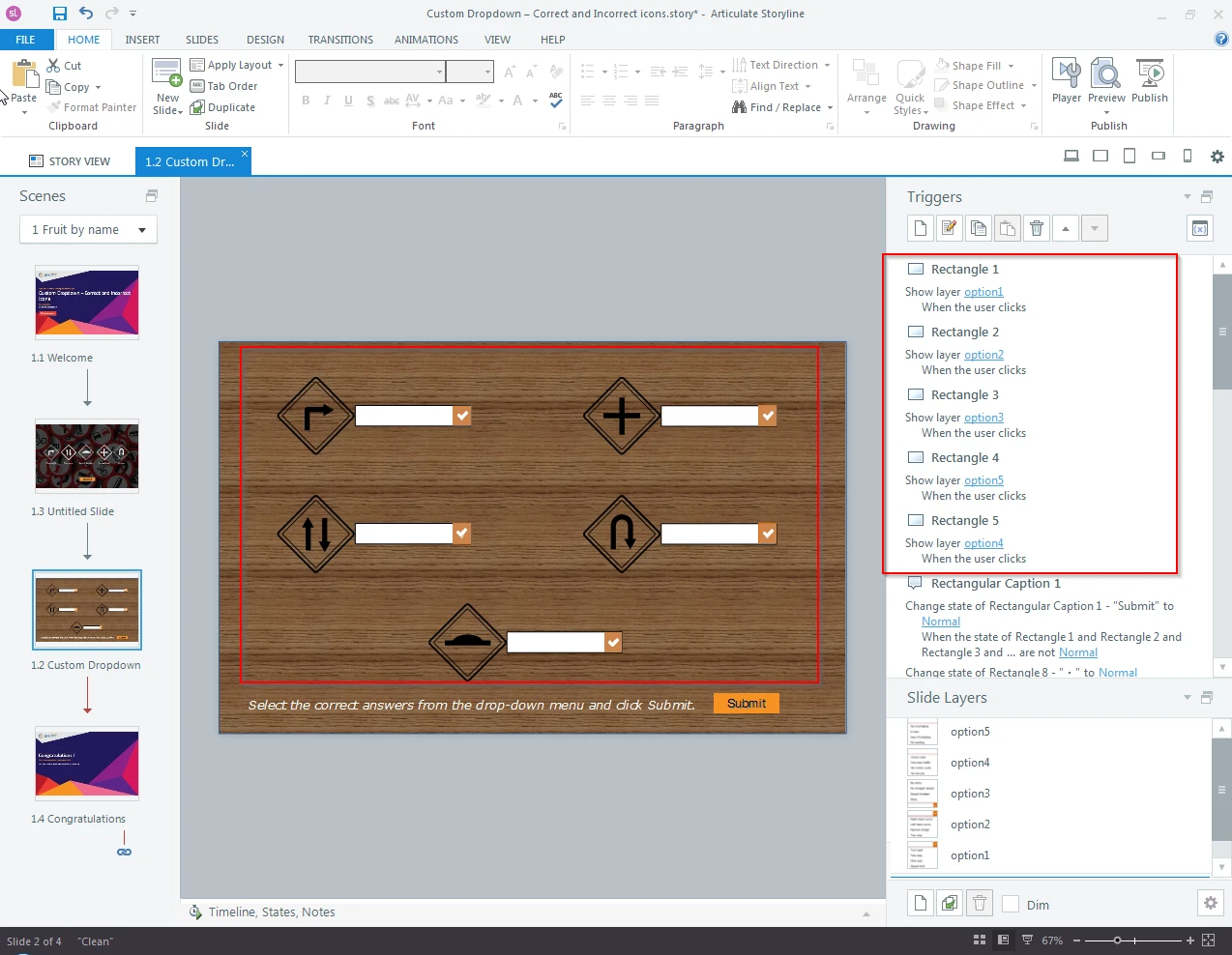
Create dedicated slide layers for each drop-down field (e.g., Option 1, Option 2, Option 3). These layers will contain the expanded selection options that pop up when a learner clicks the base shape. Assign Show Layer triggers to each base rectangle on the main slide.
-
03
Configure Custom Object States
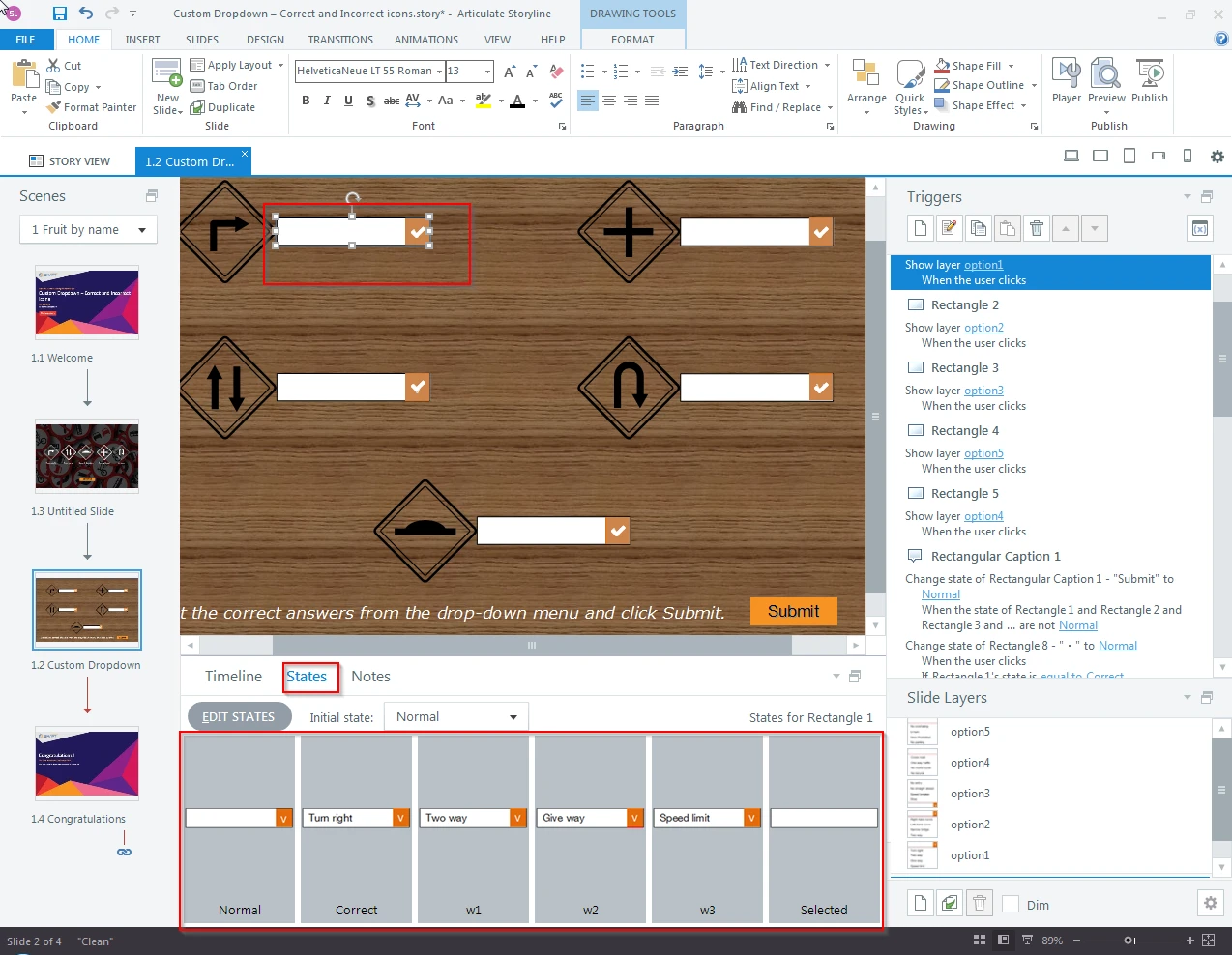
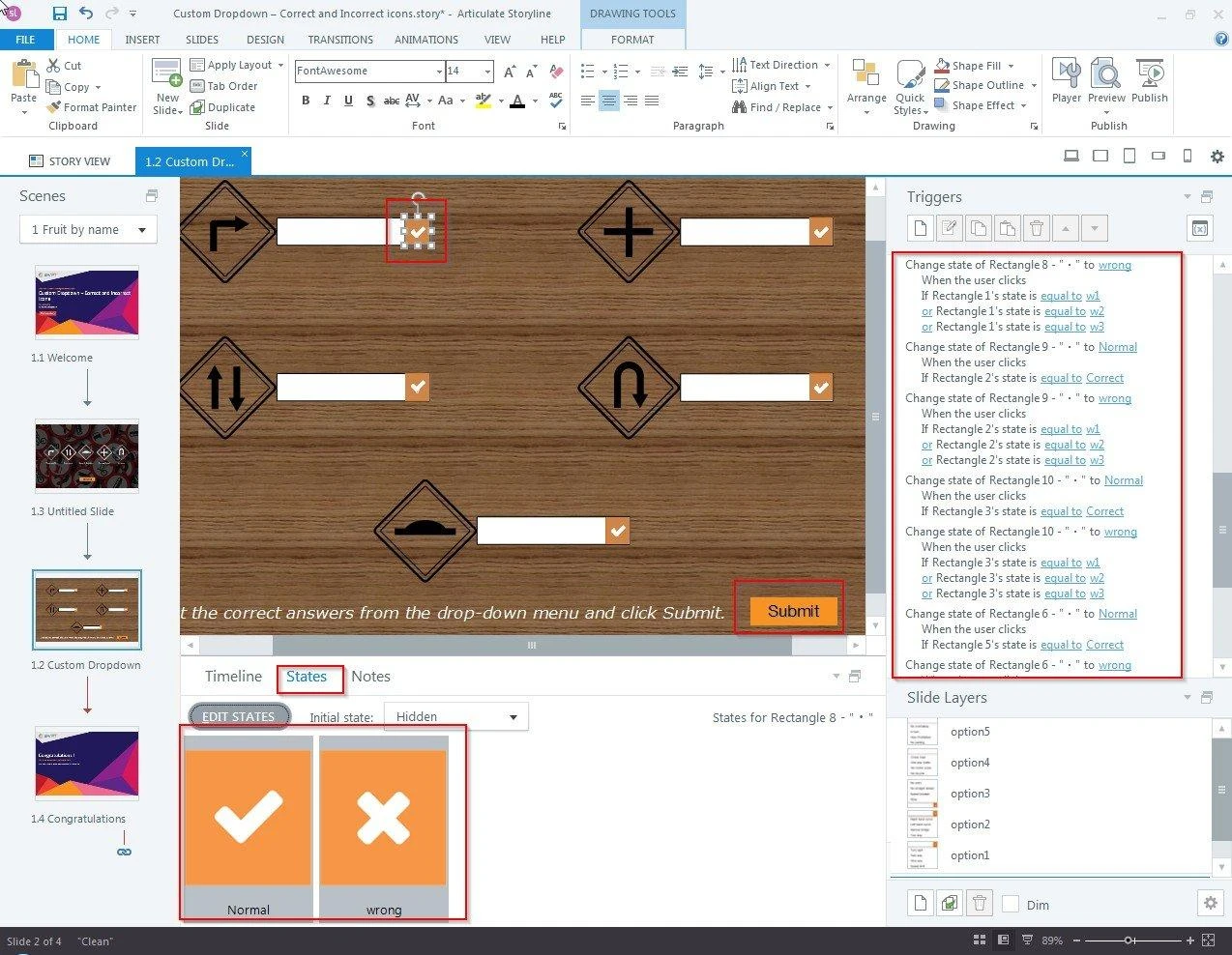
To display selected choices and track answers, add custom states to your main slide rectangles:
- Correct State: Displays the correct selected text option.
- Incorrect States (w1, w2, w3): Display alternative incorrect text options selected by the user.
-
04
Build Layer Option Triggers
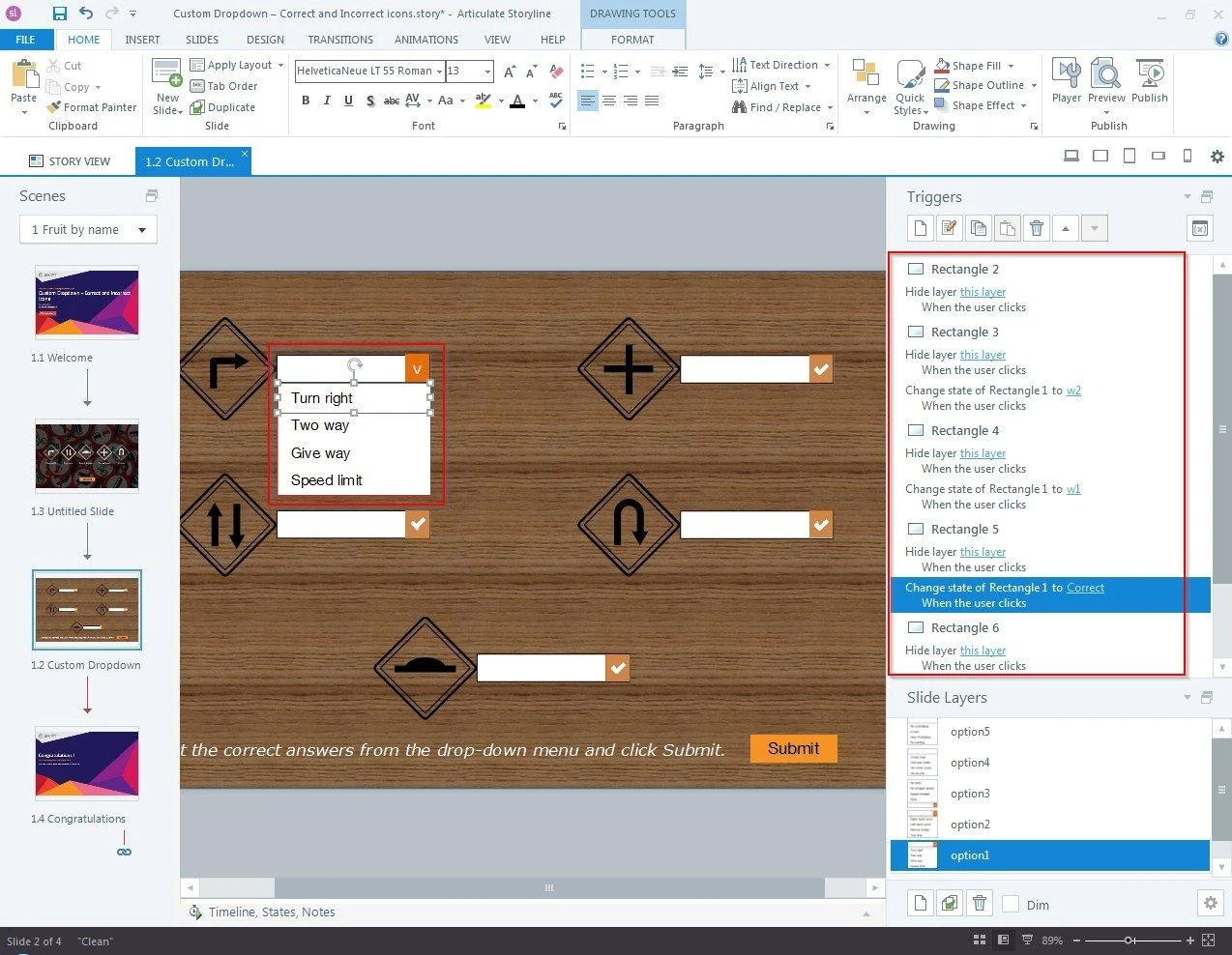
On each selection layer, draw option boxes for every available choice. Attach triggers to these option boxes so that when clicked:
- The state of the parent rectangle on the main slide changes to reflect the selection.
- The current slide layer closes automatically (Hide Layer).
-
05
Add Visual Validation Indicators
Add indicator shapes (such as checkmarks or cross marks) beside each drop-down box. Set up triggers to change these indicators to Normal (Correct) or Wrong (Incorrect) upon answer submission or selection change.
-
06
Test and Publish
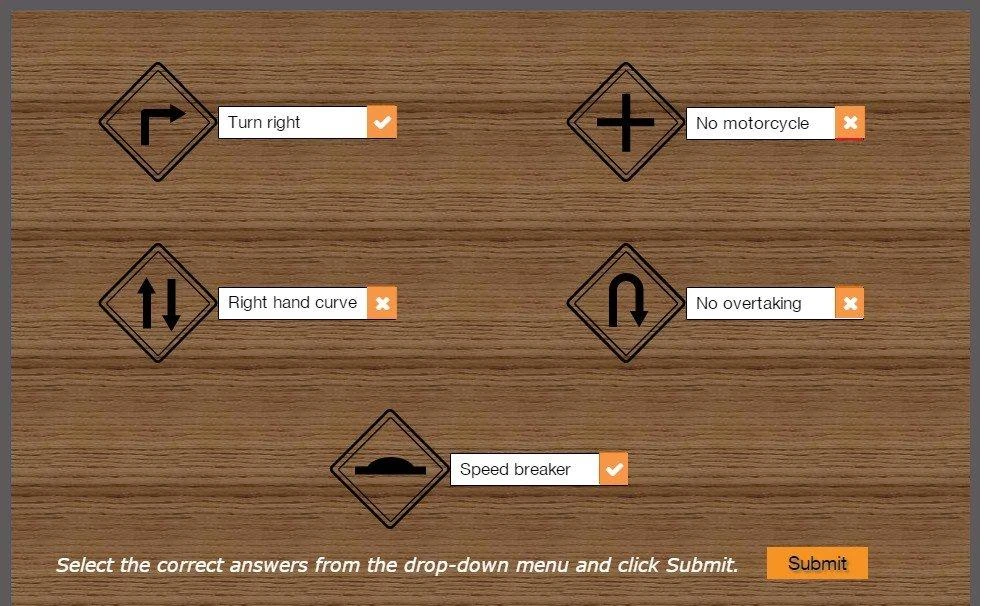
Preview your slide locally to verify that all layers hide and show smoothly, option text updates accurately, and answer validation icons execute cleanly.
Frequently Asked Questions
Do I need to use Storyline variables to track drop-down selections?
No. You can drive the entire drop-down behavior using built-in layer triggers and custom shape states alone.
Can I use custom drop-down menus for scored knowledge checks?
Yes. You can trigger hidden radio buttons or built-in freeform question picks behind the scenes to report scores directly to your LMS.
Are custom layer drop-down menus responsive on mobile viewports?
Yes. Because they are constructed with native Storyline shapes and layers, they adapt responsively within the Articulate modern player.