Storyline 360 Tutorial

How to Link Buttons Inside Storyline 360 Web Objects for Slide Navigation

Articulate Storyline 360 allows developers to embed external web content using Web Objects. However, triggering Storyline slide navigation from a button inside an embedded Web Object HTML iframe requires custom communication between the iframe and the Storyline player using JavaScript and Storyline variables.

This step-by-step tutorial demonstrates how to send signals from an HTML Web Object button to control Storyline slide navigation seamlessly.

Why Use JavaScript for Web Object Navigation?

Default Storyline player controls may not always align with custom UI designs or complex web integrations embedded inside a Web Object. Connecting HTML elements inside an iframe to Storyline allows you to:

  • Trigger native Storyline slide jumps from custom HTML/CSS/JS buttons.
  • Maintain fully custom, responsive interactive Web Object interfaces.
  • Pass data or user interaction states back into Storyline variables.

Step-by-Step Guide: Triggering Slide Navigation from a Web Object

  1. 01

    Identify Target Slide and Create a Control Variable

    • Identify the destination slide in your Storyline project.
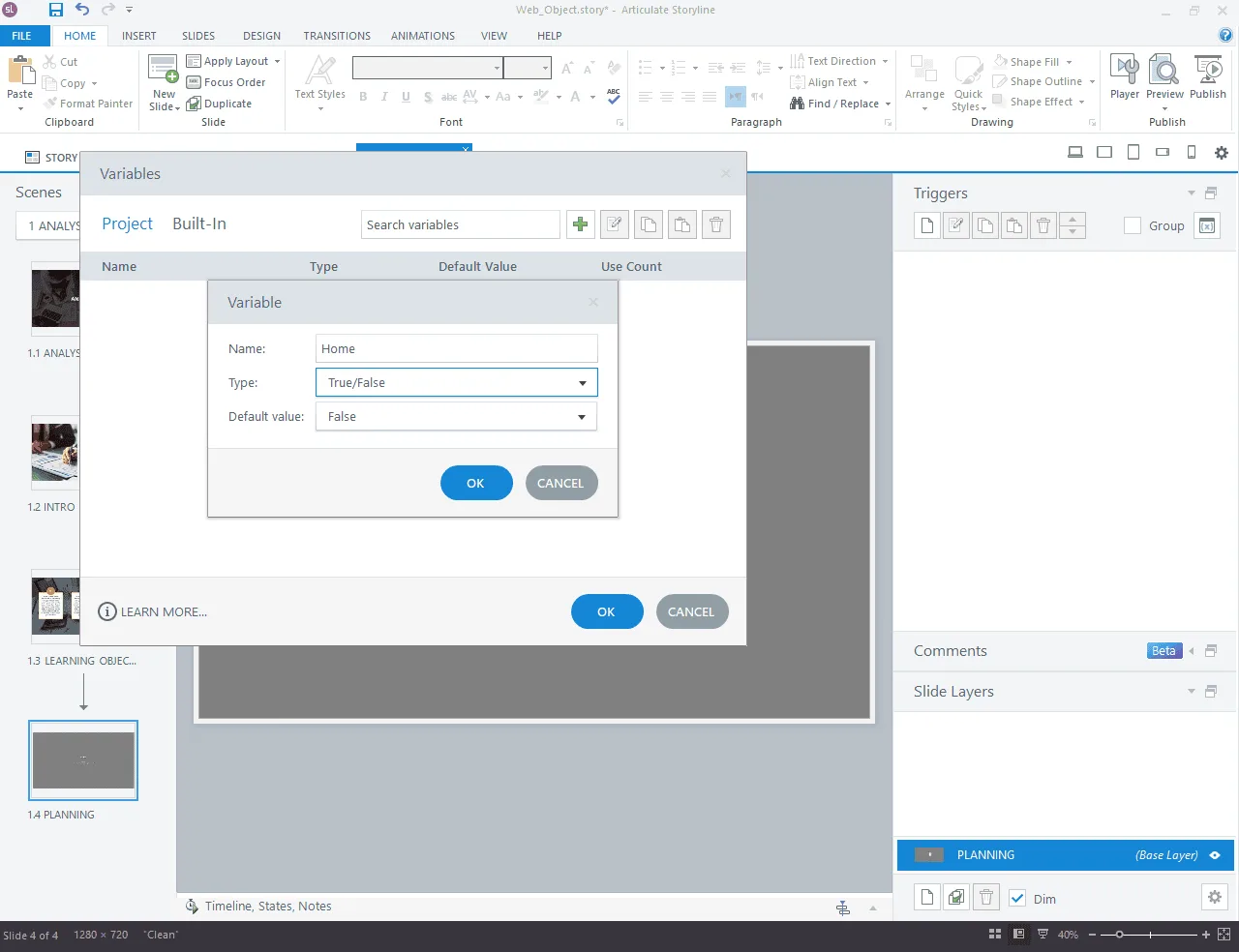
    • Open the Variables manager (x icon in the Triggers panel).
    • Create a new variable:
      • Name: home (or isHomeClicked)
      • Type: True/False
      • Default Value: False
    Articulate Storyline Variables panel with the Variable dialog open, creating a True/False variable named Home with a default value of False
  2. 02

    Add Navigation and Reset Triggers in Storyline

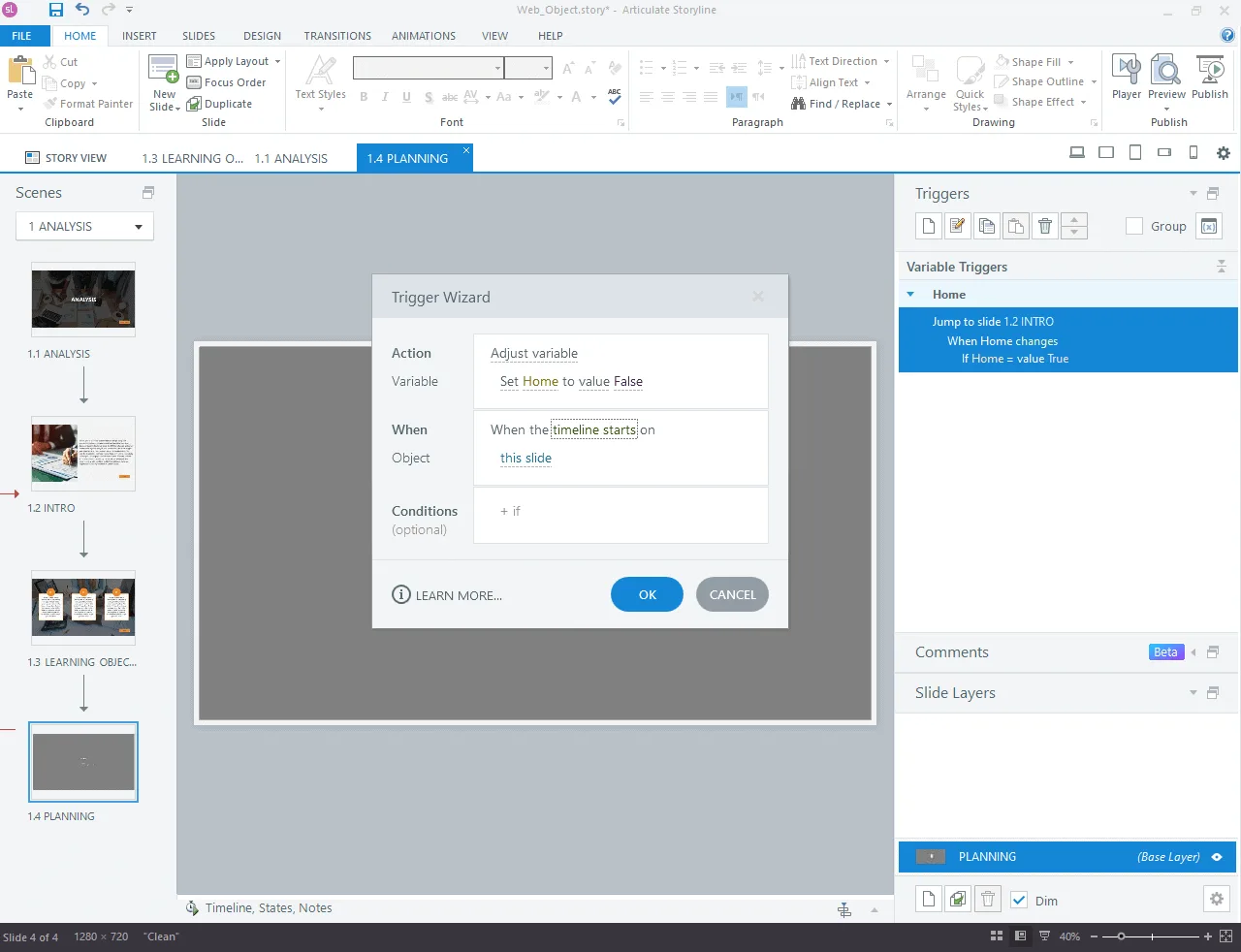
    On the slide containing your Web Object, create two triggers:

    Trigger 1 (Navigation Trigger):

    • Action: Jump to slide (Select your target destination slide)
    • When: Variable changes (home)
    • Condition: If home == True

    Trigger 2 (Reset Variable Trigger):

    • Action: Set home to False
    • When: Timeline starts on this slide

    Note: Resetting the variable ensures smooth navigation when learners return to this slide.
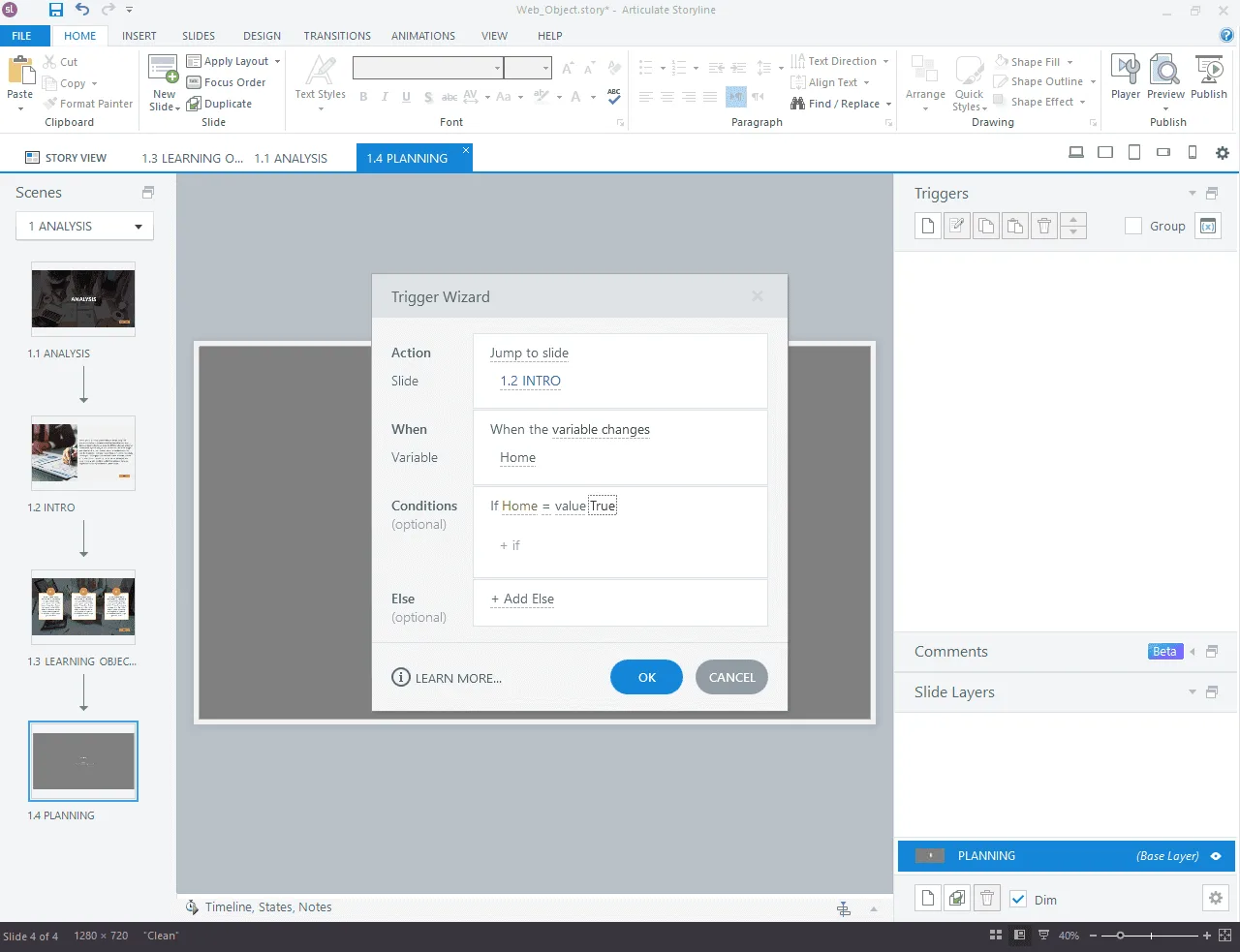
    Storyline Trigger Wizard set to Jump to slide when the Home variable changes, with the condition If Home equals value True Storyline Trigger Wizard set to Adjust variable, setting Home to value False when the timeline starts on this slide
  3. 03

    Add the JavaScript Event Listener to Your Web Object Button

    In your Web Object's HTML/JavaScript source code, attach an event listener to your button element. The script uses the GetPlayer() API via parent context to update the Storyline variable upon clicking.

    // Locate the HTML button inside your Web Object const navButton = document.getElementById("yourButtonId"); navButton.addEventListener("click", function() { // Access the Storyline player interface from the iframe window var player = parent.GetPlayer(); // Set the Storyline variable 'home' to true player.SetVar("home", true); });

    Note: Replace "yourButtonId" with the actual ID attribute assigned to your button in the HTML code.

Testing and Troubleshooting Cross-Origin (CORS) Issues

When testing your project locally, browser security policies may block communication between the iframe Web Object and the Storyline player due to CORS (Cross-Origin Resource Sharing) restrictions.

Recommended Verification Methods:

  • Articulate Review 360: Publish directly to Review 360 to test communication on an active HTTPS server.
  • LMS / SCORM: Upload to your LMS environment or testing platform (e.g., SCORM Cloud).
  • Local Web Server: Run the published output through a local web server (such as Node.js http-server or VS Code Live Server) rather than launching story.html directly from a local file directory (file://).
FAQ

Frequently Asked Questions

What are Web Objects in Articulate Storyline 360?

Web Objects allow authors to embed external web pages, web applications, or custom HTML5 content directly into a Storyline slide iframe.

How does JavaScript communicate between a Web Object and Storyline?

The embedded iframe calls parent.GetPlayer() to reference the main Storyline player object, allowing execution of API functions such as SetVar() and GetVar().

Can I pass text or number variables from a Web Object into Storyline?

Yes. You can pass text strings or numbers using player.SetVar("yourVariableName", value) to update any variable type defined in Storyline.

Off-the-Shelf Training Catalog

Off-the-Shelf Occupational Health and Safety (OHS) Courses

Regulatory Compliance & Workplace Safety

Browse our ready-to-deploy catalog of SCORM-packaged safety courses tailored for industrial, operational, resources, and facility teams operating in Canada:

  • Workplace Hazardous Materials Information System (WHMIS) hazard communication and emergency response procedures.
  • Personal Protective Equipment (PPE) utilization guidelines, ergonomics, and workplace first-aid readiness.
  • Fire risk prevention, working safely in heights, cold-weather safety SOPs, and Lockout/Tagout (LOTO) protocols.
Free Professional Development Modules

Free Corporate Professional Development

Enhance your organization's capabilities with our complimentary corporate soft skills modules. Designed to drive workforce growth and operational efficiency, these complimentary professional development resources provide foundational training in essential workplace competencies. It includes high-impact communication, strategic leadership, effective team collaboration, and uncompromising workplace ethics.

Related Solutions

Explore Related eLearning Solutions

Custom Course Development

Build tailored corporate training aligned with your specific organizational and compliance objectives.

Learn more about Custom Course Development

PPT to eLearning Conversion

Convert static documentation and presentations into interactive, learner-centric modules.

Learn more about PPT to eLearning Conversion

Localization & Accessibility Services

Adapt courses for global teams with multi-language voiceovers, translation, and full WCAG compliance.

Learn more about Localization & Accessibility Services
Get in Touch

Ready to Transform Your Training?

Get a tailored project proposal, custom timeline, and a free SCORM sample built directly from a slice of your existing training materials.

  • Free Proof-of-Concept

    Send us a short document or presentation, and we'll transform it into an interactive SCORM sample so you can judge our instructional design.

  • Expert Consultation

    Talk directly with our eLearning specialist to align your business goals with the right technology stack.

  • Transparent Pricing

    Clear cost estimates and realistic project milestones delivered with zero hidden fees.

Prefer direct email? Reach our lead team at [email protected].

Send Us a Message

Fill in a few details and we'll get straight back to you.