
Storyline 360 Tutorial

How to Create Custom Drop-down Interactivity in Articulate Storyline 360

When designing eLearning courses, maximizing slide real estate while maintaining clean visual aesthetics is a constant challenge. Drop-down navigation and select menus provide an efficient solution by consolidating multiple choices or quiz options into compact, organized UI components.

Why Use Custom Drop-down Menus in eLearning?

Because Articulate Storyline 360 does not offer a native drop-down menu form control, you can construct fully interactive drop-down menus using standard layers, custom object states, and triggers without writing complex JavaScript or using variables.

  • ✓
    Optimized Real Estate

    Frees up visual space on crowded slides by hiding selection options until the learner clicks.

  • ✓
    Enhanced Engagement

    Keeps interaction consistent with standard web forms, mobile apps, and user interfaces.

  • ✓
    Structured Assessment

    Allows learners to match terms, select definitions, or identify image labels systematically.

  • ✓
    Conditional Submission

    Enables submit controls only after all drop-down fields have been actively populated by the learner.

Step-by-Step Guide: Building a Drop-down Menu

  1. 01

    Set Up Slide Graphics and Input Rectangles

    Create your slide background and place initial rectangular shapes where the drop-down select boxes should reside. For example, if you are creating a visual matching exercise for traffic signs, place an image asset next to each drop-down shape.
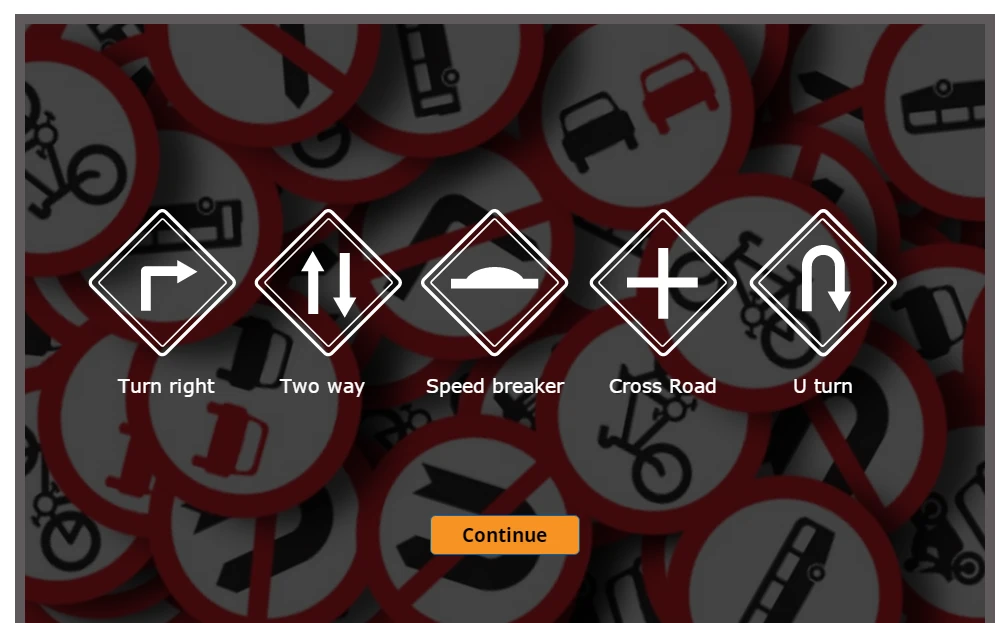
    Storyline 360 slide showing traffic sign icons paired with label text as the starting slide graphics for a custom drop-down matching exercise
  2. 02

    Create Slide Layers for Each Drop-down Menu

    Create dedicated slide layers for each drop-down field (e.g., Option 1, Option 2, Option 3). These layers will contain the expanded selection options that pop up when a learner clicks the base shape. Assign Show Layer triggers to each base rectangle on the main slide.
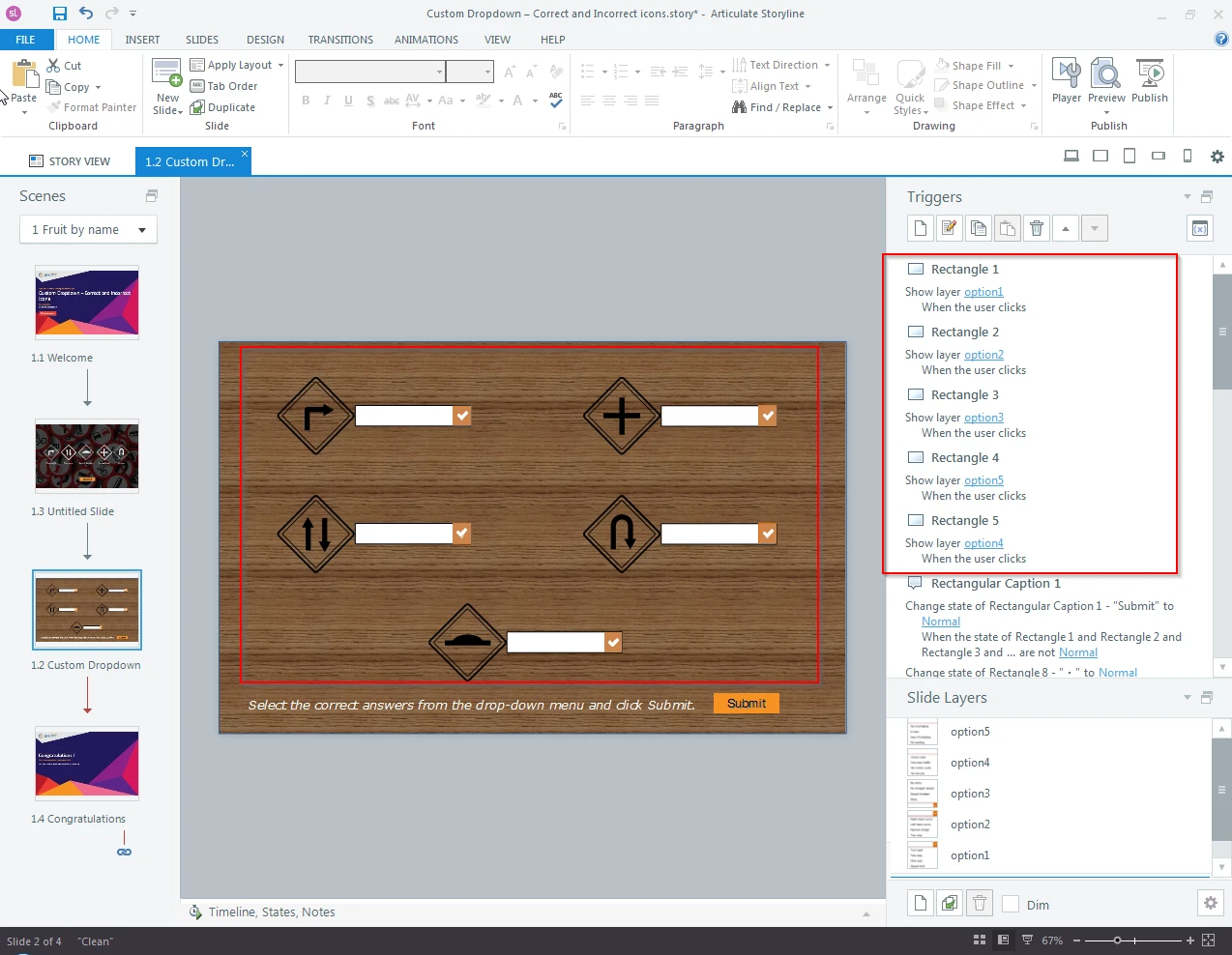
    Articulate Storyline 360 Triggers panel showing Show Layer triggers assigned to each rectangle, opening a matching option1-5 slide layer for the drop-down menu
  3. 03

    Configure Custom Object States

    To display selected choices and track answers, add custom states to your main slide rectangles:

    • Correct State: Displays the correct selected text option.
    • Incorrect States (w1, w2, w3): Display alternative incorrect text options selected by the user.
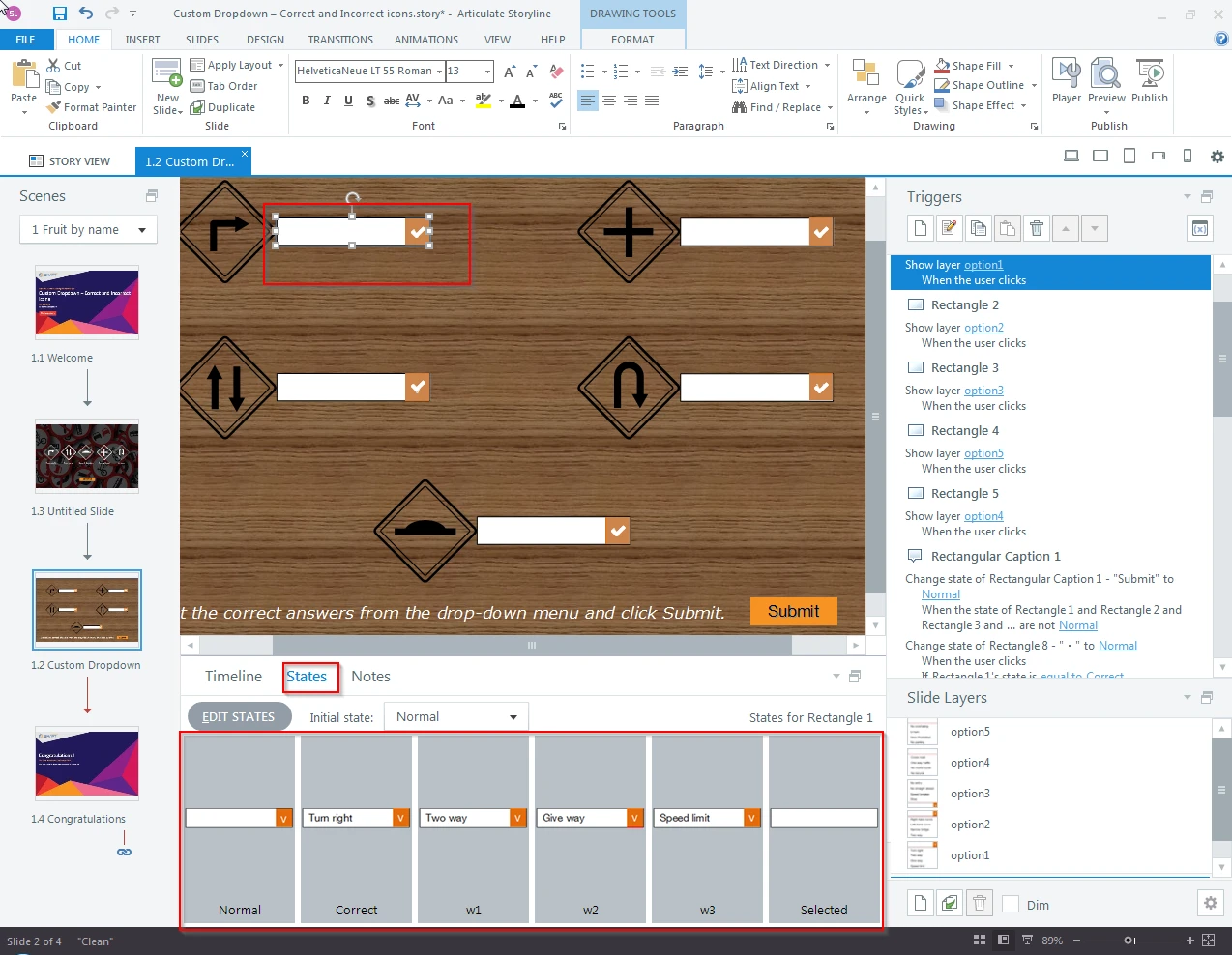
    Storyline 360 States panel for a drop-down rectangle showing custom Normal, Correct, and w1/w2/w3 incorrect answer states
  4. 04

    Build Layer Option Triggers

    On each selection layer, draw option boxes for every available choice. Attach triggers to these option boxes so that when clicked:

    • The state of the parent rectangle on the main slide changes to reflect the selection.
    • The current slide layer closes automatically (Hide Layer).
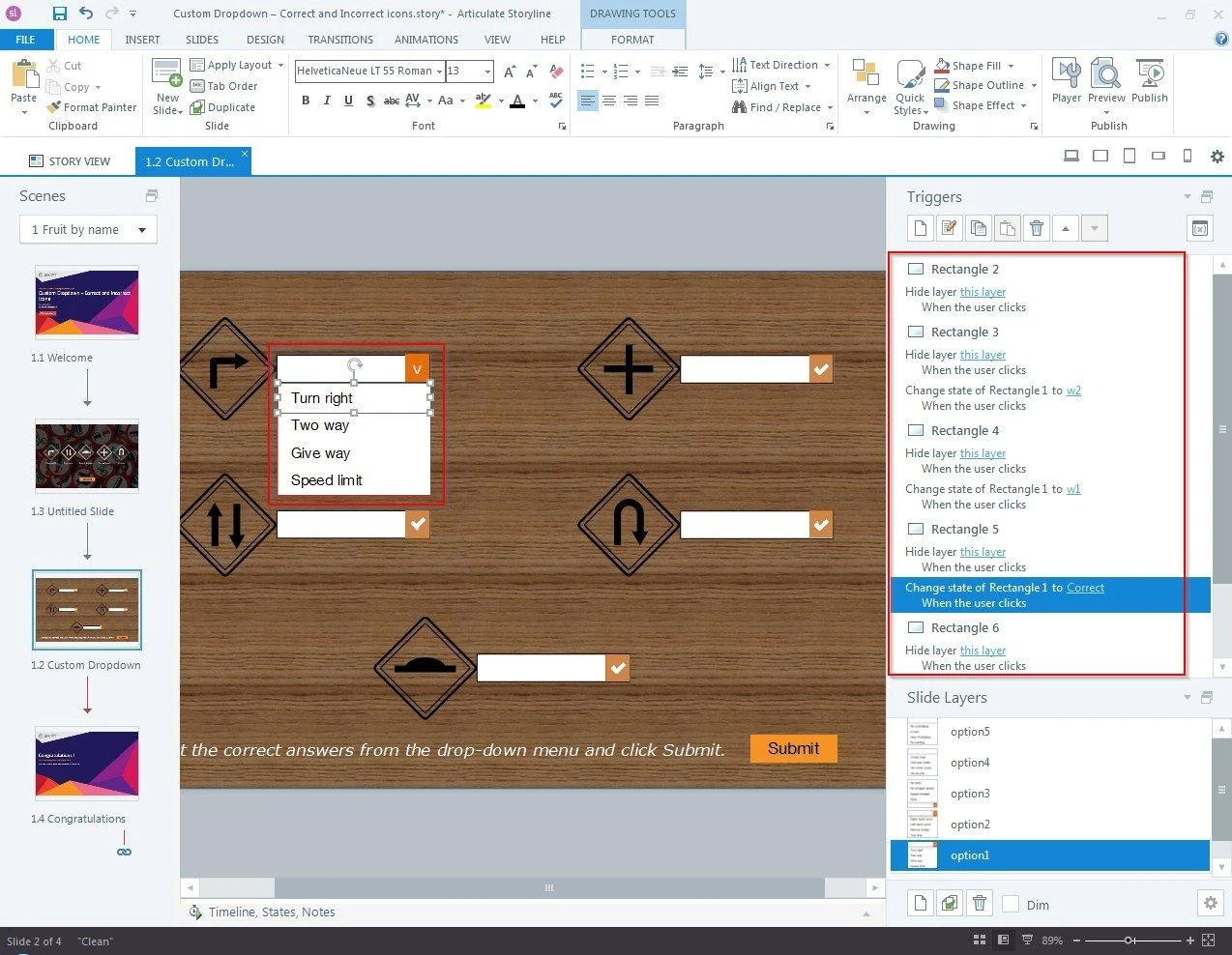
    Storyline 360 option layer with triggers that change the main rectangle's state and hide the layer when a learner clicks a drop-down choice
  5. 05

    Add Visual Validation Indicators

    Add indicator shapes (such as checkmarks or cross marks) beside each drop-down box. Set up triggers to change these indicators to Normal (Correct) or Wrong (Incorrect) upon answer submission or selection change.
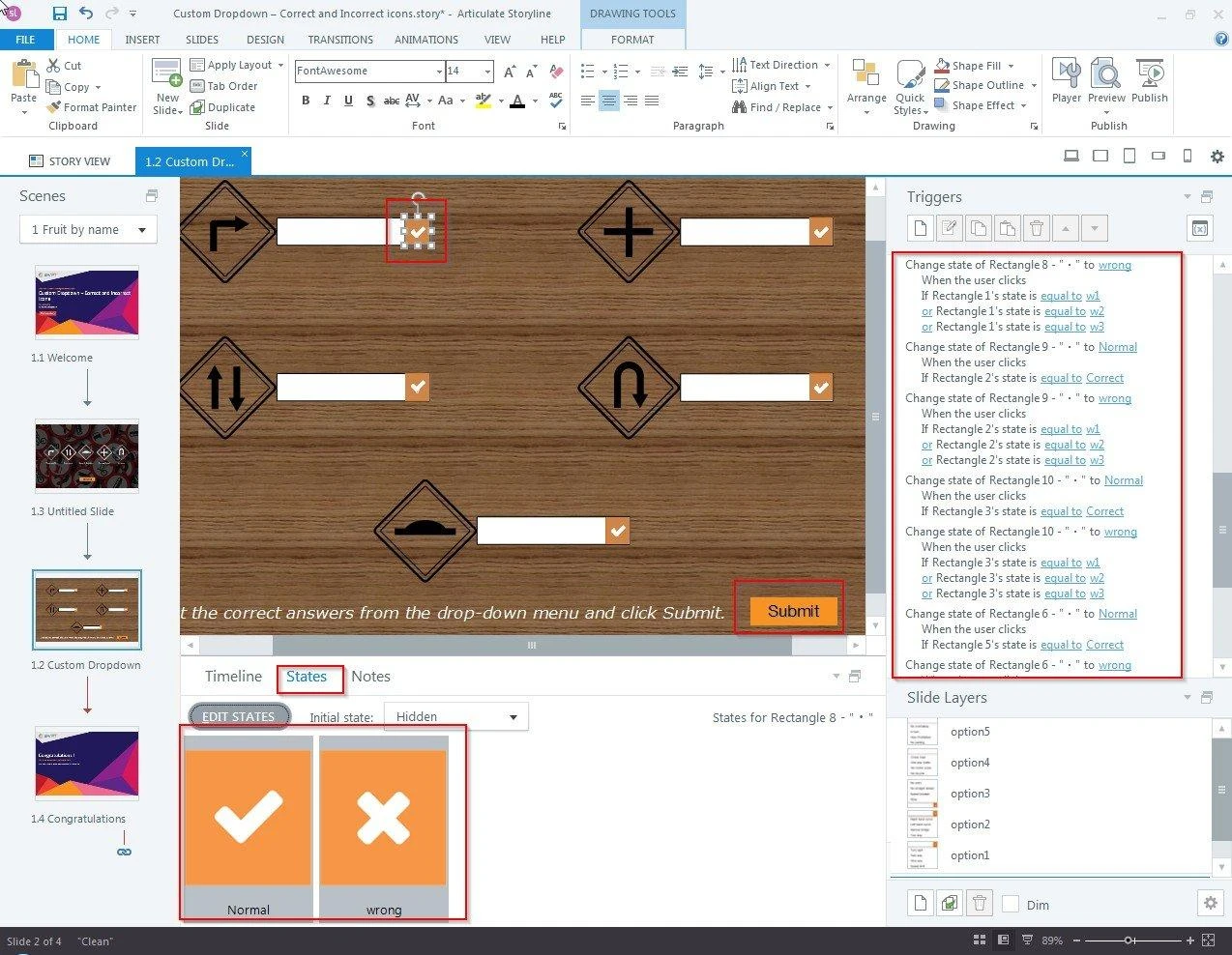
    Storyline 360 triggers changing a checkmark or cross validation indicator based on whether the linked rectangle's state is Correct or an incorrect w1/w2/w3 state
  6. 06

    Test and Publish

    Preview your slide locally to verify that all layers hide and show smoothly, option text updates accurately, and answer validation icons execute cleanly.
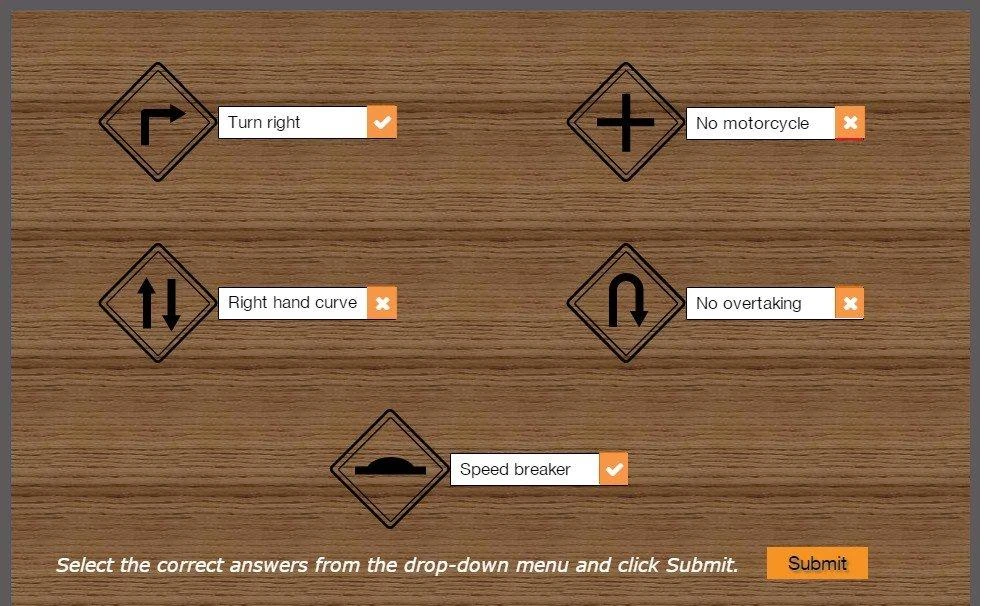
    Published preview of the custom drop-down exercise in Articulate Storyline 360 showing correct and incorrect validation icons after clicking Submit
FAQ

Frequently Asked Questions

Do I need to use Storyline variables to track drop-down selections?

No. You can drive the entire drop-down behavior using built-in layer triggers and custom shape states alone.

Can I use custom drop-down menus for scored knowledge checks?

Yes. You can trigger hidden radio buttons or built-in freeform question picks behind the scenes to report scores directly to your LMS.

Are custom layer drop-down menus responsive on mobile viewports?

Yes. Because they are constructed with native Storyline shapes and layers, they adapt responsively within the Articulate modern player.

Off-the-Shelf Workforce Modules

Canadian Occupational Health and Safety (OHS) Suite

Ready-to-Deploy Safety Training

Deploy turn-key, SCORM-compliant health and safety courses built for operational, manufacturing, logistics, and field teams operating in Canada:

  • WHMIS compliance, chemical safety standards, and emergency containment response.
  • Ergonomics, safe manual handling, PPE usage, and site first-aid readiness.
  • Fall protection, high-altitude safety guidelines, extreme cold-weather SOPs, and LOTO compliance.
Free Corporate Professional Skills Catalog

Complimentary Corporate Soft Skills Training

Strengthen workforce performance with ready-to-run soft skills and compliance modules designed for business teams:

  • Executive leadership development, crisis communication, and cross-functional team collaboration.
  • Conflict resolution tactics, project management fundamentals, and workplace conduct standards.
Related Solutions

Custom Interactive Training Solutions

Custom Course Engineering

Tailor-made eLearning solutions customized to meet your company's performance standards and compliance requirements.

Learn more about Custom Course Engineering

PPT to E-learning Conversion

Transform technical documents, policies, and SOPs into engaging, learner-centric digital experiences.

Learn more about PPT to E-learning Conversion

Global Translation and Localization

Localize courses across multiple languages with culturally adapted voiceovers, subtitle integration, and WCAG accessibility.

Learn more about Global Translation and Localization
Get in Touch

Ready to Transform Your Training?

Get a tailored project proposal, custom timeline, and a free SCORM sample built directly from a slice of your existing training materials.

  • Free Proof-of-Concept

    Send us a short document or presentation, and we'll transform it into an interactive SCORM sample so you can judge our instructional design.

  • Expert Consultation

    Talk directly with our eLearning specialist to align your business goals with the right technology stack.

  • Transparent Pricing

    Clear cost estimates and realistic project milestones delivered with zero hidden fees.

Prefer direct email? Reach our lead team at [email protected].

Send Us a Message

Fill in a few details and we'll get straight back to you.