Custom eLearning and Digital Training Solutions Provider
  • Home
  • eLearning Services
    • Custom Elearning Solutions
    • Convert PowerPoint to eLearning
    • Rapid eLearning Development
    • Translation and Localization
    • Flash To HTML5 Conversion
    • Legacy Content Conversion
    • Mobile Learning
    • Gamified Learning Solutions
    • Blended Learning Solutions
  • Software Development
    • Learning Management System
    • Workforce Management System
    • Human Resource Management System
    • Bug Tracker Software
    • Custom Software Development
  • Contact Us
  • Blog
  • Search
  • Menu Menu
  • 0Shopping Cart
  • Home
  • eLearning Services
    • Custom Elearning Solutions
    • Convert PowerPoint to eLearning
    • Rapid eLearning Development
    • Translation and Localization
    • Flash To HTML5 Conversion
    • Legacy Content Conversion
    • Mobile Learning
    • Gamified Learning Solutions
    • Blended Learning Solutions
  • Software Development
    • Learning Management System
    • Workforce Management System
    • Human Resource Management System
    • Bug Tracker Software
    • Custom Software Development
  • Contact Us
  • Blog

How to Convert Raster Images into Vector Images Using Adobe Illustrator

In the ever-evolving landscape of digital design, the skill to transform raster images into versatile vector graphics is a capability that can elevate your creative endeavors to new heights.

Adobe Illustrator, a powerhouse in the realm of vector-based graphic design, offers a robust set of tools to seamlessly accomplish this transformation. Whether you’re a seasoned graphic designer or a novice exploring the world of digital art, mastering the art of converting raster images into vectors can significantly enhance your creative toolkit.

Watch the Video Tutorial Now and Start Implementing In You Elearning Course

Click or tap on the play button below to watch the video for easier understanding.

Table of contents
1 Watch the Video Tutorial Now and Start Implementing In You Elearning Course
2 How do vector images differ from raster images?
3 How to convert a raster image into a vector image?
3.1 Step 1
3.2 Step 2
3.3 Step 3
3.4 Step 4
3.5 Step 5
3.6 Step 6
4 Conclusion
5 Frequently Asked Questions (FAQs)

How do vector images differ from raster images?

Raster images, composed of pixels, excel in rendering detailed photographs and complex images. However, they face limitations in terms of scalability and adaptability.

In contrast, vector images, defined by mathematical equations and paths, provide unparalleled flexibility. They can be resized without loss of quality, making them ideal for logos, icons, and illustrations.

This guide aims to demystify the process of converting raster images to vectors using Adobe Illustrator, empowering you to unlock the full potential of vector graphics in your design projects.

How to convert a raster image into a vector image?

Here is a step-by-step guide on performing this conversion using Adobe Illustrator:

Step 1

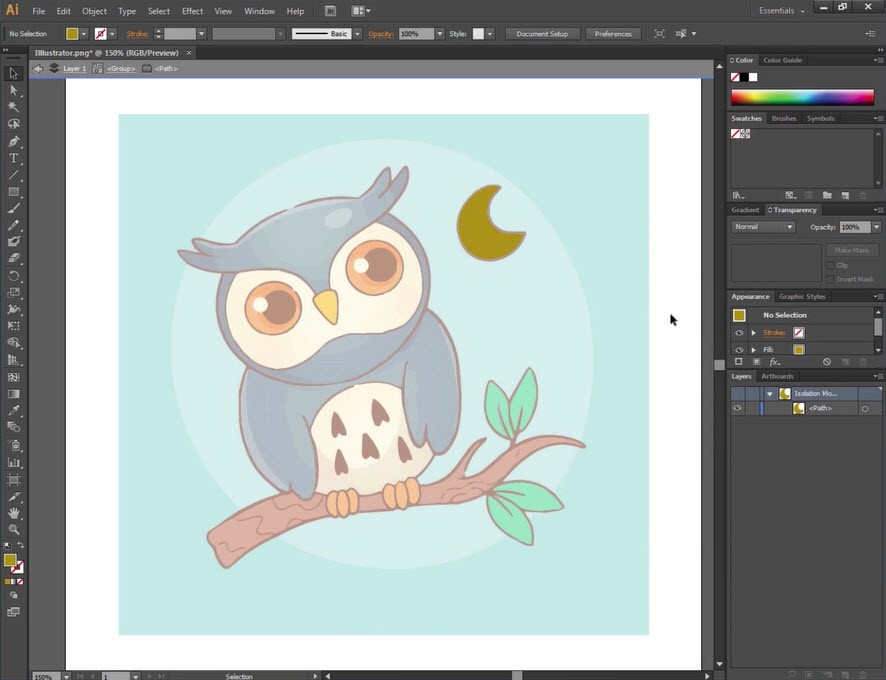
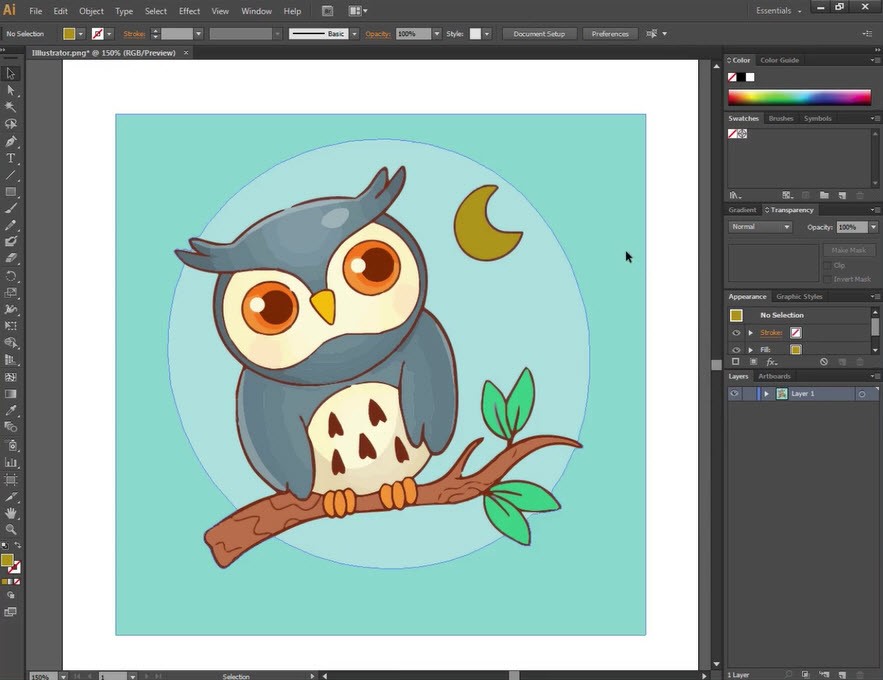
Launch the ‘Illustrator’ software and import an image that lacks visual appeal in terms of colors. Zoom in to enlarge the image for a closer examination.
how-to-convert-raster-images-into-vector-images-with-adobe-illustrator_image1

how-to-convert-raster-images-into-vector-images-with-adobe-illustrator_image2

Step 2 

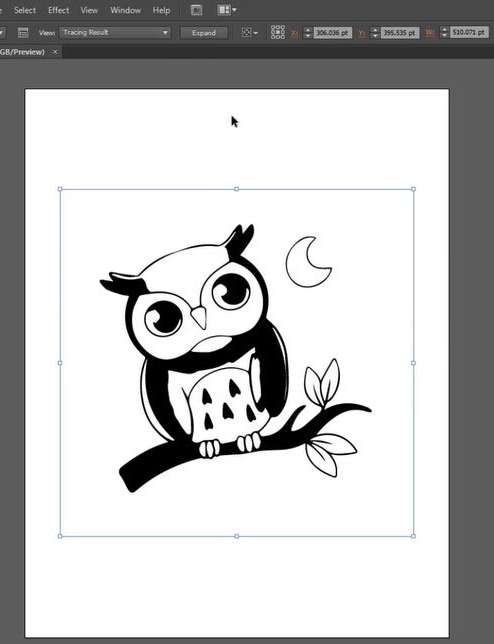
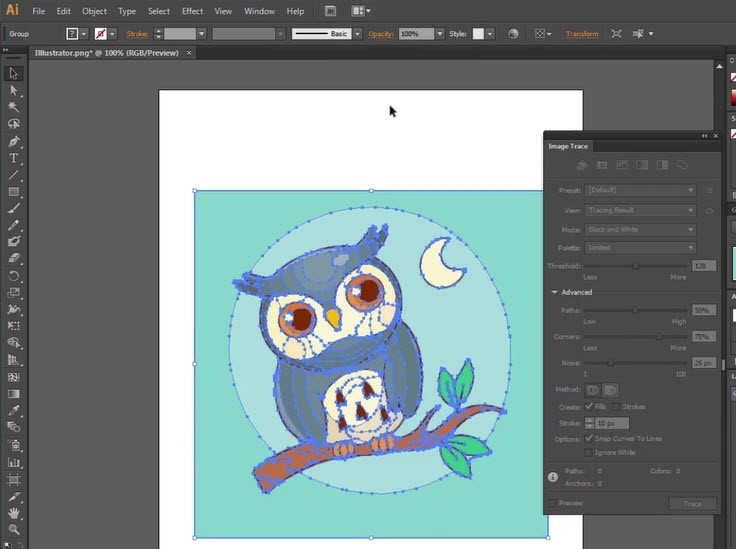
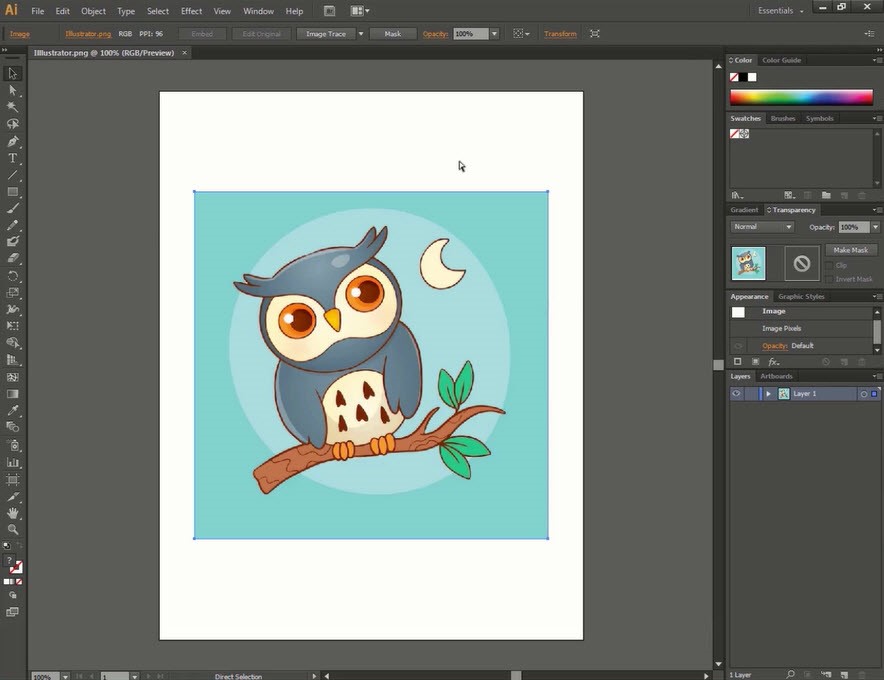
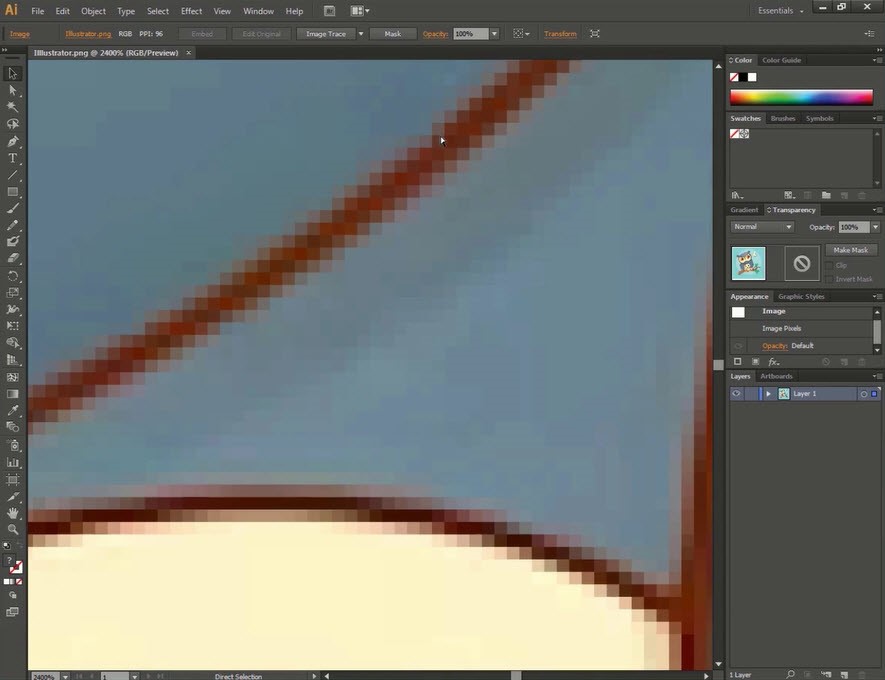
To enhance both the ‘quality’ and ease of ‘edits’, convert the image into a vector format. Begin by selecting the image and accessing the ‘Image Trace’ option.

how-to-convert-raster-images-into-vector-images-with-adobe-illustrator_image4

how-to-convert-raster-images-into-vector-images-with-adobe-illustrator_image5

Step 3 

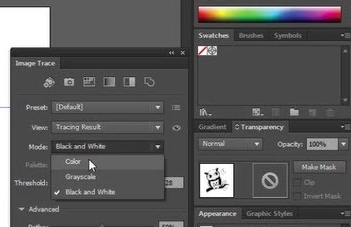
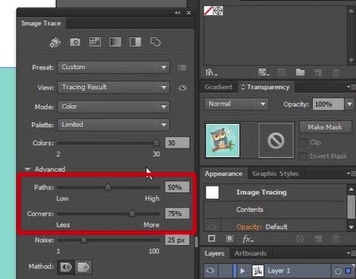
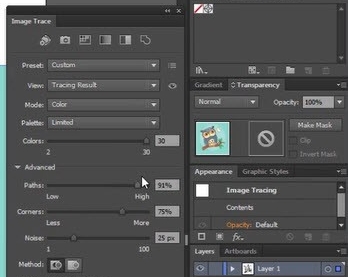
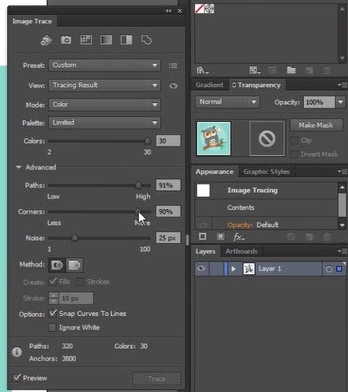
Head to the ‘Image Trace’ panel, go to the ‘Mode’ section, and opt for the ‘Color’ mode to increase the path radius in the corners.

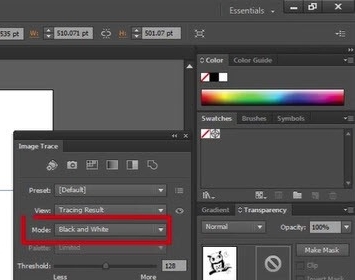
how-to-convert-raster-images-into-vector-images-with-adobe-illustrator_image6

how-to-convert-raster-images-into-vector-images-with-adobe-illustrator_image7

how-to-convert-raster-images-into-vector-images-with-adobe-illustrator_image8

how-to-convert-raster-images-into-vector-images-with-adobe-illustrator_image9

how-to-convert-raster-images-into-vector-images-with-adobe-illustrator_image10

how-to-convert-raster-images-into-vector-images-with-adobe-illustrator_image11

Step 4 

Click on the ‘Expand’ button to transform the ‘Raster’ image into ‘Vector’ format.

how-to-convert-raster-images-into-vector-images-with-adobe-illustrator_image12

how-to-convert-raster-images-into-vector-images-with-adobe-illustrator_image13

Step 5 

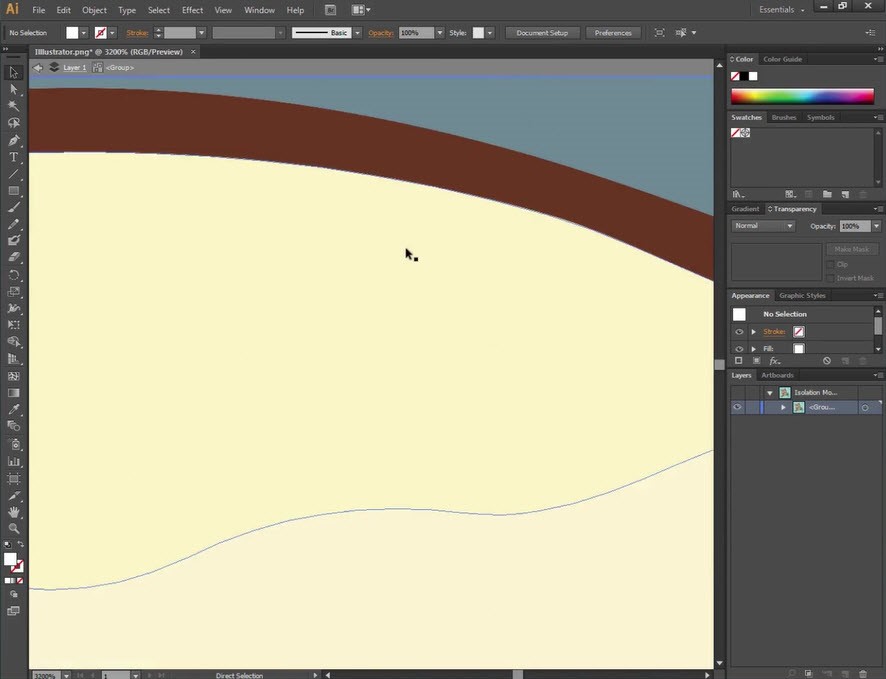
Compare the image quality ‘before’ and ‘after’ converting it into the vector format.
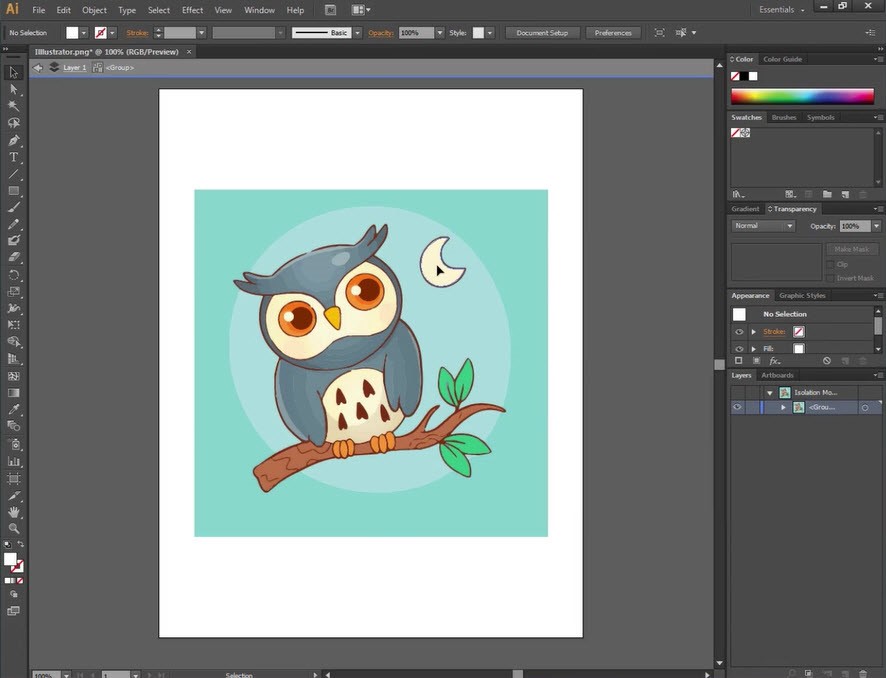
how-to-convert-raster-images-into-vector-images-with-adobe-illustrator_image13

how-to-convert-raster-images-into-vector-images-with-adobe-illustrator_image14

Step 6 

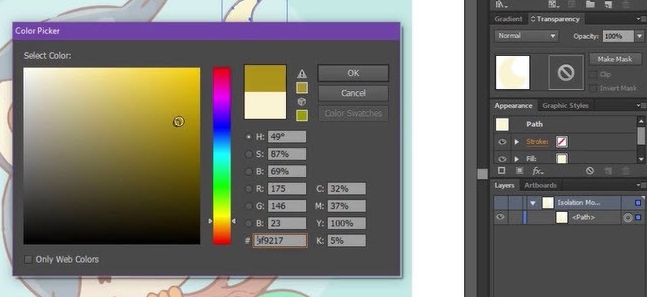
Additionally, take advantage of the flexibility to make edits, such as changing the color.
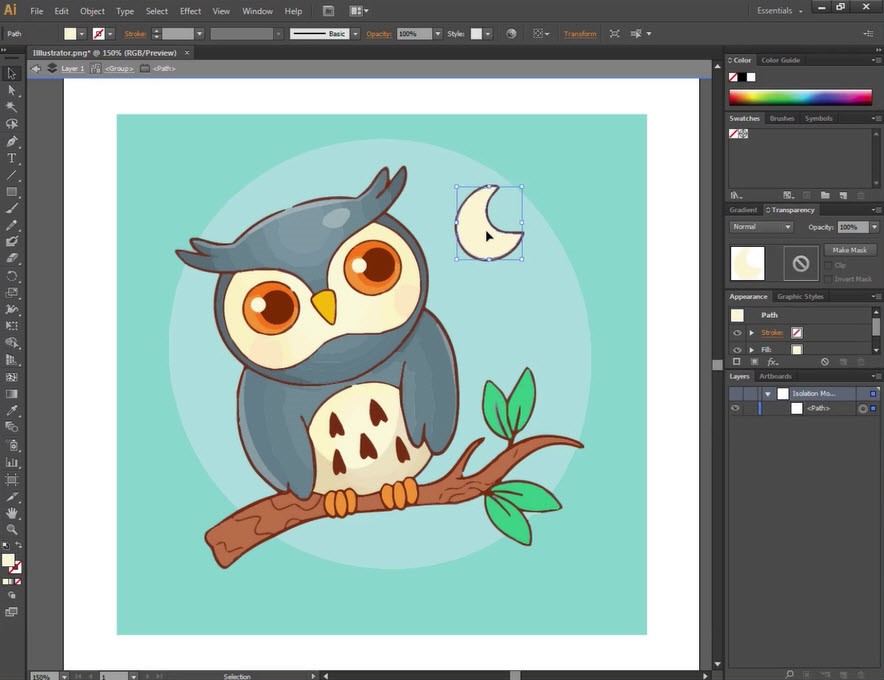
how-to-convert-raster-images-into-vector-images-with-adobe-illustrator_image15

how-to-convert-raster-images-into-vector-images-with-adobe-illustrator_image16

how-to-convert-raster-images-into-vector-images-with-adobe-illustrator_image17

how-to-convert-raster-images-into-vector-images-with-adobe-illustrator_image18

Conclusion

In conclusion, the process of converting raster images into vector images using Adobe Illustrator is a skill that not only expands your design capabilities but also opens up a world of creative possibilities. Through this guide, we’ve navigated the intricate terrain of transforming pixel-based images into infinitely scalable vector graphics, shedding light on the tools and techniques offered by Adobe Illustrator.

By understanding the distinction between raster and vector graphics, you’ve gained insights into the strengths and limitations of each format. The power to seamlessly convert raster images into vectors lies not only in the technical proficiency of the software but also in the artful choices made during the process. From image selection and tracing options to refining paths and adjusting anchor points, the journey from raster to vector involves a thoughtful interplay of creativity and precision.

Frequently Asked Questions (FAQs)

Q. Why is Adobe Illustrator preferred for converting raster to vector?
Adobe Illustrator is a vector-based graphic design software, making it the ideal tool for converting raster images into vectors due to its robust set of image tracing features and vector editing capabilities.

Q. What file formats does Adobe Illustrator support for raster images?
Adobe Illustrator supports common raster image formats such as JPEG, PNG, GIF, and BMP.

Q. Can I customize the level of detail in the vector conversion process?
Yes, Adobe Illustrator allows users to customize the level of detail during the image trace process, providing control over parameters like threshold, paths, and noise.

Q. Are there any limitations to the size of the raster image that can be converted?
In Adobe Illustrator, the size of the raster image is generally not a limitation during the conversion process, as the vector output is scalable without loss of quality.

Q. Can I edit the vector paths after the conversion?
Yes, Adobe Illustrator enables users to edit and refine vector paths using the “Direct Selection” tool after the image has been converted.

Q. Can I convert colored raster images to vectors?
Yes, Adobe Illustrator allows the conversion of both grayscale and colored raster images into vectors, preserving the original colors.

Q. What is the difference between vector and raster images?
Vector images are composed of mathematical equations, ensuring scalability without loss of quality, while raster images are made up of pixels and may lose quality when resized.

Q. Is there an automatic conversion option in Adobe Illustrator?
Yes, Adobe Illustrator provides an automatic image trace feature, streamlining the process of converting raster images to vectors with default settings.

Q. Can I convert handwritten or intricate designs into vectors?
Yes, Adobe Illustrator’s image trace feature is versatile enough to convert intricate designs and handwritten elements into editable vector paths.

Q. What are the advantages of using vector images in design projects?
Vector images offer advantages such as scalability without loss of quality, easy editing and manipulation of individual elements, and suitability for various design applications.
book a free demo banner
The last comment and 279 other comment(s) need to be approved.
0 replies

Leave a Reply

Want to join the discussion?
Feel free to contribute!

Leave a Reply Cancel reply

Your email address will not be published. Required fields are marked *

Share this entry
  • Share on Facebook
  • Share on Twitter
  • Share on Pinterest
  • Share on LinkedIn

ARTICULATE STORYLINE POSTS

  • step-by-step guide to customize quiz feedback colors in rise 360
    How to Customize Correct and Incorrect Answers Feedback Colors in Articulate Rise 360June 27, 2025 - 4:40 PM
  • removing labels and numbers from process blocks in articulate rise 360
    How to Remove Labels and Numbers from Process Blocks in Articulate Rise 360June 20, 2025 - 3:07 PM
  • easy-online-course-creation-ispring-suite-swift-elearning-services
    Create Online Courses with Ease Using iSpring Suite – The All-in-One eLearning Authoring Tool for PowerPointJune 16, 2025 - 11:18 AM
  • how to adjust padding in articulate rise 360 content blocks for custom e-learning
    How to Adjust Padding in Articulate Rise 360 Content Blocks for Custom E-LearningJune 9, 2025 - 5:23 PM
  • swift elearning services focuses on crafting custom elearning courses that enhance digital learning experiences.
    How to Use Snapshots to Recover Deleted Lessons in Articulate Rise 360April 23, 2025 - 3:58 PM
  • swift elearning services provides articulate 360 localization, offering tailored elearning solutions that adapt your content for global audiences.
    Articulate 360 Localization: Create, Translate, and Manage Training with EaseApril 17, 2025 - 11:24 AM
  • custom elearning solution with jump-to-time video control in storyline 360 for interactive video navigation.
    How to Use Jump-to-Time Trigger to Control Video in Storyline 360April 11, 2025 - 10:51 AM
  • how to import slides from other storyline projects
    Articulate Storyline 360 – How to Import Slides from Other Storyline ProjectsMarch 25, 2025 - 5:52 PM
  • ohs-traffic-control-training-for-construction-workers-featured-image
    OHS – Traffic Control Training Course for Construction WorkersSeptember 9, 2024 - 5:56 PM
  • ohs-road-traffic-control-training-for-road-maintenance-workers-featured-image
    OHS – Traffic Control Work Zone Safety Training for Road Maintenance WorkersAugust 1, 2024 - 3:22 PM

Get a Free Prototype Customized with Your Content.

Our Portfolios Explore Our Extensive Collection of eLearning Courses.

GET A FREE ELEARNING SAMPLE

We transform your training material into engaging, SCORM-compliant courses.

Request a Free Sample  

Our Services


  • Rapid eLearning Solutions

  • Custom eLearning Development

  • Flash to HTML5 Conversion Services

  • Mobile Learning Solutions

  • Translation and Localisation Services

  • Gamification eLearning

Our Office Address

Asia: 704, Topaz Plaza, Punjagutta, Hyderabad, Telangana, India 500082

Australia: P.O. Box 107, Brisbane, Queensland, 4030

Canada: 750 Oakdale Rd Suite 56, North York, ON M3N 2Z4, Canada

USA: 12218 Old Gage Ranch, San Antonio, Texas 78245

Copyright ©2026 Swift eLearning Services.
  • Facebook
  • Twitter
  • LinkedIn
  • Youtube
Top eLearning Solutions Provider: Custom Content Developmentelearning solutionsvyondHow to Generate Characters Using Photos in Vyond
Scroll to top