Custom Volume Control – Articulate Storyline 3 or Articulate Storyline 360
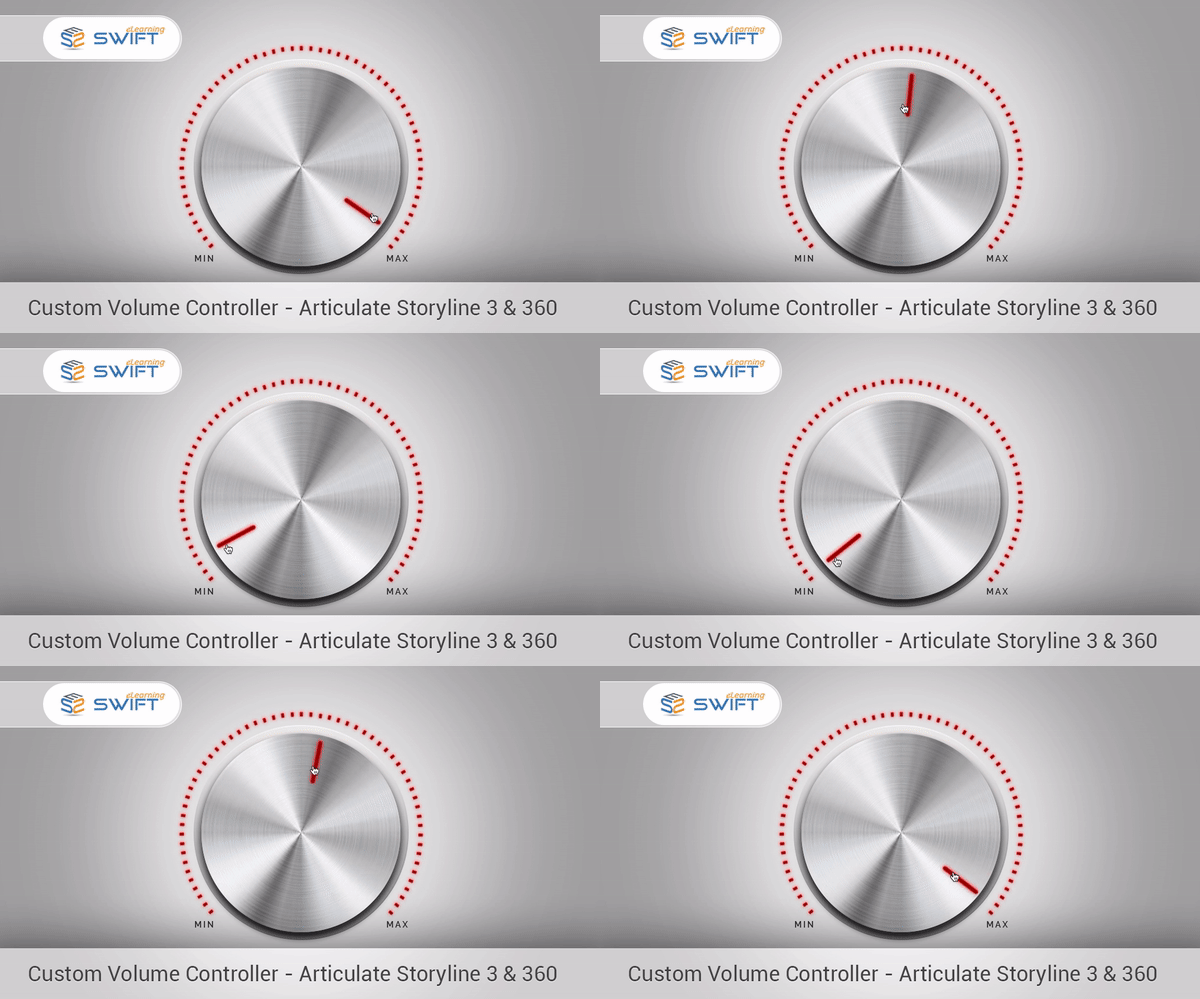
custom volume control – articulate storyline 3 or articulate storyline 360In this blog we will see how to add a custom volume controller in Articulate Storyline 3 or SL 360.

The latest release of Articulate Storyline 360 or Storyline 3 has number of exciting new features allowing eLearning developers to explore many more creative ways in developing new interactions.

Yet, we still have a few things that cannot be achieved using the native options of Articulate Storyline 360. One such, most requested functionality is, the ability to control volume of the course without the default storyline player. Our previous blog on how to achieve this functionality in Articulate Storyline 2 has helped many to include a volume controller in custom players. But, since there have been many changes done under the hood in Storyline 360. We need a new approach for this functionality to work.

Click here to Preview Sample or Download Source files

free articulate storyline tutorials

Step 1:

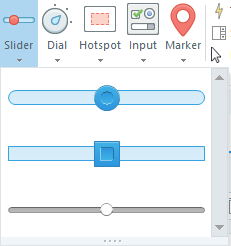
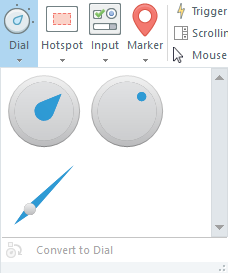
Insert a “Slider” or “Dial”.

slider-custom volume control – articulate storyline 3 or articulate storyline 360

dial-custom volume control – articulate storyline 3 or articulate storyline 360

Step 2:

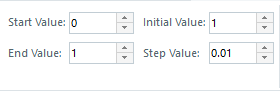
Then, in the “Design Tools” set the values of the dial/slider as follows:

Start Value: 0
End Value: 1
Initial Value: 1
Step Value: 0.01

custom volume control – articulate storyline 3 or articulate storyline 360

Step 3:

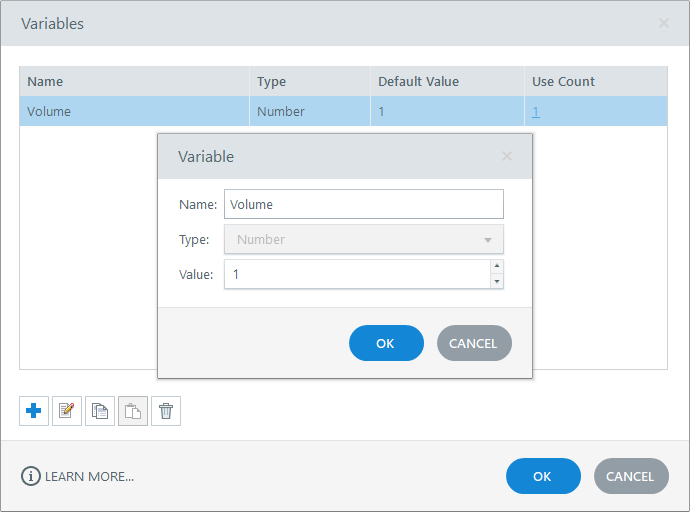
Rename the slider/dial variable to “Volume”.

variable-custom volume control – articulate storyline 3 or articulate storyline 360

Step 4:

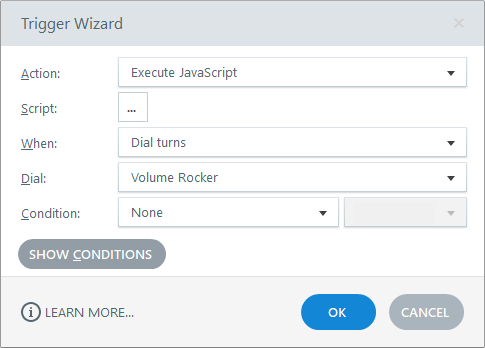
Set a trigger to “Execute JavaScript” when “Slider moves” or “Dial Turns” based on the interaction that you are using.

trigger-custom volume control – articulate storyline 3 or articulate storyline 360

Step 5:

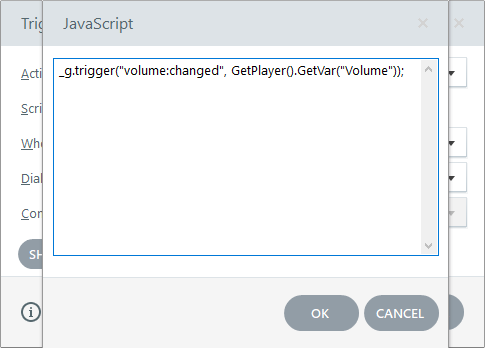
Then add the following JavaScript to the trigger and hit ok.

_g.trigger("volume:changed", GetPlayer().GetVar("Volume"));

Step 6:

This is the last and most important step.

After you’ve published the course, in the published output, navigate to the following path:

Storyline output\html5\lib\scripts

Here, you will see a file named “app.min.js”. We need to replace this file with the modified file which you can download from the below download section.

Once, done you can go ahead and test your project.

javascript-custom volume control – articulate storyline 3 or articulate storyline 360

Click Here to Watch Video Tutorial

Note:

This does not work in preview mode.

This approach is only for HTML 5 output. If you also need this functionality for flash output, you can use the method shown in our previous blog for articulate storyline 2.

Preview Sample

Click here to Preview Sample or Download Source files