Adobe Captivate 2019 Features: PowerPoint in Responsive Mode and Import CSV Format File

What is a Responsive eLearning Course?

Responsive eLearning refers to interactive online learning content designed with HTML5, ensuring compatibility across various devices, including desktops, laptops, tablets, and smartphones, providing an optimal and seamless learning experience.

What is a CSV file?

A “CSV file,” or Comma-Separated Values file, is a text file where data is organized in rows and columns, with values separated by commas. It’s commonly used for sharing structured data between different software

In the earlier version of Adobe Captivate, it has supported PowerPoint only in Blank Projects. Whereas in Adobe Captivate 2019 release, the PowerPoint is supported in Responsive Projects also.

In this blog, we will discuss the advancement of PowerPoint supporting in responsive mode and the Importing of different types of quiz questions using CSV excel file.

How to import PowerPoint into the Responsive project?

Here are the steps to import the PowerPoint in the Responsive project.

Import PowerPoint in Responsive mode.

Step 1:

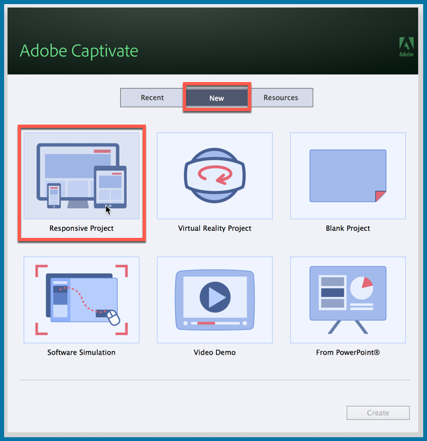
Open Adobe Captivate 2019 and select Responsive Project under New tab.

1.Click on the image to zoom.

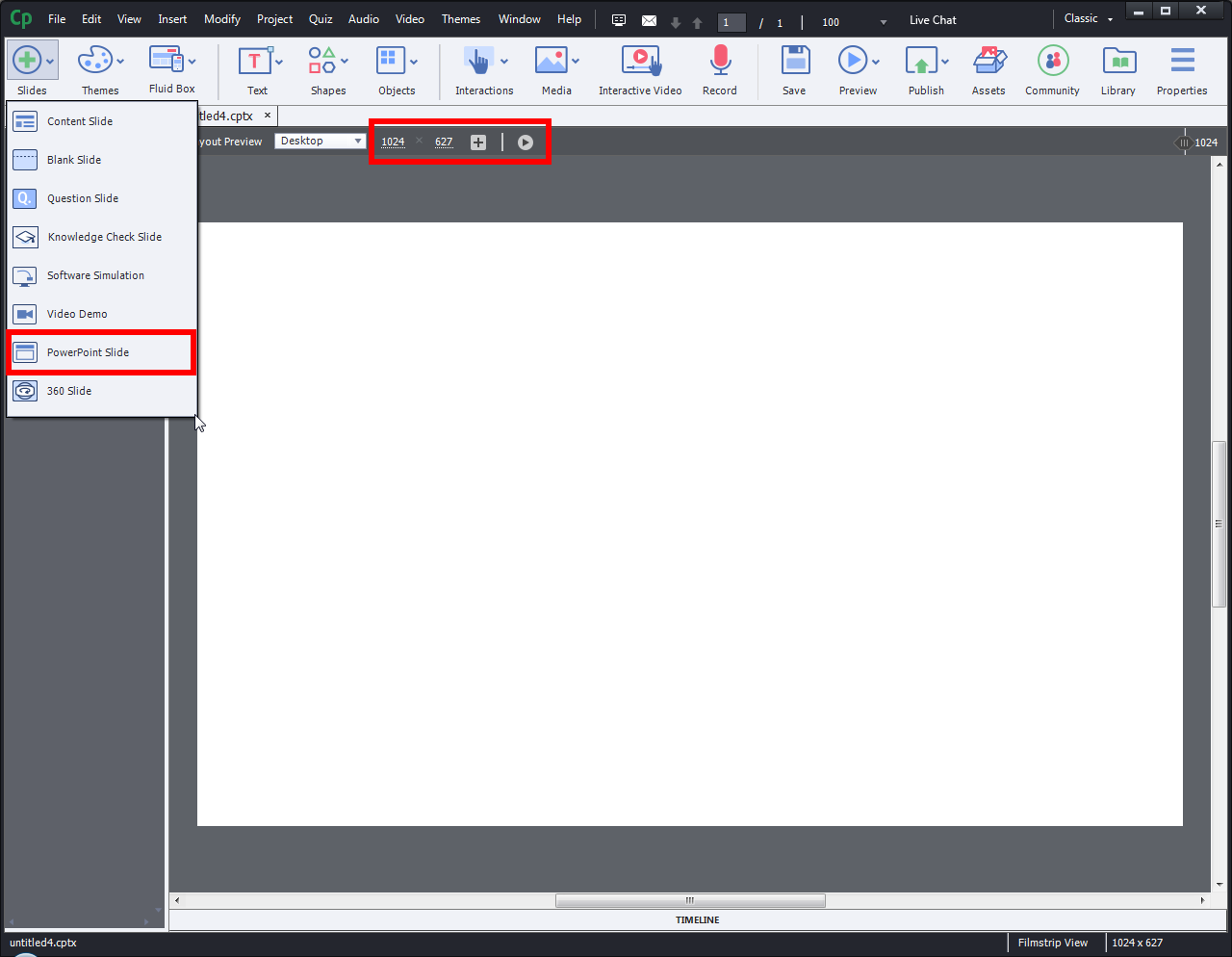
2.Click on the image to zoom.

Step 2:

Then, select PowerPoint under Slides in the menu bar. You can also set the layout preview options in the given fields.

Step 3:

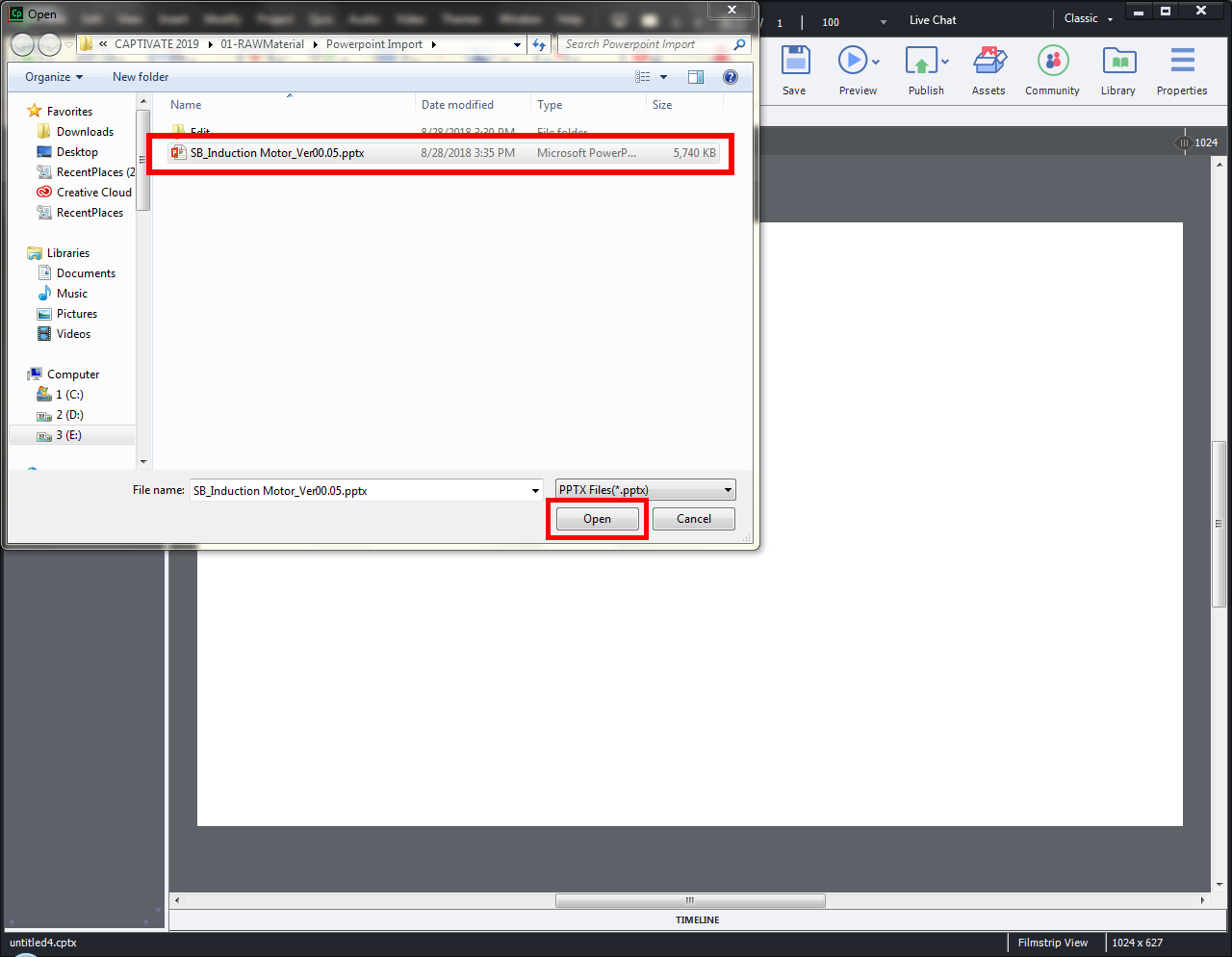
Then navigate to the PowerPoint folder and click on Open to Import into the project.

3.Click on the image to zoom.

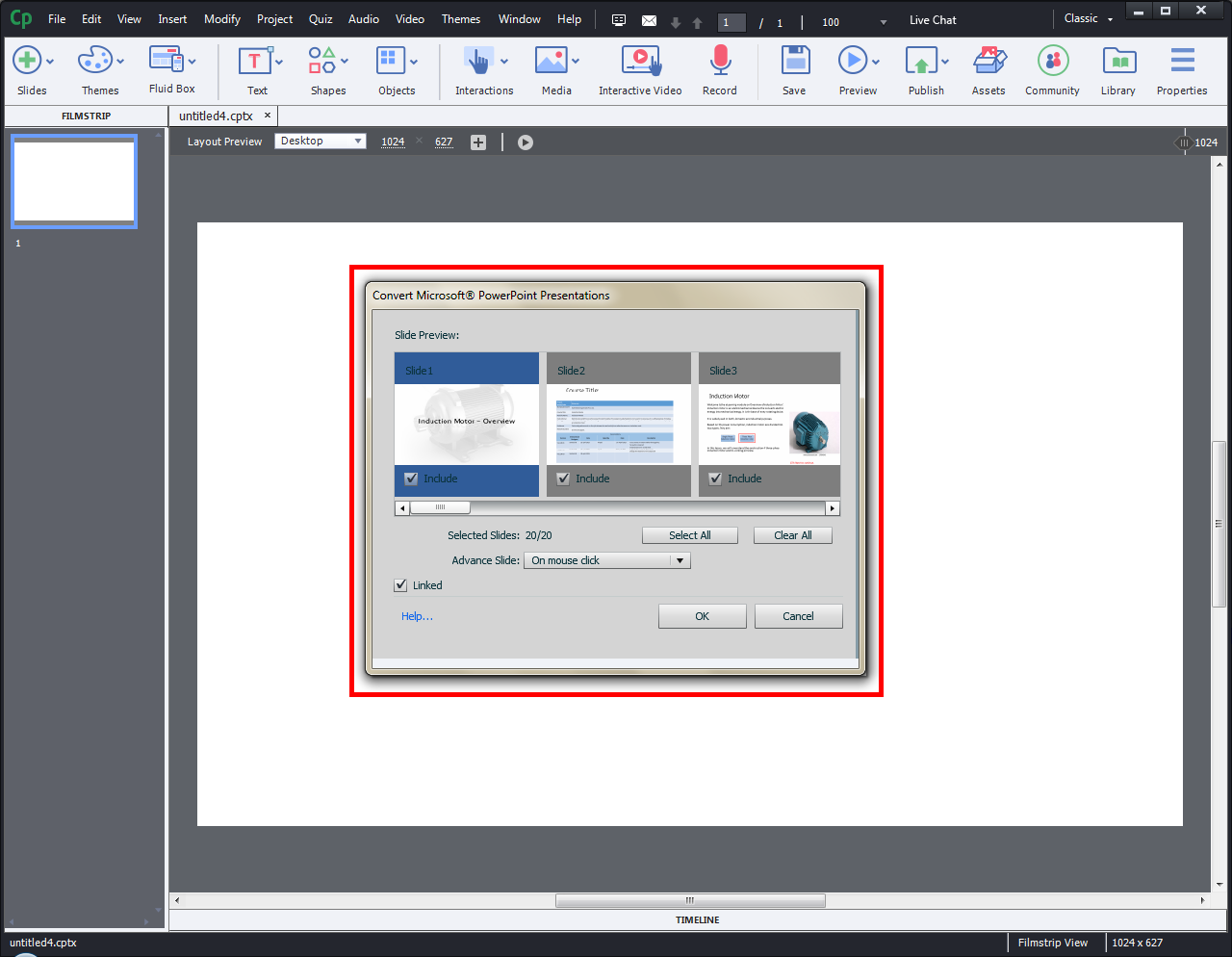
4.Click on the image to zoom.

Step 4:

You can select specified slides by checking or unchecking Include check box at the bottom of each slide thumbnail in the pop-up window.

Step 5:

The PowerPoint is imported in the Responsive mode.

5.Click on the image to zoom.

Now, we will see how to import CSV format file.

In Adobe Captivate 2019 you can import a CSV format file for various quiz questions types. A Sample CSV file is given in the asset folder. Copy the sample file in your project and edit the details based on the guidelines.

First, let’s see the steps to import a CSV file.

Technical Support Center
If you need help in developing fully customized elearning courses then get in touch with us.

CONTACT US

Step 1:

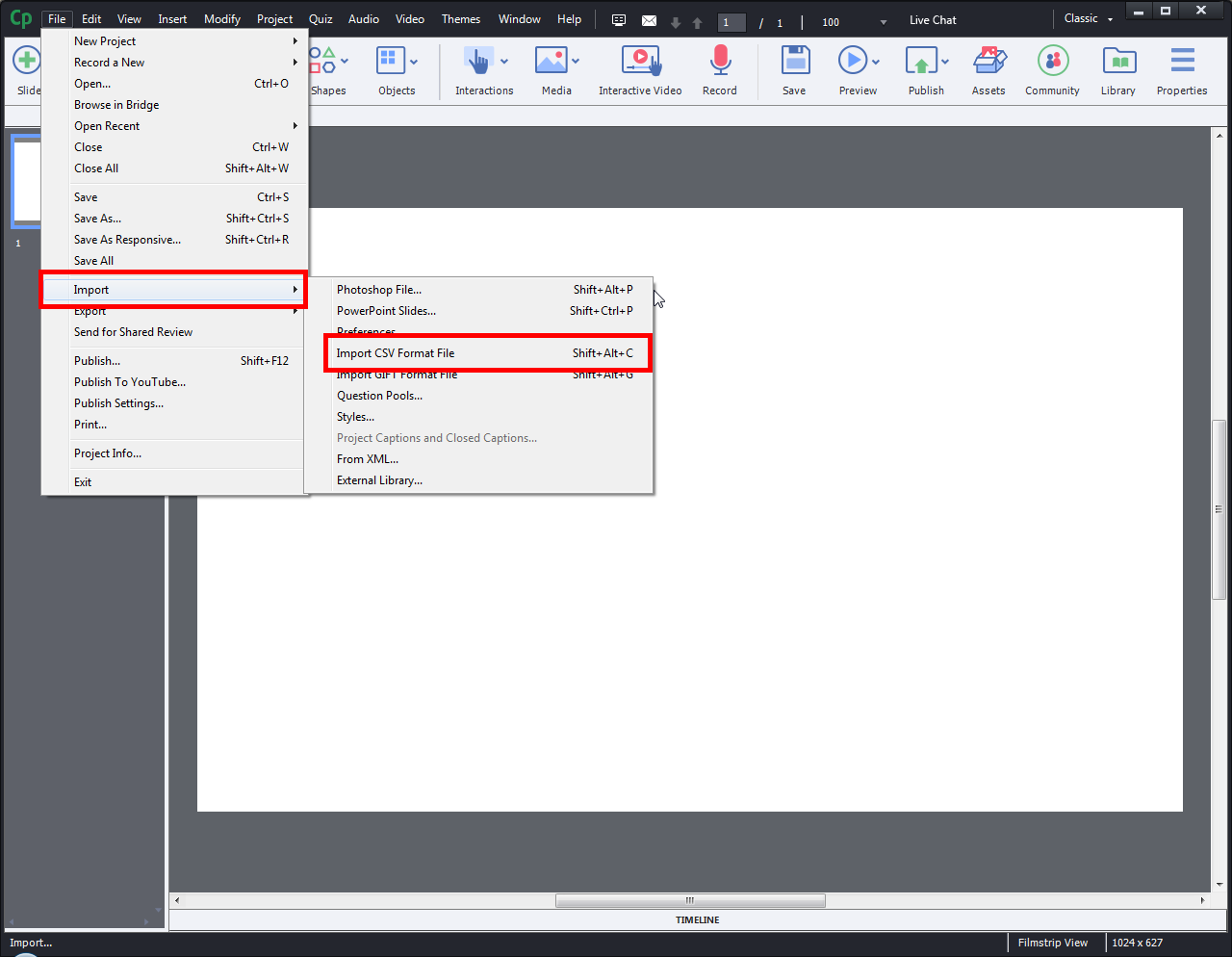
Click File in the menu bar, go to Import option and select Import CSV Format File.

6.Click on the image to zoom.

7.Click on the image to zoom.

Step 2:

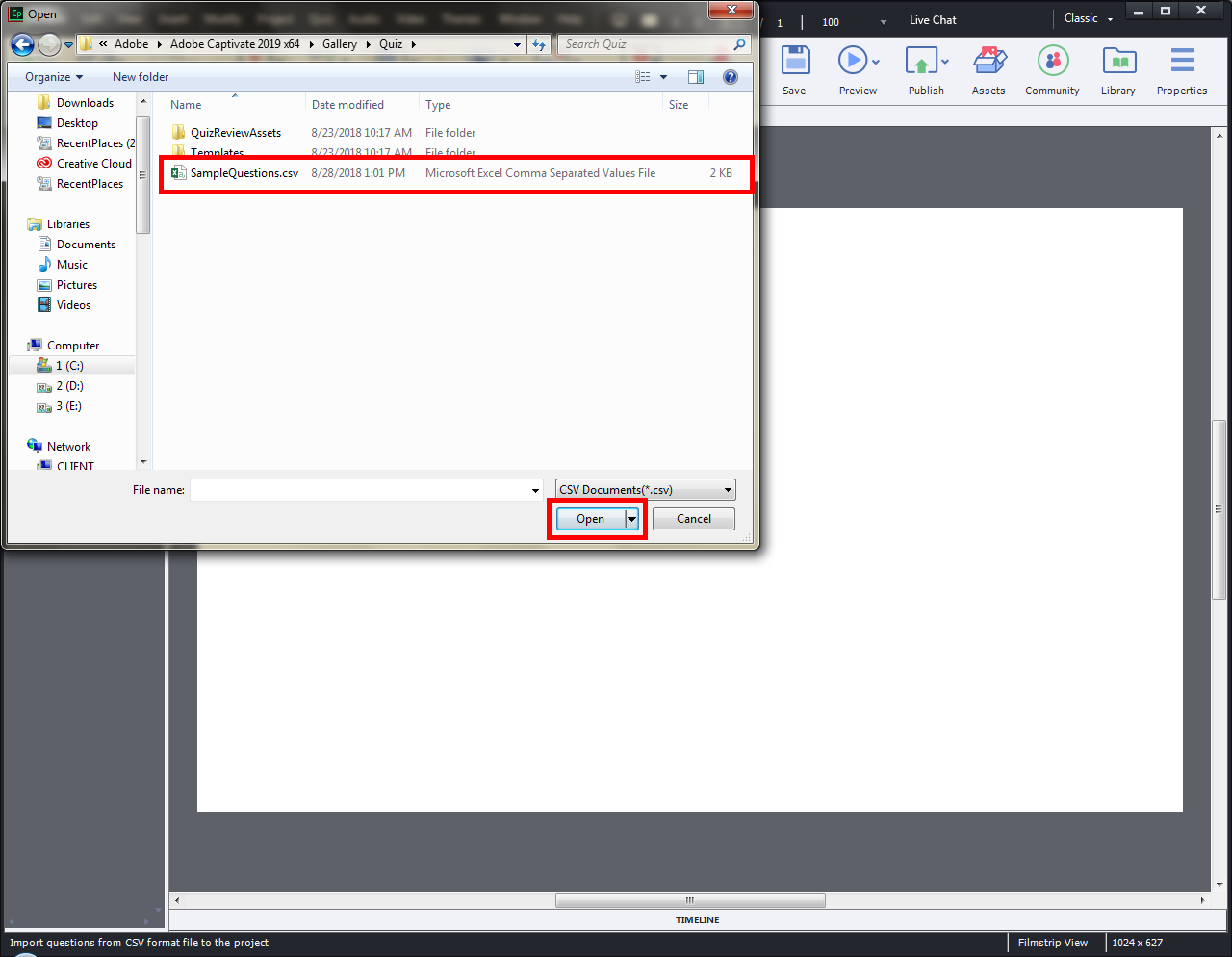
A pop-up window will appear to import the CSV file. Select the file and click on Open to import the questions.

Step 3:

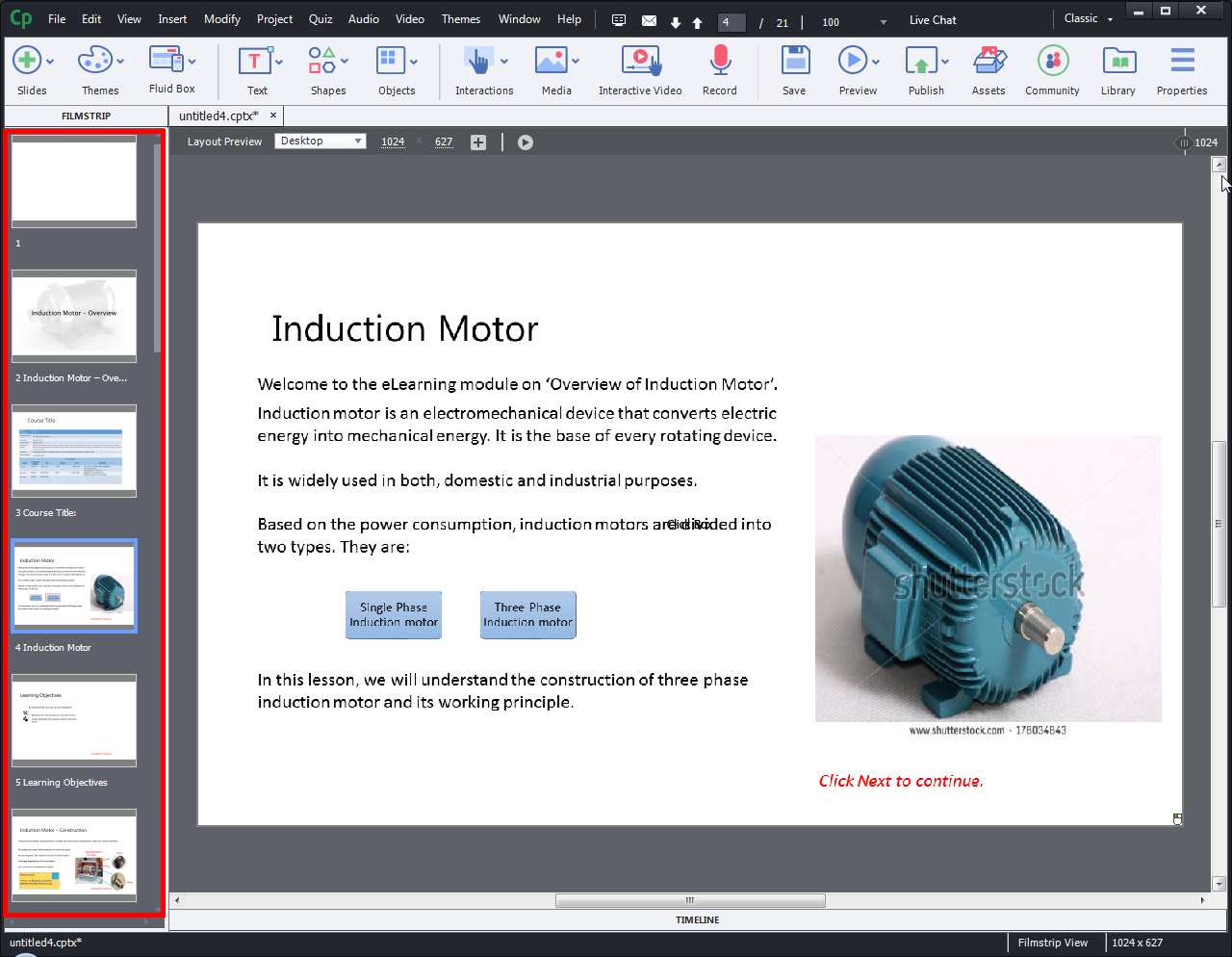
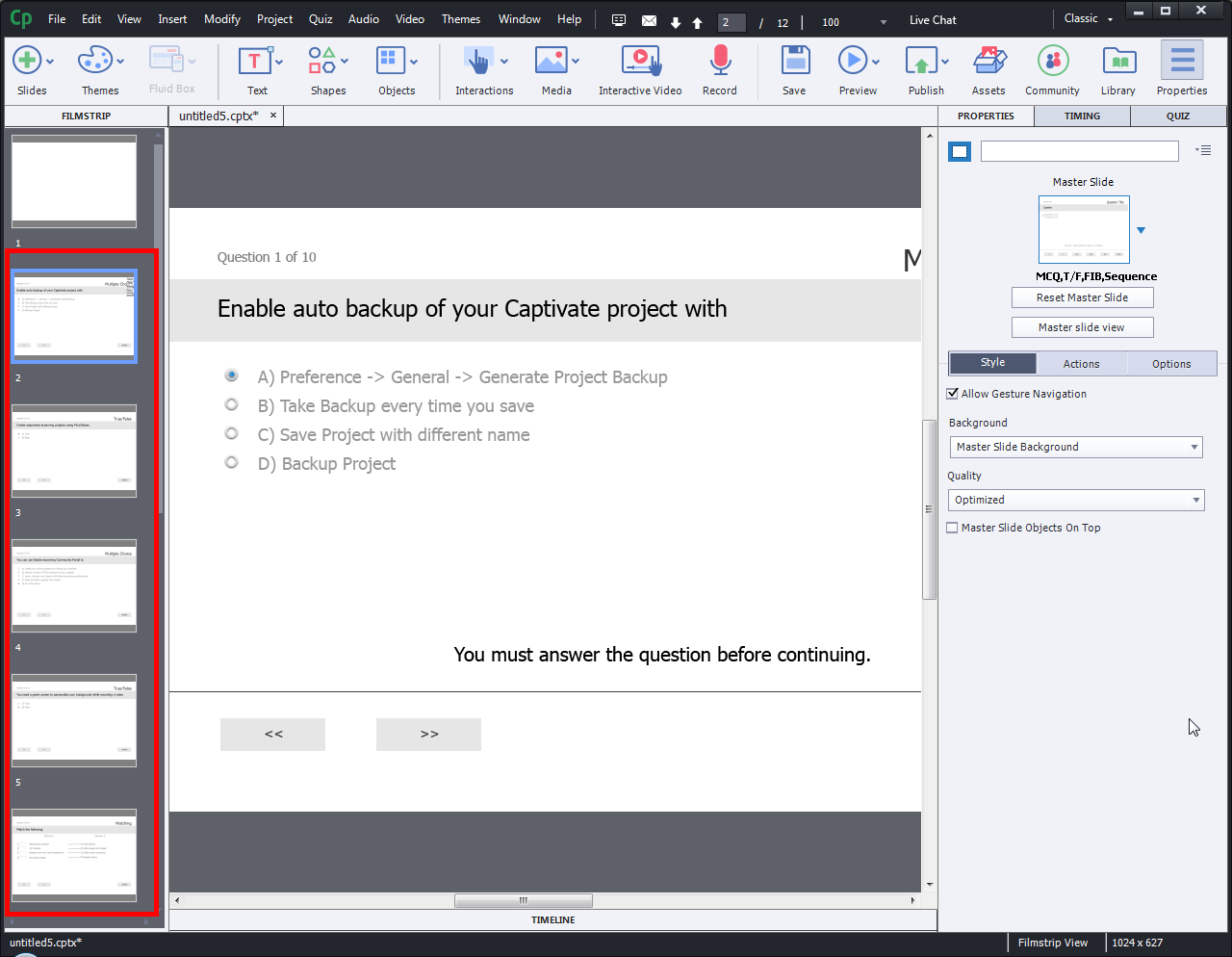
All the questions will be shown in the Filmstrip once CSV format file is imported in the project.

8.Click on the image to zoom.

9.Click on the image to zoom.

Step 4:

Now, let’s see the rules need to be followed while creating a CSV file.

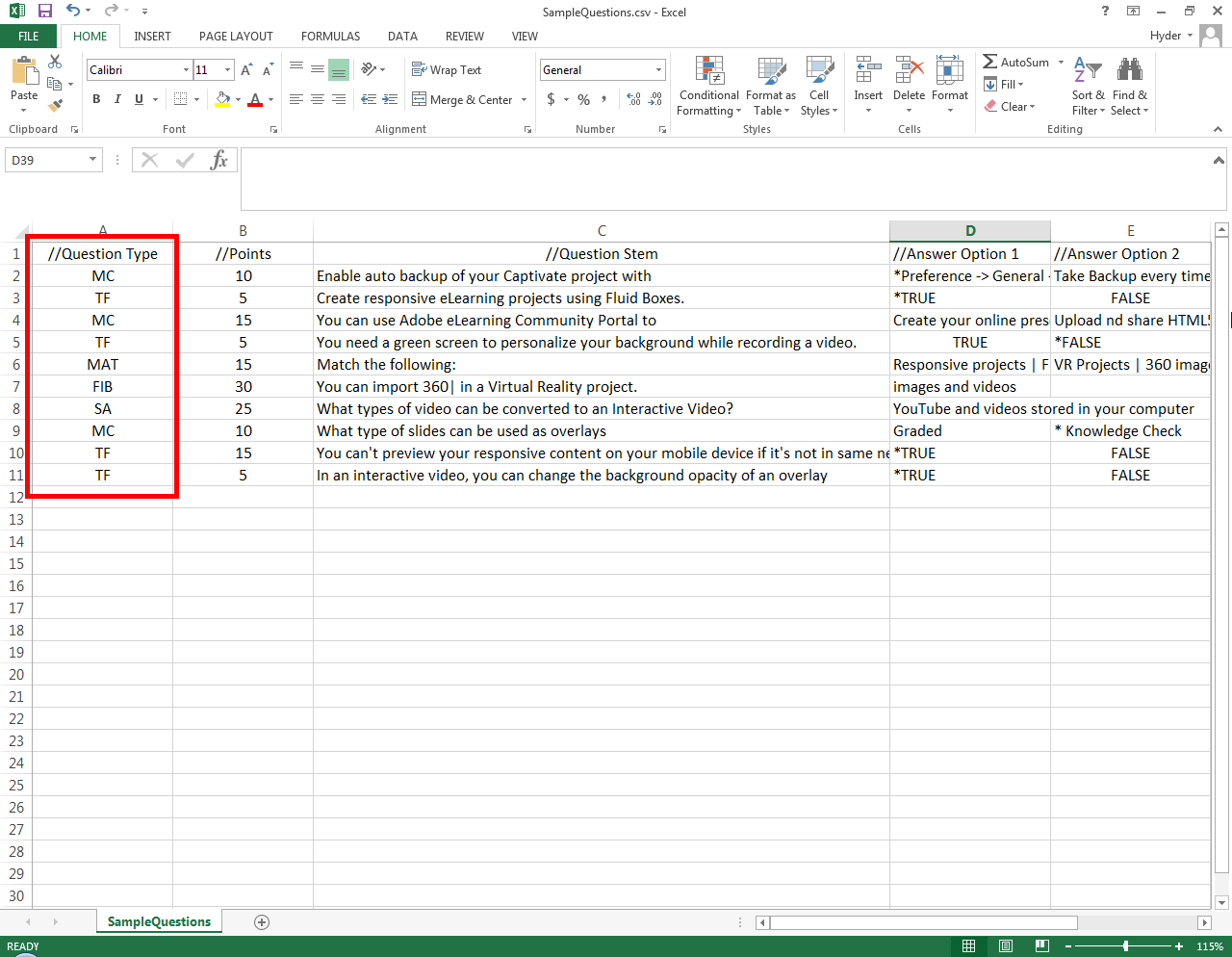
Here are the abbreviations must be used to denote the type of question.

MC – Multiple Choice
TF – True or False
MAT – Match the Following
SA – Short Answers
FIB – Fill in the Blanks

Step 5:

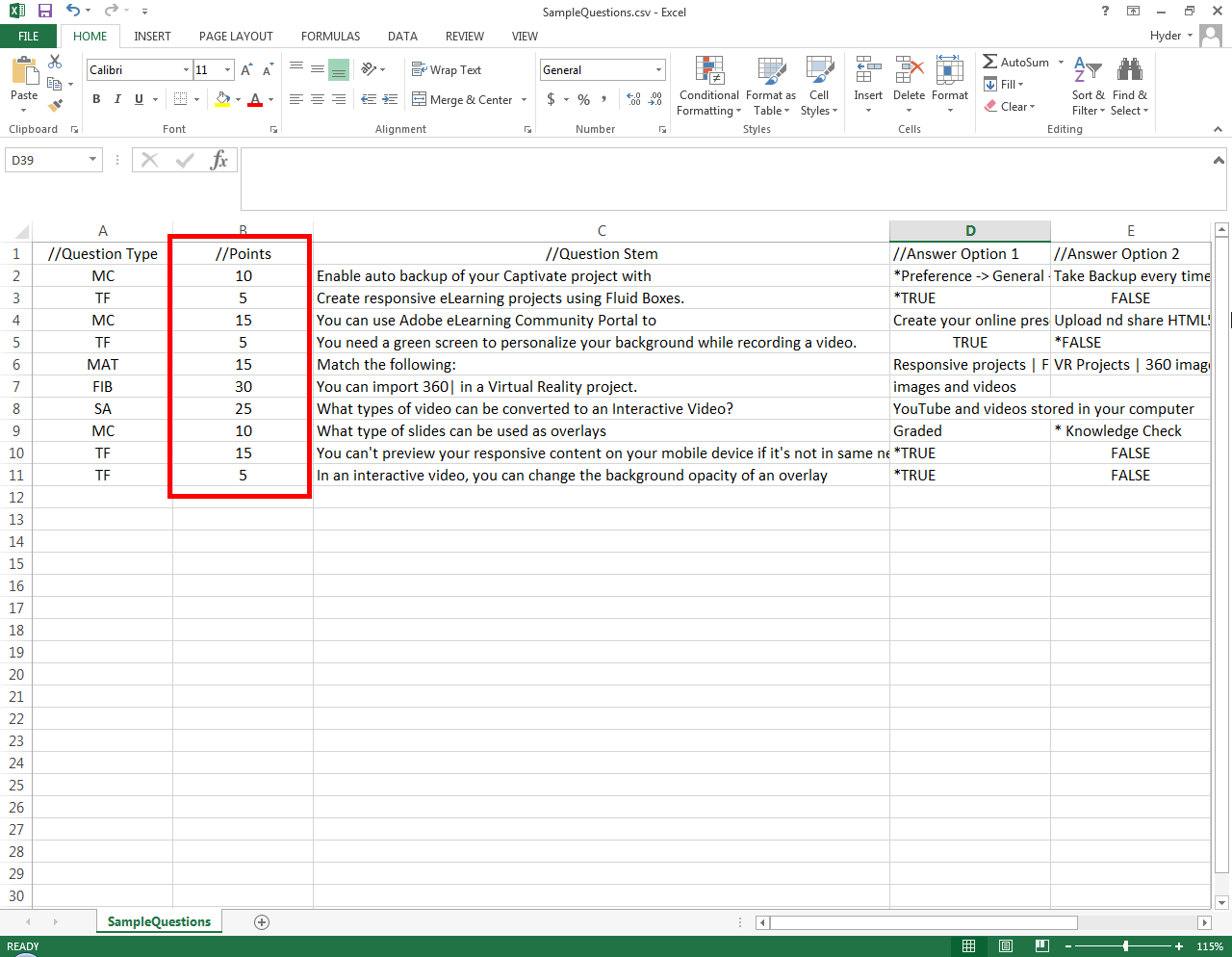
Assign marks under Points column.

10.Click on the image to zoom.

11.Click on the image to zoom.

Step 6:

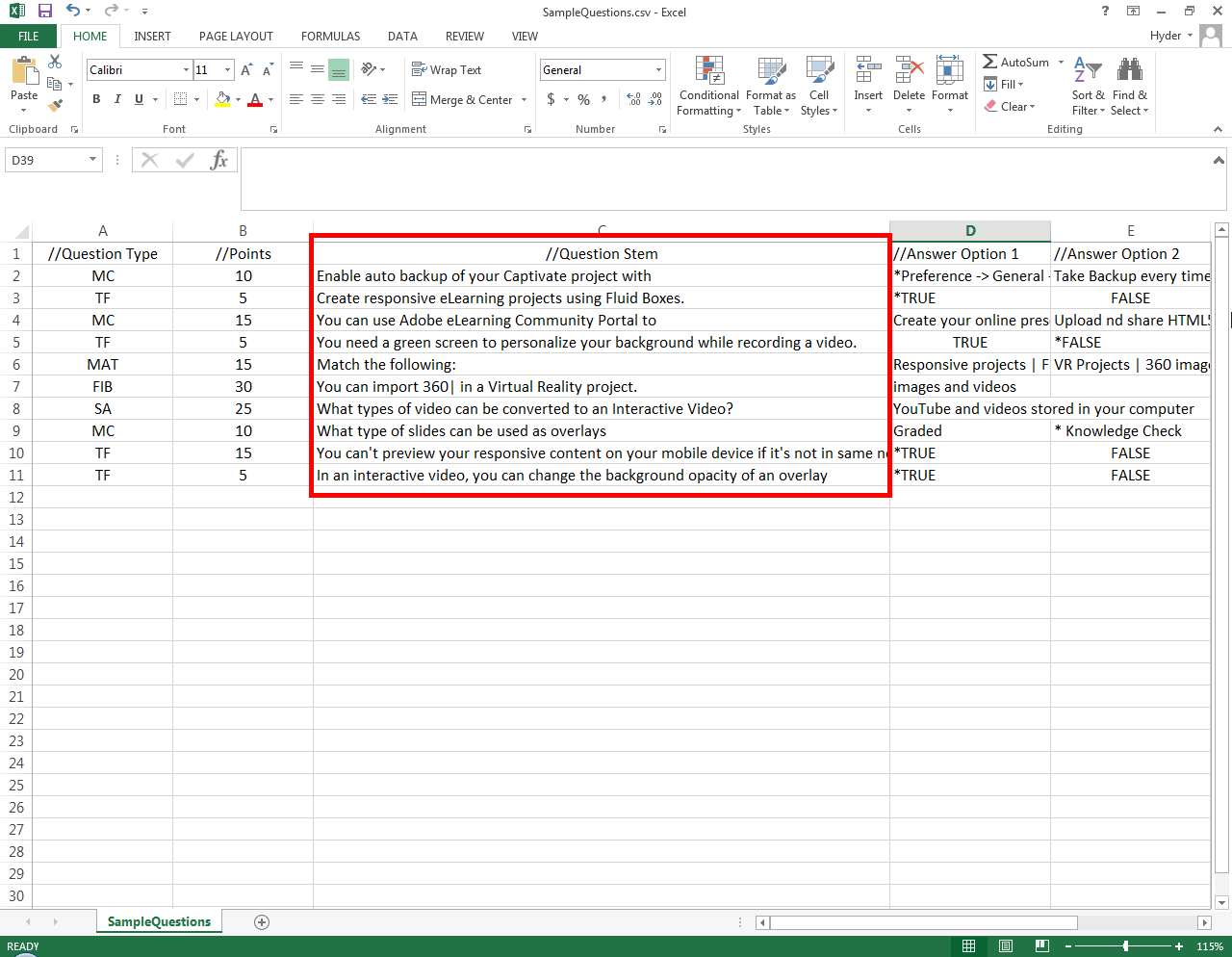
Write questions under Question Stem.

To add a blank in fill in the blank type questions, you need to insert pipe (|) [Shift + ]

Step 7:

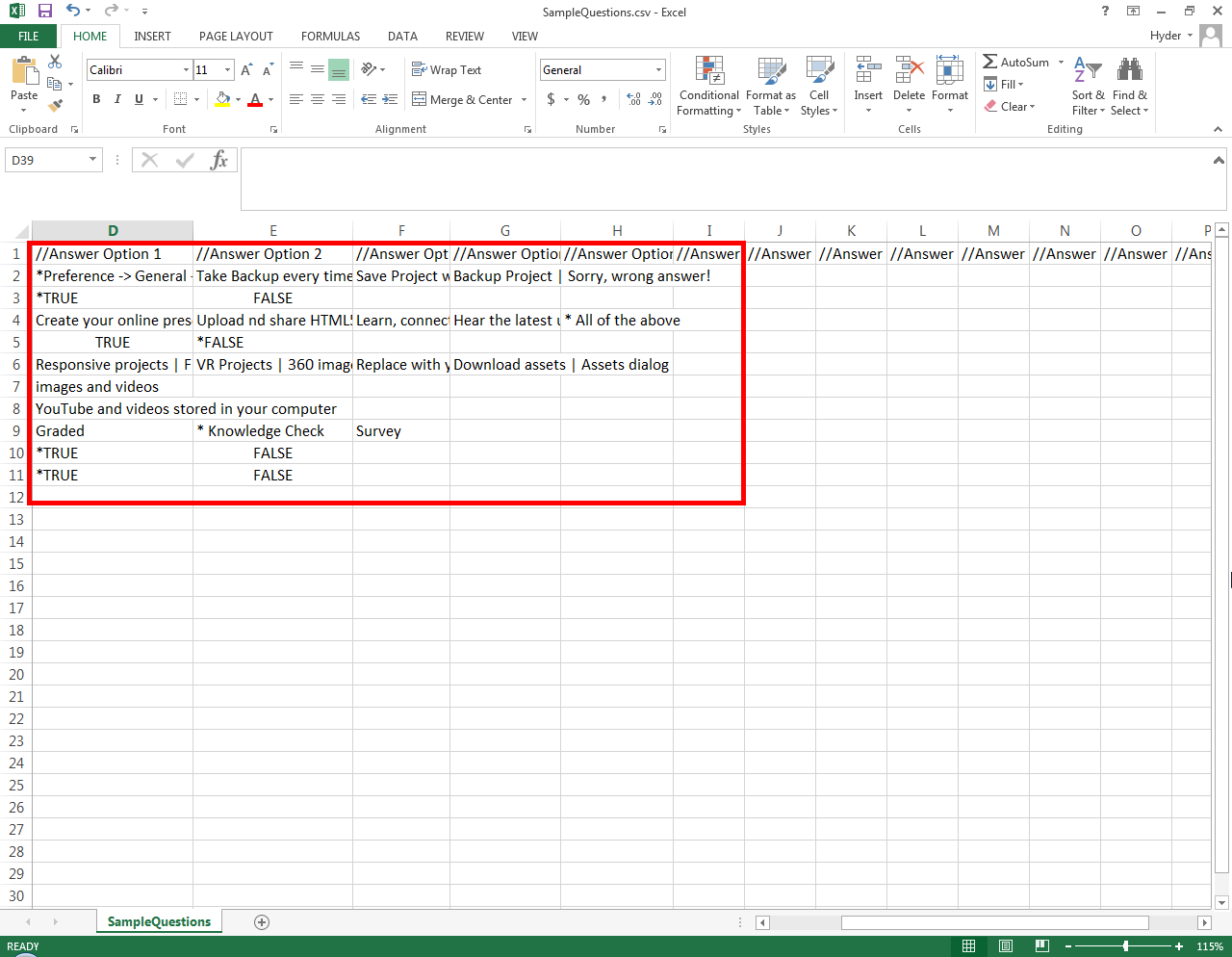
After that you need to give options/answers as shown below.

For short answers and fill in the blanks: You can simply write all the correct answers under the Answer Option columns.

For selection level multiple choice questions: Need to add pipe (|)
Example: Preference | Yes, you’re right!

For Multiple choice and True/False: Need to add asterisk (*) at the beginning of the answer.
Example: *All of the above

For Matching: Need to give a pipe (|) besides each option with the right choice.
Example: Download Assets | Assets dialog

12.Click on the image to zoom.

13. short13. short.

Step 8:

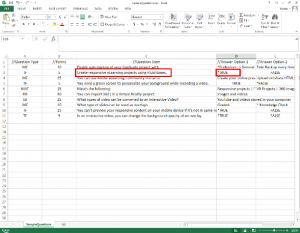
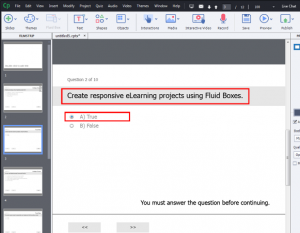
You can check the correct answers in the project once you import CSV format file. Here you can see a sample screenshots of the correct answer with an asterisk (*) in the CSV file and reflecting the same in the project slide after importing.

In conclusion, Adobe Captivate 2019’s features like PowerPoint in Responsive Mode and CSV file importing empower e-learning developers to create engaging and dynamic content. These enhancements make Captivate 2019 a versatile tool for maximizing the potential of effective e-learning course development.

How do the latest features in Adobe Captivate authoring tool enhance our eLearning solutions?

As a prominent provider of eLearning solutions, Swift eLearning leverage the full range of capabilities offered by Adobe Captivate 2019. Our services encompass everything from custom course development to consulting on best practices, providing a comprehensive suite tailored to meet the unique needs of our clients. With a team of experienced instructional designers, we ensure that your eLearning content not only captivates learners but also aligns seamlessly with your organizational objectives.

Our E-learning Services

Rapid eLearning Development is an approach that involves creating eLearning content quickly and efficiently, often using templates, authoring tools, and pre-existing content to expedite the development process. Our Rapid eLearning development services promptly address training needs and deliver timely learning solutions. Read More

Legacy Content Conversions involve the process of updating and modernizing existing training materials, often developed using outdated technologies or formats, to make them compatible with current eLearning platforms and standards. We specialize in converting content from older file formats to newer ones, redesigning layout and structure, and enhancing interactivity and multimedia elements. Read More

FREQUENTLY ASKED QUESTIONS (FAQS)


What is Adobe Captivate 2019?
Adobe Captivate 2019 is an eLearning authoring tool used to create interactive online courses and training content. It supports features like responsive design, simulations, multimedia integration, quizzes, and integration with Learning Management Systems.

What is the difference between Adobe Captivate 2019 and Adobe Captivate Classic?
Adobe Captivate Classic is the older generation Adobe Captivate (which was originally released in 2019). It is a legacy tool to create all kinds of engaging and interactive eLearning content. 

What is PowerPoint in Responsive Mode, and how does it benefit e-learning development?
PowerPoint in Responsive Mode is a feature in Adobe Captivate 2019 that allows users to import PowerPoint presentations and convert them into responsive e-learning content. It benefits e-learning development by preserving the original design while ensuring adaptability to different screen sizes.

Advantages of  importing CSV format file feature?
Advantage of “import CSV format file” feature in Adobe Captivate allows you to efficiently import data, like quiz questions or user information, from a spreadsheet. It saves time, reduces errors, and is useful for bulk data entry, updates, and multilingual projects.

What types of files can be imported using Adobe Captivate 2019?
Adobe Captivate 2019 allows the import of PowerPoint slides and CSV format files, providing users with flexibility in content creation.

When should I use PowerPoint in responsive mode?
PowerPoint in responsive mode is particularly useful when you want to import existing PowerPoint content into Adobe Captivate while maintaining responsiveness across different devices.

Which types of quiz questions can be imported using a CSV format file in Adobe Captivate 2019?
In Adobe Captivate you can import various types of quiz questions, such as Multiple Choice (MC), True or False (TF), Match the Following (MAT), Short Answers (SA), and Fill in the Blanks (FIB).

Steps to import quiz questions in Adobe Captivate 2019 using CSV file?
The steps to import a CSV file in Adobe Captivate are, navigate to the “File” menu in the menu bar, go to the “Import” option, and select “Import CSV Format File”.

Why is a CSV format file used for importing quiz questions in Adobe Captivate 2019?
A CSV format file is used for importing quiz questions in Adobe Captivate 2019 because it provides a structured and efficient way to import various types of quiz questions, saving time and effort in manual creation.

Where can I get support for Adobe Captivate 2019?
Support for Adobe Captivate 2019 is available through official channels, including Adobe’s support website and community forums.

CONVERSION OF LEGACY TRAINING MATERIAL TO ELEARNING
Enhance learning effectiveness and deliver learning seamlessly across all mobile platforms and browsers.

READ MORE
CUSTOM ELEARNING CONTENT DEVELOPMENT
Develop custom eLearning solutions based on modern instructional design.

READ MORE
ADOBE FLASH COURSES TO HTML5 CONVERSION
Convert your Flash based legacy e-learning courses to HTML5 responsive courses.

READ MORE
12 comment(s) need to be approved.
2 replies
  1. Johnny
    Johnny says:

    Wow, this article on Adobe Captivate 2019 is so informative! The section about importing CSV format files into Adobe Captivate is a game-changer in elearning content development. It will save so much time in content creation. Thanks for sharing this tip!

    Reply

Leave a Reply

Want to join the discussion?
Feel free to contribute!

Leave a Reply

Your email address will not be published. Required fields are marked *