Custom eLearning and Digital Training Solutions Provider
  • Home
  • eLearning Services
    • Custom Elearning Solutions
    • Convert PowerPoint to eLearning
    • Rapid eLearning Development
    • Translation and Localization
    • Flash To HTML5 Conversion
    • Legacy Content Conversion
    • Mobile Learning
    • Gamified Learning Solutions
    • Blended Learning Solutions
  • Software Development
    • Learning Management System
    • Workforce Management System
    • Human Resource Management System
    • Bug Tracker Software
    • Custom Software Development
  • Contact Us
  • Blog
  • Search
  • Menu Menu
  • 0Shopping Cart
  • Home
  • eLearning Services
    • Custom Elearning Solutions
    • Convert PowerPoint to eLearning
    • Rapid eLearning Development
    • Translation and Localization
    • Flash To HTML5 Conversion
    • Legacy Content Conversion
    • Mobile Learning
    • Gamified Learning Solutions
    • Blended Learning Solutions
  • Software Development
    • Learning Management System
    • Workforce Management System
    • Human Resource Management System
    • Bug Tracker Software
    • Custom Software Development
  • Contact Us
  • Blog

Step-by-Step Guide: Convert Text and Images in Illustrator

Know About Adobe Illustrator:

Adobe Illustrator is a powerful vector graphics editor developed and marketed by Adobe Inc.

Adobe Illustrator is a versatile and widely adopted graphic design software, empowering creative to bring their visual concepts to life.

Click Preview to Watch how to convert image-based text into editable text in Adobe Illustrator.

Preview

Converting image text in Adobe Illustrator enhances text manipulation in design projects.

This technique is particularly effective in custom eLearning development solutions.

If images or graphics containing text, you may frequently encounter text elements embedded within an image.

These text elements, referred to as “non-live text,” pose challenges for editing or manipulation.

However, Adobe Illustrator offers to convert non-live text into live text, easy editing, customization, and integration into designs.

Mastering this process unlocks new creative possibilities, whether you are an experienced designer or a beginner enhancing your skills.

In this guide, we will explore how to transform image text to editable text in Adobe Illustrator.

Here is a step-by-step guide for the process:

Step 1: 

Begin by launching Adobe Illustrator and opening the image you want to edit. Choose your desired image and then navigate to the ‘Type’ option located in the upper interface.
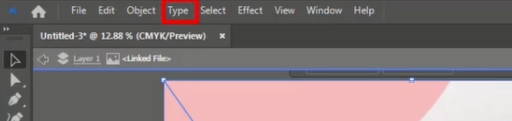
adobe illustrator

Step 2: Select the ‘Retype (Beta)’ option by clicking on it.
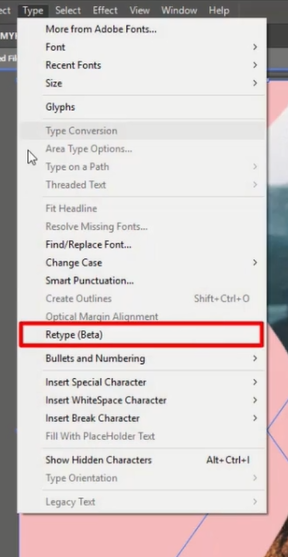
adobe illustrator

Step 3: Next, choose the ‘Enter’ function within the ‘Retype (Beta)’ panel. This action allows us to proceed.
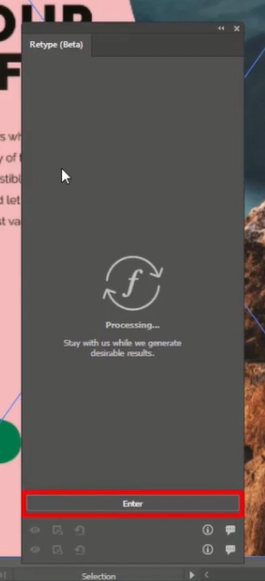
adobe illustrator

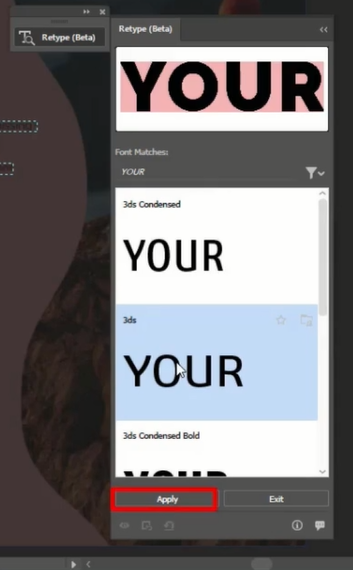
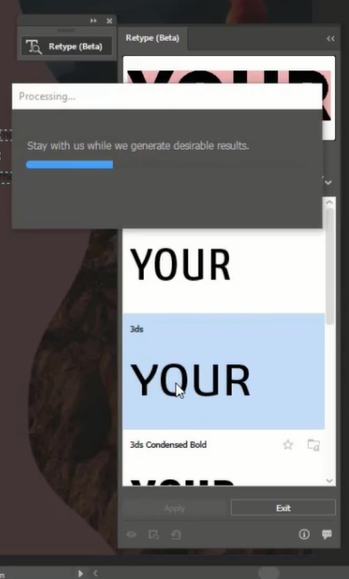
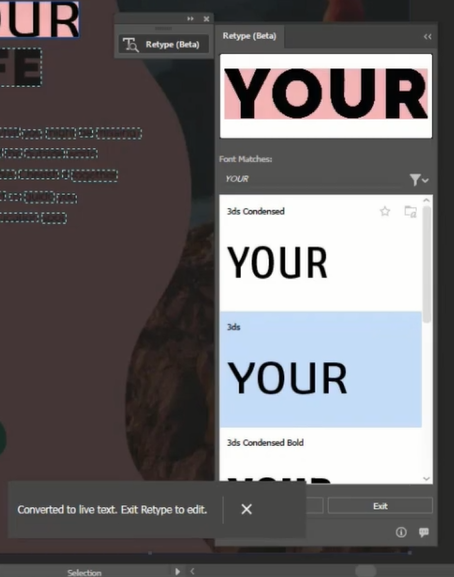
Step 4: Select your ‘preferred font’ and with a single click, it will be applied to your text.
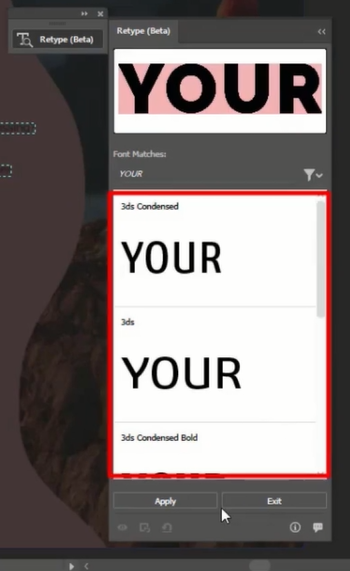
adobe illustrator

adobe illustrator

adobe illustrator

adobe illustrator

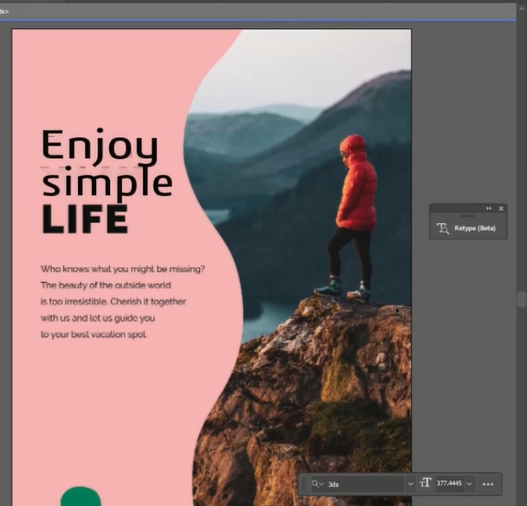
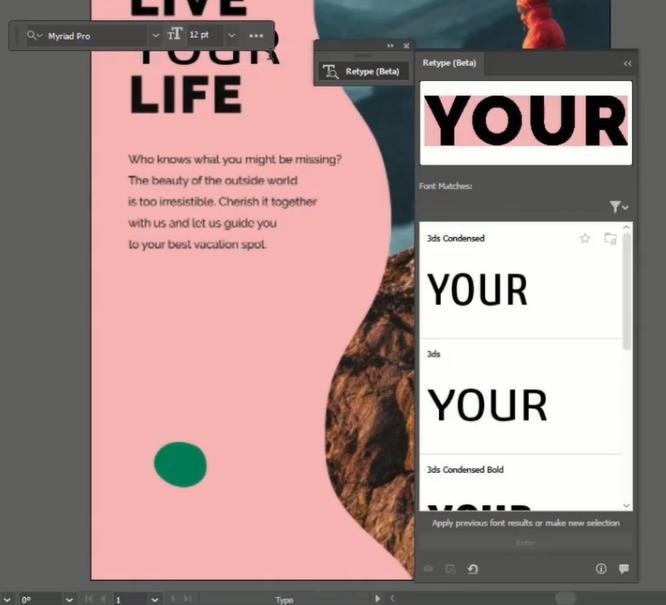
Step 5: To edit the ‘Text’ within the image, simply click on the text you want to edit or modify.
adobe illustrator

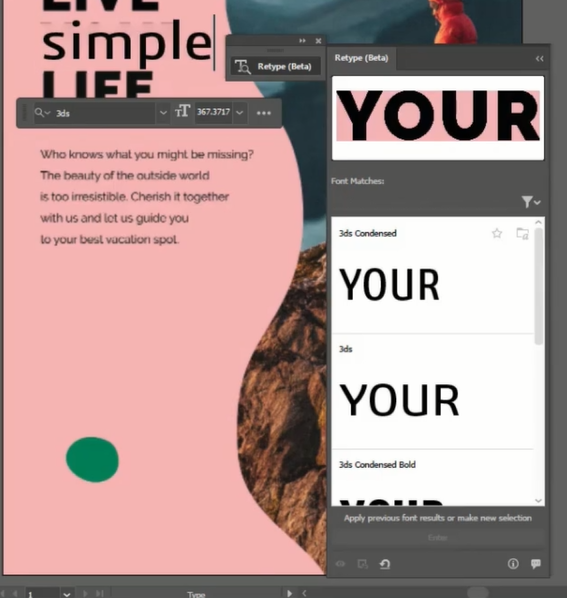
Step 6: You can apply the same steps to edit any other ‘Text’ within the image.
adobe illustrator

adobe illustrator

Conclusion

In conclusion, mastering the art of converting text within images and outlined text into live, editable text in Adobe Illustrator is an essential skill for those immersed in the world of design and illustration. This process opens up a realm of possibilities, enabling precise adjustments, logo rebranding, and rejuvenating scanned or rasterized text.

By following the steps outlined above, you can efficiently trace and convert image-based text into vector paths and then into editable text—a process particularly advantageous for those involved in eLearning solutions and custom eLearning development. Not only does this method save time, but it also provides creative flexibility when working on projects involving text elements in the realm of eLearning design and development.

With practice, seamlessly integrating text from images into your Adobe Illustrator designs becomes second nature, ensuring a smooth workflow for graphic design and illustration projects, as well as for creating custom eLearning solutions and eLearning development projects. This versatile skill opens up new possibilities for custom eLearning development and design by facilitating the incorporation of text elements from various sources, enhancing the overall quality and efficiency of eLearning solutions.

ARTICULATE STORYLINE POSTS

  • step-by-step guide to customize quiz feedback colors in rise 360
    How to Customize Correct and Incorrect Answers Feedback Colors in Articulate Rise 360June 27, 2025 - 4:40 PM
  • removing labels and numbers from process blocks in articulate rise 360
    How to Remove Labels and Numbers from Process Blocks in Articulate Rise 360June 20, 2025 - 3:07 PM
  • easy-online-course-creation-ispring-suite-swift-elearning-services
    Create Online Courses with Ease Using iSpring Suite – The All-in-One eLearning Authoring Tool for PowerPointJune 16, 2025 - 11:18 AM
  • how to adjust padding in articulate rise 360 content blocks for custom e-learning
    How to Adjust Padding in Articulate Rise 360 Content Blocks for Custom E-LearningJune 9, 2025 - 5:23 PM
  • swift elearning services focuses on crafting custom elearning courses that enhance digital learning experiences.
    How to Use Snapshots to Recover Deleted Lessons in Articulate Rise 360April 23, 2025 - 3:58 PM
  • swift elearning services provides articulate 360 localization, offering tailored elearning solutions that adapt your content for global audiences.
    Articulate 360 Localization: Create, Translate, and Manage Training with EaseApril 17, 2025 - 11:24 AM
  • custom elearning solution with jump-to-time video control in storyline 360 for interactive video navigation.
    How to Use Jump-to-Time Trigger to Control Video in Storyline 360April 11, 2025 - 10:51 AM
  • how to import slides from other storyline projects
    Articulate Storyline 360 – How to Import Slides from Other Storyline ProjectsMarch 25, 2025 - 5:52 PM
  • ohs-traffic-control-training-for-construction-workers-featured-image
    OHS – Traffic Control Training Course for Construction WorkersSeptember 9, 2024 - 5:56 PM
  • ohs-road-traffic-control-training-for-road-maintenance-workers-featured-image
    OHS – Traffic Control Work Zone Safety Training for Road Maintenance WorkersAugust 1, 2024 - 3:22 PM

Get a Free Prototype Customized with Your Content.

Our Portfolios Explore Our Extensive Collection of eLearning Courses.

GET A FREE ELEARNING SAMPLE

We transform your training material into engaging, SCORM-compliant courses.

Request a Free Sample  

Our Services


  • Rapid eLearning Solutions

  • Custom eLearning Development

  • Flash to HTML5 Conversion Services

  • Mobile Learning Solutions

  • Translation and Localisation Services

  • Gamification eLearning

Our Office Address

Asia: 704, Topaz Plaza, Punjagutta, Hyderabad, Telangana, India 500082

Australia: P.O. Box 107, Brisbane, Queensland, 4030

Canada: 750 Oakdale Rd Suite 56, North York, ON M3N 2Z4, Canada

USA: 12218 Old Gage Ranch, San Antonio, Texas 78245

Copyright ©2026 Swift eLearning Services.
  • Facebook
  • Twitter
  • LinkedIn
  • Youtube
New Ways to Generate Vector Graphics in Adobe Illustratoradobe illustratorstoryline 360From Faux Pas to Fabulous: Fashion Do’s and Don’ts #440
Scroll to top