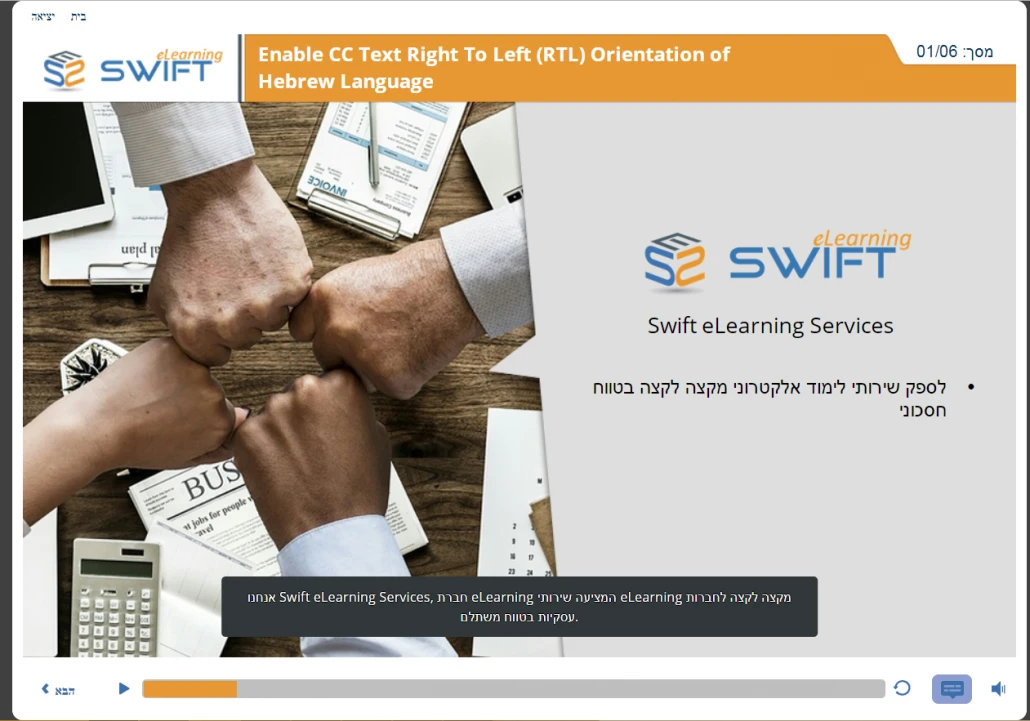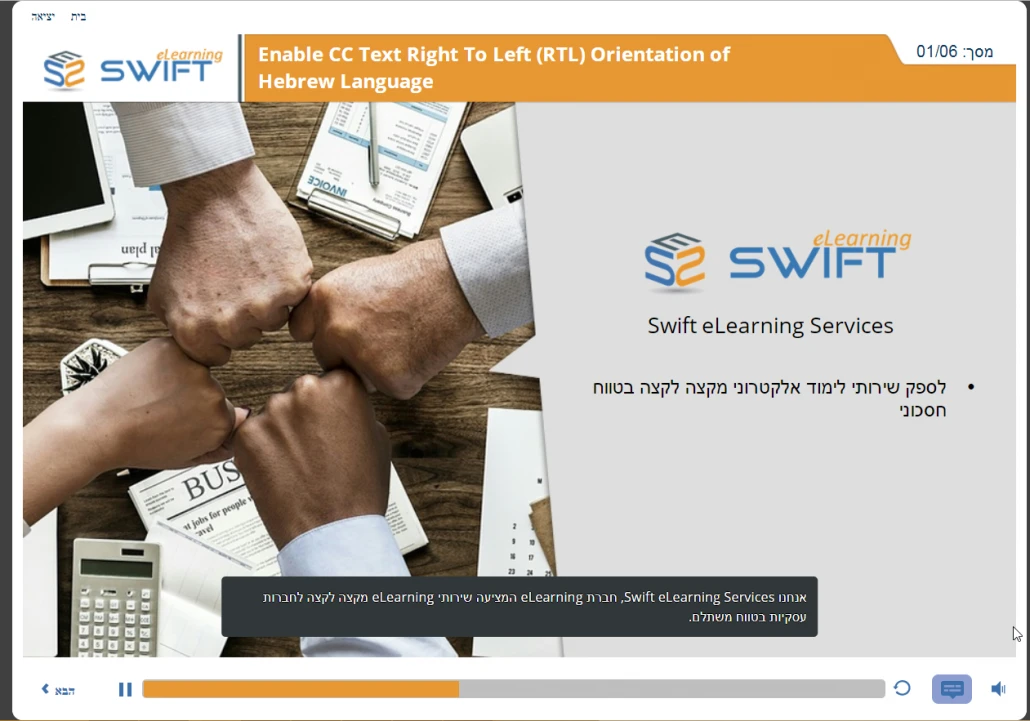
The Challenge: RTL Text Misalignment in Captions
While standard slide elements like text boxes adapt well to RTL configurations in Storyline 360, default video and audio closed caption containers can reset text direction upon publishing. This creates two distinct problems:
- Punctuation marks and leading words appear on the wrong side of the screen.
- Sentence structures reverse, disrupting comprehension for native speakers.
Step-by-Step CSS Fix for RTL Captions
Follow this process to modify your published course output files:
-
01
Locate the CSS File
Open your published course output folder, navigate to the Web output directory, and locate the file named
main.min.css.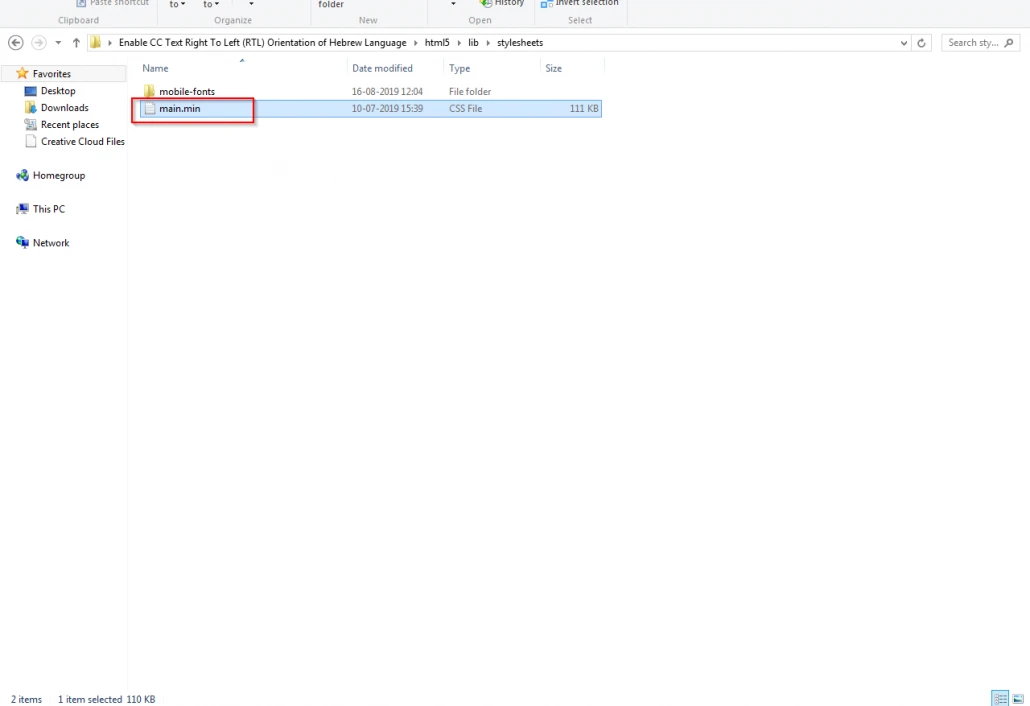
-
02
Open in a Code Editor
Right-click
main.min.cssand select Edit with Notepad++ (or your preferred text editor).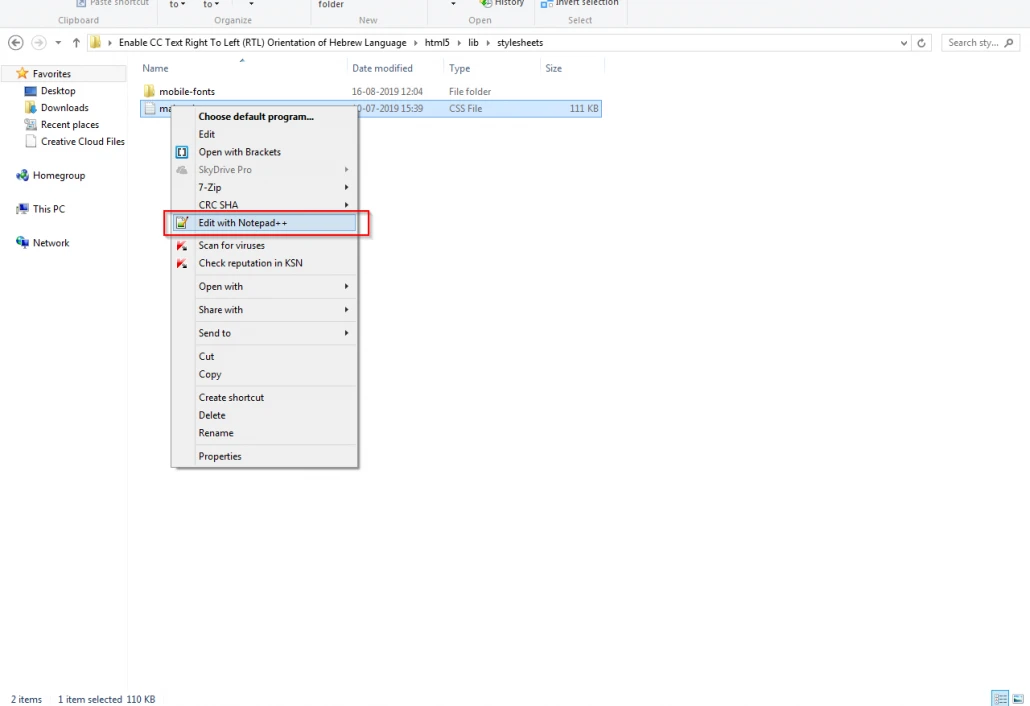
-
03
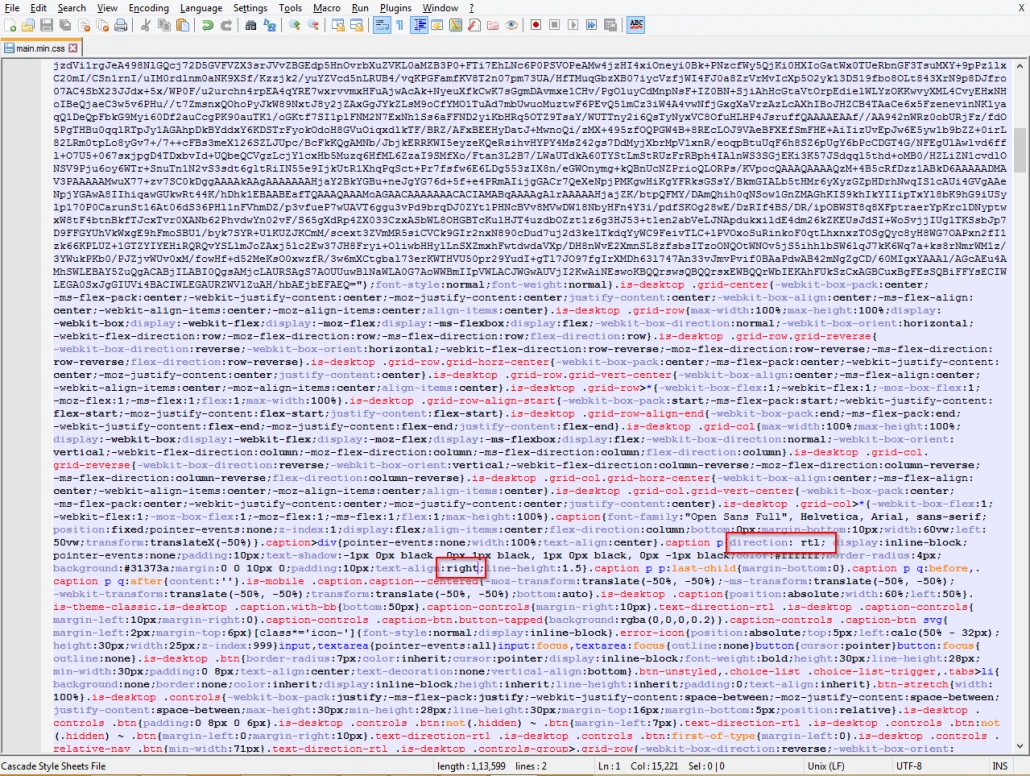
Update Text Direction
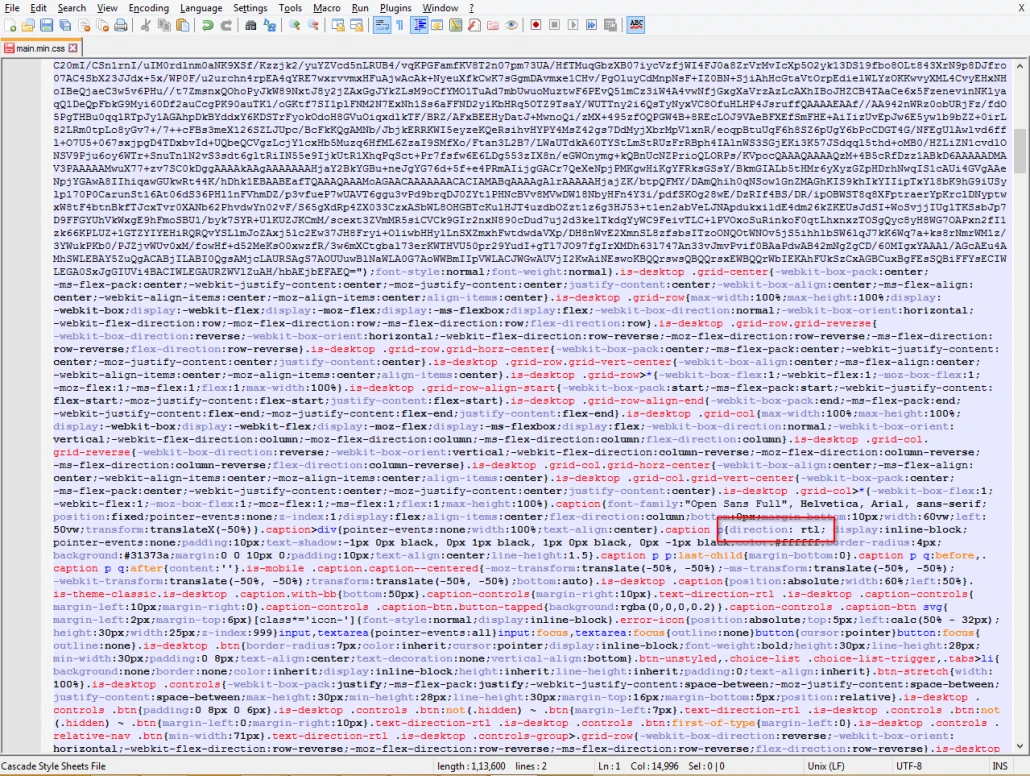
Search for the CSS class declaration
.caption p{displayand replace it with:.caption p{direction: rtl; display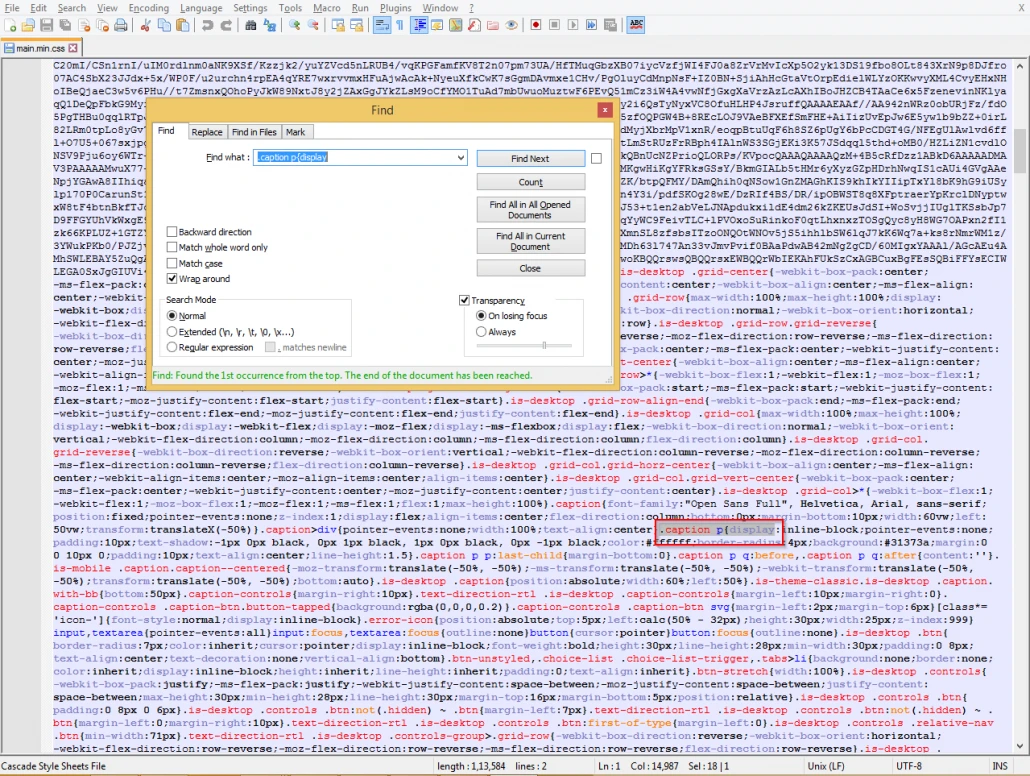
-
04
Update Text Alignment
Locate the code string
text-align:center;linewithin the caption styling block and replace it with:text-align:right;line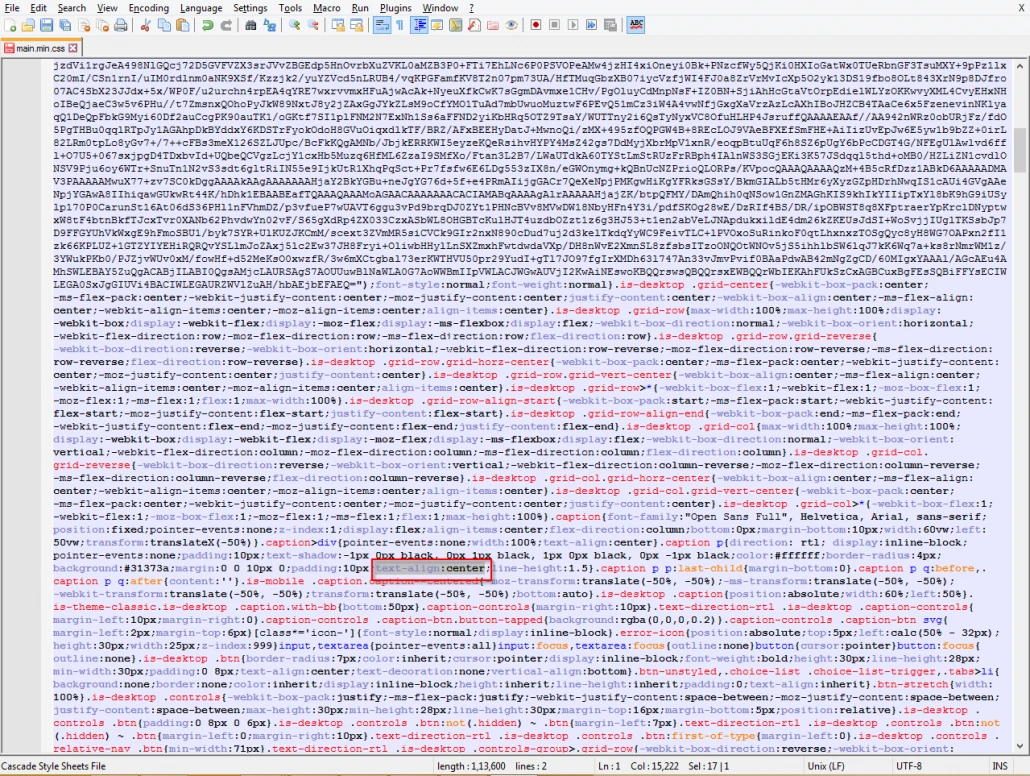
-
05
Save and Test
Save your changes and relaunch story.html in your web browser to verify that captions align correctly to the right margin.
Comparative Summary: Before vs. After CSS Modification
| Feature | Standard Storyline 360 Output | Modified CSS Output |
|---|---|---|
| Reading Direction | Left-to-Right default orientation | Right-to-Left native text flow |
| Text Alignment | Centered or left-justified lines | Right-justified margin alignment |
| Local Representation | Fragmented phrase structures | Culturally accurate, legible subtitles |