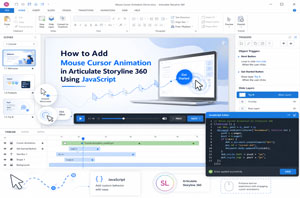
Automatically Advance Learners to the Next Slide Using Text Entry, Variables, Triggers and JavaScript in Storyline 360.
Interactive eLearning interactions improve learner engagement strategies, increase participation and create smoother navigation throughout training modules.
Click Preview to watch the how to Automatically Jump to the Next Slide After Entering Correct Text in Storyline 360.
Instead of asking learners to click a “Next” button manually, Storyline can detect the correct input and instantly advance the course. This creates a more responsive and immersive learning experience. One powerful interaction in Articulate Storyline 360 tutorials is automatically moving learners to the next slide automatically after they enter the correct text.
What Is Automatic Slide Navigation in Storyline 360?
Automatic slide navigation allows learners to move to the next slide immediately after completing a required action.
In this example, the learner types a specific keyword into a text-entry field. Once the correct word is detected, Storyline automatically jumps to the next slide.
This interaction helps create:
- Faster course flow
- Better learner engagement
- Gamified experiences
- Interactive assessments
- Software simulation activities
Benefits of Automatic Slide Navigation in eLearning Courses?
Improves Learner Engagement:
Interactive activities encourage active participation instead of passive clicking in scenario-based eLearning.
Creates a Smooth Learning Experience:
Automatic slide progression removes unnecessary navigation clicks and improves the learner experience.
Reinforces Knowledge:
Learners must enter the correct response before moving to the next slide, helping reinforce learning objectives.
Enhances Gamification:
You can create password-based progression, unlock interactions and hidden-code activities using gamification in eLearning techniques.
Ideal for Software Simulations:
This interaction is commonly used in software simulation training and system-based learning modules.
Step-by-Step Guide: How to Automatically Jump to the Next Slide in Storyline 360
Step 1: Open Your Storyline 360 Project
Launch Articulate Storyline 360 and open the project where you want to create automatic navigation.
Navigate to the slide you want to modify.
Step 2: Insert a Text Entry Field
Add a Text Entry field in Storyline 360 to the slide so learners can type their answer.
When you insert a text entry box, Storyline automatically creates a text variable in Storyline 360 to store the learner’s input.
● Example variable: TextEntry
You can rename the variable if needed, but make sure to use the exact same variable name throughout your triggers and JavaScript.
Step 3: Create a JavaScript Trigger
To improve how the interaction responds to learner input, create a trigger that runs JavaScript in Storyline 360 when the slide timeline starts.
Trigger Settings:
- Action: Execute JavaScript
- When: Timeline starts
- Object: This slide
● Open the JavaScript editor and paste your script.
const input = document.querySelector(“.acc-textinput”);
setVar(“TextEntry1”, “”);
input.addEventListener(“keyup”, () => {
setVar(“TextEntry1”, input.value.trim().toLowerCase());
});
● Click OK to save the script.
Step 4: Verify the Variable Name
Ensure the variable name used in the JavaScript exactly matches the Storyline text-entry variable name.
● For example: TextEntry
If the variable name is incorrect, the trigger will not work properly.
Step 5: Create the Automatic Jump Trigger
Now create another trigger that automatically moves the learner to the next slide when the correct text is entered.
Trigger Configuration
- Action: Jump to next slide
- When: Variable changes
- Variable: Select your text-entry variable
Step 6: Add a Condition
Add a condition to ensure the slide advances only when the learner enters the correct keyword.
● Example Condition: TextEntry = start
Enable the Ignore case option so learners can type:
- start
- START
- Start
● And still trigger the automatic slide navigation.
● The value you define here becomes the keyword that activates the next-slide transition.
● Click OK to save the trigger.
Step 7: Preview the Course
Preview the slide or the entire project using Storyline 360 preview mode to test the interaction.
When the learner enters the correct text in the text-entry field, the course will automatically jump to the next slide without requiring a Next button click.
Summary
Automatically advancing to the next slide after entering the correct text is a simple but highly effective interaction in Articulate Storyline 360.
By combining text-entry fields, Storyline 360 variables, Storyline 360 triggers and JavaScript in Storyline 360, you can create:
- More engaging eLearning experiences
- Gamified training activities
- Interactive software simulations
- Seamless learner navigation
This technique helps transform traditional click-based courses into dynamic and immersive learning experiences.
Frequently Asked Questions (FAQs)
How do I automatically jump to the next slide in Storyline 360?
You can automatically jump to the next slide in Articulate Storyline 360 by using text-entry variables, triggers and optional JavaScript. When learners enter the correct text, a trigger can automatically advance the course to the next slide.
Can I jump to a specific slide instead of the next slide in Storyline 360?
Yes. Instead of using the “Jump to next slide” trigger, you can select “Jump to slide” and choose a specific destination slide based on learner input or conditions.
Do I need JavaScript to create automatic slide navigation in Storyline 360?
No. Basic automatic slide navigation can be created using built-in Storyline triggers and variables. However, JavaScript can improve responsiveness and enable more advanced interactions.
How do text-entry variables work in Storyline 360?
When you insert a text-entry field in Storyline 360, the software automatically creates a text variable to store the learner’s input. You can then use that variable in triggers and conditions to control navigation and interactions.
Can I use automatic slide navigation for gamified eLearning?
Yes. Automatic slide navigation is widely used in gamified eLearning experiences such as password unlock activities, hidden-code challenges, branching scenarios and interactive quizzes.