Adobe Captivate 2019: Steps To Convert A Normal Video Into An Interactive Video
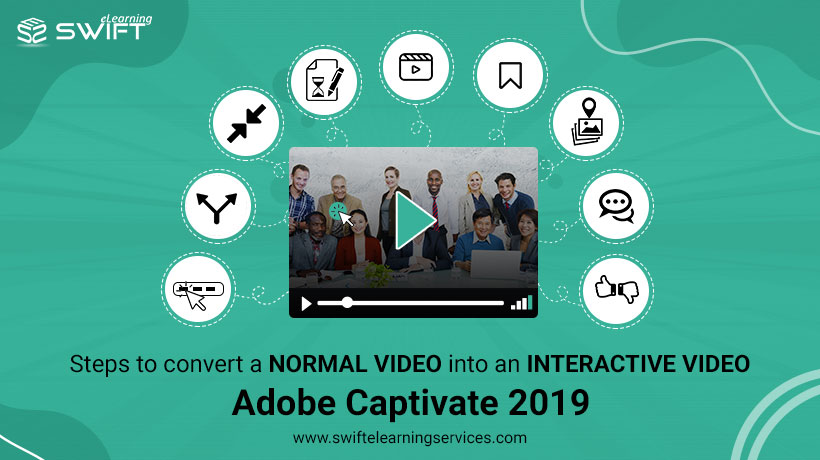
interactive video using adobe captivate 2019In Adobe Captivate 2019, one of the engaging features is, creating interactive videos with normal videos.

  • It allows linking with YouTube videos or your own videos
  • adding check points at specific places with overlay slide to give additional information
  • knowledge checks, and
  • bookmarking

Here are the steps to create an interactive video:

  1. Click on the interactive video on the toolbar.

  2. You will be given two options for inserting a video – On Your Computer or YouTube Video.

  3. The advantage of inserting YouTube video is, the file size or the video size won’t impact the file size of your eLearning project.

  4. The other advantage is, you can use specific segment from YouTube video by defining Start time and End time.

  5. Insert the video and click OK.

  6. This creates two little diamond-shaped icons just above the video, named Overlay slide and Bookmark.

  7. At a specific point in the video, you can add overlay slides to provide additional information.

  8. A dialogue box will open with the available slides in the project.

  9. Select the slide and click Insert.

  10. The selected slide will change the position and appears just below the video slide.

  11. Bookmark feature: In the knowledge check if the learner fails to get the correct answer, they will be redirected to a particular point of the video.

  12. To add a Bookmark, click on the Bookmark icon and rename it.

  13. Go to the Quiz options of the knowledge check.

  14. Under the Actions section, you will find On Success and On Failure options.

  15. Select the action Jump to Bookmark.

custom elearning development

The last comment needs to be approved.
0 replies

Leave a Reply

Want to join the discussion?
Feel free to contribute!

Leave a Reply

Your email address will not be published. Required fields are marked *