
Getting Started With Motion Path Animations and Triggers in Storyline 360
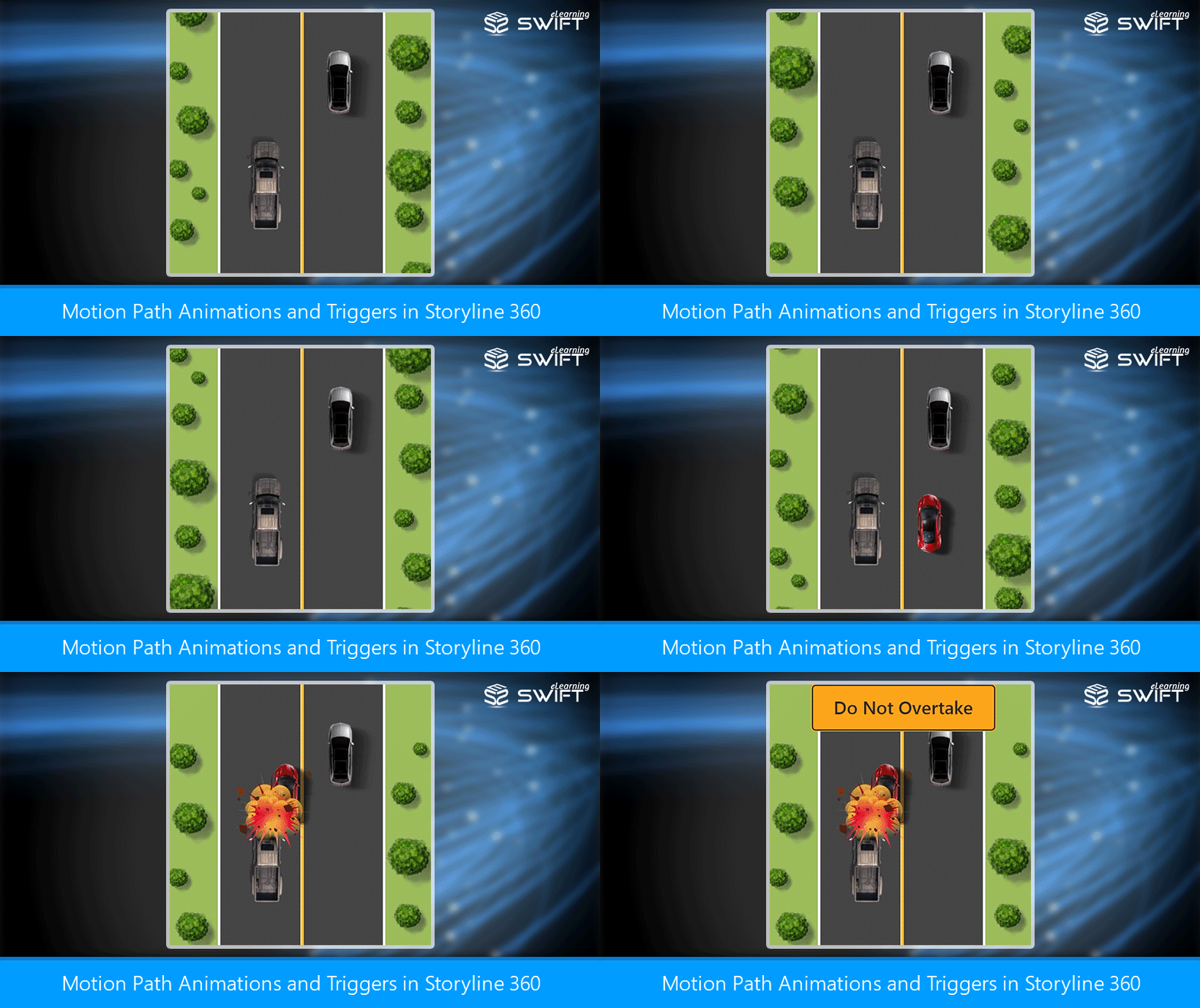
Have you ever tried to replicate Flash animations in Storyline? It is now possible with Articulate Storyline 360 with motion path animations.
Articulate Storyline 360 has an array of entrance, exit and motion path animations that you can use to orient objects. In this tutorial, we’ll discuss how to create eLearning interactivity with new object based triggers for motion path animations in Articulate Storyline 360 courses.
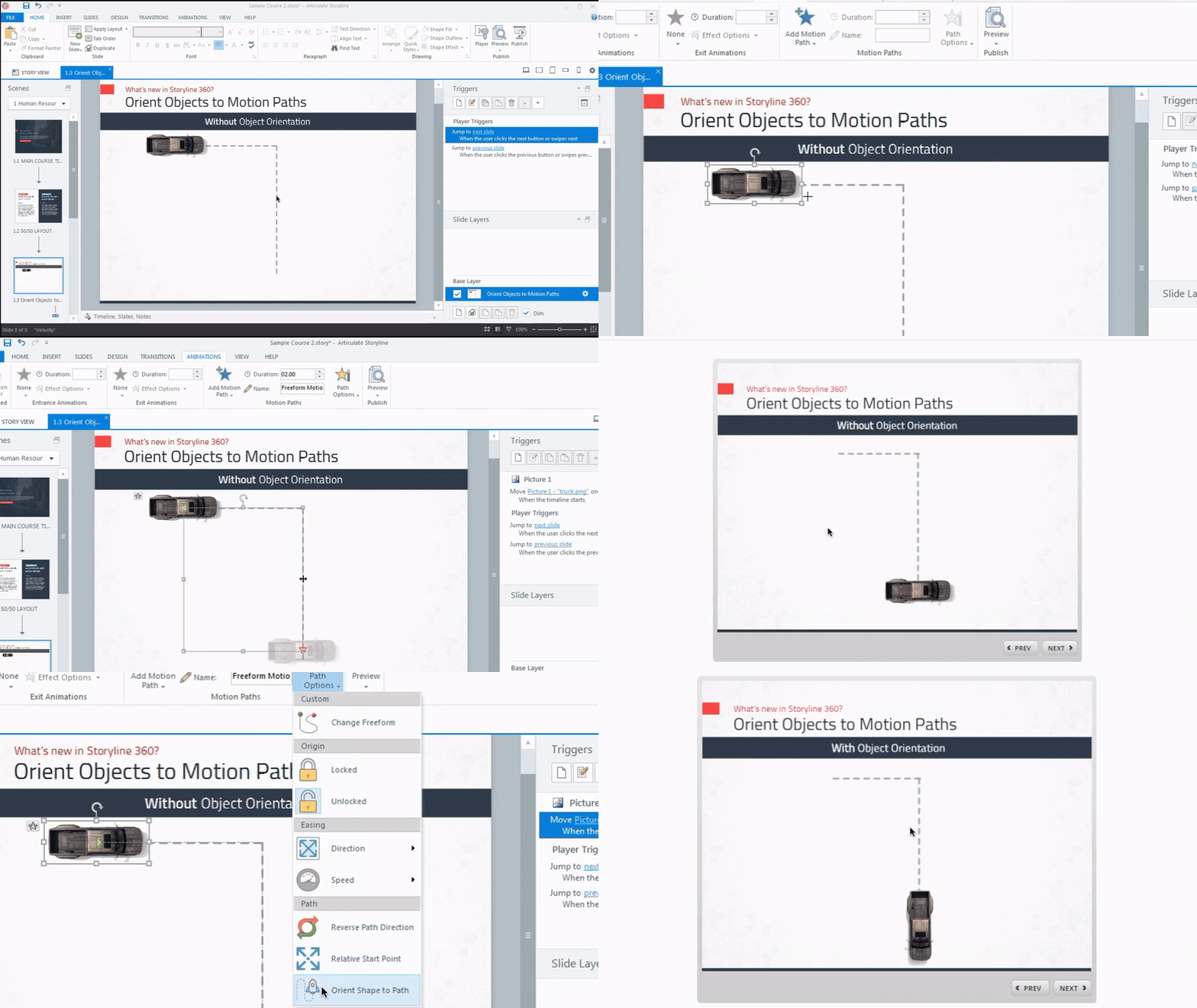
Orient Objects to Motion Paths
Storyline 360 enables you to change the direction of moving objects on a non-linear motion path to make sure the object faces the direction it is moving.
So how do we do that?
- Add a motion path animation to an object
- Click Animations tab on the Storyline ribbon
- Click Path Options
- Select Orient Shape to Path
As the object moves along the motion path, it changes its directions!
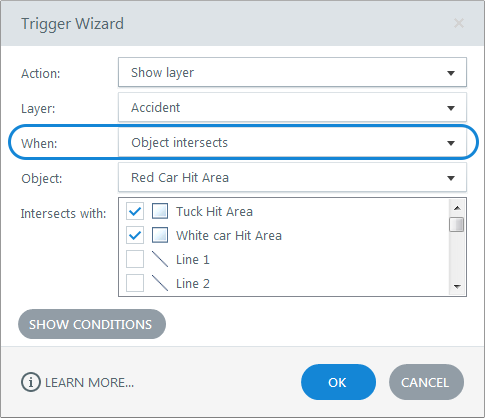
Trigger Actions When Objects Intersect
Storyline 360 enables you to trigger an action when two objects overlap or intersect. For instance, when an object moves along a motion path and intersects, you may want to add some interactivity such as showing a layer. Now we can easily do this by setting a trigger to occur using Object intersects.
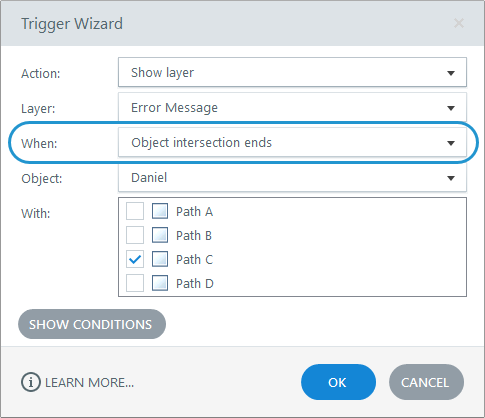
Trigger Actions When Objects No Longer Intersect
We can trigger actions when two objects stop intersecting. For example, if we have a circle moving inside a parent circle using the motion path, we might want to add an interaction when the child circle moves out of the parent. Now we can easily do this by setting a trigger to occur using Object intersection ends.
Trigger Actions When Objects Enter the Slide
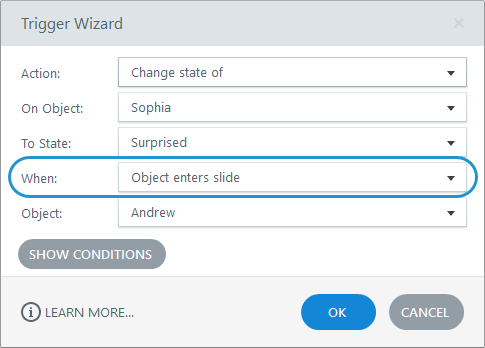
Storyline 360 lets you trigger the action when objects move on to the stage/slide. For instance, you may want to change the state of an object when another object gets into the picture. To achieve this, you need to set the trigger as shown below.
Trigger Actions When Objects Leave the Slide
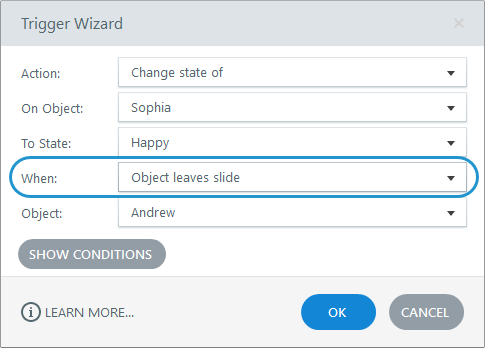
Storyline 360 enables you to trigger the action or animation when objects leaves the stage/slide. For instance, you may want to change the state of an object when another object leaves the slide along a motion path. You need to set the trigger as shown below.
This motion path animation in Storyline 360 provides a vast possibilities to unleash our creativity in eLearning development. Based on the motion path animation concept, we have created a sample interaction.
Here’s a Demo
Here is a demo based on brand new object triggers.

Hope you find this blog useful, please do share it on LinkedIn, Twitter and Facebook using the links below.
I would also appreciate your comments on what you think about Articulate 360.
Our Services: Elearning Translation and Localization Services, PPT to eLearning, Custom eLearning
Leave a Reply
Want to join the discussion?Feel free to contribute!