Custom eLearning and Digital Training Solutions Provider
  • Home
  • eLearning Services
    • Custom Elearning Solutions
    • Convert PowerPoint to eLearning
    • Rapid eLearning Development
    • Translation and Localization
    • Flash To HTML5 Conversion
    • Legacy Content Conversion
    • Mobile Learning
    • Gamified Learning Solutions
    • Blended Learning Solutions
  • Software Development
    • Learning Management System
    • Workforce Management System
    • Human Resource Management System
    • Bug Tracker Software
    • Custom Software Development
  • Contact Us
  • Blog
  • Search
  • Menu Menu
  • 0Shopping Cart
  • Home
  • eLearning Services
    • Custom Elearning Solutions
    • Convert PowerPoint to eLearning
    • Rapid eLearning Development
    • Translation and Localization
    • Flash To HTML5 Conversion
    • Legacy Content Conversion
    • Mobile Learning
    • Gamified Learning Solutions
    • Blended Learning Solutions
  • Software Development
    • Learning Management System
    • Workforce Management System
    • Human Resource Management System
    • Bug Tracker Software
    • Custom Software Development
  • Contact Us
  • Blog

How to Utilise the Vanishing Point Tool in Adobe Photoshop

Click or tap on the play button below to watch the video for easier understanding.

Introducing the concept of vanishing points in Adobe Photoshop opens up a world of possibilities for precise perspective editing and composition in your creative projects.

Adobe Photoshop’s Vanishing Point feature is a remarkable tool for those involved in eLearning solutions. It allows for the seamless integration of custom eLearning content into images while preserving the critical element of perspective. This feature is especially valuable when creating educational materials for corporate eLearning.

Whether it’s adding graphics to architectural renderings or enhancing training materials with spatially accurate visuals, Vanishing Point ensures that eLearning content development is both engaging and contextually accurate.

The step-by-step guide to utilizing Vanishing Point is a valuable resource for professionals in the eLearning industry. When developing custom eLearning content, the ability to manipulate images while maintaining perspective is an essential skill.

Whether you’re incorporating images into your eLearning modules, creating visually engaging training materials, or retouching architectural images for corporate eLearning, Vanishing Point can streamline your workflow, ensuring that your content is both educational and visually compelling.

This guide will walk you through the steps to effectively use the Vanishing Point tool, enabling you to seamlessly integrate objects into existing scenes and achieve a professional level of realism in your digital art and design endeavors.

To use the Vanishing Point Tool in Adobe Photoshop, follow these steps:

Step 1: 

Launch the ‘Photoshop’ software and open an image.
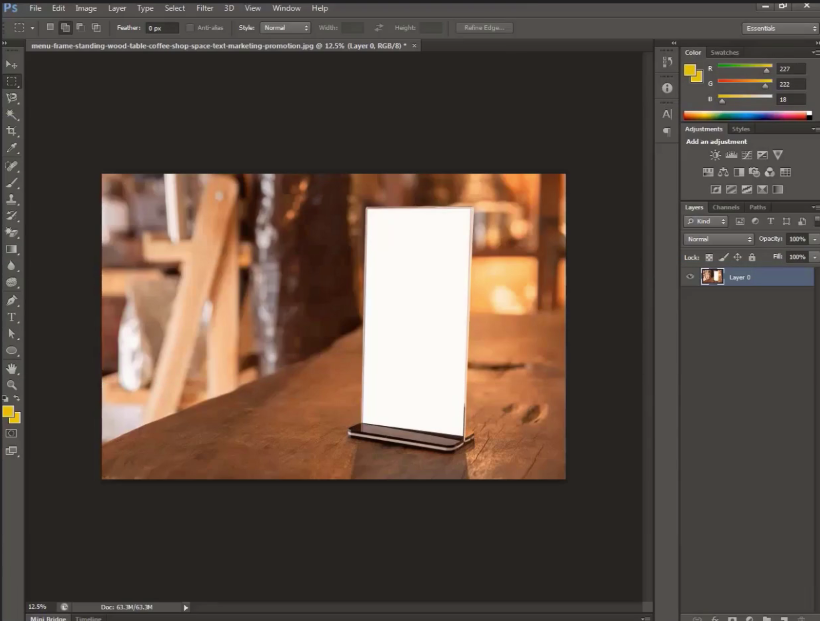
adobe photoshop

Step 2: 

Import a mockup image into your project, and using the rectangle tool, select the entire image. Then, remove the image from the area by pressing the ‘Ctrl+X’ shortcut key.
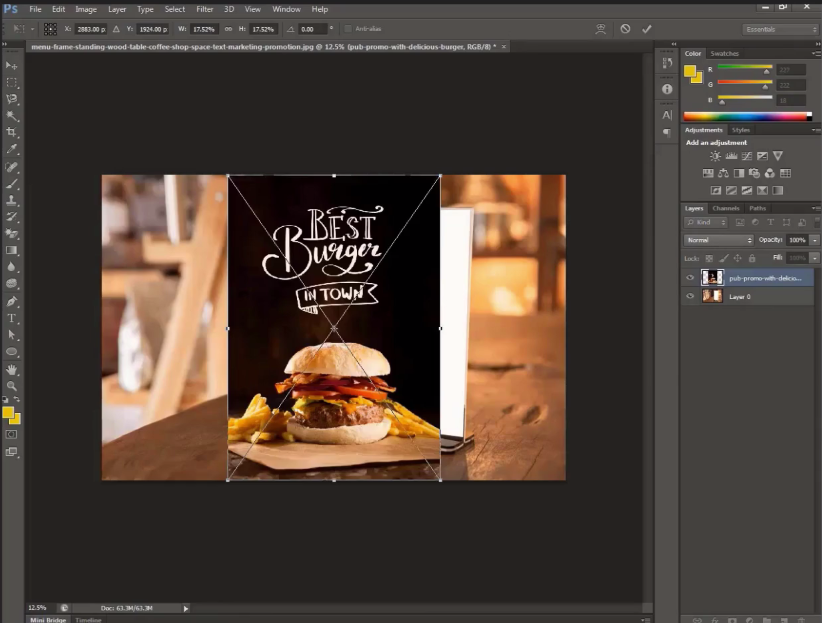
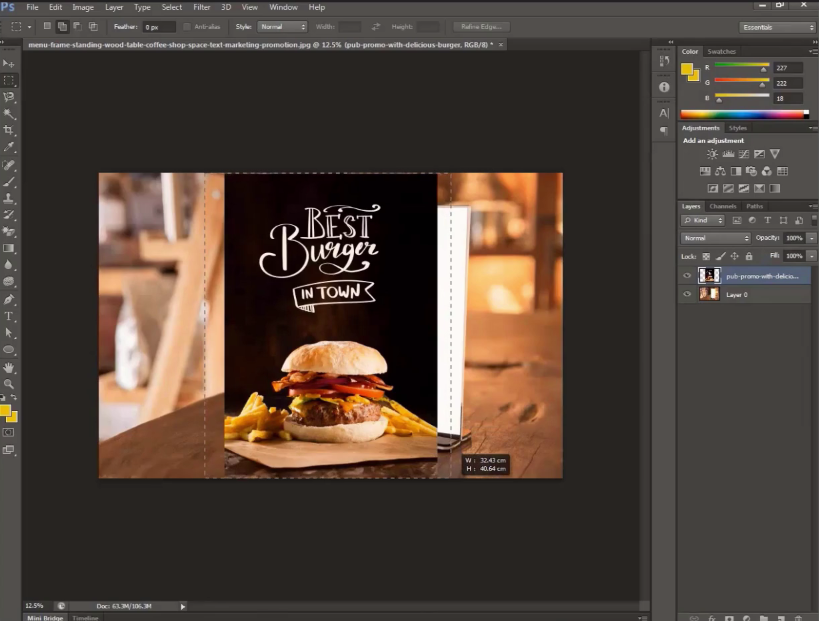
adobe photoshop

adobe photoshop

Step 3: 

Navigate to the top-side ribbon and click the ‘Filter’ button. From the menu list, select the ‘Vanishing Point’ option.
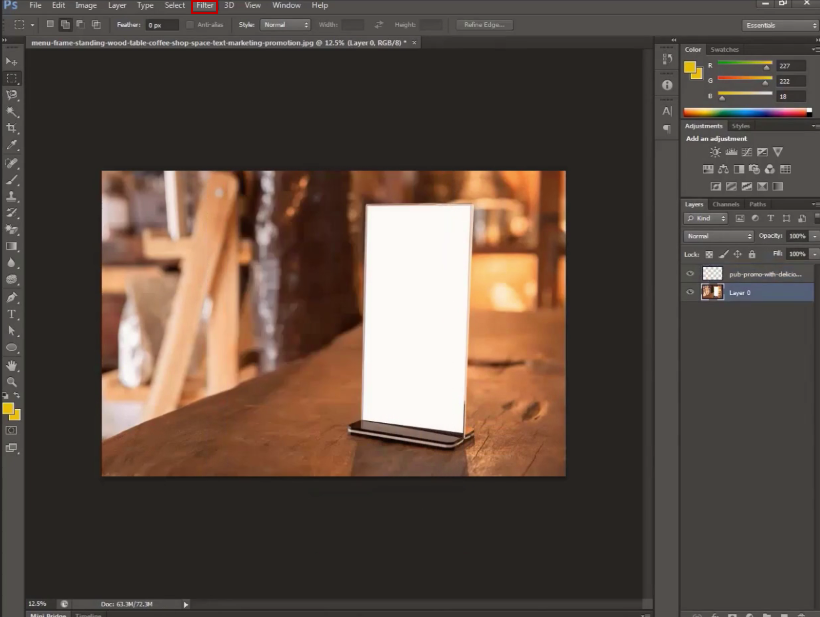
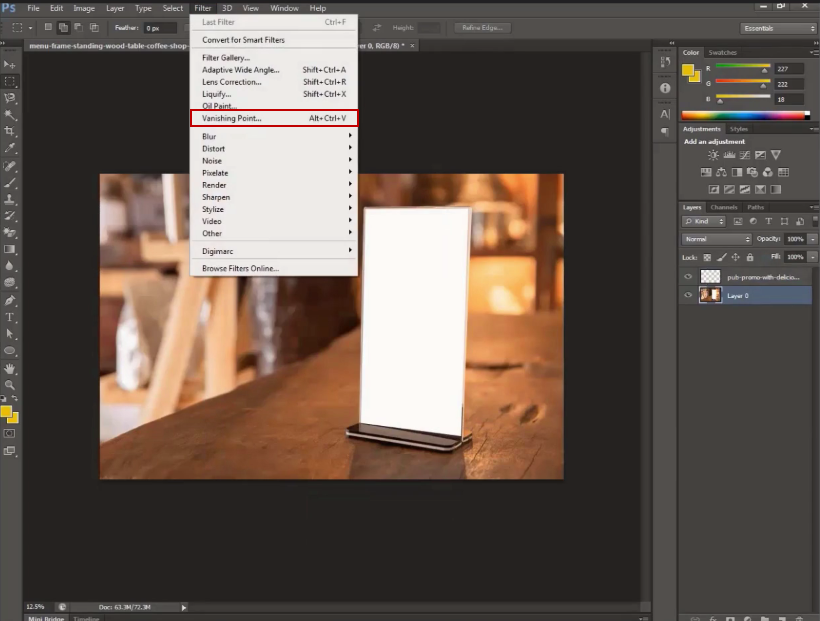
adobe photoshop

adobe photoshop

Step 4: 

After that, mark the area for the mockup image placement using points.
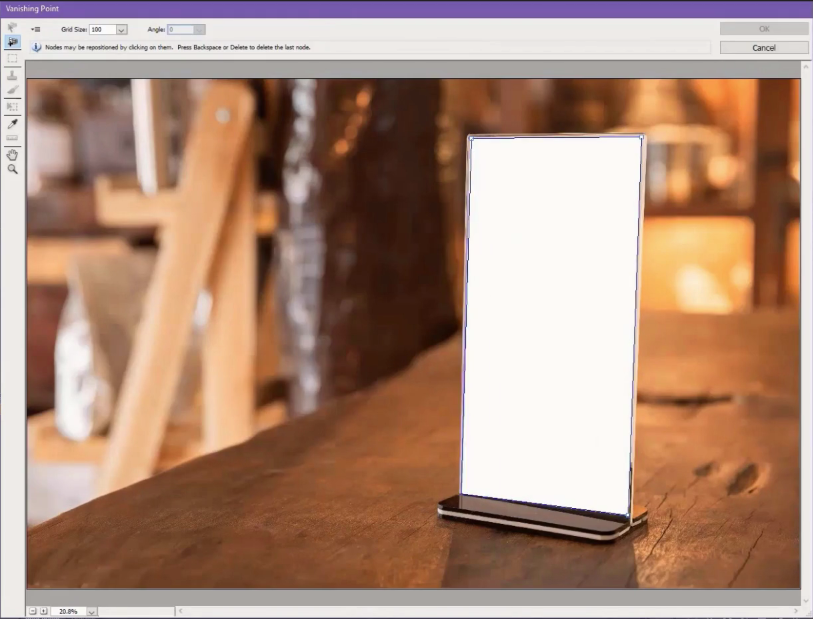
adobe photoshop

Step 5: 

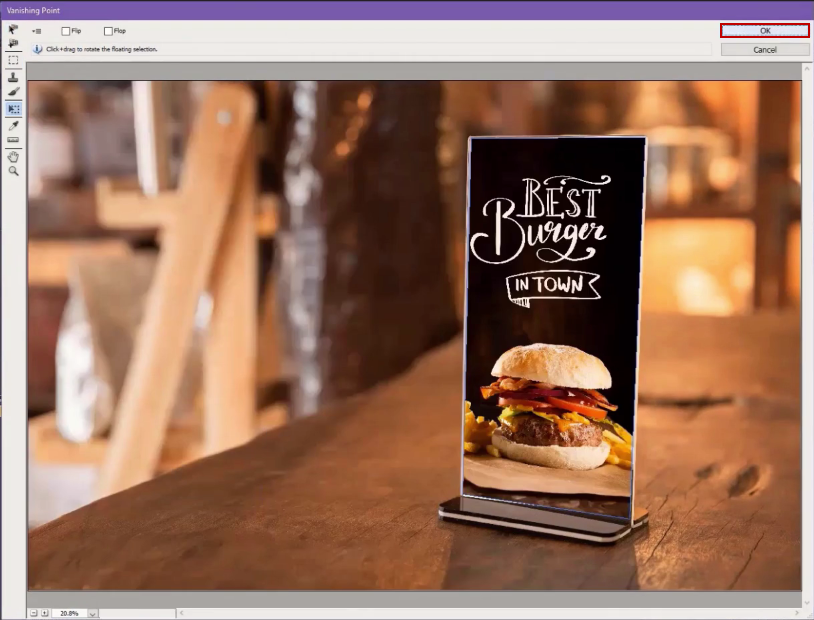
Paste the image by pressing the ‘Ctrl+V’ shortcut key, drag the image into the marked area, and then click ‘OK’.
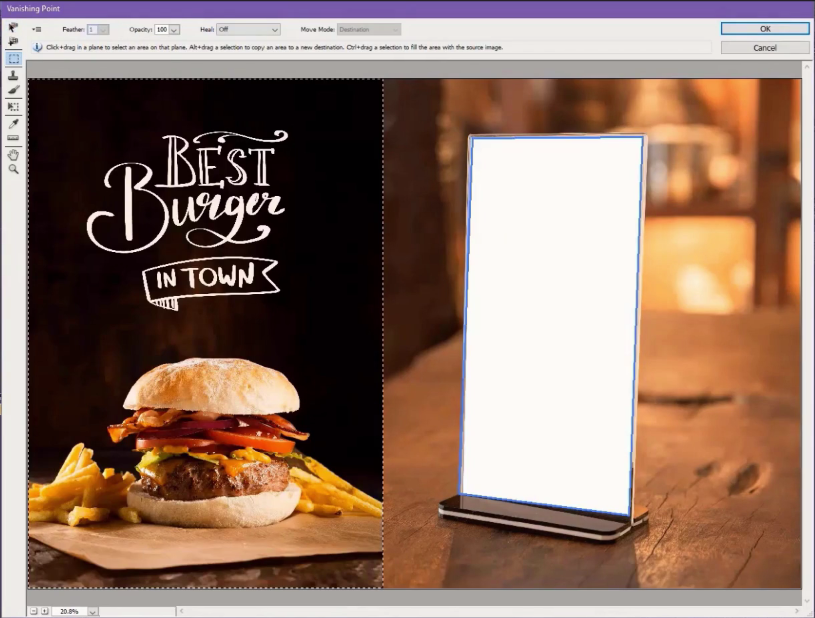
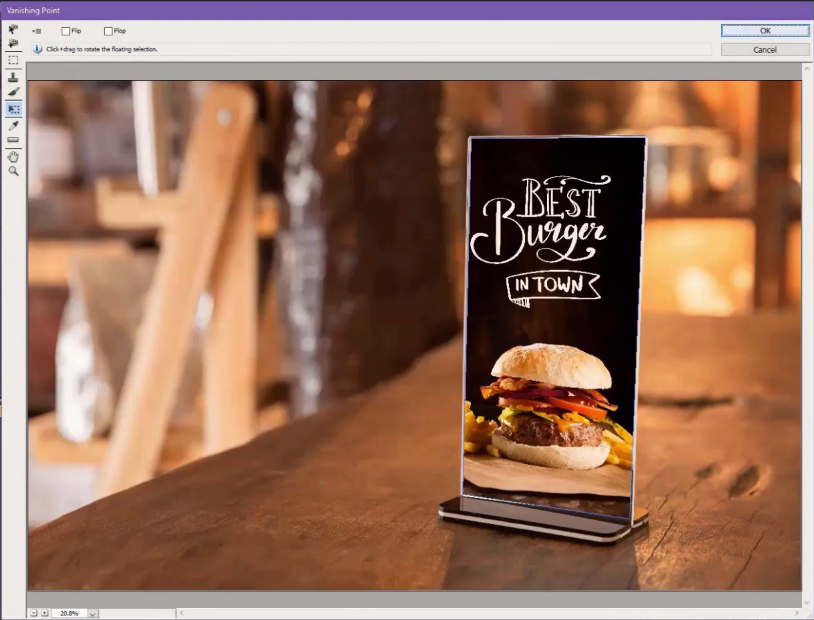
adobe photoshop

adobe photoshop

adobe photoshop

Step 6: 

You will notice that the mockup image fits into the desired area according to your requirements without any transformation or blurriness.
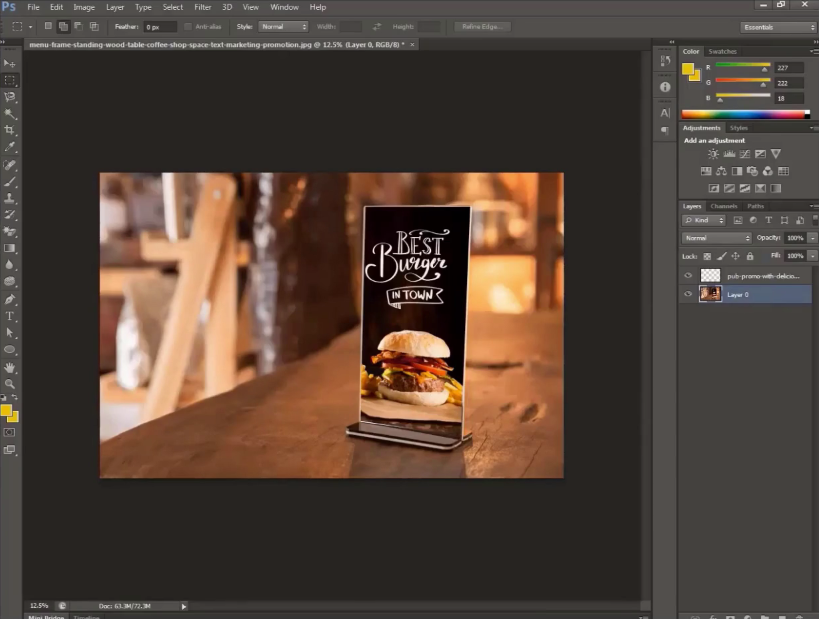
adobe photoshop

Conclusion:

Adobe Photoshop can significantly enhance your ability to create realistic and immersive compositions. By understanding and applying the principles of perspective, you can seamlessly integrate objects and elements into your images, achieving a level of accuracy and realism that will elevate your digital art and design work.

In the eLearning industry, the significance of Adobe Photoshop’sVanishing Point feature cannot be overstated. It simplifies the process of creating custom eLearning content that seamlessly fits within the context of your training materials.

Whether you’re developing courses for corporate eLearning or other eLearning solutions, the ability to maintain perspective in your visuals is a game-changer. It empowers you to engage learners with realistic and immersive images, fostering a deeper understanding of the content.

Vanishing Point is a valuable asset for anyone involved in eLearning solutions. It enhances the eLearning content development process, making it easier to create custom materials that meet the specific needs of your audience. With this feature, the world of corporate eLearning and content development becomes more visually captivating, ensuring that learners remain engaged and informed throughout their educational journey.

0 replies

Leave a Reply

Want to join the discussion?
Feel free to contribute!

Leave a Reply Cancel reply

Your email address will not be published. Required fields are marked *

Share this entry
  • Share on Facebook
  • Share on Twitter
  • Share on Pinterest
  • Share on LinkedIn

ARTICULATE STORYLINE POSTS

  • step-by-step guide to customize quiz feedback colors in rise 360
    How to Customize Correct and Incorrect Answers Feedback Colors in Articulate Rise 360June 27, 2025 - 4:40 PM
  • removing labels and numbers from process blocks in articulate rise 360
    How to Remove Labels and Numbers from Process Blocks in Articulate Rise 360June 20, 2025 - 3:07 PM
  • easy-online-course-creation-ispring-suite-swift-elearning-services
    Create Online Courses with Ease Using iSpring Suite – The All-in-One eLearning Authoring Tool for PowerPointJune 16, 2025 - 11:18 AM
  • how to adjust padding in articulate rise 360 content blocks for custom e-learning
    How to Adjust Padding in Articulate Rise 360 Content Blocks for Custom E-LearningJune 9, 2025 - 5:23 PM
  • swift elearning services focuses on crafting custom elearning courses that enhance digital learning experiences.
    How to Use Snapshots to Recover Deleted Lessons in Articulate Rise 360April 23, 2025 - 3:58 PM
  • swift elearning services provides articulate 360 localization, offering tailored elearning solutions that adapt your content for global audiences.
    Articulate 360 Localization: Create, Translate, and Manage Training with EaseApril 17, 2025 - 11:24 AM
  • custom elearning solution with jump-to-time video control in storyline 360 for interactive video navigation.
    How to Use Jump-to-Time Trigger to Control Video in Storyline 360April 11, 2025 - 10:51 AM
  • how to import slides from other storyline projects
    Articulate Storyline 360 – How to Import Slides from Other Storyline ProjectsMarch 25, 2025 - 5:52 PM
  • ohs-traffic-control-training-for-construction-workers-featured-image
    OHS – Traffic Control Training Course for Construction WorkersSeptember 9, 2024 - 5:56 PM
  • ohs-road-traffic-control-training-for-road-maintenance-workers-featured-image
    OHS – Traffic Control Work Zone Safety Training for Road Maintenance WorkersAugust 1, 2024 - 3:22 PM

Get a Free Prototype Customized with Your Content.

Our Portfolios Explore Our Extensive Collection of eLearning Courses.

GET A FREE ELEARNING SAMPLE

We transform your training material into engaging, SCORM-compliant courses.

Request a Free Sample  

Our Services


  • Rapid eLearning Solutions

  • Custom eLearning Development

  • Flash to HTML5 Conversion Services

  • Mobile Learning Solutions

  • Translation and Localisation Services

  • Gamification eLearning

Our Office Address

Asia: 704, Topaz Plaza, Punjagutta, Hyderabad, Telangana, India 500082

Australia: P.O. Box 107, Brisbane, Queensland, 4030

Canada: 750 Oakdale Rd Suite 56, North York, ON M3N 2Z4, Canada

USA: 12218 Old Gage Ranch, San Antonio, Texas 78245

Copyright ©2026 Swift eLearning Services.
  • Facebook
  • Twitter
  • LinkedIn
  • Youtube
Using Graphic Dividers to Add Visual Interest to E-Learning Courses #436e-learning courses #436blended learning solutionsDiscover Our Top 5 Blended Learning Solutions for Kids and Adults
Scroll to top