Custom eLearning and Digital Training Solutions Provider
  • Home
  • eLearning Services
    • Custom Elearning Solutions
    • Convert PowerPoint to eLearning
    • Rapid eLearning Development
    • Translation and Localization
    • Flash To HTML5 Conversion
    • Legacy Content Conversion
    • Mobile Learning
    • Gamified Learning Solutions
    • Blended Learning Solutions
  • Software Development
    • Learning Management System
    • Workforce Management System
    • Human Resource Management System
    • Bug Tracker Software
    • Custom Software Development
  • Contact Us
  • Blog
  • Search
  • Menu Menu
  • 0Shopping Cart
  • Home
  • eLearning Services
    • Custom Elearning Solutions
    • Convert PowerPoint to eLearning
    • Rapid eLearning Development
    • Translation and Localization
    • Flash To HTML5 Conversion
    • Legacy Content Conversion
    • Mobile Learning
    • Gamified Learning Solutions
    • Blended Learning Solutions
  • Software Development
    • Learning Management System
    • Workforce Management System
    • Human Resource Management System
    • Bug Tracker Software
    • Custom Software Development
  • Contact Us
  • Blog

How can I activate automatic closed captions for video output in Articulate Storyline 360?

Click or tap on the play button below to watch the video for easier understanding.

Articulate Storyline 360 is a powerful eLearning authoring tool that plays a crucial role in eLearning development. With its robust features, such as the ability to create interactive and engaging courses, Storyline 360 is a go-to choice for custom eLearning development. This versatile platform allows you to design and develop eLearning content that caters to the unique needs of your organization.

One important feature that contributes to the success of eLearning development is the seamless integration of closed captions for video output. Closed captions are essential for making your eLearning content more inclusive and accessible to a wider audience, which aligns with the principles of eLearning design. By providing text-based transcriptions of spoken content in your videos, you ensure that individuals with hearing impairments can fully engage with your corporate eLearning solutions.

Closed captions in Storyline 360 don’t just benefit those with hearing impairments but also enhance the overall eLearning experience. These captions improve comprehension and retention for all learners, making them a valuable component of your eLearning development solutions.

Whether you are in the business of corporate eLearning solutions or you are looking to create customized eLearning content, Storyline 360’s closed caption feature is a significant asset that promotes inclusivity and elevates the quality of your eLearning design. This comprehensive approach to eLearning development helps you deliver engaging and effective eLearning solutions to a broader audience while aligning with the growing demand for accessibility and enhanced learning experiences.

In this guide, we will walk you through the process of enabling closed captions for video output automatically in Storyline 360. By the end, you’ll have the knowledge and tools to make your eLearning courses more inclusive, cater to a wider audience, and provide a seamless learning experience for all. Let’s dive into this essential feature of Storyline 360 and empower your eLearning creations with closed captions.

Step 1: 

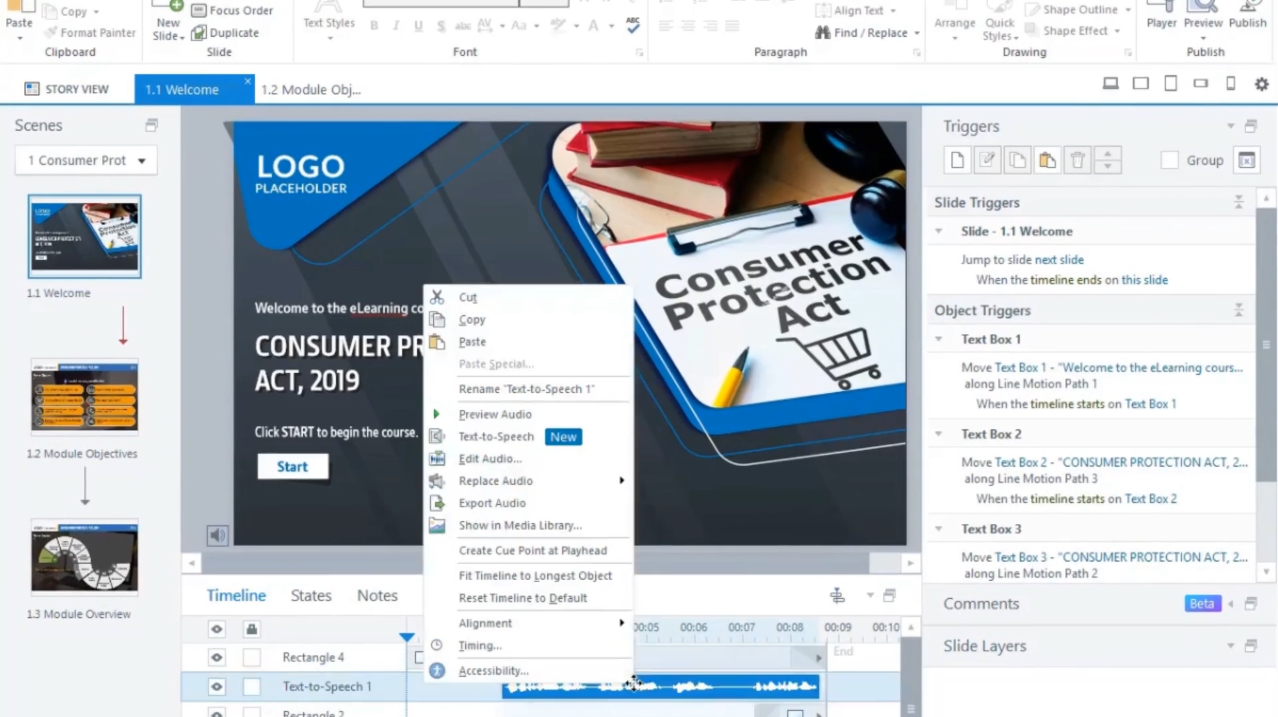
Open the Storyline file in Articulate 360 and begin by right-clicking on the audio file in the timeline.
storyline 360

Step 2: 

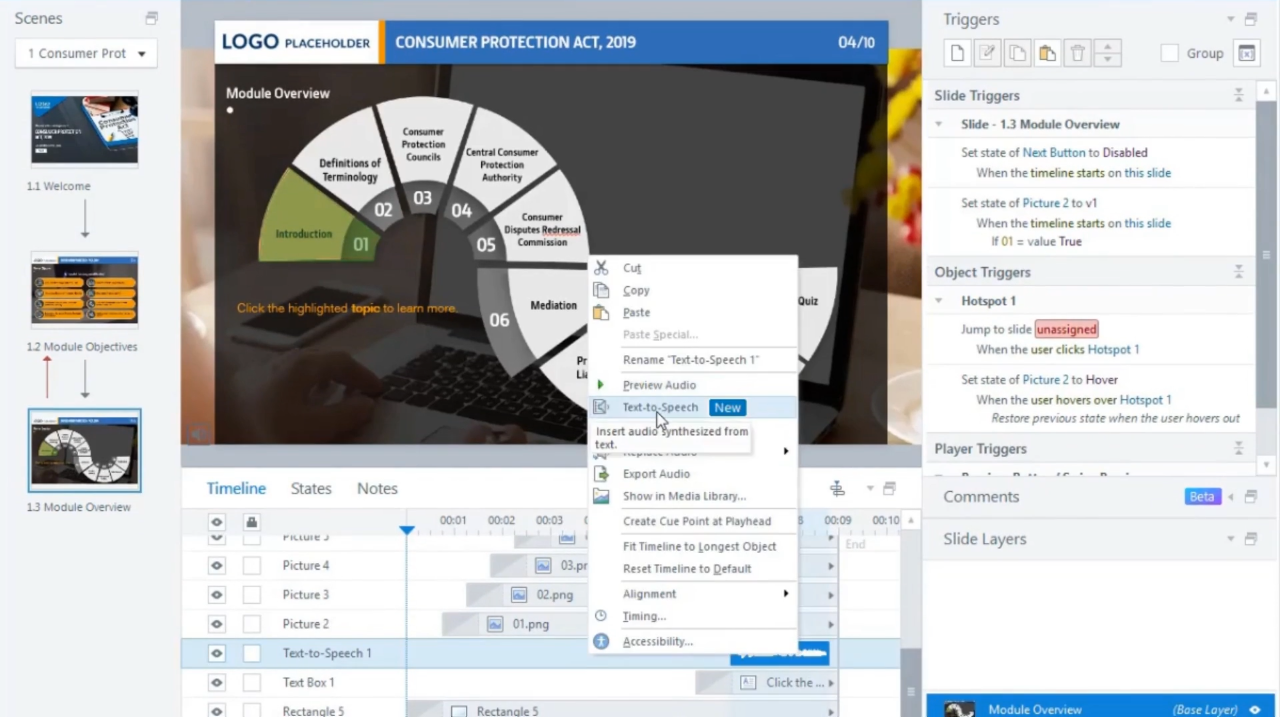
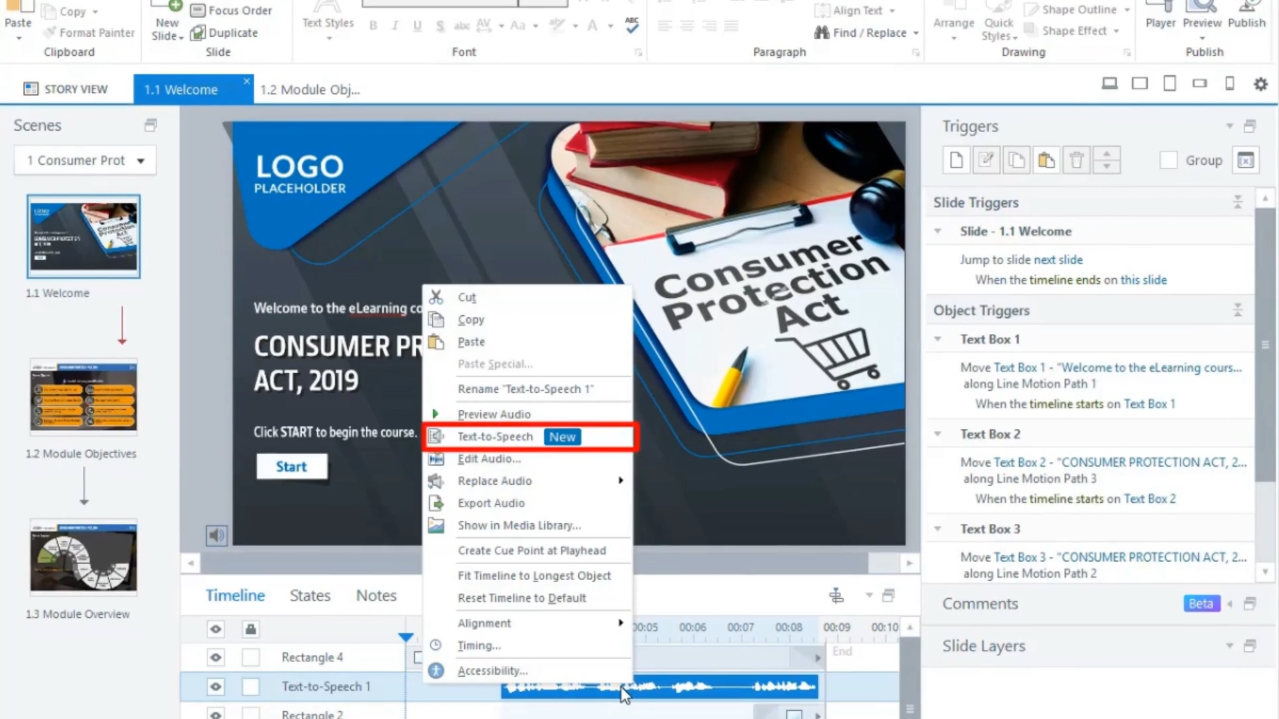
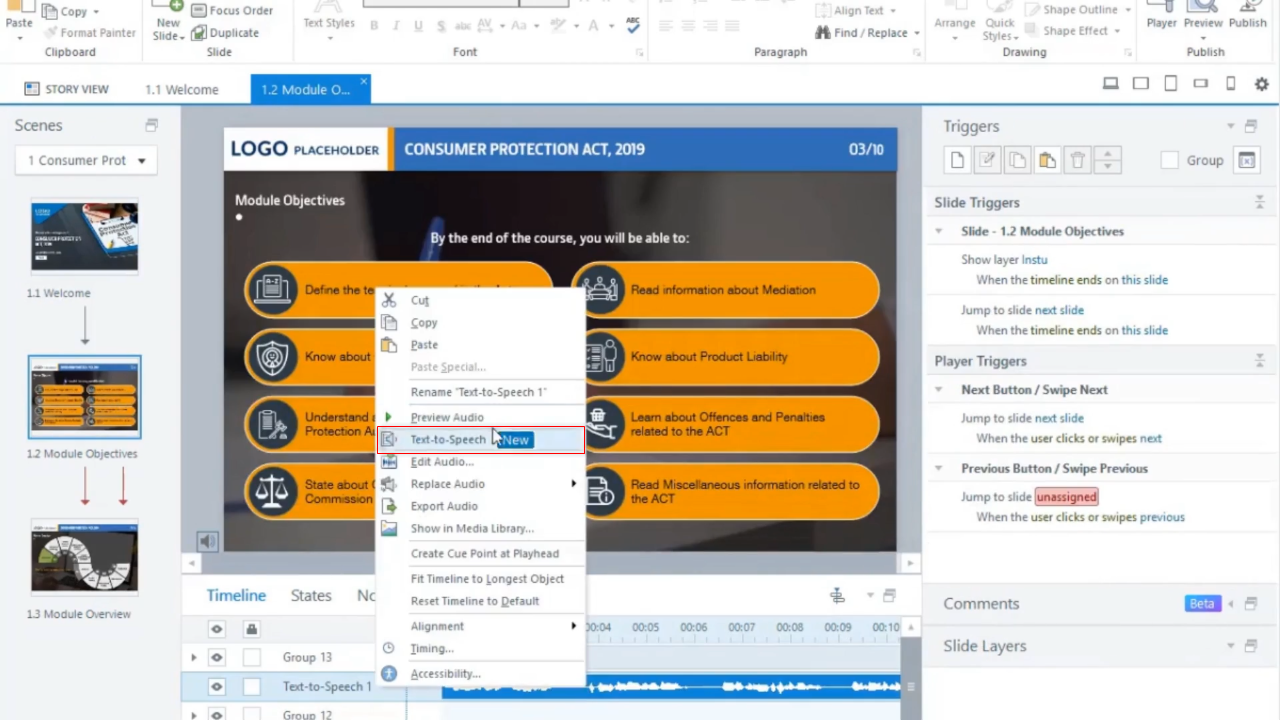
Choose the ‘Text to Speech’ option from the list of choices.
storyline 360

Step 3: 

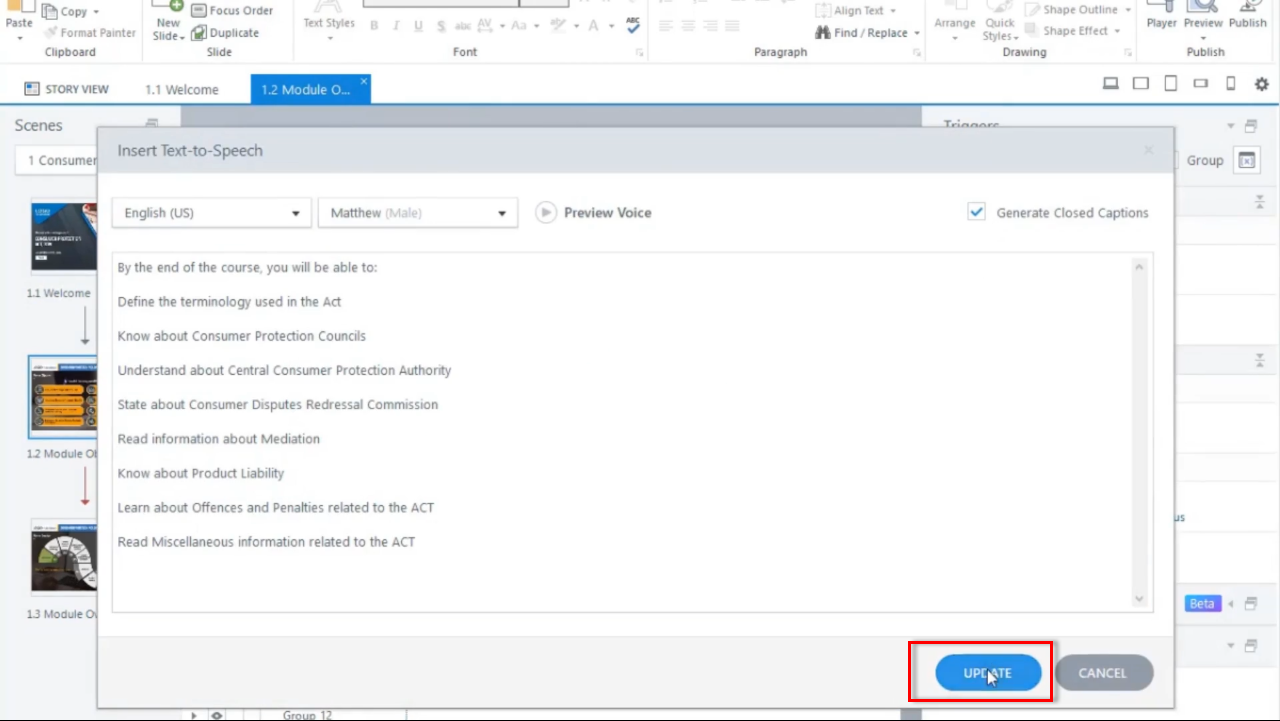
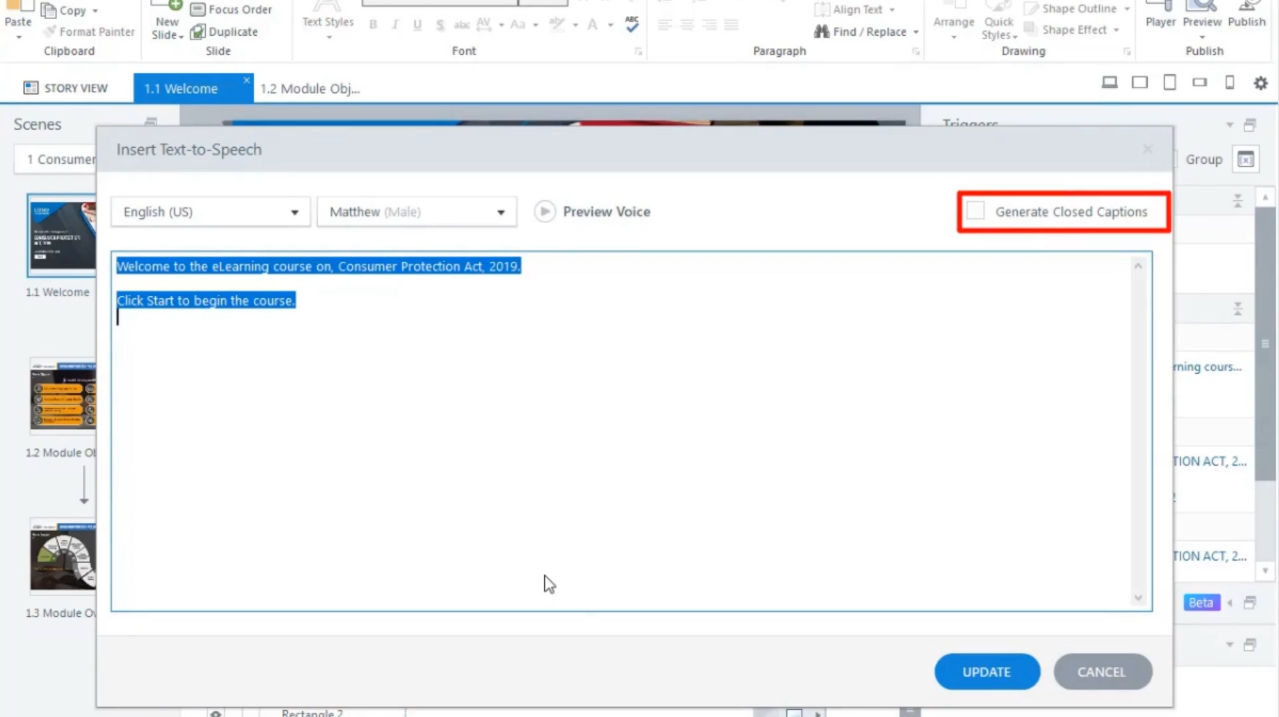
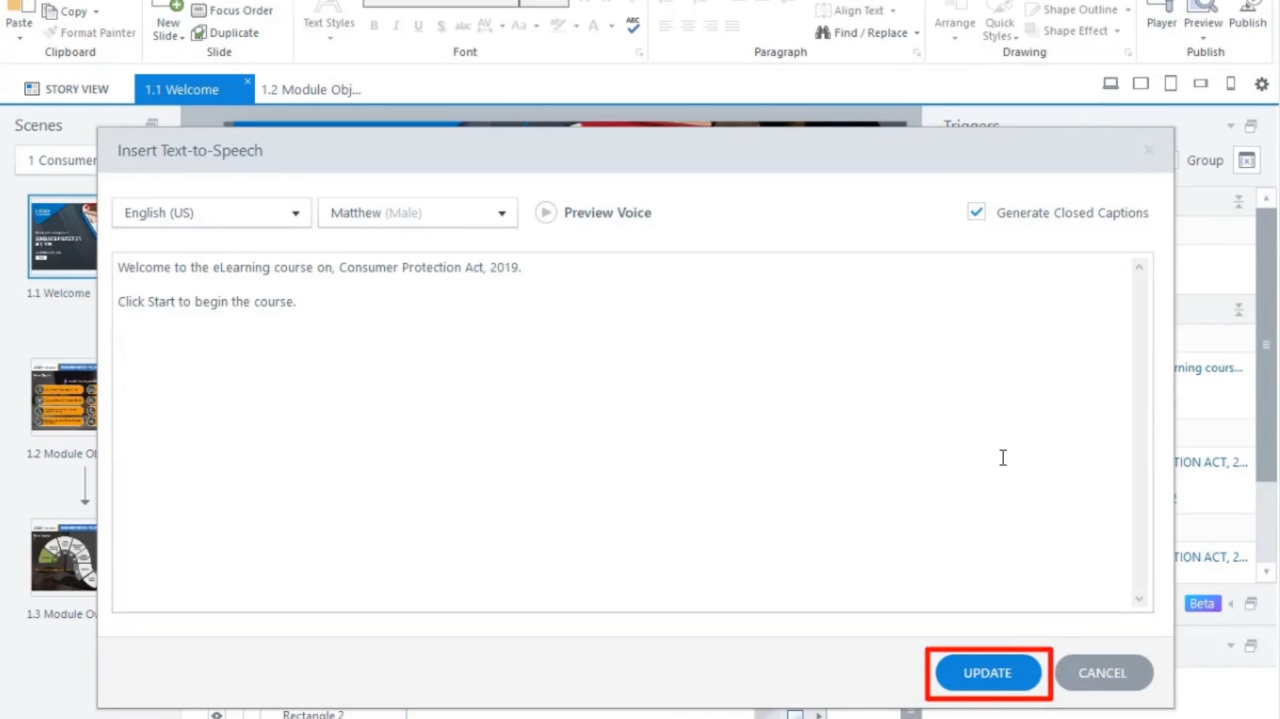
Ensure  the ‘Generate Closed Captions’ checkbox is ticked on the Text to Speech popup window, then click the ‘Update’ button.
storyline 360

storyline 360

Step 4: 

Repeat this process for the entire course.
storyline 360

storyline 360

storyline 360

Step 5: 

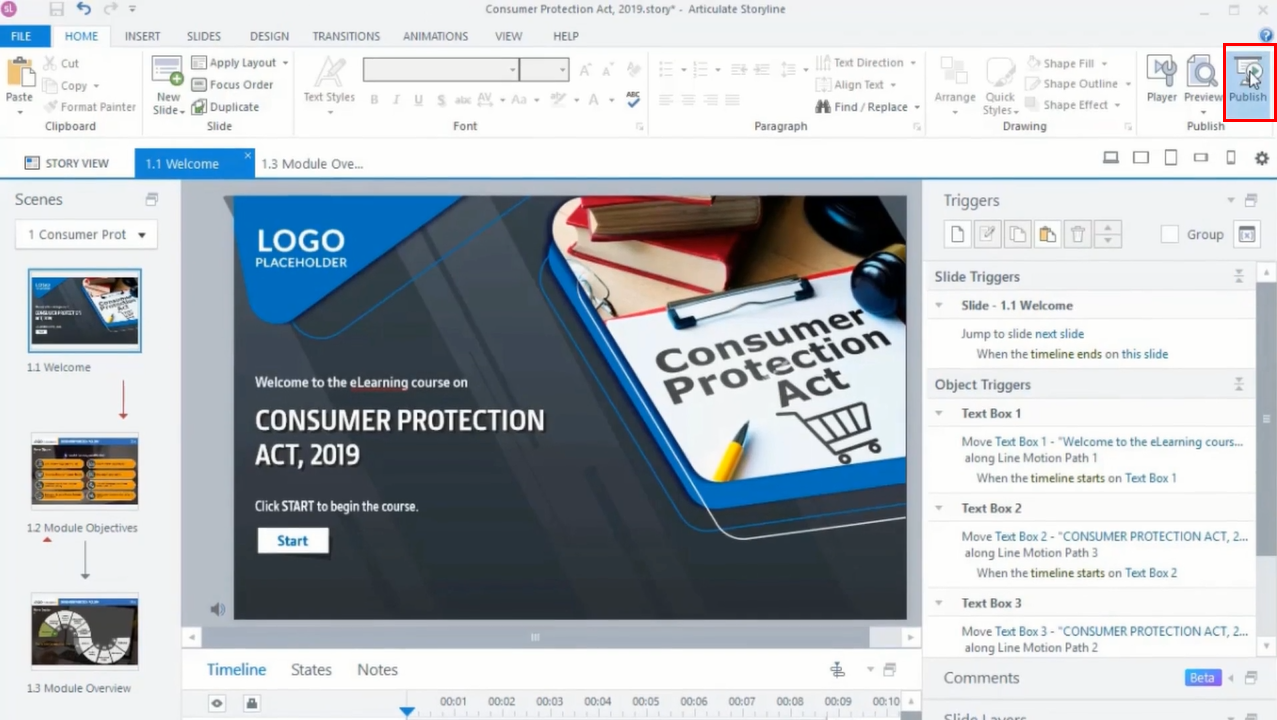
Next, click on the ‘Publish’ button located at the top of the ribbon.
storyline 360

Step 6: 

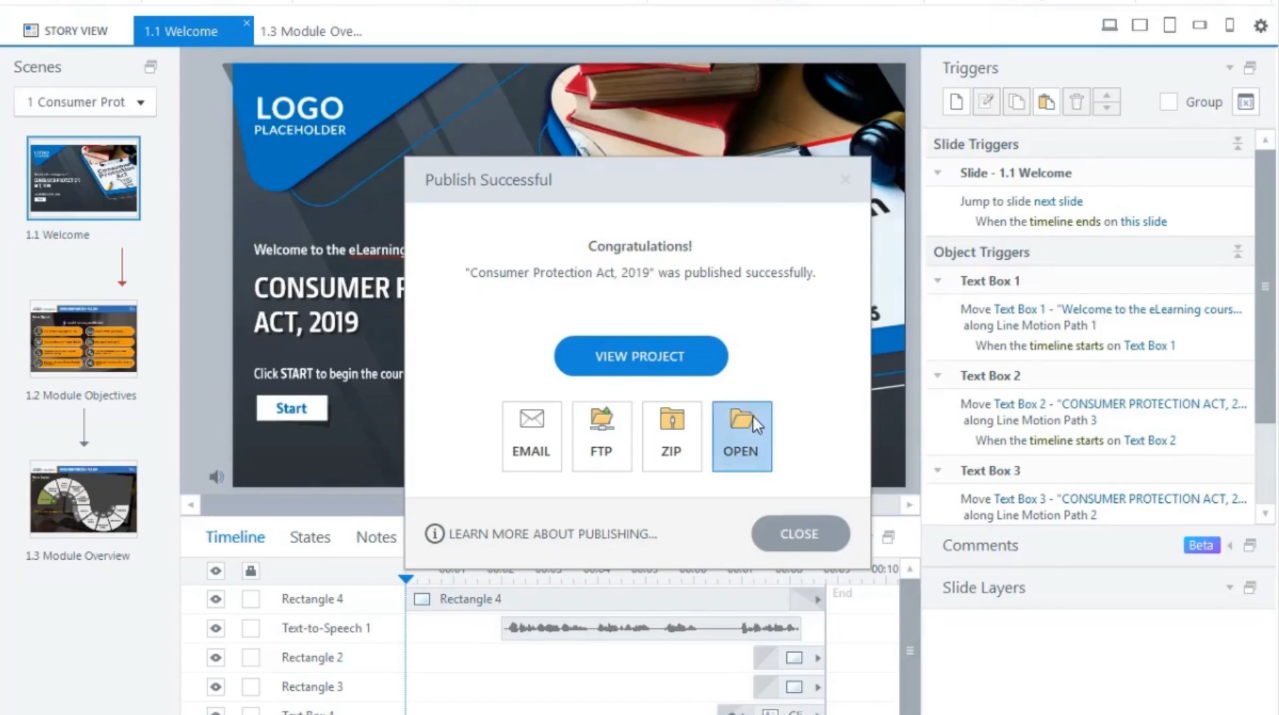
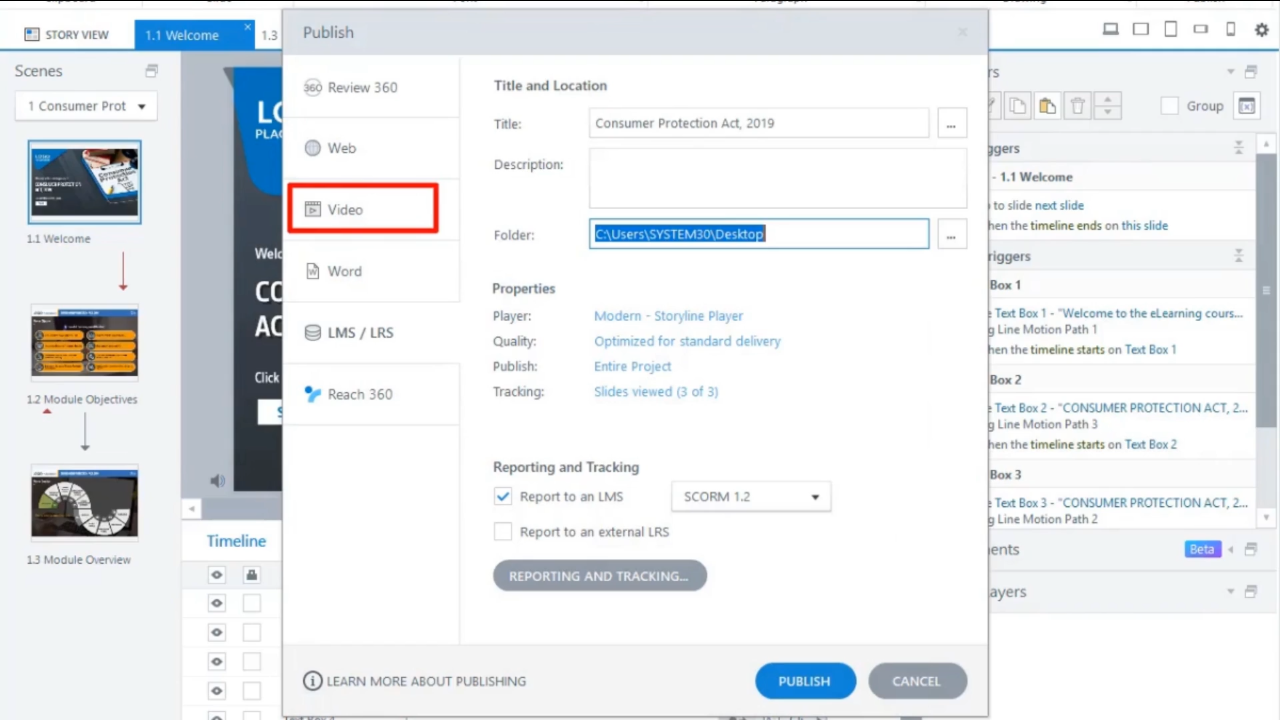
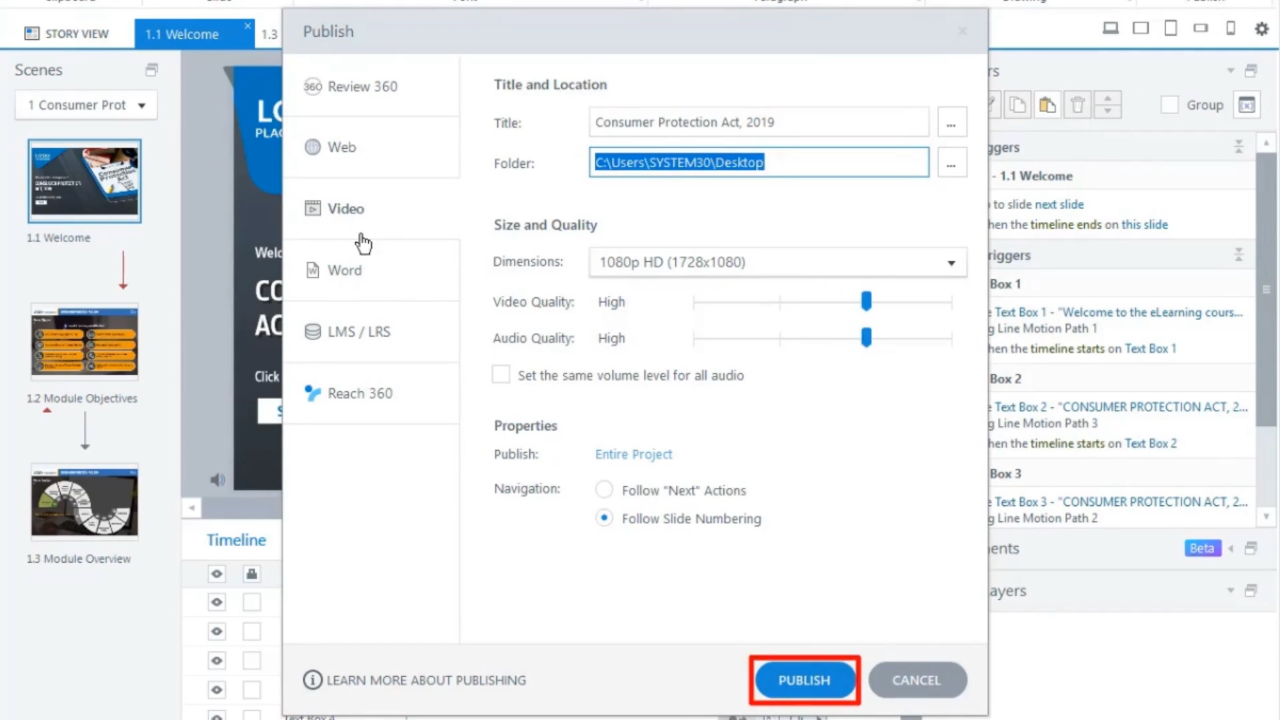
Within the Publish popup window, you can choose the ‘Video’ option from the available formats list, and then click the ‘Publish’ button.
storyline 360

storyline 360

storyline 360

Step 7: 

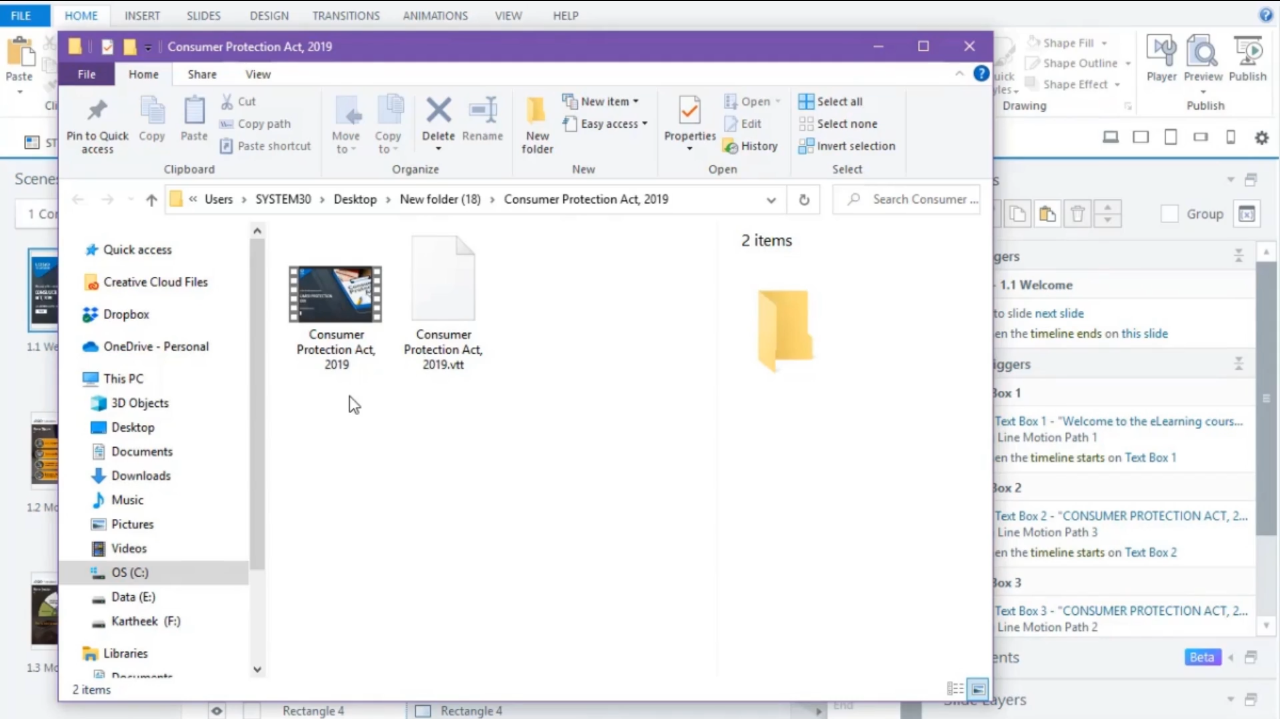
Once the publishing process is complete, the Publish folder will contain both ‘video’ and ‘vtt’ files. Ensure both files are stored in the same location.
storyline 360

Step 8: 

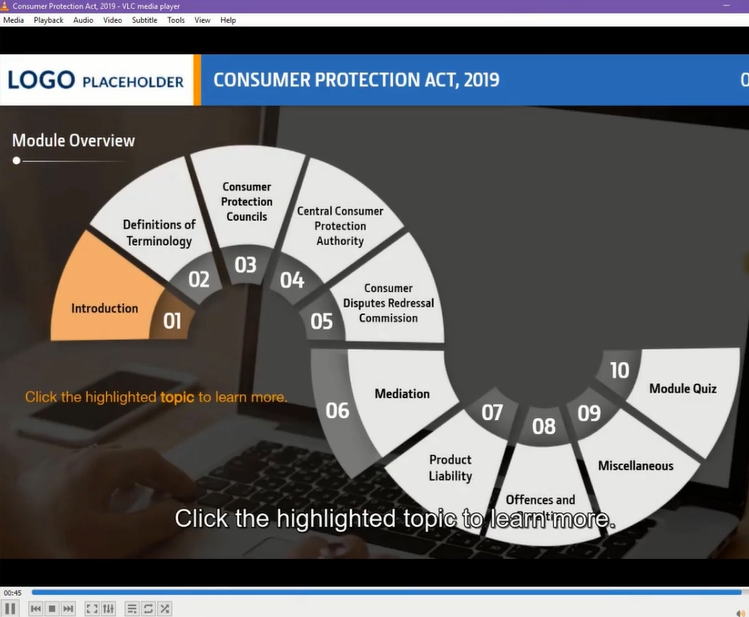
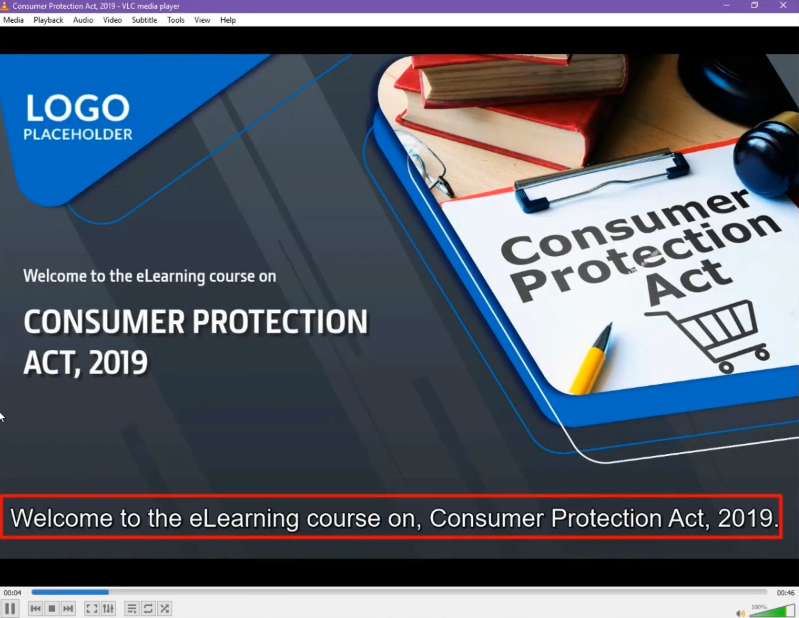
Now, let’s play the video. You’ll notice the closed captions are displayed automatically.
storyline 360

storyline 360

Conclusion

In conclusion, in the ever-evolving landscape of eLearning, ensuring accessibility and inclusivity is not only a best practice but a necessity. Storyline 360, with its user-friendly interface and versatile features, makes it remarkably simple to enable closed captions for video output automatically. This guide has taken you through the step-by-step process, highlighting the importance of accommodating diverse learners with varying needs.

By incorporating closed captions, you enhance the learning experience, making it more accessible and engaging for individuals with hearing impairments as well as non-native speakers. This not only aligns with regulatory requirements but also underscores your commitment to providing quality education for all.

As you apply these techniques, remember that accessibility is not a one-time task but an ongoing commitment. Stay updated with the latest developments in Storyline 360 and the field of eLearning to ensure that your courses remain inclusive and effective. With your newfound knowledge, you are well on your way to creating more engaging, informative, and accessible eLearning content that caters to a broader and more diverse audience.

The last comment and 1 other comment(s) need to be approved.
0 replies

Leave a Reply

Want to join the discussion?
Feel free to contribute!

Leave a Reply Cancel reply

Your email address will not be published. Required fields are marked *

Share this entry
  • Share on Facebook
  • Share on Twitter
  • Share on Pinterest
  • Share on LinkedIn

ARTICULATE STORYLINE POSTS

  • step-by-step guide to customize quiz feedback colors in rise 360
    How to Customize Correct and Incorrect Answers Feedback Colors in Articulate Rise 360June 27, 2025 - 4:40 PM
  • removing labels and numbers from process blocks in articulate rise 360
    How to Remove Labels and Numbers from Process Blocks in Articulate Rise 360June 20, 2025 - 3:07 PM
  • easy-online-course-creation-ispring-suite-swift-elearning-services
    Create Online Courses with Ease Using iSpring Suite – The All-in-One eLearning Authoring Tool for PowerPointJune 16, 2025 - 11:18 AM
  • how to adjust padding in articulate rise 360 content blocks for custom e-learning
    How to Adjust Padding in Articulate Rise 360 Content Blocks for Custom E-LearningJune 9, 2025 - 5:23 PM
  • swift elearning services focuses on crafting custom elearning courses that enhance digital learning experiences.
    How to Use Snapshots to Recover Deleted Lessons in Articulate Rise 360April 23, 2025 - 3:58 PM
  • swift elearning services provides articulate 360 localization, offering tailored elearning solutions that adapt your content for global audiences.
    Articulate 360 Localization: Create, Translate, and Manage Training with EaseApril 17, 2025 - 11:24 AM
  • custom elearning solution with jump-to-time video control in storyline 360 for interactive video navigation.
    How to Use Jump-to-Time Trigger to Control Video in Storyline 360April 11, 2025 - 10:51 AM
  • how to import slides from other storyline projects
    Articulate Storyline 360 – How to Import Slides from Other Storyline ProjectsMarch 25, 2025 - 5:52 PM
  • ohs-traffic-control-training-for-construction-workers-featured-image
    OHS – Traffic Control Training Course for Construction WorkersSeptember 9, 2024 - 5:56 PM
  • ohs-road-traffic-control-training-for-road-maintenance-workers-featured-image
    OHS – Traffic Control Work Zone Safety Training for Road Maintenance WorkersAugust 1, 2024 - 3:22 PM

Get a Free Prototype Customized with Your Content.

Our Portfolios Explore Our Extensive Collection of eLearning Courses.

GET A FREE ELEARNING SAMPLE

We transform your training material into engaging, SCORM-compliant courses.

Request a Free Sample  

Our Services


  • Rapid eLearning Solutions

  • Custom eLearning Development

  • Flash to HTML5 Conversion Services

  • Mobile Learning Solutions

  • Translation and Localisation Services

  • Gamification eLearning

Our Office Address

Asia: 704, Topaz Plaza, Punjagutta, Hyderabad, Telangana, India 500082

Australia: P.O. Box 107, Brisbane, Queensland, 4030

Canada: 750 Oakdale Rd Suite 56, North York, ON M3N 2Z4, Canada

USA: 12218 Old Gage Ranch, San Antonio, Texas 78245

Copyright ©2026 Swift eLearning Services.
  • Facebook
  • Twitter
  • LinkedIn
  • Youtube
Drag and Drop Sorting Activities #439storyline 360translation and localizationROI-Driven Learning: The Impact of Our Translation and Localization Service...
Scroll to top