
Custom eLearning: How-To Disable Video Seekbar in Articulate Storyline 360 Using JavaScript
In many eLearning scenarios, especially compliance or mandatory training, it’s important to ensure learners watch a video completely before moving on. However, by default, Articulate Storyline 360 allows learners to drag the video seekbar even after the video finishes.
Click Preview to watch how to disable Video Seekbar in Articulate Storyline 360 Using JavaScript.
In this article, you’ll learn how to disable the video player’s seekbar after the video completes using a simple JavaScript trigger in Articulate Storyline 360.
This approach is beginner-friendly, practical and ideal for elearning designers looking to control learner navigation without complex development.
Why Disable the Video Seekbar in Articulate Storyline 360?
The video seekbar allows learners to jump forward and backward within a video. While this can be useful for reference videos, it may not be suitable for:
- Compliance and regulatory training
- Security or safety awareness courses
- Assessments tied to video content
- Scenarios where full video viewing is mandatory
Disabling the seekbar after the video finishes ensures learners cannot replay or skip content in unintended ways.
About Articulate Storyline 360
Articulate Storyline 360 is a powerful authoring tool used to create interactive eLearning courses. It supports:
- Video-based learning
- Built-in triggers and conditions
- JavaScript integration for advanced control
- HTML5 output for modern browsers
Using JavaScript triggers in Storyline allows developers to extend default functionality—like controlling video playback behavior.
Understanding Video Player Limitations in Articulate Storyline 360
When a video finishes playing on a slide:.
1. The seekbar remains draggable
2. Learners can scrub backward or forward
To solve this, we use a JavaScript trigger that runs when the slide timeline ends.
Step-by-Step: Disable Seekbar after Video Completion
Step 1: Open Your Course
Open your project in Articulate Storyline 360 and navigate to the slide containing the video.

Step 2: Preview the Slide
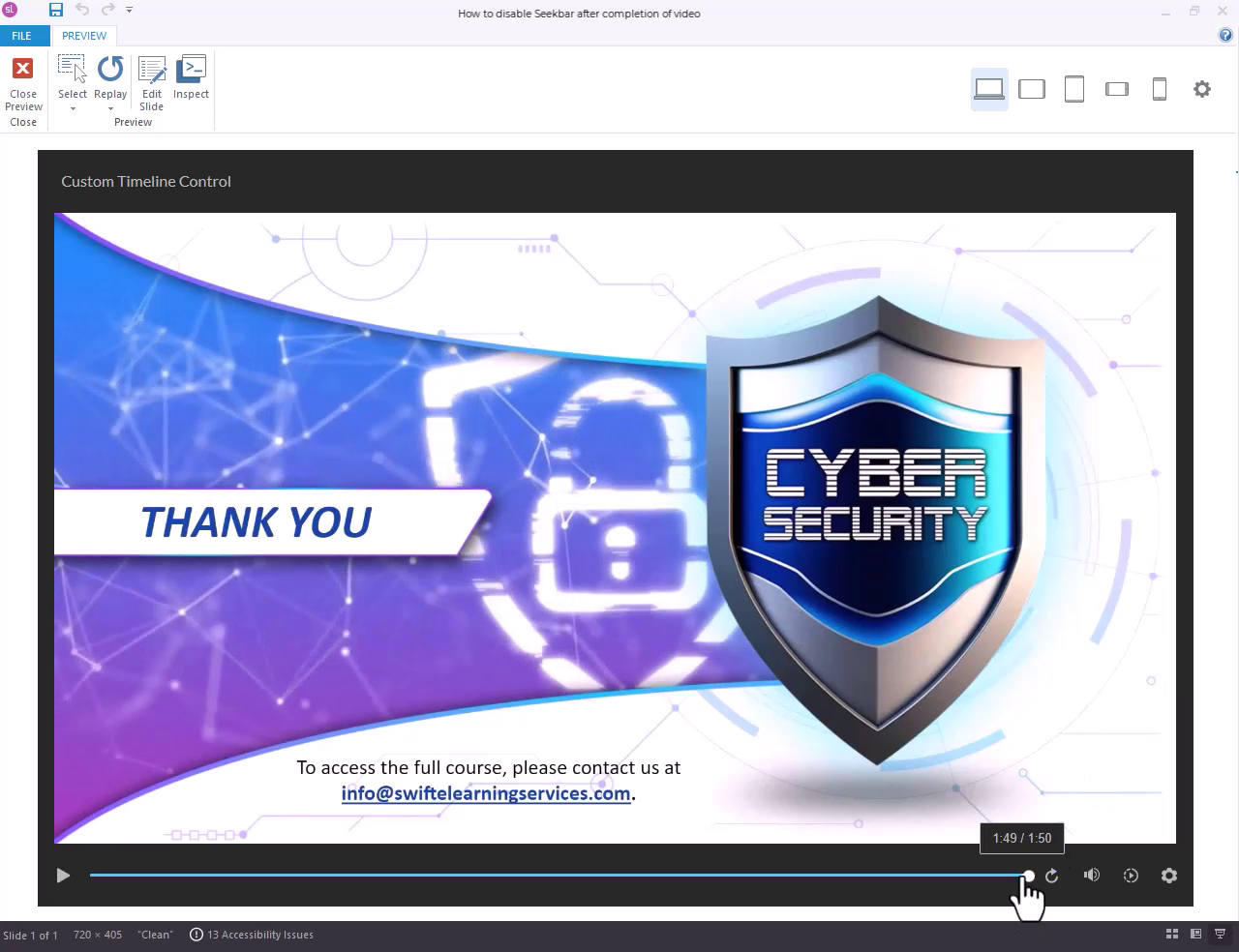
● Preview the slide and let the video play until it finishes.
● You’ll notice that even after completion, the seekbar is still active and draggable.
Step 3: Close Preview and Add a Trigger
Exit preview mode and return to the slide view.
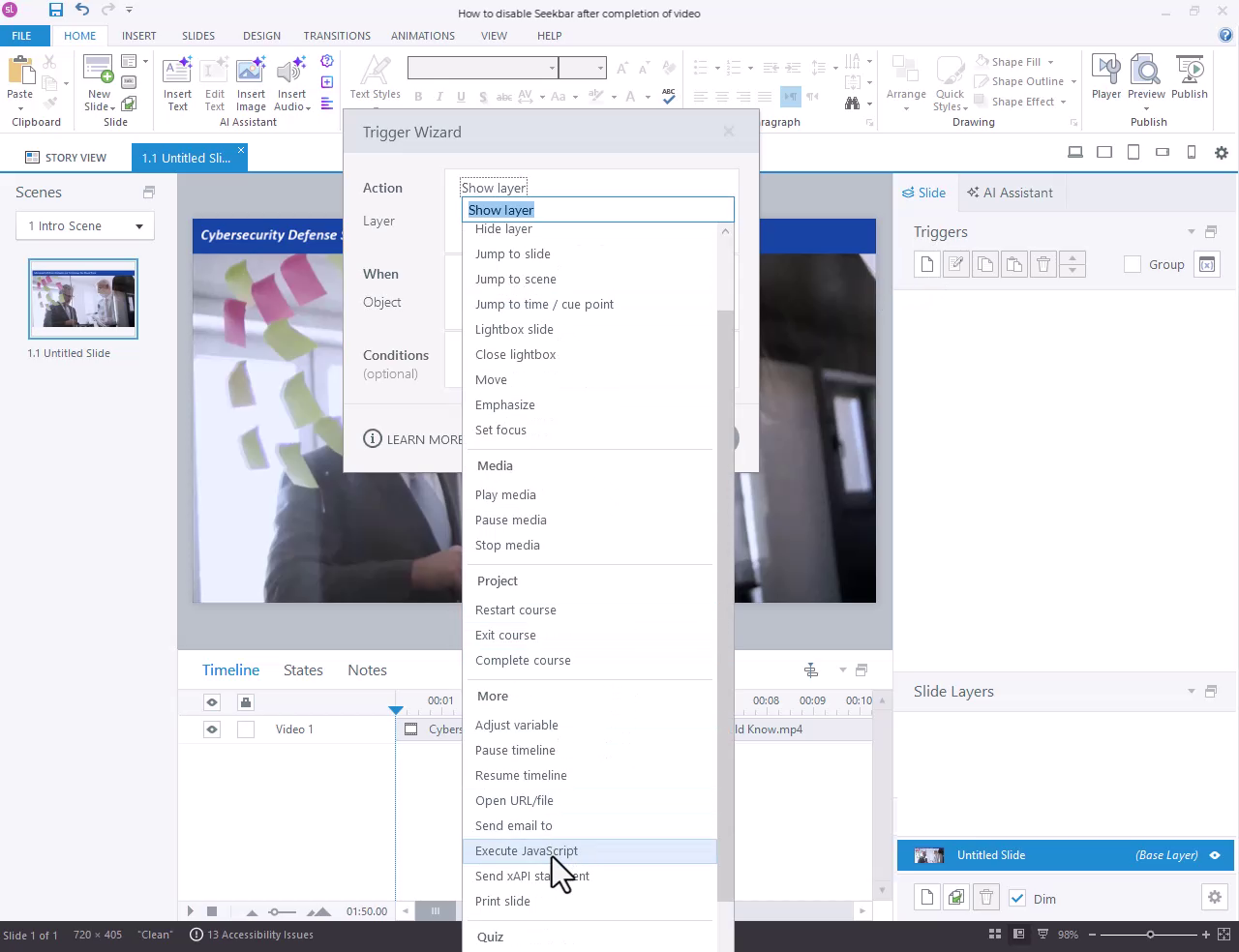
● Open the Triggers panel
● Add a new trigger
● Choose Execute JavaScript
Step 4: Set Trigger Timing
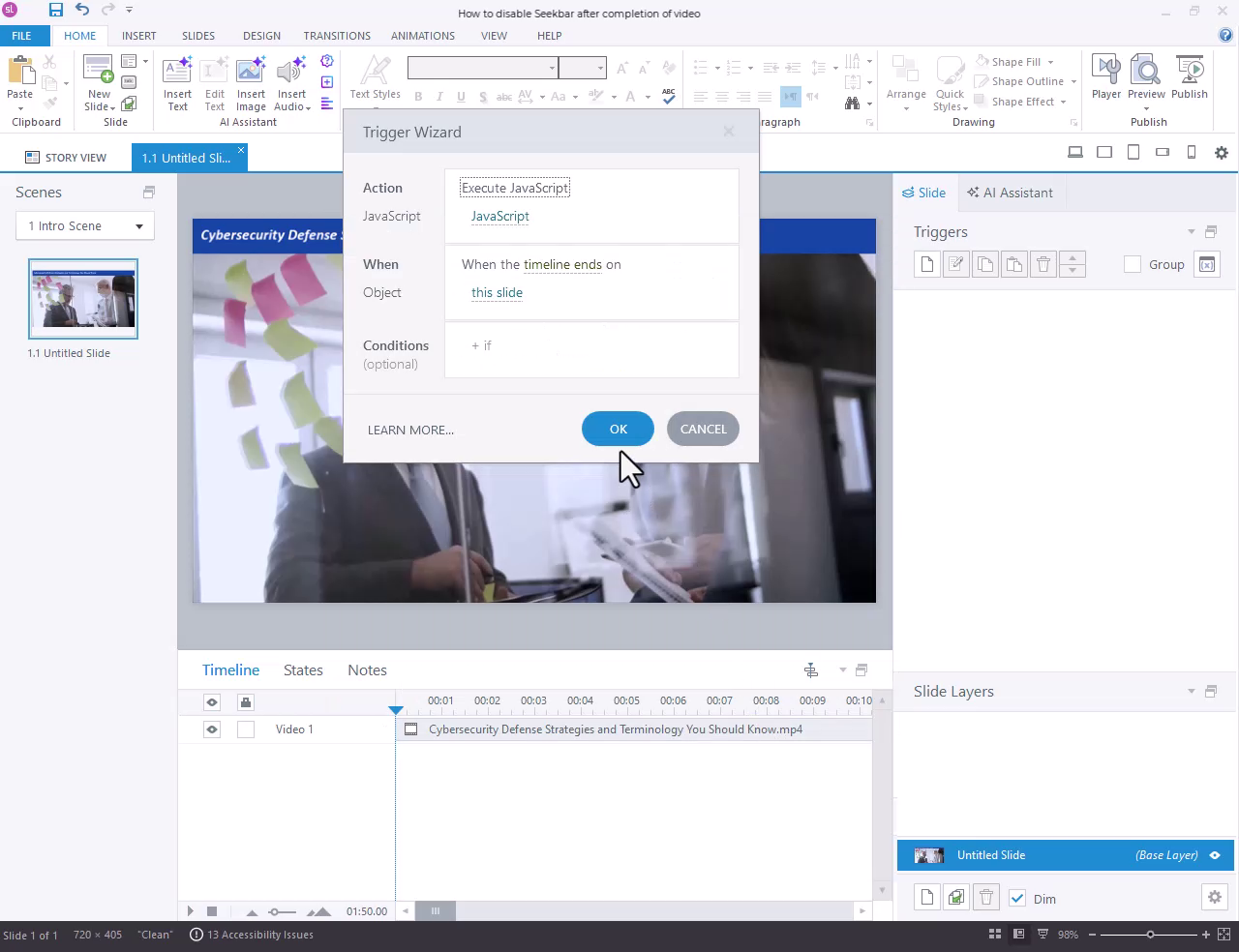
Configure the trigger to run:
● When the timeline ends on this slide
This ensures the seekbar is disabled only after the video has fully played.
Step 5: Add the JavaScript
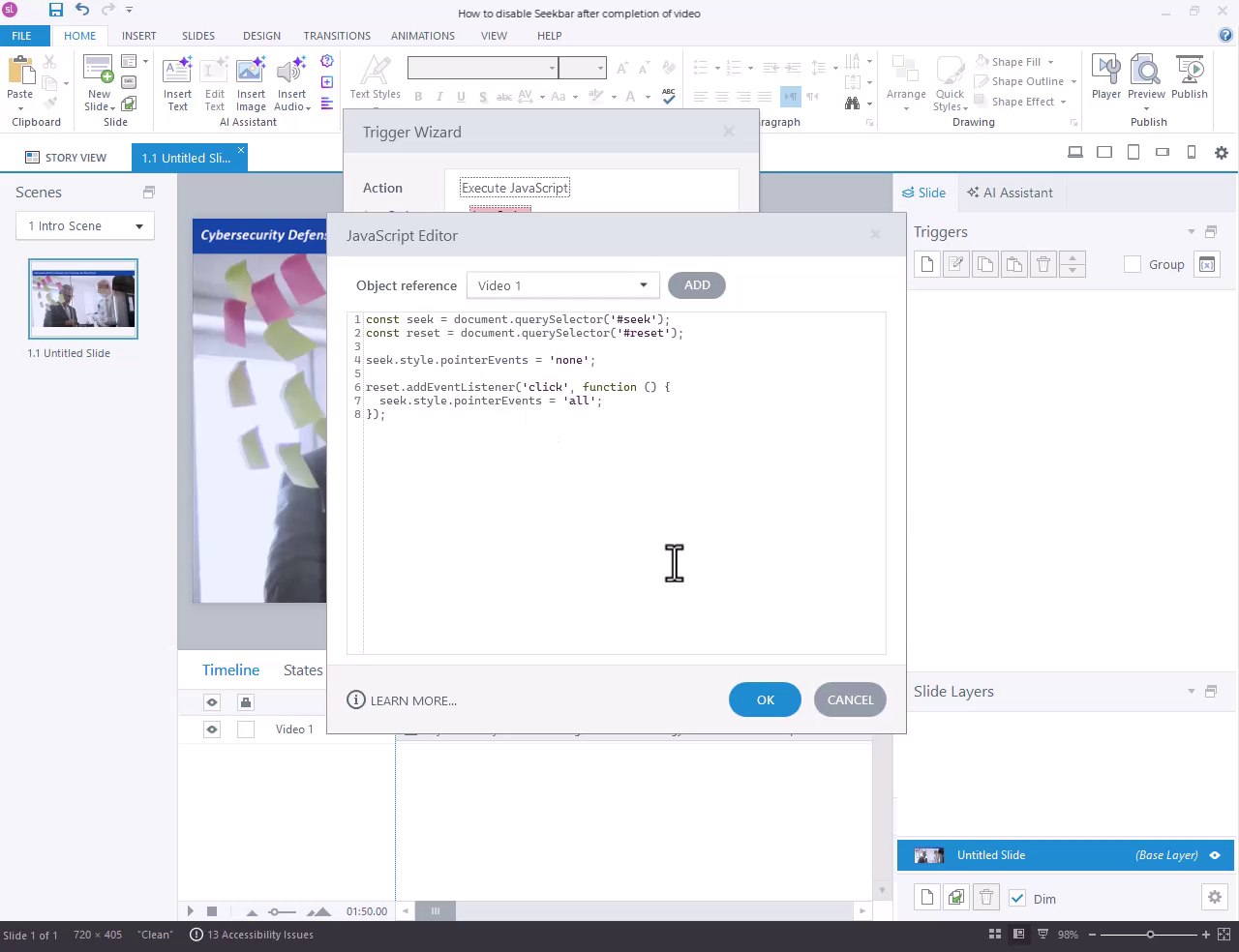
Click Edit JavaScript, paste the provided script into the editor and click OK.
const seek = document.querySelector(‘#seek’);
const reset = document.querySelector(‘#reset’);
seek.style.pointerEvents = ‘none’;
reset.addEventListener(‘click’, function () {
seek.style.pointerEvents = ‘all’;
});
The script works by identifying the video player and disabling interaction with the seekbar once playback is complete.
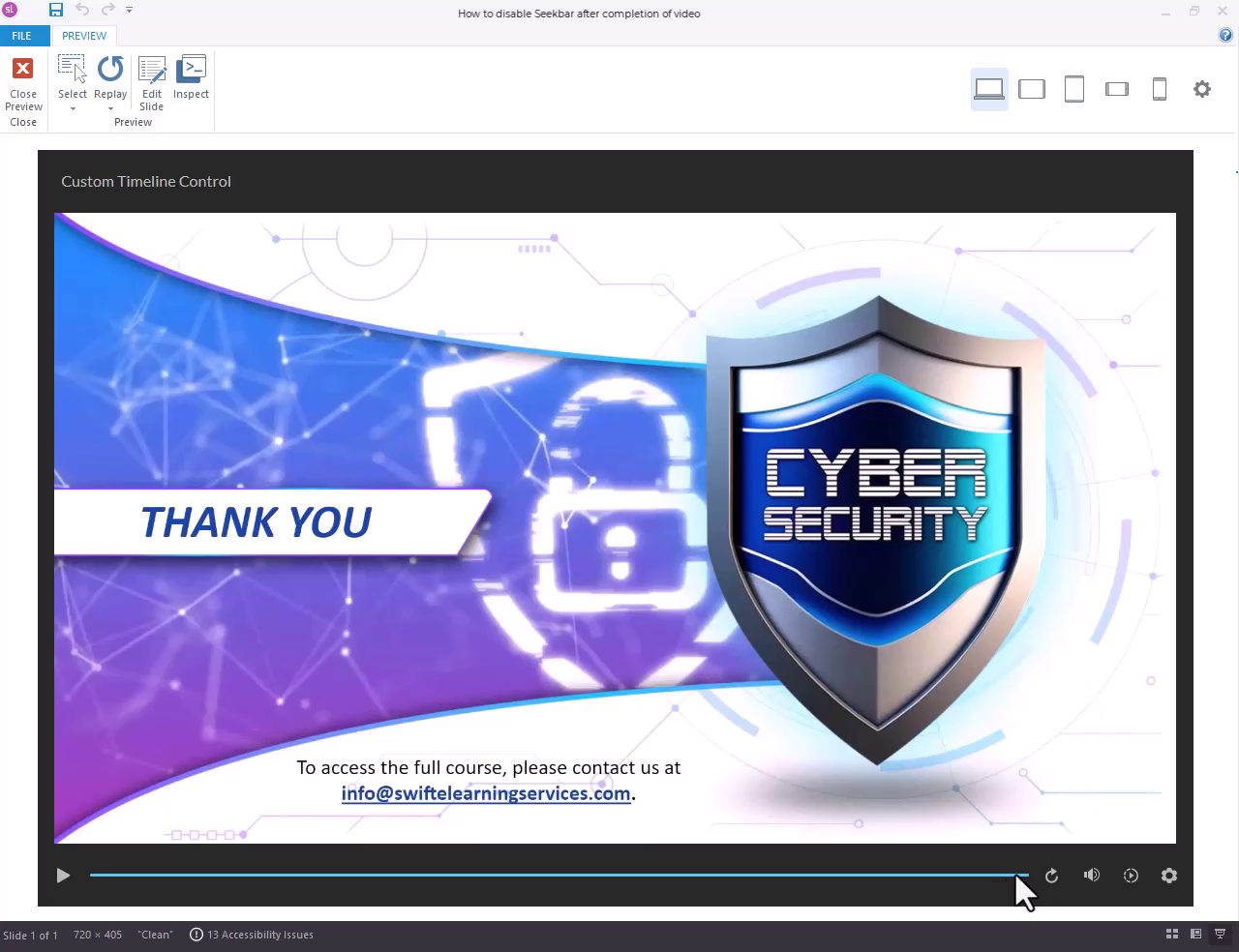
Step 6: Preview and Verify
Preview the course again and let the video play till the end.
You’ll see that once the video finishes:
● The seekbar is disabled
● Learners can no longer scrub through the video
Common Use Cases for Disabling Video Seekbar in eLearning
This technique is especially useful for:
1. Compliance training (anti-bribery, data privacy, safety)
2. Mandatory onboarding videos
3. Cybersecurity awareness courses
4. Certification or audit-ready learning modules
5. Scenario-based learning with gated progression
It gives instructional designers better control over learner behavior while keeping the experience seamless.
Summary
By using a simple JavaScript trigger in Articulate Storyline 360, you can disable the video player seekbar after the video completes, preventing learners from scrubbing content after viewing.
This method is ideal for compliance-driven and structured learning environments and provides greater control over video-based interactions without compromising usability.
Frequently Asked Questions (FAQs)
How do I disable the video seekbar in Articulate Storyline 360?
You can disable the video seekbar in Articulate Storyline 360 by using a JavaScript trigger. Add the trigger to execute JavaScript when the slide timeline ends. This ensures the seekbar is disabled only after the video finishes playing.
Does this JavaScript affect video playback?
No. The JavaScript does not modify or interrupt video playback. It only restricts learner interaction with the seekbar after the video ends.
Can I use this solution in SCORM 1.2 and SCORM 2004 courses?
Yes. This solution works independently of SCORM versions and does not interfere with SCORM 1.2 or SCORM 2004 course tracking.
Can this solution be used in multilingual or localized courses?
Yes. Since the JavaScript controls the video player and not the content itself, it works the same across localized versions of a course.
How does this impact learner analytics or video engagement metrics?
This solution does not block analytics. LMS or xAPI tracking continues to capture completion and engagement data as configured.

