What is Articulate Storyline?
Articulate Storyline 360 is a software tool that enables you to create interactive and engaging courses.
1. It’s user-friendly interface with wide range of features to enhance courses.
2. It lets you change elements dynamically using triggers and JavaScript.
Custom e-Learning and Text Box Color
In custom e-learning development, adding interactive elements can greatly boost learner engagement.
Changing a text box’s color when a user clicks a button enhances visual appeal and provides instant feedback for better content comprehension.
To accomplish this, we will utilize triggers and JavaScript, two robust features in Storyline 360 that facilitate enhanced interactivity and customization.
Understanding JavaScript and Triggers
Articulate Storyline 360: This is the software where you will create and edit your project.
Triggers in Storyline 360: You should be comfortable using triggers in Articulate Storyline to set up actions that occur in response to user interactions.
Basic Understanding of JavaScript: A fundamental knowledge of JavaScript is required to write the code that will change the text box color. (We will provide the JavaScript code for you here.)
Watch the video tutorial now and start implementing it in your eLearning course!
Click or tap on the play button below to watch the video for easier understanding.
Now, let’s proceed with a step-by-step guide on how to change the text box color with a button click using triggers and JavaScript to enhance accessibility in Articulate Storyline 360.
Open Articulate Storyline 360 and create a new project or open an existing one. Insert a text box onto the slide where you want the color change to occur.
Step 1: Set Up Your Storyline Project
First, start by adding a shape for button
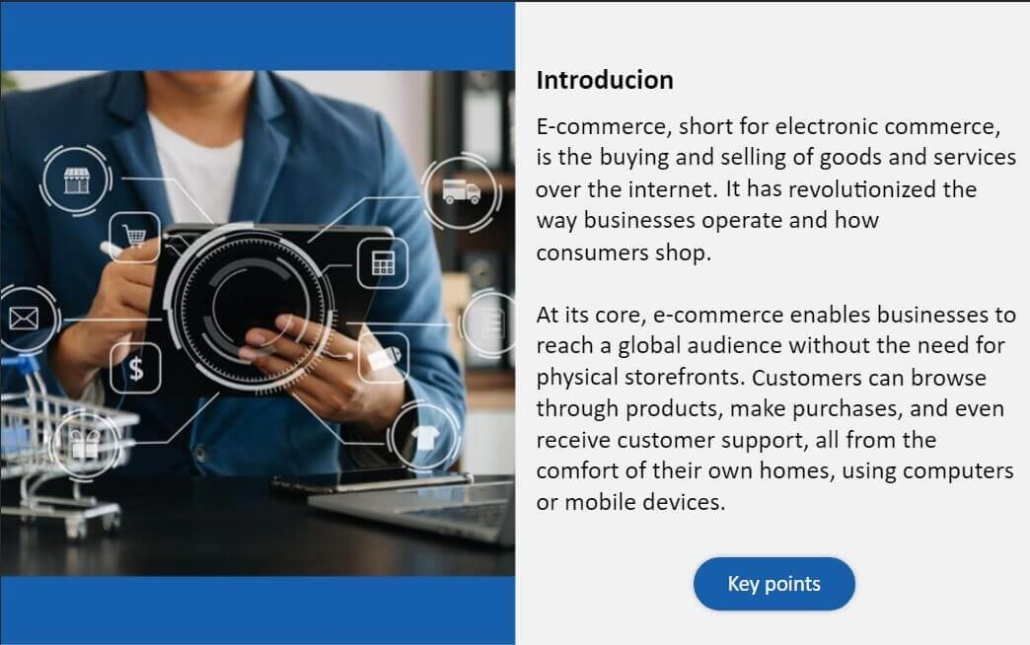

Step 2: Assign Identifiers to the Elements
Begin by giving unique names to the text boxes that require highlighting in the “Alt Text” tab.
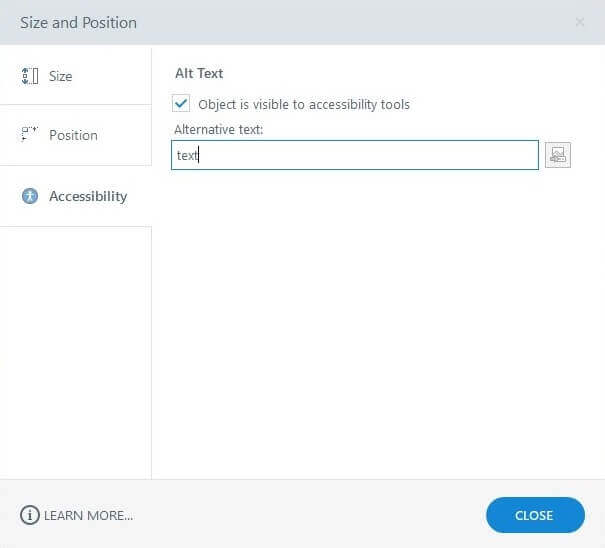
a. Select the text box and right click for the Accessibility options.
b. Select the tick mark and add “text” to Alternative text.
c. Click Close.
We will provide two JavaScript code options as follows:
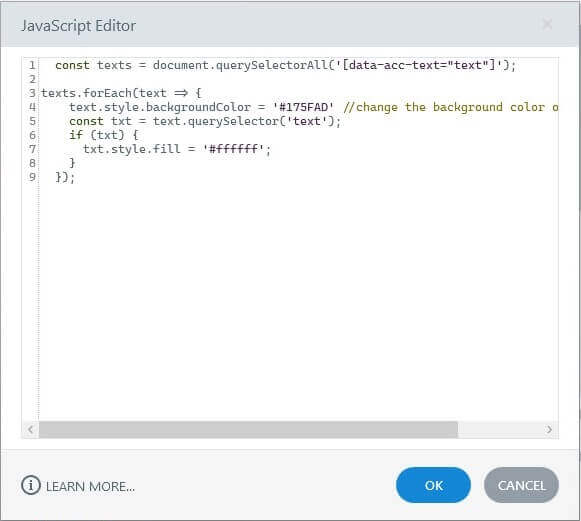
1. One for changing both background and text color
Use the following JavaScript code snippet to change the text box color:
const texts = document.querySelectorAll(‘[data-acc-text=”text”]’);
texts.forEach(text => {
text.style.backgroundColor = ‘#175FAD’ //change the background color of the text box
const txt = text.querySelector(‘text’);
if (txt) {
txt.style.fill = ‘#ffffff’;
}
2. Another solely for altering text color
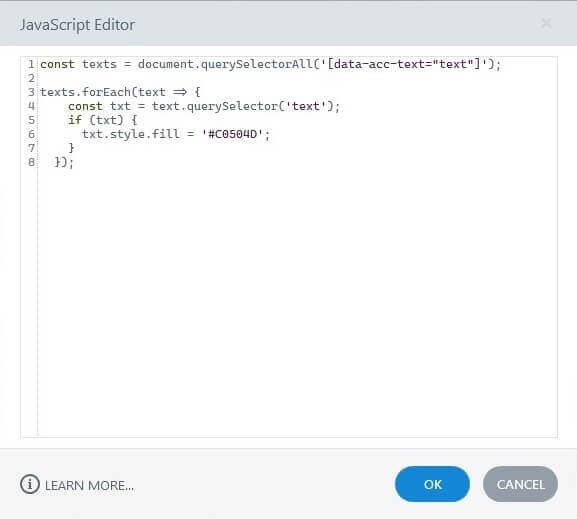
If you prefer highlighting the background and changing the text color, please use this code. Otherwise, if you only wish to highlight the text, use the code provided below.
const texts = document.querySelectorAll(‘[data-acc-text=”text”]’);
texts.forEach(text => {
const txt = text.querySelector(‘text’);
if (txt) {
txt.style.fill = ‘#C0504D’;
}
});
Step 3: JavaScript Code into the Trigger
1. Create a new trigger from the trigger panel.
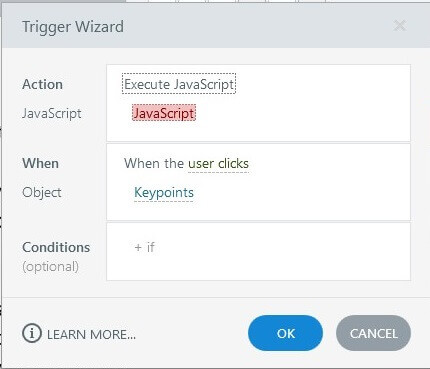
2. In the Trigger Wizard, change action to “Execute JavaScript”.
3. Select highlighted “JavaScript” to open the editor.
Insert JavaScript Code into Trigger
4. Copy and paste the following JavaScript code in the panel.
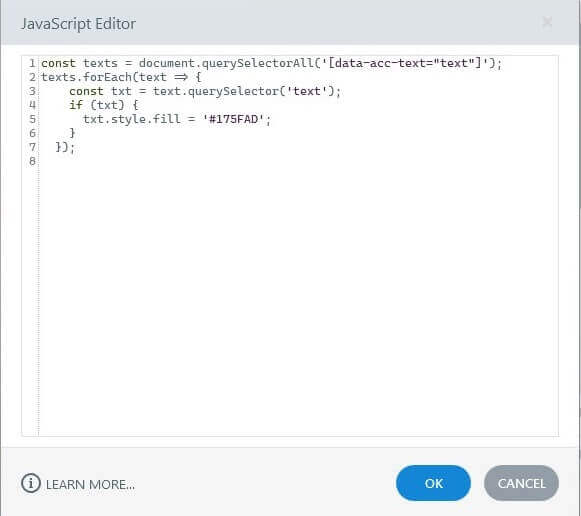
5. Select when the “user clicks”
6. Change Object to “Keypoints”
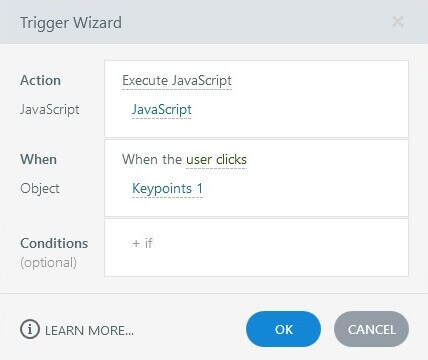
7. Click Ok.
Note: If you prefer highlighting the background and changing the text color, please use this code. Otherwise, if you only wish to highlight the text, use the code provided below.

Explanation: JavaScript Code
document.querySelector: Selects the text box using its ARIA label or ID.
text.style.backgroundColor: Changes the background color of the selected text box.
Step 4: Publish and Preview the slide
Once done, preview the course to verify the functionality of the JavaScript.
Summary
By following these steps, you will be able to create engaging e-learning content where users can interact with elements on the screen, leading to a more dynamic and engaging learning experience.
eLearning Services
Corporate Elearning Solutions
We offer tailored eLearning solutions crafted to deliver training and educational content to employees in a corporate environment.
Learn more about our Corporate Elearning Solutions.
Convert Legacy Training Materials to eLearning
We specialise in converting legacy training materials to eLearning formats. Our expertise includes transforming printed manuals, presentations, and instructor-led courses into engaging digital content that can be accessed and delivered online.
Learn more about our Convert Legacy Training Materials to eLearning.
Frequently Asked Questions (FAQs)
Q. Can I use JavaScript to enhance interactivity in my eLearning modules?
A. Yes, JavaScript can significantly enhance interactivity in eLearning modules. In Storyline 360, JavaScript can be used to create custom functionalities, such as changing the color of text boxes, adding animations, and responding to user inputs, thereby improving the overall learning experience.
Q. How do I change the color of a text box using triggers and JavaScript in Storyline 360?
A. To change the color of a text box in Storyline 360, you can use JavaScript in conjunction with triggers. Create a trigger that executes JavaScript when an action occurs (e.g., a button click). The JavaScript code will target the text box and change its color dynamically.
Q. How do custom eLearning services benefit corporate training?
A. Custom eLearning services benefit corporate training by providing tailored learning experiences that address the specific needs and goals of an organization. These services ensure that training is relevant, engaging, and effective, leading to improved employee performance and knowledge retention.
Q. eLearning development companies that offer such customizations?
A. Yes, as a eLearning development companies we specialize in customizing eLearning modules, including adding JavaScript functionalities. To help you design and implement interactive features tailored to your training needs.
Q. Can this technique be used in custom eLearning development?
A. Yes, using JavaScript to change text box colors is a common practice in custom eLearning development. It helps create personalized and interactive learning experiences tailored to the specific needs of the organization and learners.
Q. What are the benefits of custom eLearning services for implementing such features?
A. Custom eLearning services provide tailored solutions that address the specific needs of an organization. They ensure that interactive features like changing text box colors are seamlessly integrated into the training modules, enhancing overall learner experience and effectiveness.