Custom eLearning and Digital Training Solutions Provider
  • Home
  • eLearning Services
    • Custom Elearning Solutions
    • Convert PowerPoint to eLearning
    • Rapid eLearning Development
    • Translation and Localization
    • Flash To HTML5 Conversion
    • Legacy Content Conversion
    • Mobile Learning
    • Gamified Learning Solutions
    • Blended Learning Solutions
  • Software Development
    • Learning Management System
    • Workforce Management System
    • Human Resource Management System
    • Bug Tracker Software
    • Custom Software Development
  • Contact Us
  • Blog
  • Search
  • Menu Menu
  • 0Shopping Cart
  • Home
  • eLearning Services
    • Custom Elearning Solutions
    • Convert PowerPoint to eLearning
    • Rapid eLearning Development
    • Translation and Localization
    • Flash To HTML5 Conversion
    • Legacy Content Conversion
    • Mobile Learning
    • Gamified Learning Solutions
    • Blended Learning Solutions
  • Software Development
    • Learning Management System
    • Workforce Management System
    • Human Resource Management System
    • Bug Tracker Software
    • Custom Software Development
  • Contact Us
  • Blog

How to Incorporate Alternative Text for Images in Articulate Rise 360?

Click or tap on the play button below to watch the video for easier understanding.

Articulate Rise 360 is a versatile elearning authoring tool that allows you to create engaging and interactive online courses effortlessly. One essential aspect of creating accessible and inclusive elearning content is providing alternative text for images. Alternative text, also known as alt text, is a brief description of an image that can be read aloud by screen readers, making the content accessible to individuals with visual impairments.

Elearning development professionals, especially those specializing in custom elearning development and solutions, understand the significance of incorporating alt text in their courses. It is a crucial step in ensuring that your elearning content is inclusive and can be accessed by a wide range of learners, including those with disabilities. This is particularly important for corporate elearning solutions, where accessibility and user-friendliness are paramount.

In this guide, we will explore the importance of incorporating alternative text for images in your Articulate Rise 360 courses and provide step-by-step instructions on how to do so effectively. By following these guidelines, you’ll ensure that your elearning content, whether it’s for elearning design or corporate elearning solutions, is inclusive and caters to a diverse audience, including those with disabilities.

Let’s get started on the journey to making your online courses more accessible and user-friendly, while also enhancing your skills in elearning development and custom elearning solutions.

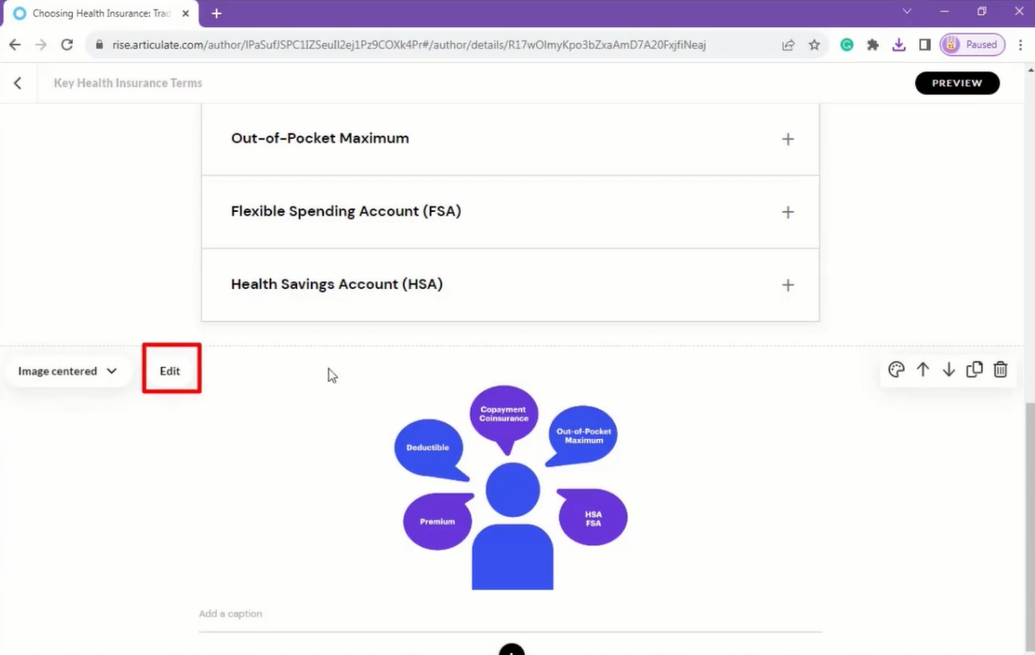
Step 1: 

To begin, launch Articulate Rise 360 and go to the module you want to modify. Hover your mouse over the image, then click on the ‘Edit’ button.
articulate rise

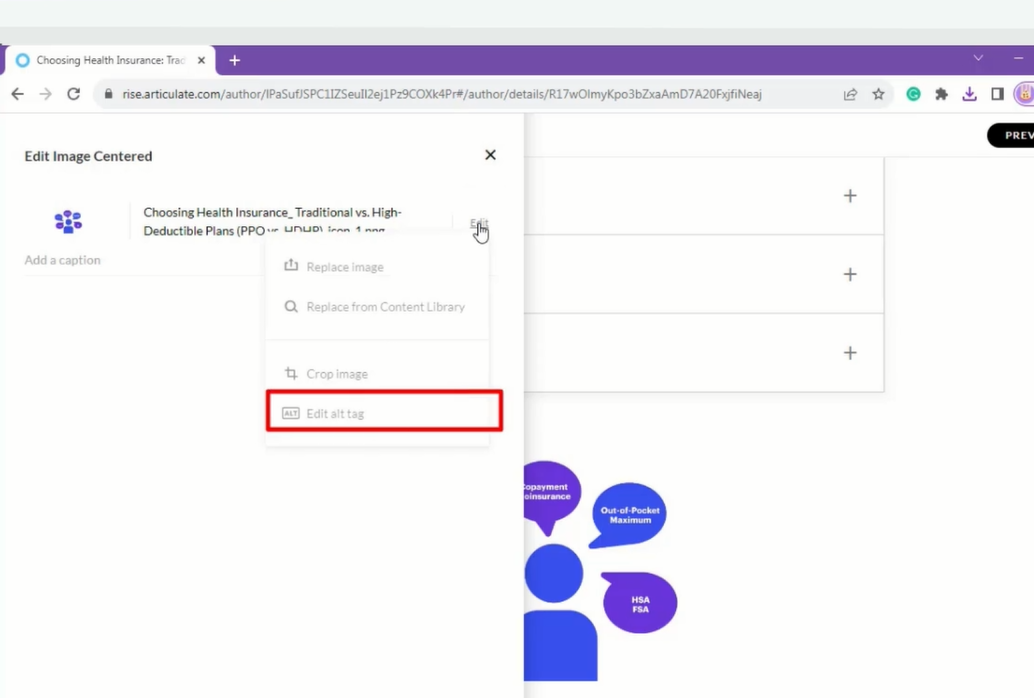
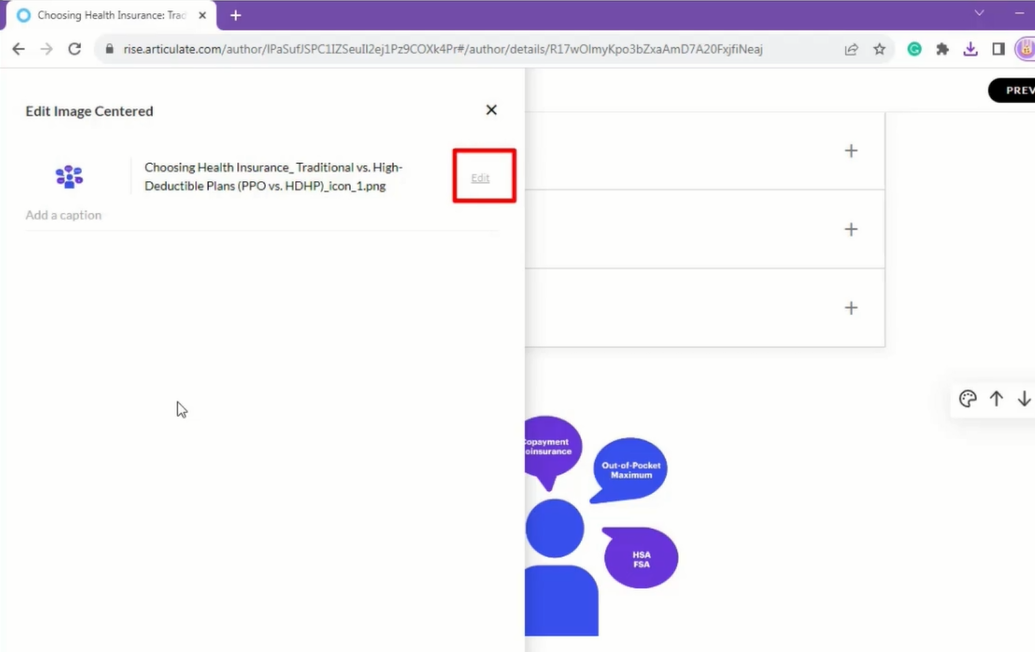
Step 2: 

In the Edit popup window, click on the ‘Edit’ button and then select the ‘Edit Alt Tag’ option.
articulate rise

articulate rise

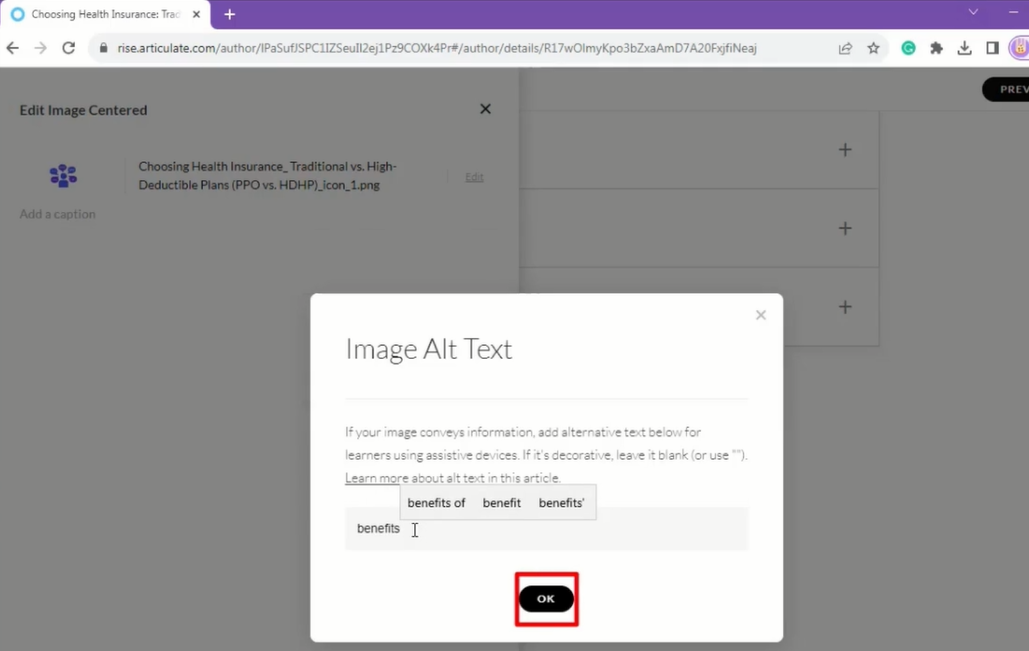
Step 3: 

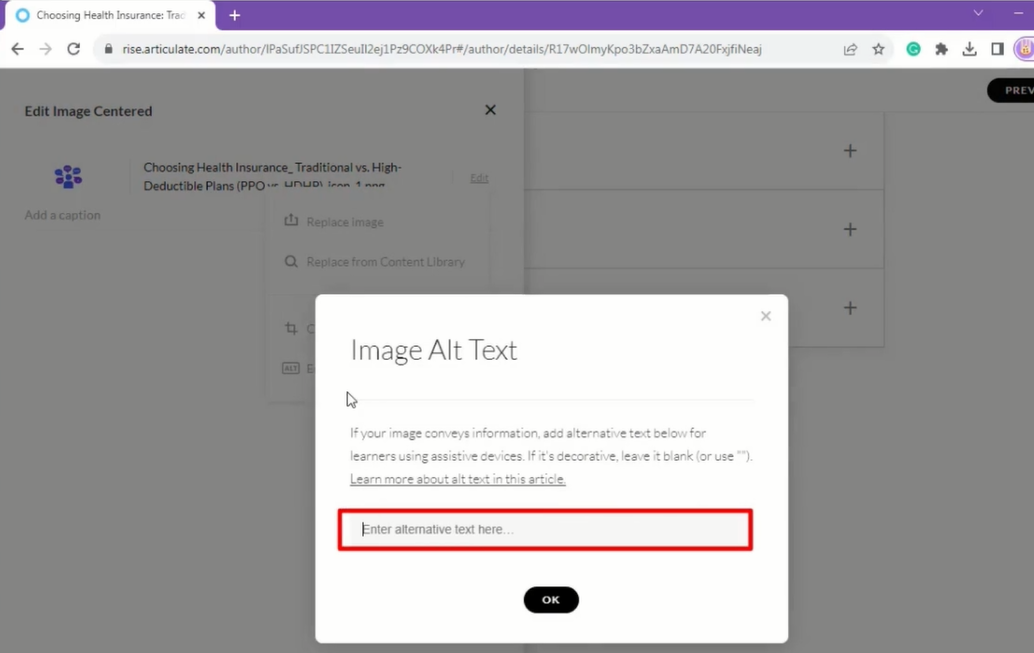
Next, enter your preferred text into the ‘Alternative Text’ box, and then click ‘OK’.
articulate rise

articulate rise

Step 4: 

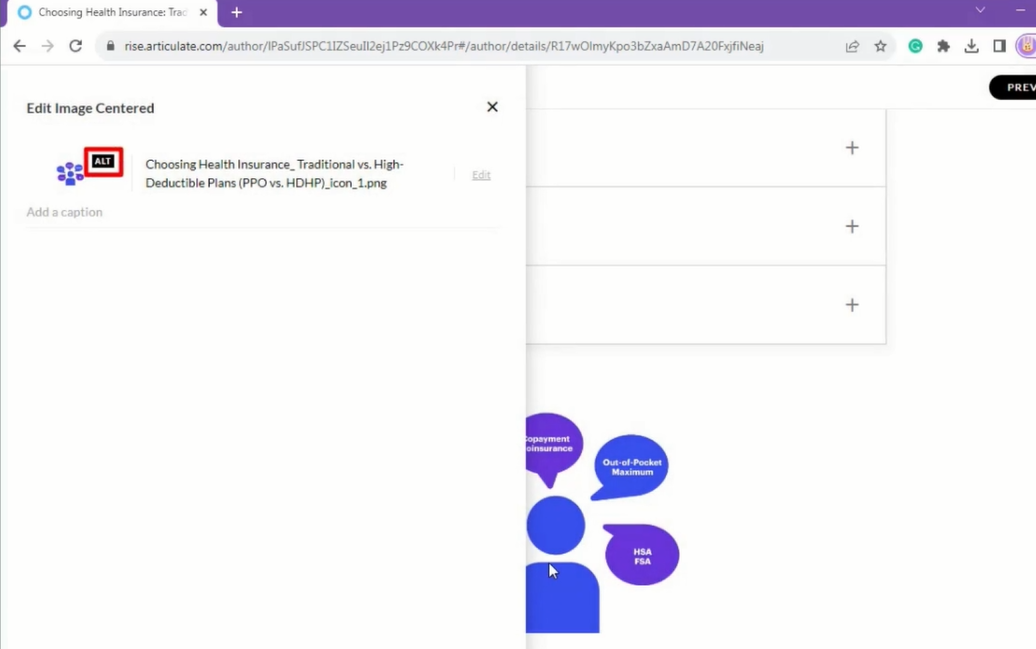
You can now observe that the ‘Alternative Text’ has been activated.
articulate rise

Conclusion

In conclusion, integrating alternative text for images in Articulate Rise 360 is a crucial and straightforward process that enhances the accessibility and usability of elearning courses. By following the steps outlined in this guide, course creators can ensure that individuals with visual impairments or other disabilities have equal access to the content. Alternative text not only complies with accessibility standards and legal requirements but also enriches the overall learning experience for all users by providing context and clarity to images.

Articulate Rise 360’s user-friendly interface and comprehensive features make it easy to implement alternative text for images throughout your courses. By understanding the importance of descriptive and concise alternative text, considering the needs of your target audience, and regularly reviewing and testing your content, you can create more inclusive and engaging elearning experiences.

Remember that accessibility is an ongoing commitment, and as technologies and best practices evolve, so should your approach to making your courses accessible. By prioritizing the inclusion of alternative text for images and staying informed about accessibility standards, you can create educational content that is not only engaging but also accessible to all learners, contributing to a more inclusive and equitable learning environment.

0 replies

Leave a Reply

Want to join the discussion?
Feel free to contribute!

Leave a Reply Cancel reply

Your email address will not be published. Required fields are marked *

Share this entry
  • Share on Facebook
  • Share on Twitter
  • Share on Pinterest
  • Share on LinkedIn

ARTICULATE STORYLINE POSTS

  • step-by-step guide to customize quiz feedback colors in rise 360
    How to Customize Correct and Incorrect Answers Feedback Colors in Articulate Rise 360June 27, 2025 - 4:40 PM
  • removing labels and numbers from process blocks in articulate rise 360
    How to Remove Labels and Numbers from Process Blocks in Articulate Rise 360June 20, 2025 - 3:07 PM
  • easy-online-course-creation-ispring-suite-swift-elearning-services
    Create Online Courses with Ease Using iSpring Suite – The All-in-One eLearning Authoring Tool for PowerPointJune 16, 2025 - 11:18 AM
  • how to adjust padding in articulate rise 360 content blocks for custom e-learning
    How to Adjust Padding in Articulate Rise 360 Content Blocks for Custom E-LearningJune 9, 2025 - 5:23 PM
  • swift elearning services focuses on crafting custom elearning courses that enhance digital learning experiences.
    How to Use Snapshots to Recover Deleted Lessons in Articulate Rise 360April 23, 2025 - 3:58 PM
  • swift elearning services provides articulate 360 localization, offering tailored elearning solutions that adapt your content for global audiences.
    Articulate 360 Localization: Create, Translate, and Manage Training with EaseApril 17, 2025 - 11:24 AM
  • custom elearning solution with jump-to-time video control in storyline 360 for interactive video navigation.
    How to Use Jump-to-Time Trigger to Control Video in Storyline 360April 11, 2025 - 10:51 AM
  • how to import slides from other storyline projects
    Articulate Storyline 360 – How to Import Slides from Other Storyline ProjectsMarch 25, 2025 - 5:52 PM
  • ohs-traffic-control-training-for-construction-workers-featured-image
    OHS – Traffic Control Training Course for Construction WorkersSeptember 9, 2024 - 5:56 PM
  • ohs-road-traffic-control-training-for-road-maintenance-workers-featured-image
    OHS – Traffic Control Work Zone Safety Training for Road Maintenance WorkersAugust 1, 2024 - 3:22 PM

Get a Free Prototype Customized with Your Content.

Our Portfolios Explore Our Extensive Collection of eLearning Courses.

GET A FREE ELEARNING SAMPLE

We transform your training material into engaging, SCORM-compliant courses.

Request a Free Sample  

Our Services


  • Rapid eLearning Solutions

  • Custom eLearning Development

  • Flash to HTML5 Conversion Services

  • Mobile Learning Solutions

  • Translation and Localisation Services

  • Gamification eLearning

Our Office Address

Asia: 704, Topaz Plaza, Punjagutta, Hyderabad, Telangana, India 500082

Australia: P.O. Box 107, Brisbane, Queensland, 4030

Canada: 750 Oakdale Rd Suite 56, North York, ON M3N 2Z4, Canada

USA: 12218 Old Gage Ranch, San Antonio, Texas 78245

Copyright ©2026 Swift eLearning Services.
  • Facebook
  • Twitter
  • LinkedIn
  • Youtube
ROI-Driven Learning: The Impact of Our Translation and Localization Service...translation and localizationleave managementMaximizing ROI: The Benefits of Our HRMS for Leave Management
Scroll to top