Custom eLearning and Digital Training Solutions Provider
  • Home
  • eLearning Services
    • Custom Elearning Solutions
    • Convert PowerPoint to eLearning
    • Rapid eLearning Development
    • Translation and Localization
    • Flash To HTML5 Conversion
    • Legacy Content Conversion
    • Mobile Learning
    • Gamified Learning Solutions
    • Blended Learning Solutions
  • Software Development
    • Learning Management System
    • Workforce Management System
    • Human Resource Management System
    • Bug Tracker Software
    • Custom Software Development
  • Contact Us
  • Blog
  • Search
  • Menu Menu
  • 0Shopping Cart
  • Home
  • eLearning Services
    • Custom Elearning Solutions
    • Convert PowerPoint to eLearning
    • Rapid eLearning Development
    • Translation and Localization
    • Flash To HTML5 Conversion
    • Legacy Content Conversion
    • Mobile Learning
    • Gamified Learning Solutions
    • Blended Learning Solutions
  • Software Development
    • Learning Management System
    • Workforce Management System
    • Human Resource Management System
    • Bug Tracker Software
    • Custom Software Development
  • Contact Us
  • Blog

How to enable the Display of Question Titles from Question Banks in Articulate Storyline 360?

Click or tap on the play button below to watch the video for easier understanding.

Articulate Storyline 360 is a powerful eLearning authoring tool that allows you to create interactive and engaging eLearning courses. One of its key features is the ability to create question banks, which can be a valuable tool for designing quizzes and assessments.

However, Storyline does not automatically present question titles from the question banks directly on the slides. This guide will instruct you on how to display question titles from the question banks in Articulate Storyline 360, enhancing the learning experience by providing context for each question.

In the realm of eLearning solutions, Articulate Storyline 360 stands out as a versatile platform for creating custom eLearning solutions. Its intuitive interface and feature-rich environment enable eLearning designers to craft engaging content for a variety of audiences.

Although, when it comes to using question banks, Storyline presents a challenge. By default, it doesn’t directly display question titles from the question banks on the slides.

In this comprehensive guide, we will explore the steps to help you learn how to access question titles from question banks and display them within your eLearning course, giving your learners a clear understanding of the content they are about to interact with. This is a valuable technique to help learners navigate through the course and prepare for the assessments effectively.

Let’s dive into the process of displaying question titles from the question banks in Storyline 360, making your eLearning content more informative and user-friendly.

Step 1: 

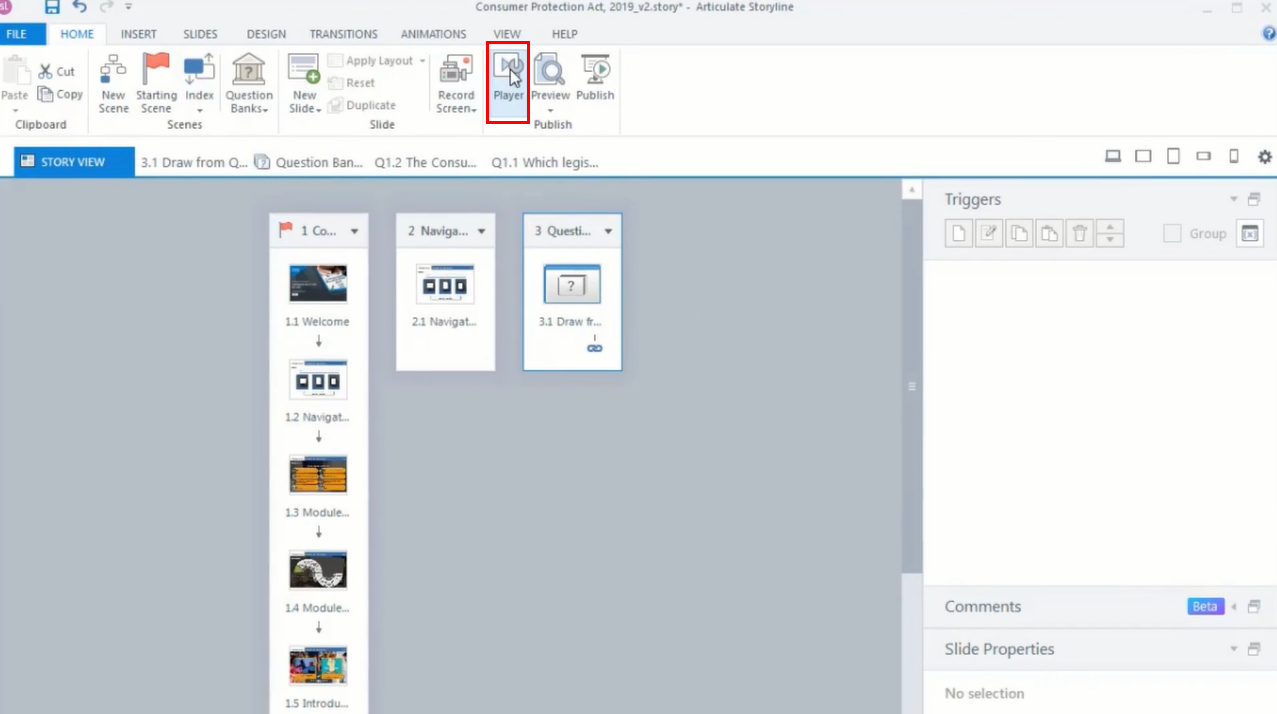
Open your project in Articulate Storyline 360 and navigate to the ‘Player’ button at the top of the ribbon.
storyline 360

Step 2: 

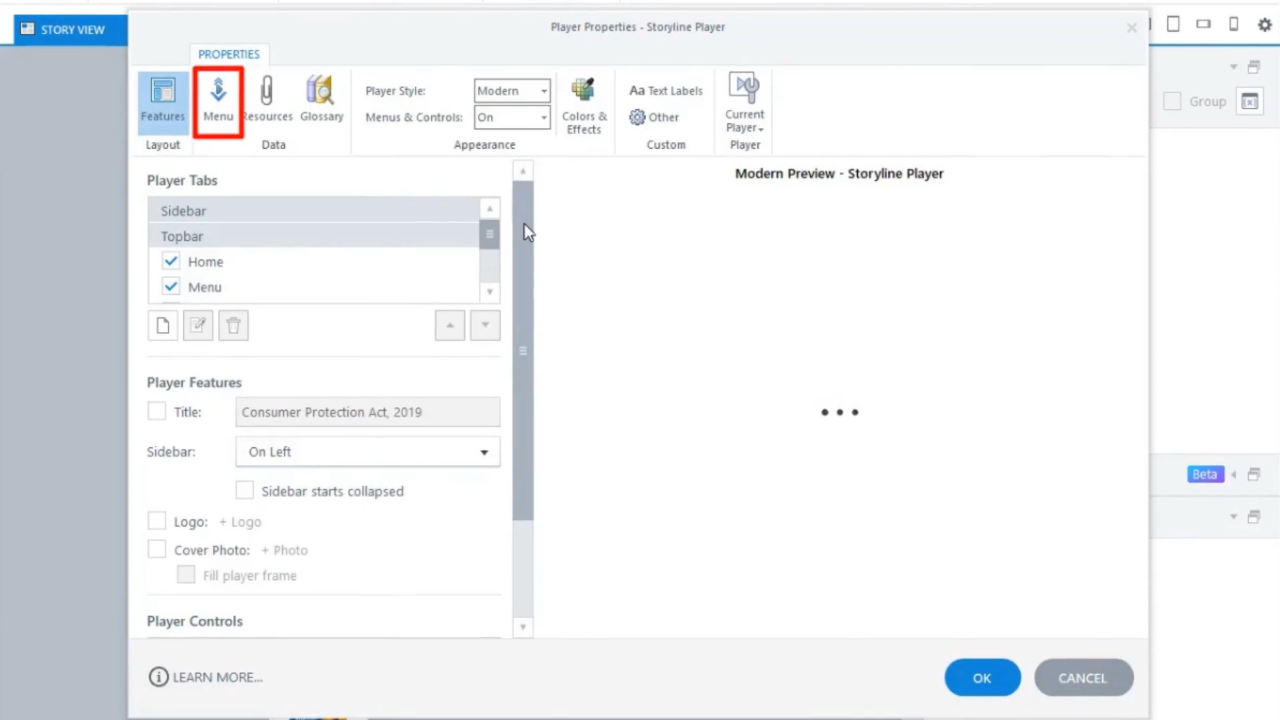
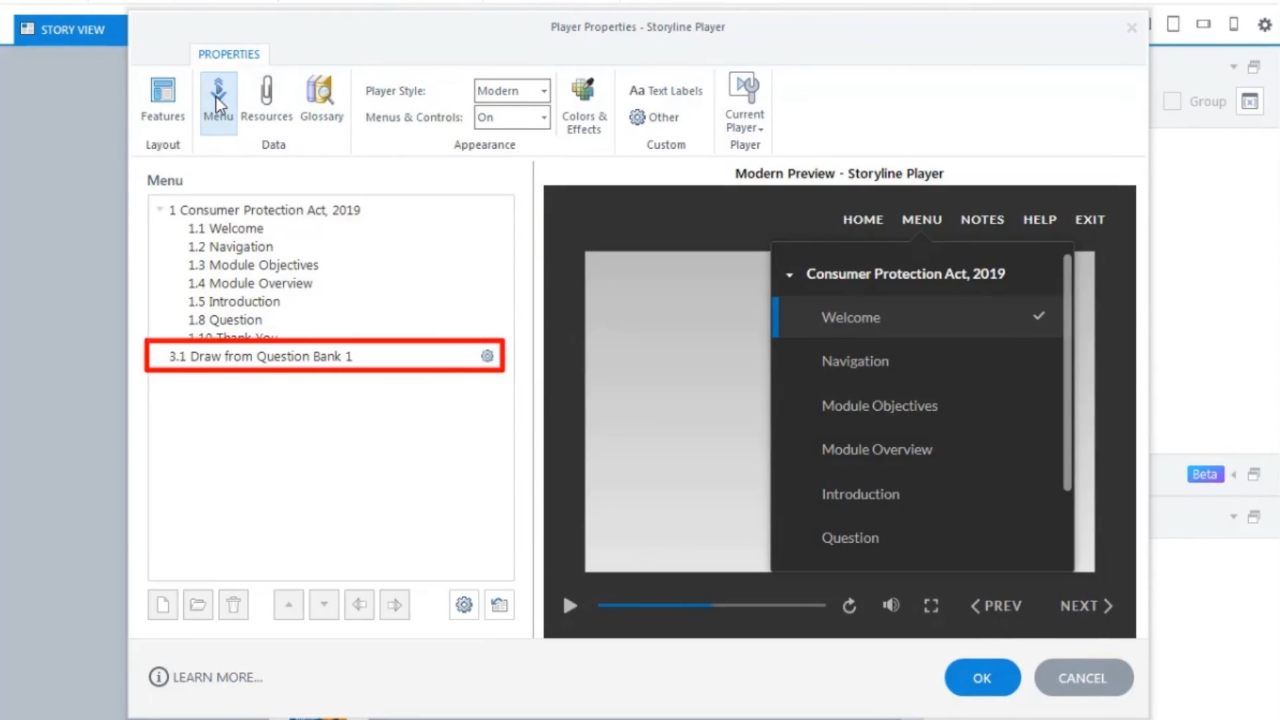
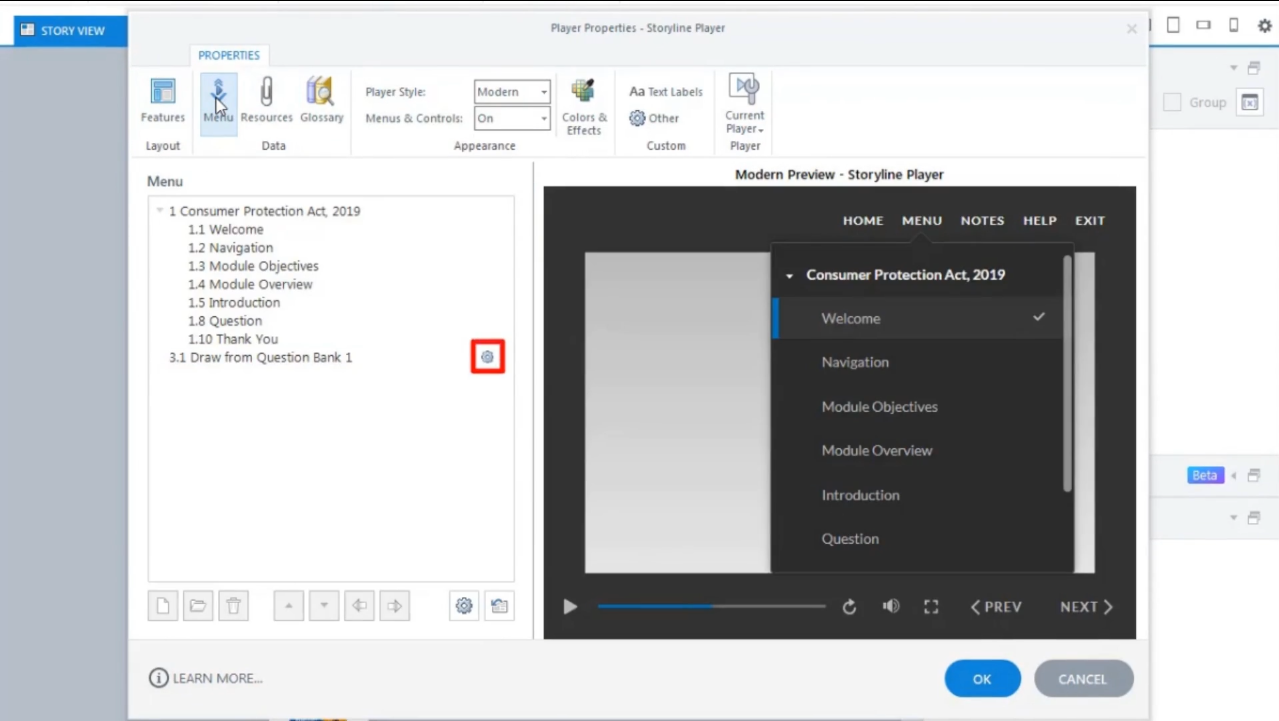
Select the ‘Menu’ tab on the property window. From there, choose the ‘Draw from Question Bank 1’.
storyline 360

storyline 360

Step 3: 

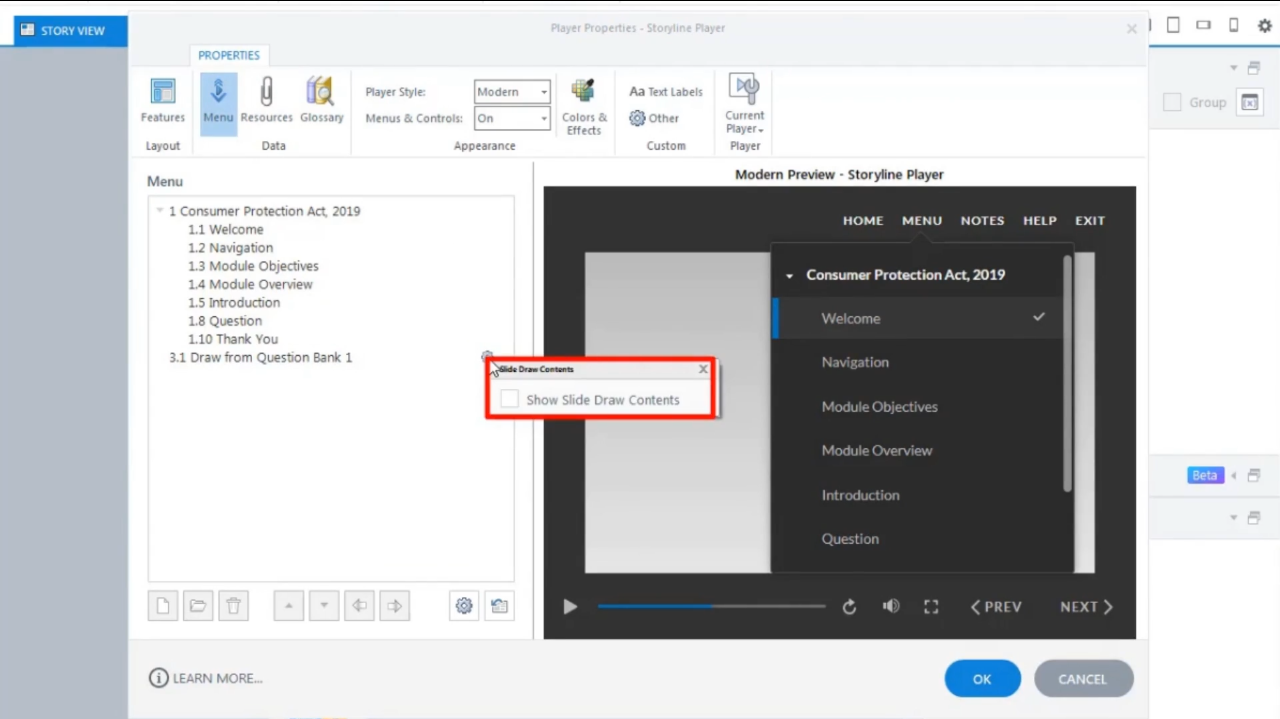
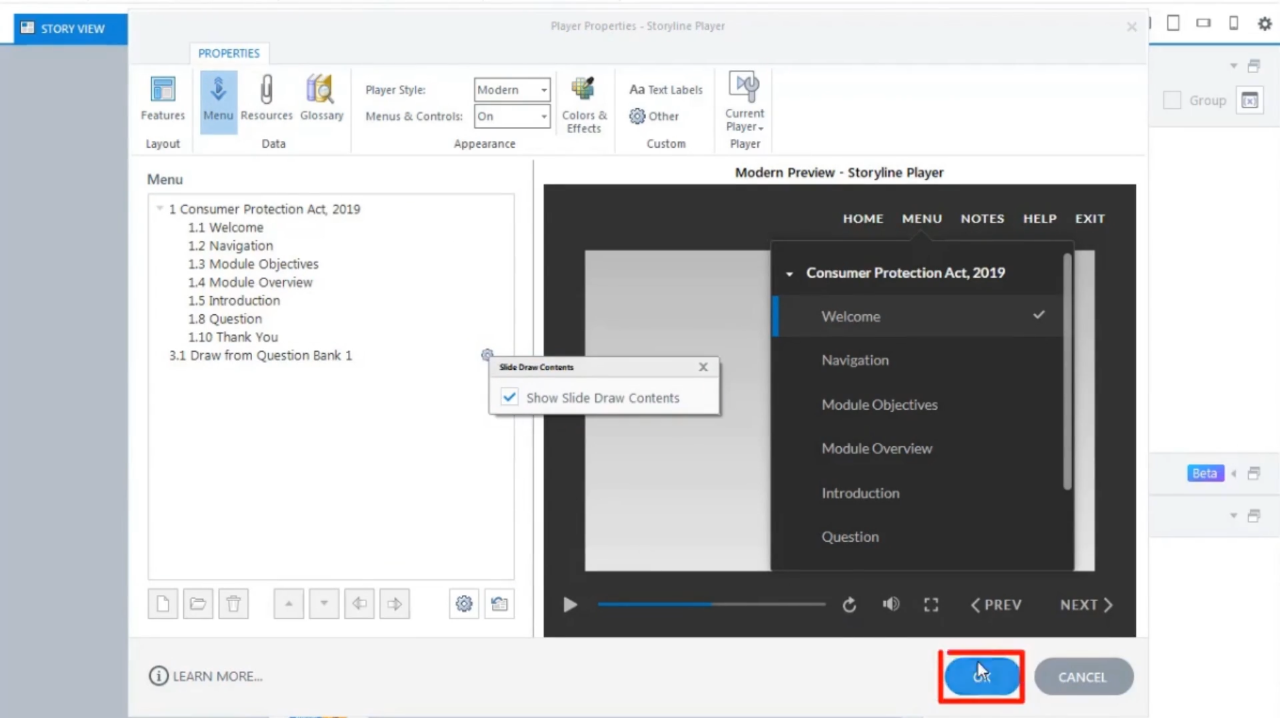
Click on the ‘SETTINGS’ icon, then tick the ‘slide draw contents’ checkbox and click OK.
storyline 360

storyline 360

storyline 360

Step 4: 

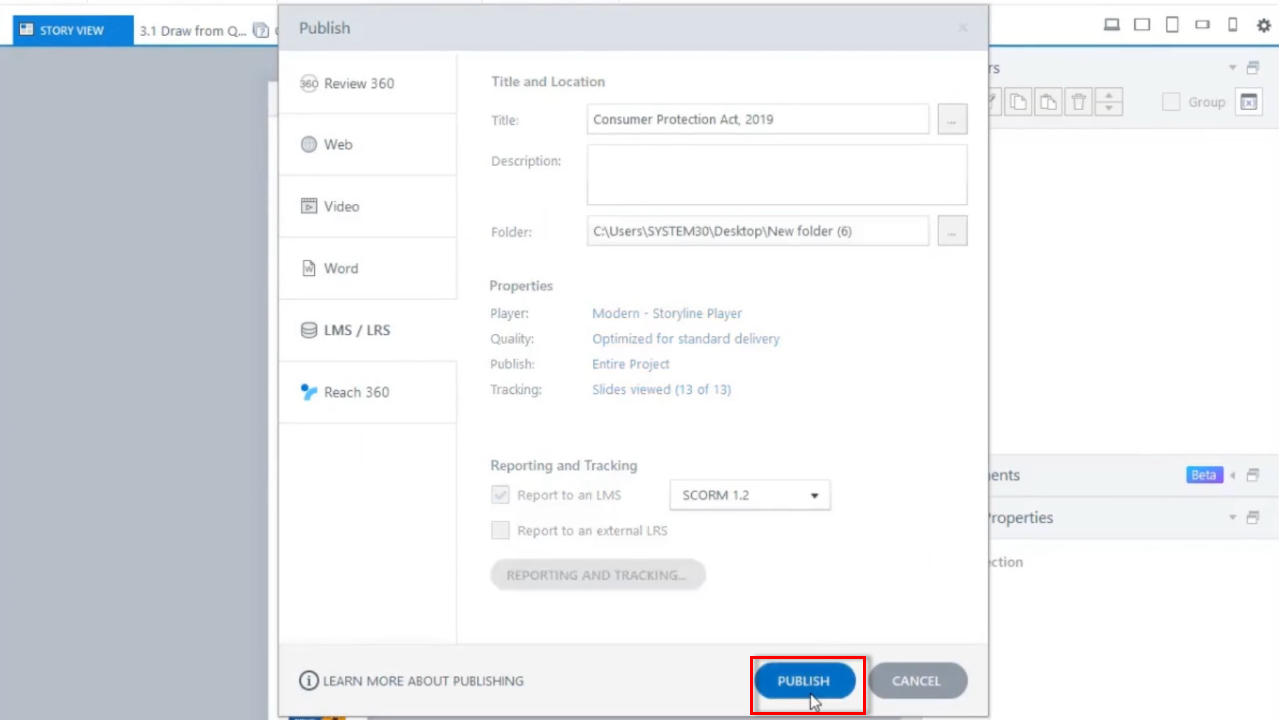
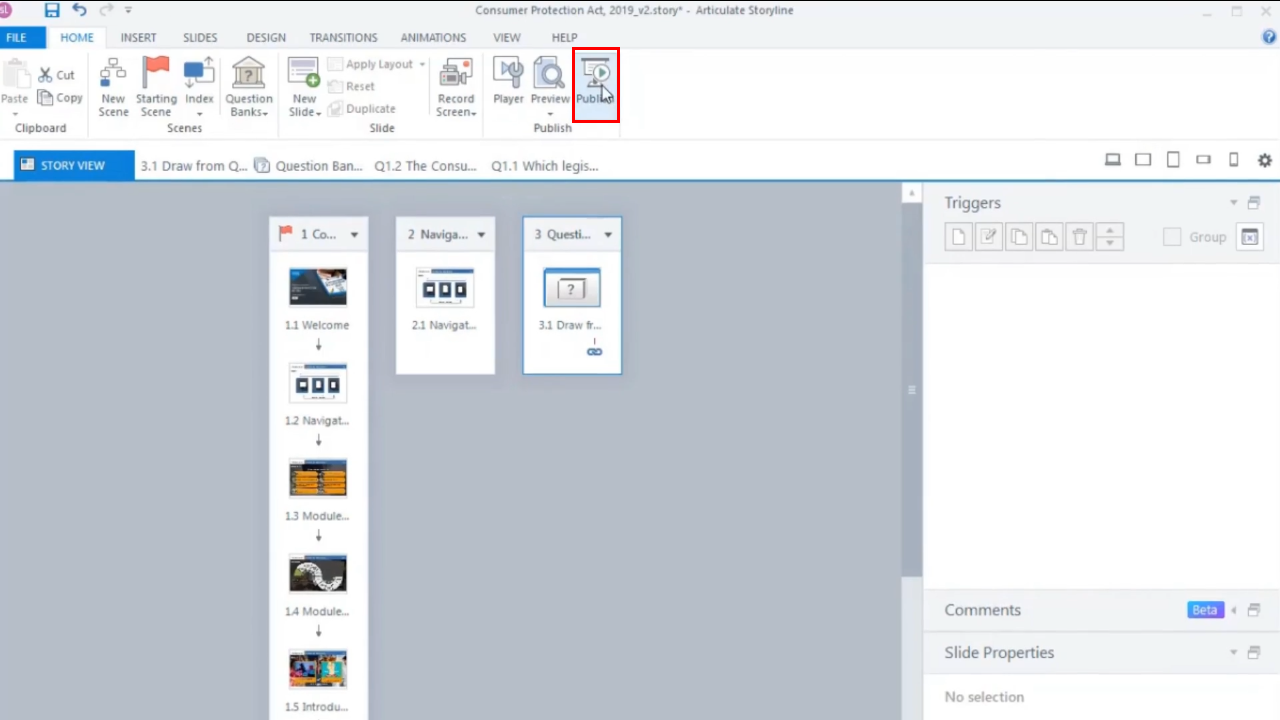
Select the ‘Publish’ button located on the top ribbon.
storyline 360

storyline 360

storyline 360

Step 5: 

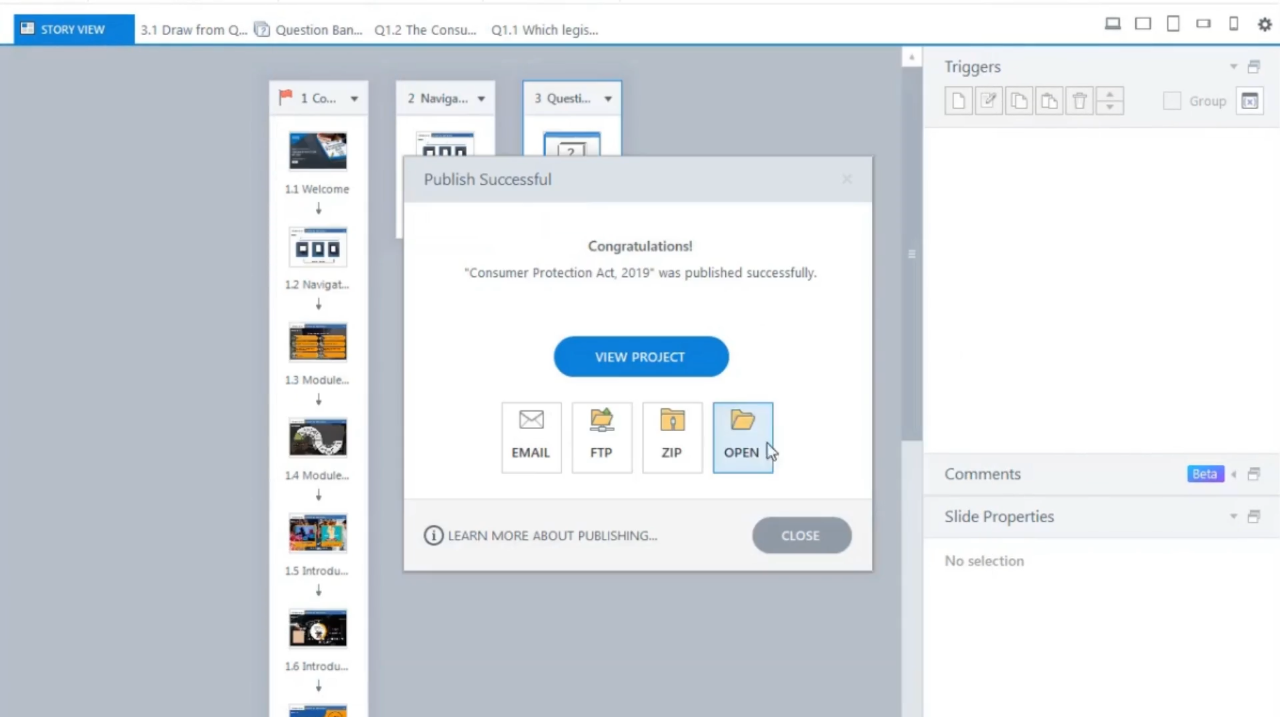
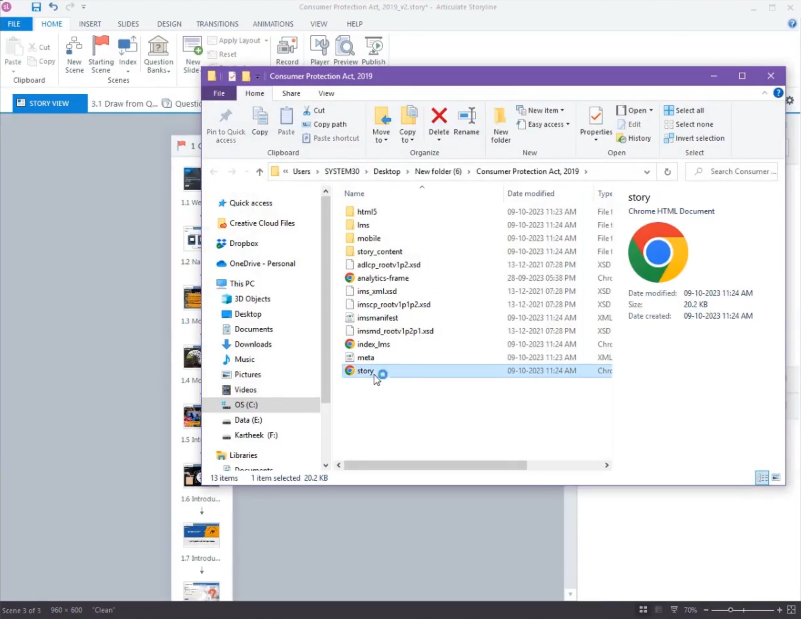
Once the publishing is complete, launch the course by using ‘story.html’.
storyline 360

Step 6: 

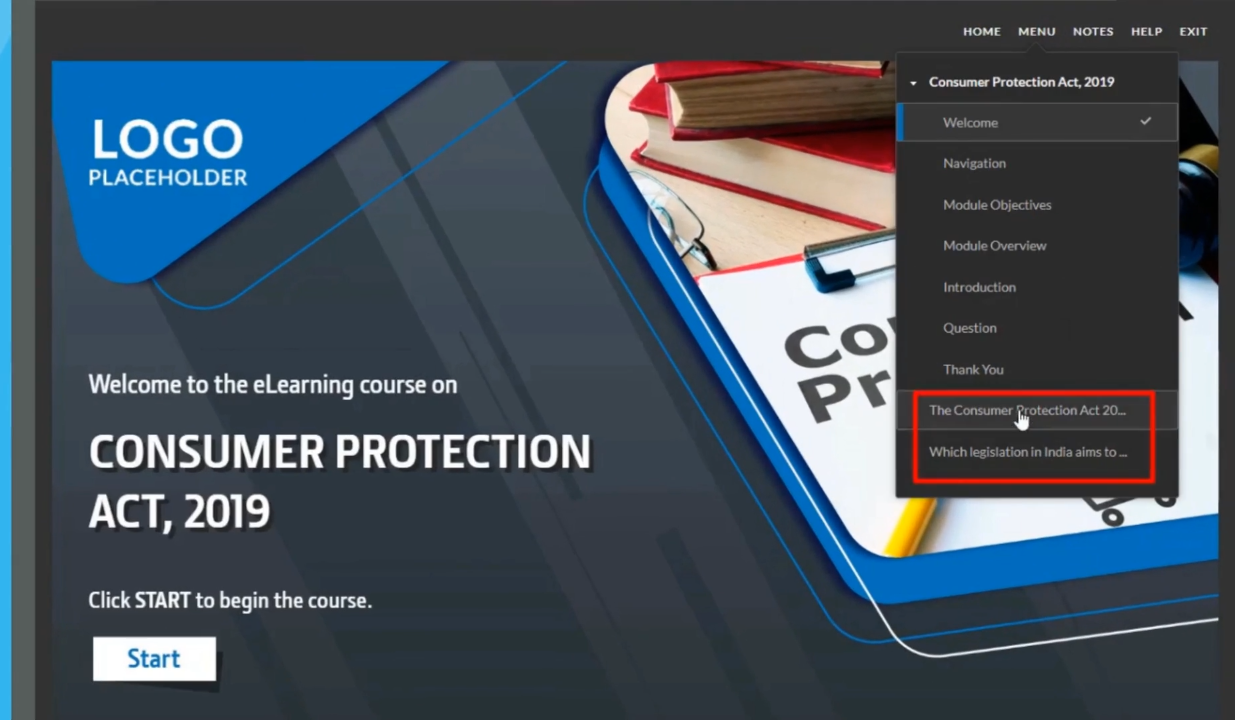
Now, you will be able to see the ‘QUESTION TITLE’ in the menu tab.

storyline 360

storyline 360

Conclusion:

The integration of Articulate Storyline 360’s eLearning design capabilities with custom eLearning solutions can greatly benefit eLearning development in corporate settings. By displaying question titles from question banks, the platform becomes even more versatile, enhancing the clarity and context of eLearning courses.

This feature becomes particularly valuable when dealing with corporate eLearning solutions, where customized content is often essential to meet the unique needs of an organization.

Implementing the steps outlined in this guide will significantly enhance the overall learning experience for employees. It ensures smooth navigation through quizzes and assessments, reinforcing Articulate Storyline 360’s value as a tool for corporate eLearning solutions.

In a world where effective eLearning design is paramount, Articulate Storyline 360’s flexibility and features stand out, making it an invaluable resource for eLearning content creators. Mastering its capabilities can leads to the development of more engaging and effective online courses, establishing it as a powerful tool in the corporate eLearning landspace.

0 replies

Leave a Reply

Want to join the discussion?
Feel free to contribute!

Leave a Reply Cancel reply

Your email address will not be published. Required fields are marked *

Share this entry
  • Share on Facebook
  • Share on Twitter
  • Share on Pinterest
  • Share on LinkedIn

ARTICULATE STORYLINE POSTS

  • step-by-step guide to customize quiz feedback colors in rise 360
    How to Customize Correct and Incorrect Answers Feedback Colors in Articulate Rise 360June 27, 2025 - 4:40 PM
  • removing labels and numbers from process blocks in articulate rise 360
    How to Remove Labels and Numbers from Process Blocks in Articulate Rise 360June 20, 2025 - 3:07 PM
  • easy-online-course-creation-ispring-suite-swift-elearning-services
    Create Online Courses with Ease Using iSpring Suite – The All-in-One eLearning Authoring Tool for PowerPointJune 16, 2025 - 11:18 AM
  • how to adjust padding in articulate rise 360 content blocks for custom e-learning
    How to Adjust Padding in Articulate Rise 360 Content Blocks for Custom E-LearningJune 9, 2025 - 5:23 PM
  • swift elearning services focuses on crafting custom elearning courses that enhance digital learning experiences.
    How to Use Snapshots to Recover Deleted Lessons in Articulate Rise 360April 23, 2025 - 3:58 PM
  • swift elearning services provides articulate 360 localization, offering tailored elearning solutions that adapt your content for global audiences.
    Articulate 360 Localization: Create, Translate, and Manage Training with EaseApril 17, 2025 - 11:24 AM
  • custom elearning solution with jump-to-time video control in storyline 360 for interactive video navigation.
    How to Use Jump-to-Time Trigger to Control Video in Storyline 360April 11, 2025 - 10:51 AM
  • how to import slides from other storyline projects
    Articulate Storyline 360 – How to Import Slides from Other Storyline ProjectsMarch 25, 2025 - 5:52 PM
  • ohs-traffic-control-training-for-construction-workers-featured-image
    OHS – Traffic Control Training Course for Construction WorkersSeptember 9, 2024 - 5:56 PM
  • ohs-road-traffic-control-training-for-road-maintenance-workers-featured-image
    OHS – Traffic Control Work Zone Safety Training for Road Maintenance WorkersAugust 1, 2024 - 3:22 PM

Get a Free Prototype Customized with Your Content.

Our Portfolios Explore Our Extensive Collection of eLearning Courses.

GET A FREE ELEARNING SAMPLE

We transform your training material into engaging, SCORM-compliant courses.

Request a Free Sample  

Our Services


  • Rapid eLearning Solutions

  • Custom eLearning Development

  • Flash to HTML5 Conversion Services

  • Mobile Learning Solutions

  • Translation and Localisation Services

  • Gamification eLearning

Our Office Address

Asia: 704, Topaz Plaza, Punjagutta, Hyderabad, Telangana, India 500082

Australia: P.O. Box 107, Brisbane, Queensland, 4030

Canada: 750 Oakdale Rd Suite 56, North York, ON M3N 2Z4, Canada

USA: 12218 Old Gage Ranch, San Antonio, Texas 78245

Copyright ©2026 Swift eLearning Services.
  • Facebook
  • Twitter
  • LinkedIn
  • Youtube
How can you incorporate background audio for the video output in Articulate...storylineanti-bribery and corruptionBuilding Trust and Ethics: Free Online Training Course to Fight Bribery and...
Scroll to top