Custom eLearning and Digital Training Solutions Provider
  • Home
  • eLearning Services
    • Custom Elearning Solutions
    • Convert PowerPoint to eLearning
    • Rapid eLearning Development
    • Translation and Localization
    • Flash To HTML5 Conversion
    • Legacy Content Conversion
    • Mobile Learning
    • Gamified Learning Solutions
    • Blended Learning Solutions
  • Software Development
    • Learning Management System
    • Workforce Management System
    • Human Resource Management System
    • Bug Tracker Software
    • Custom Software Development
  • Contact Us
  • Blog
  • Search
  • Menu Menu
  • 0Shopping Cart
  • Home
  • eLearning Services
    • Custom Elearning Solutions
    • Convert PowerPoint to eLearning
    • Rapid eLearning Development
    • Translation and Localization
    • Flash To HTML5 Conversion
    • Legacy Content Conversion
    • Mobile Learning
    • Gamified Learning Solutions
    • Blended Learning Solutions
  • Software Development
    • Learning Management System
    • Workforce Management System
    • Human Resource Management System
    • Bug Tracker Software
    • Custom Software Development
  • Contact Us
  • Blog

How Can Playback Speed Control be Enabled in Storyline 360?

Click or tap on the play button below to watch the video for easier understanding.

Enabling playback speed control in Articulate Storyline is a crucial element of eLearning development, particularly in the realm of custom eLearning solutions. This feature allows developers engaged in custom content development to provide a more personalised experience for learners.

Custom eLearning development involves tailoring the content to specific learning objectives and audience needs. The ability to adjust playback speed is a vital aspect of this process, as it grants learners the autonomy to navigate the course content at their preferred pace.

The custom eLearning development process is often guided by the aim of creating engaging and effective eLearning solutions. In this context, enabling playback speed control in Storyline plays a pivotal role. ELearning developers recognise that not all learners are alike, and the flexibility offered by this feature ensures that the educational material can be adapted to suit individual preferences and learning styles. This adaptability is at the core of custom eLearning solutions, which prioritise the needs and objectives of the target audience.

Custom content development in eLearning is all about crafting educational experiences that are highly tailored and relevant. Enabling playback speed control aligns perfectly with this philosophy. It empowers learners to have more control over their learning journey, making the content more accessible and engaging. By allowing learners to adjust the playback speed, eLearning developers ensure that the custom content development process results in courses that are adaptive and responsive to the diverse needs of the audience.

Moreover, enabling playback speed control is a step towards ensuring that your content is accessible and accommodating for all types of learners, promoting a more effective and engaging educational environment. Let’s embark on this journey to empower learners with control over their learning pace and style.

Whether you’re an eLearning developer, instructional designer, or educator, understanding this feature is crucial for tailoring your courses to meet the diverse needs of your audience.

By the end of this guide, you’ll have the knowledge and skills necessary to create more flexible and learner-centred eLearning experiences.

Here are the steps for activating or enabling the playback speed controls:

Step 1: 

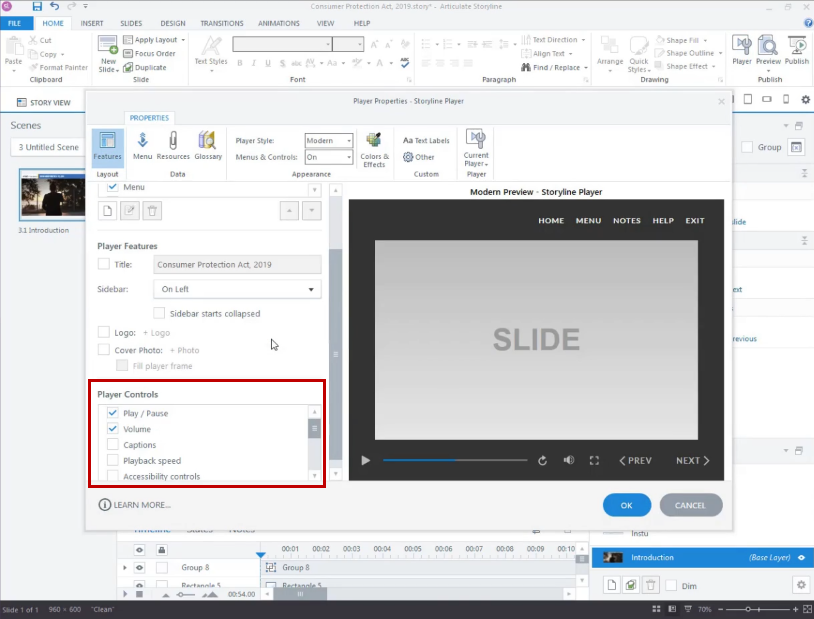
Open your Storyline file and click on the ‘Player’ tab located in the top-right ribbon.
playback speed

Step 2: 

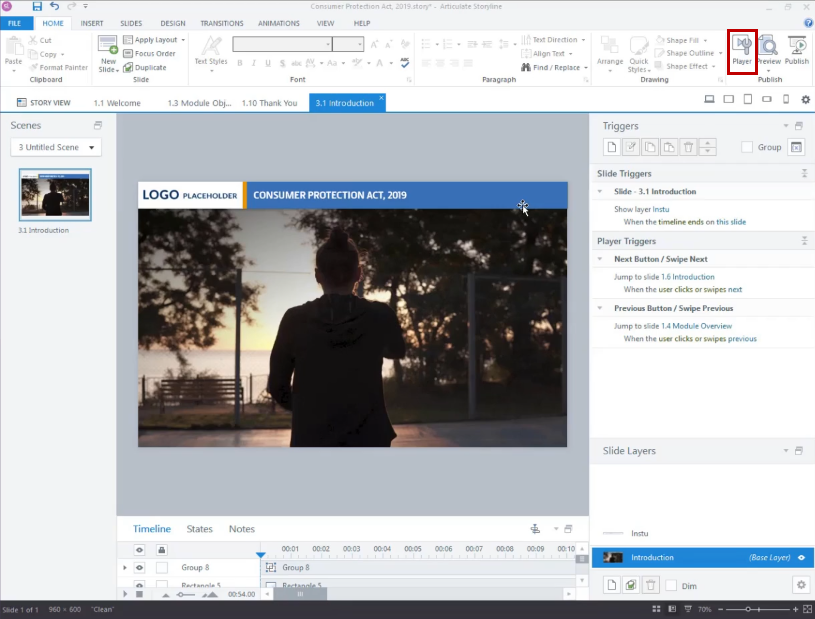
Within the player property window, scroll down slightly to find the ‘Player Controls’ menu.
playback speed

playback speed

Step 3: 

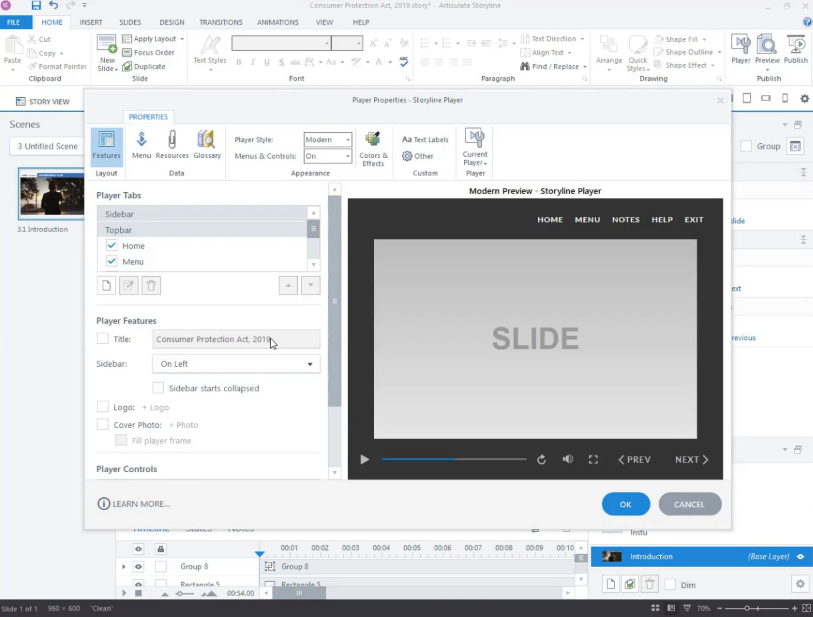
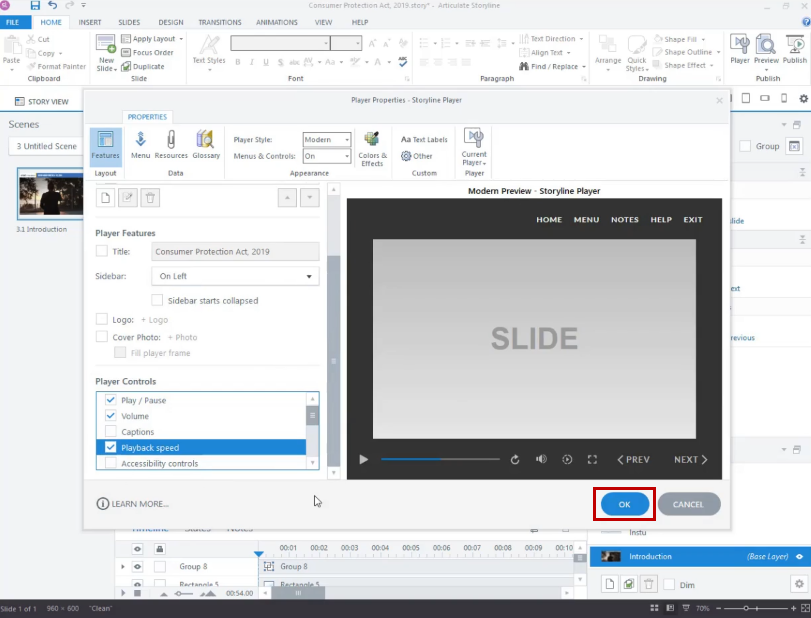
Enable the playback speed control for the player by checking or selecting the ‘Playback speed’ checkbox, then click ‘OK’.
playback speed

playback speed

Step 4: 

After that, publish the file and launch the course by opening ‘story.html’.

Step 5: 

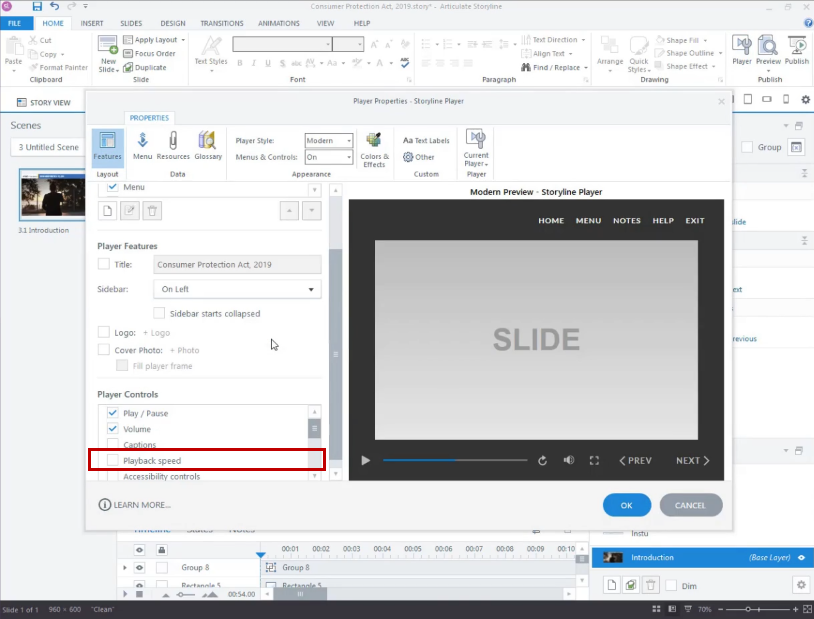
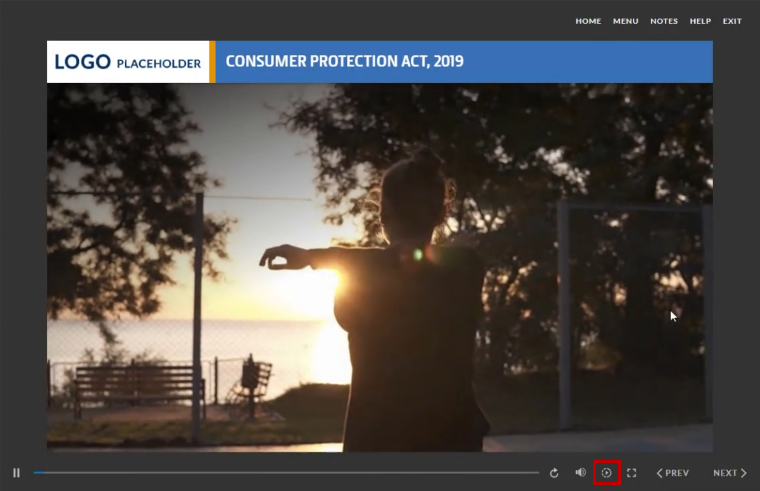
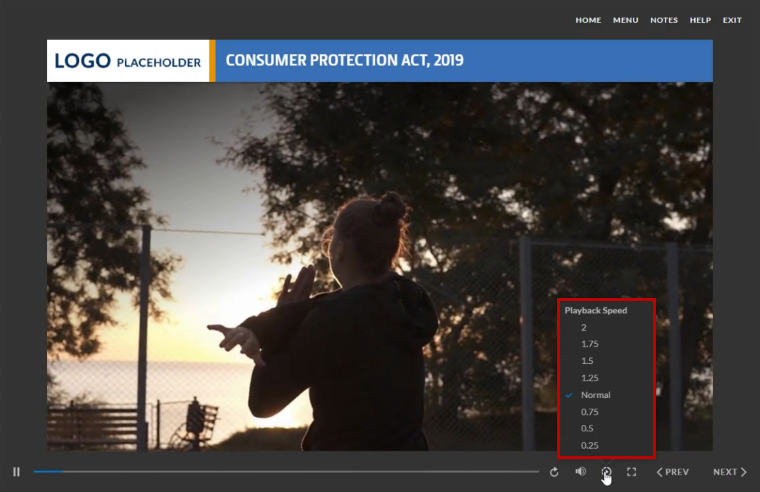
You will observe the addition of the Playback speed control icon to the player. You can adjust the speed of the course as required, either speeding up or slowing down.
playback speed

playback speed

Conclusion:

Incorporating playback speed control into Articulate Storyline is a pivotal step in the development of custom eLearning solutions. This feature enhances the custom eLearning development process, making content more flexible and adaptive to individual preferences. Ultimately, it contributes to the creation of more effective eLearning solutions that can cater to a broader range of learners, ensuring that the educational experience is not only informative but also highly engaging and personalized.

Throughout this guide, we’ve explored various methods and techniques to implement playback speed control, allowing learners to adjust the pace of content consumption. This not only enhances accessibility but also caters to different learning styles, ensuring that learners can grasp the material at their own comfortable pace.

As the digital learning landscape continues to evolve, the ability to offer playback speed control in e-learning courses becomes increasingly essential. It aligns with the notion that education should be tailored to the individual, fostering a more productive and personalised learning environment.

The last comment and 1 other comment(s) need to be approved.
0 replies

Leave a Reply

Want to join the discussion?
Feel free to contribute!

Leave a Reply Cancel reply

Your email address will not be published. Required fields are marked *

Share this entry
  • Share on Facebook
  • Share on Twitter
  • Share on Pinterest
  • Share on LinkedIn

ARTICULATE STORYLINE POSTS

  • step-by-step guide to customize quiz feedback colors in rise 360
    How to Customize Correct and Incorrect Answers Feedback Colors in Articulate Rise 360June 27, 2025 - 4:40 PM
  • removing labels and numbers from process blocks in articulate rise 360
    How to Remove Labels and Numbers from Process Blocks in Articulate Rise 360June 20, 2025 - 3:07 PM
  • easy-online-course-creation-ispring-suite-swift-elearning-services
    Create Online Courses with Ease Using iSpring Suite – The All-in-One eLearning Authoring Tool for PowerPointJune 16, 2025 - 11:18 AM
  • how to adjust padding in articulate rise 360 content blocks for custom e-learning
    How to Adjust Padding in Articulate Rise 360 Content Blocks for Custom E-LearningJune 9, 2025 - 5:23 PM
  • swift elearning services focuses on crafting custom elearning courses that enhance digital learning experiences.
    How to Use Snapshots to Recover Deleted Lessons in Articulate Rise 360April 23, 2025 - 3:58 PM
  • swift elearning services provides articulate 360 localization, offering tailored elearning solutions that adapt your content for global audiences.
    Articulate 360 Localization: Create, Translate, and Manage Training with EaseApril 17, 2025 - 11:24 AM
  • custom elearning solution with jump-to-time video control in storyline 360 for interactive video navigation.
    How to Use Jump-to-Time Trigger to Control Video in Storyline 360April 11, 2025 - 10:51 AM
  • how to import slides from other storyline projects
    Articulate Storyline 360 – How to Import Slides from Other Storyline ProjectsMarch 25, 2025 - 5:52 PM
  • ohs-traffic-control-training-for-construction-workers-featured-image
    OHS – Traffic Control Training Course for Construction WorkersSeptember 9, 2024 - 5:56 PM
  • ohs-road-traffic-control-training-for-road-maintenance-workers-featured-image
    OHS – Traffic Control Work Zone Safety Training for Road Maintenance WorkersAugust 1, 2024 - 3:22 PM

Get a Free Prototype Customized with Your Content.

Our Portfolios Explore Our Extensive Collection of eLearning Courses.

GET A FREE ELEARNING SAMPLE

We transform your training material into engaging, SCORM-compliant courses.

Request a Free Sample  

Our Services


  • Rapid eLearning Solutions

  • Custom eLearning Development

  • Flash to HTML5 Conversion Services

  • Mobile Learning Solutions

  • Translation and Localisation Services

  • Gamification eLearning

Our Office Address

Asia: 704, Topaz Plaza, Punjagutta, Hyderabad, Telangana, India 500082

Australia: P.O. Box 107, Brisbane, Queensland, 4030

Canada: 750 Oakdale Rd Suite 56, North York, ON M3N 2Z4, Canada

USA: 12218 Old Gage Ranch, San Antonio, Texas 78245

Copyright ©2026 Swift eLearning Services.
  • Facebook
  • Twitter
  • LinkedIn
  • Youtube
How Can Neural Voices be generated in Articulate Storyline 360?articulate storylinee-learning challengeeLearning Challenge: Transparent CC Text in Storyline 360
Scroll to top