Steps to create an eLearning Course Using Ready-To-Go Slides feature – Adobe Captivate 2019
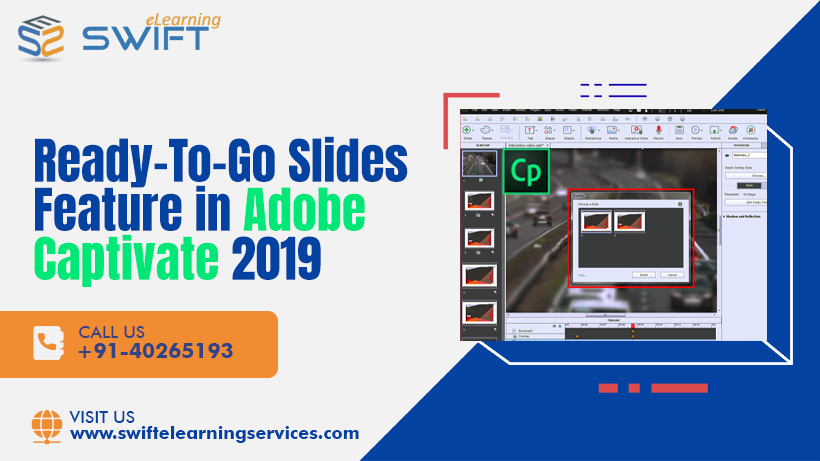
steps to create an elearning course using ready-to-go slides feature - adobe captivate 2019Ready-To-Go is a huge time saver for your Rapid Elearning development as you just need to copy your content, paste in the selected layouts, and then publish the course in Adobe Captivate 2019.

Here are the steps to create a elearning course using the Ready-to-go feature in Adobe Captivate 2019.
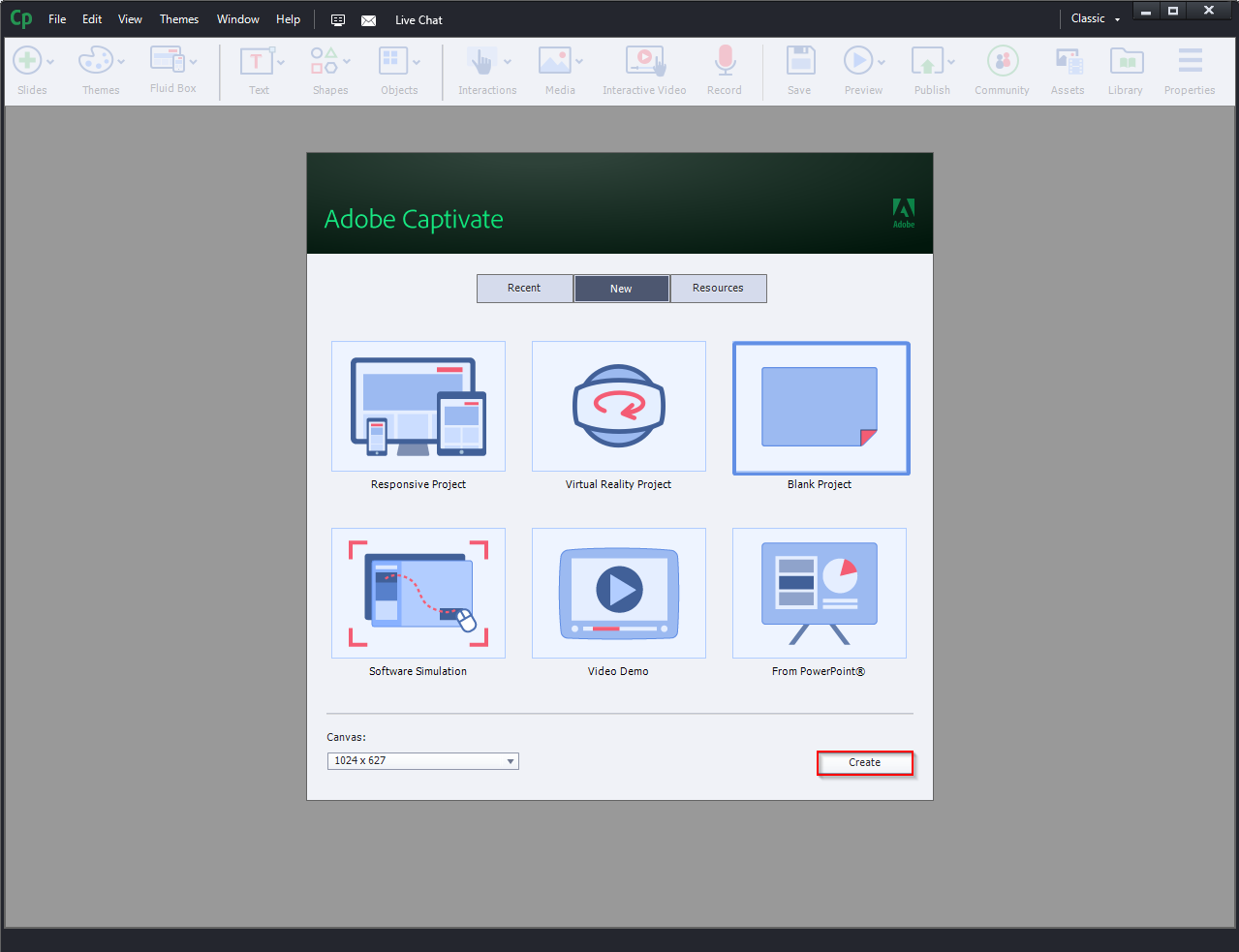
  1. Open Adobe Captivate 2019 and click Create.adobe captivate
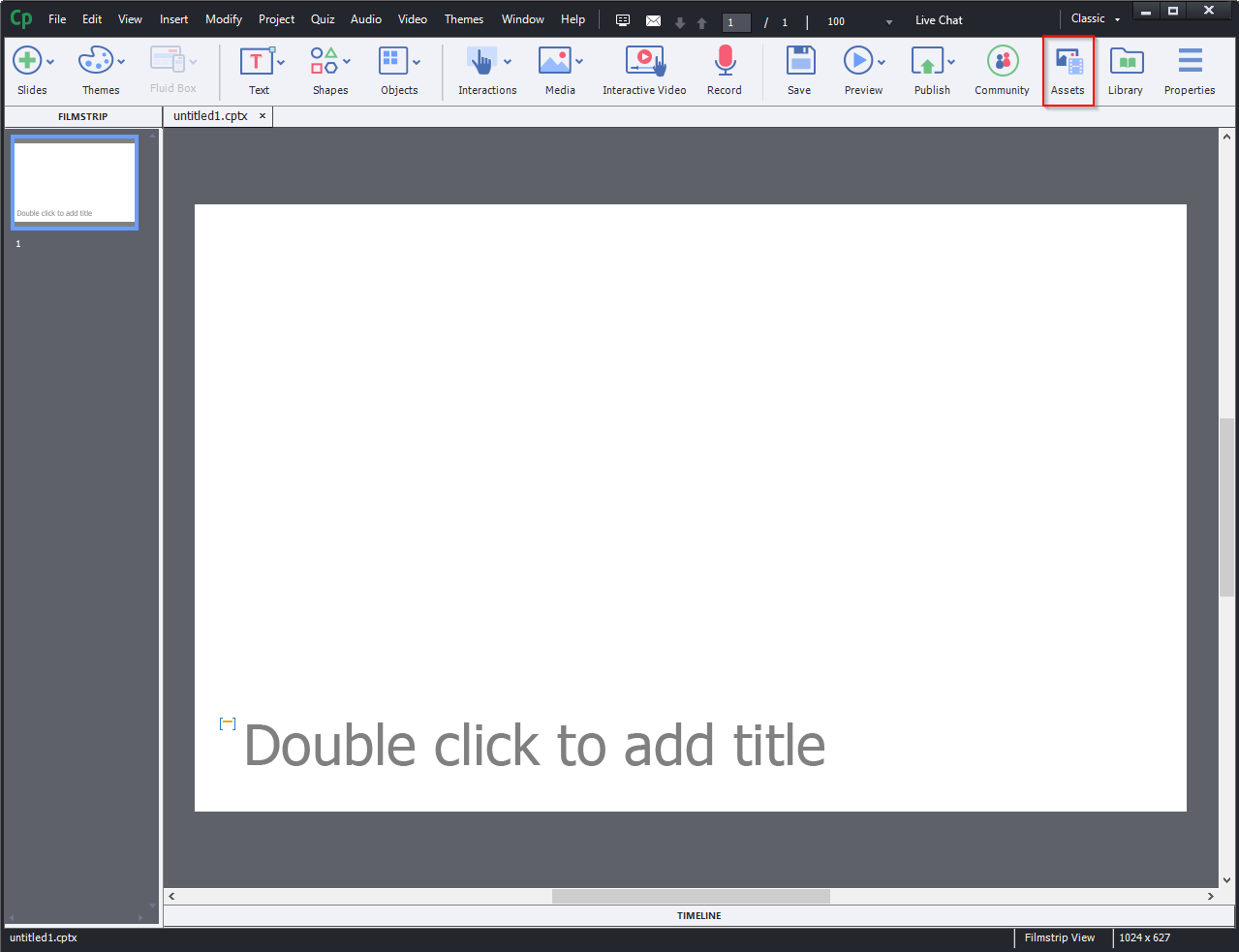
  2. To the top-right side of the bar, you will find the Assets button. Click on it.adobe captivate
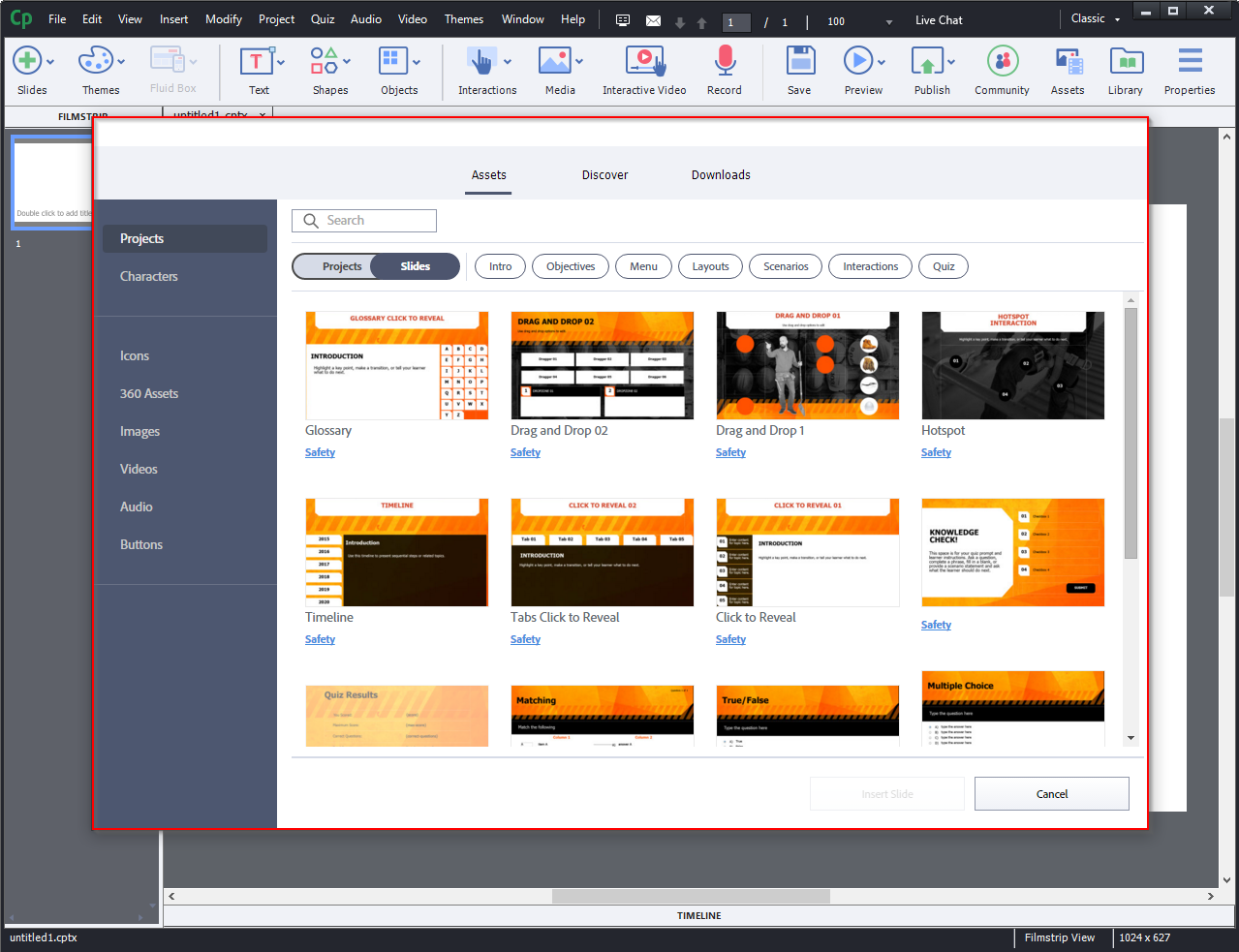
  3. In this dialog box, you will find layouts and templates.adobe captivate
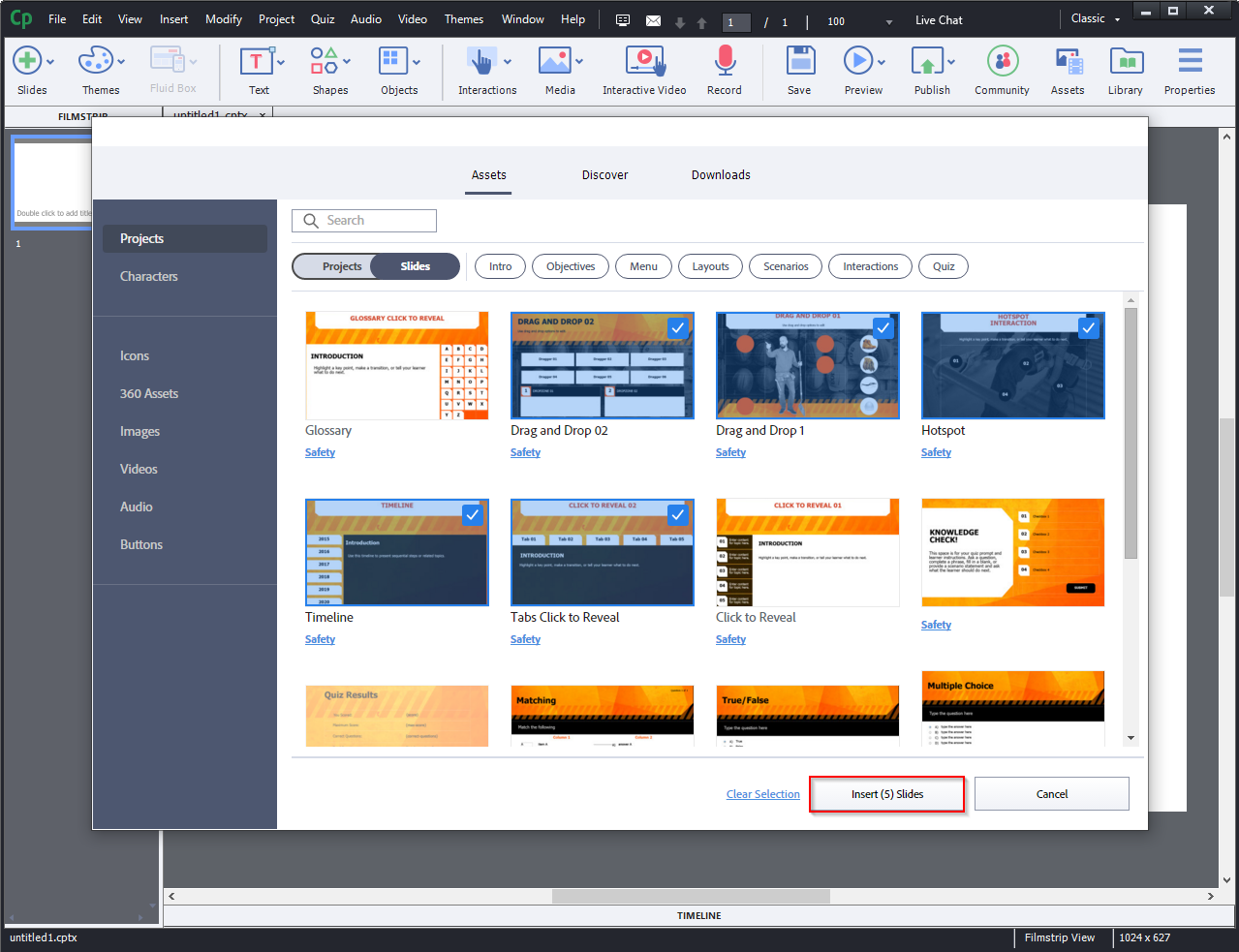
  4. Select the layouts you wish to import and then click Insert Slides.adobe captivate
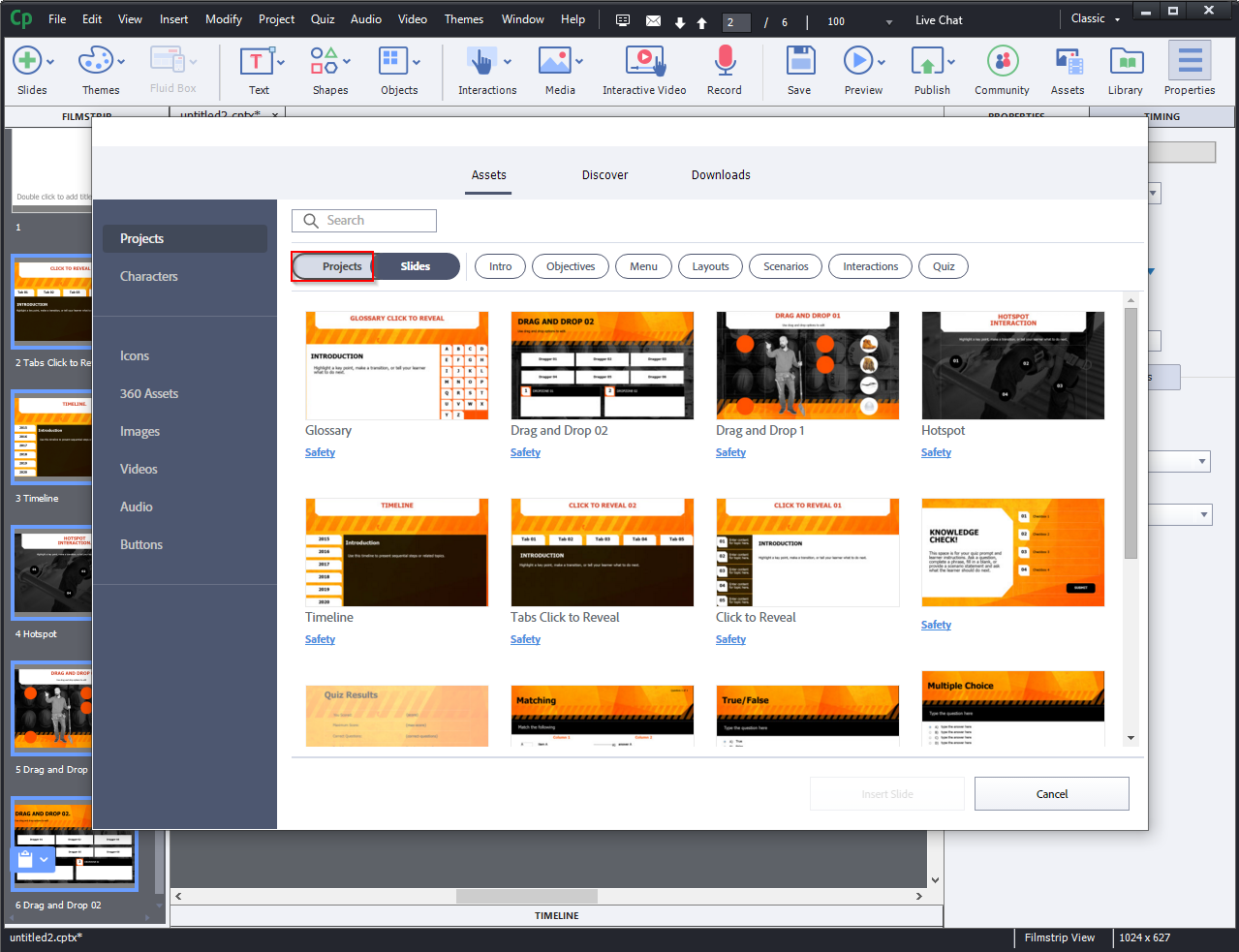
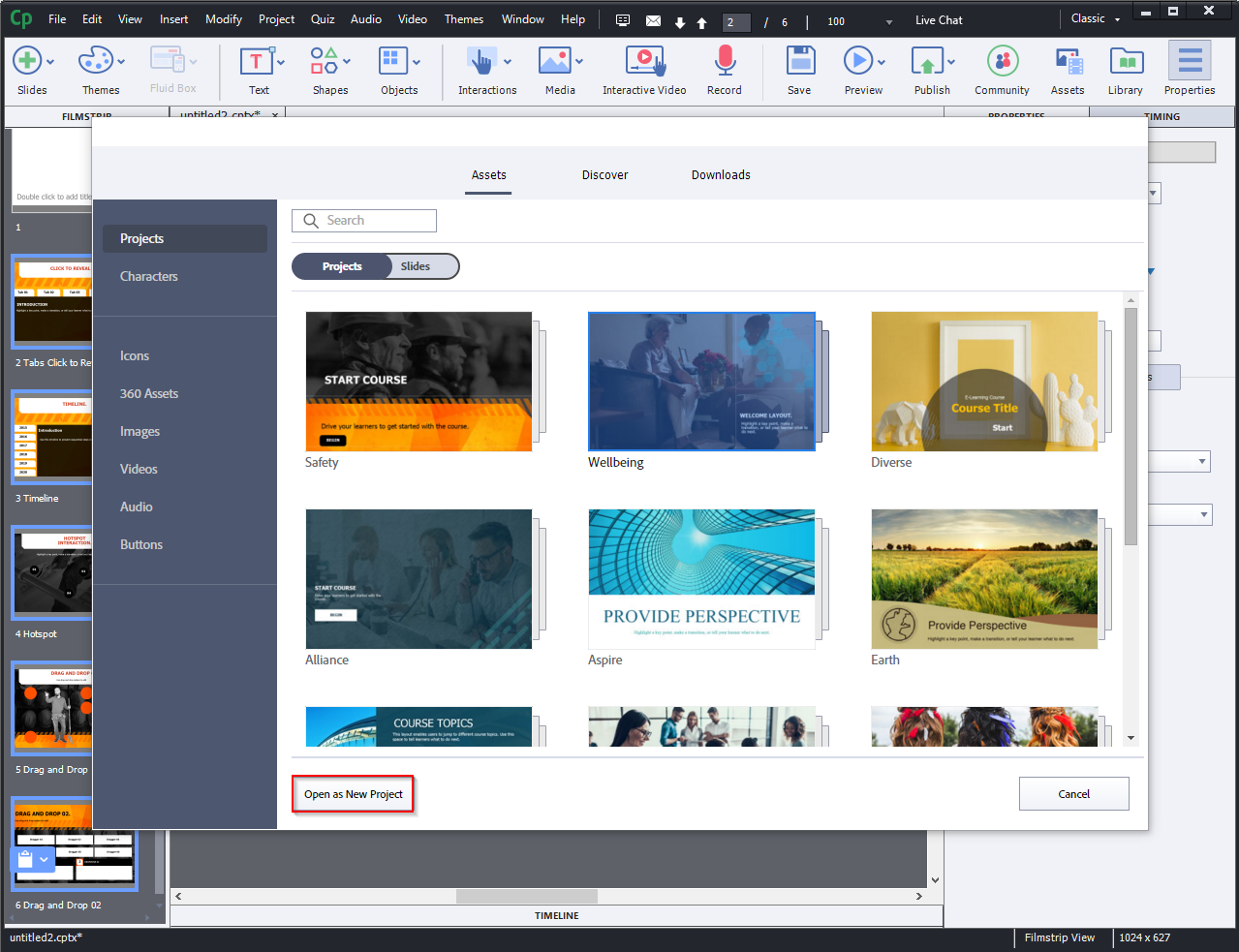
  5. If you want to import the entire project instead of particular slides then, select the Projects tab beside the Slides tab.adobe captivate
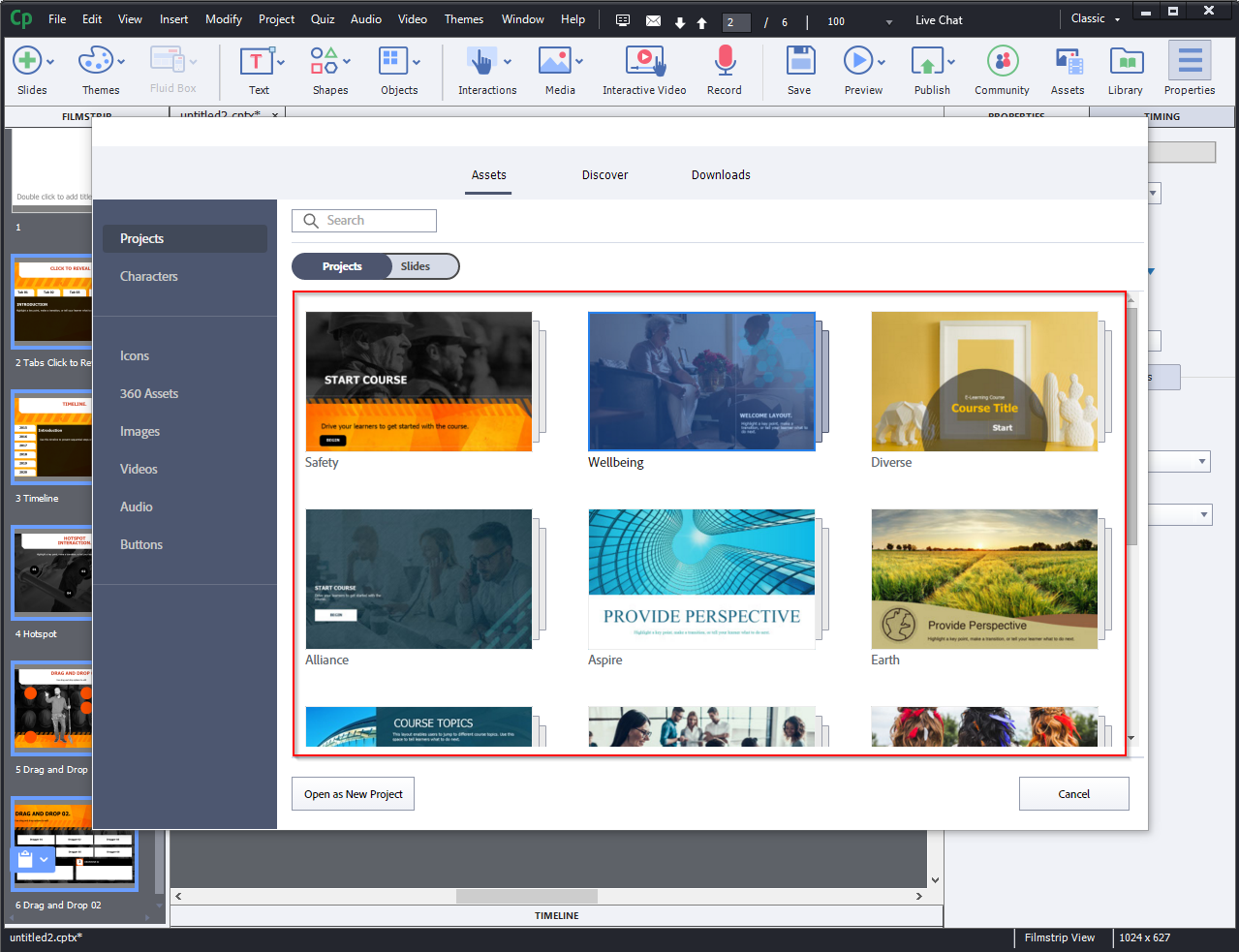
  6. In the Projects section, select a Project.adobe captivate
  7. Click Open as New Project. This will create an entire New Project.adobe captivate
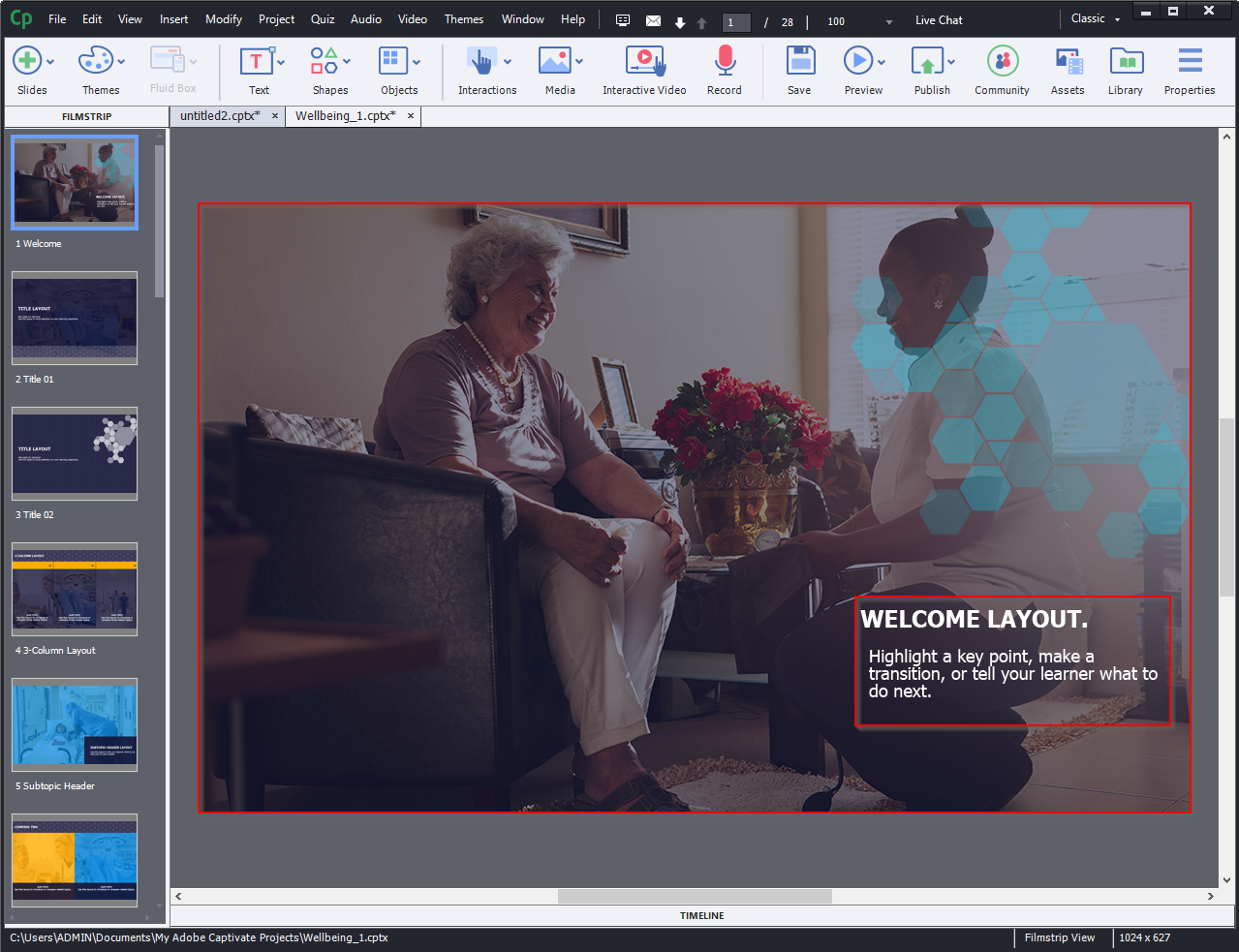
  8. You can copy your content and paste it into the placeholders. You can also replace images.adobe captivate
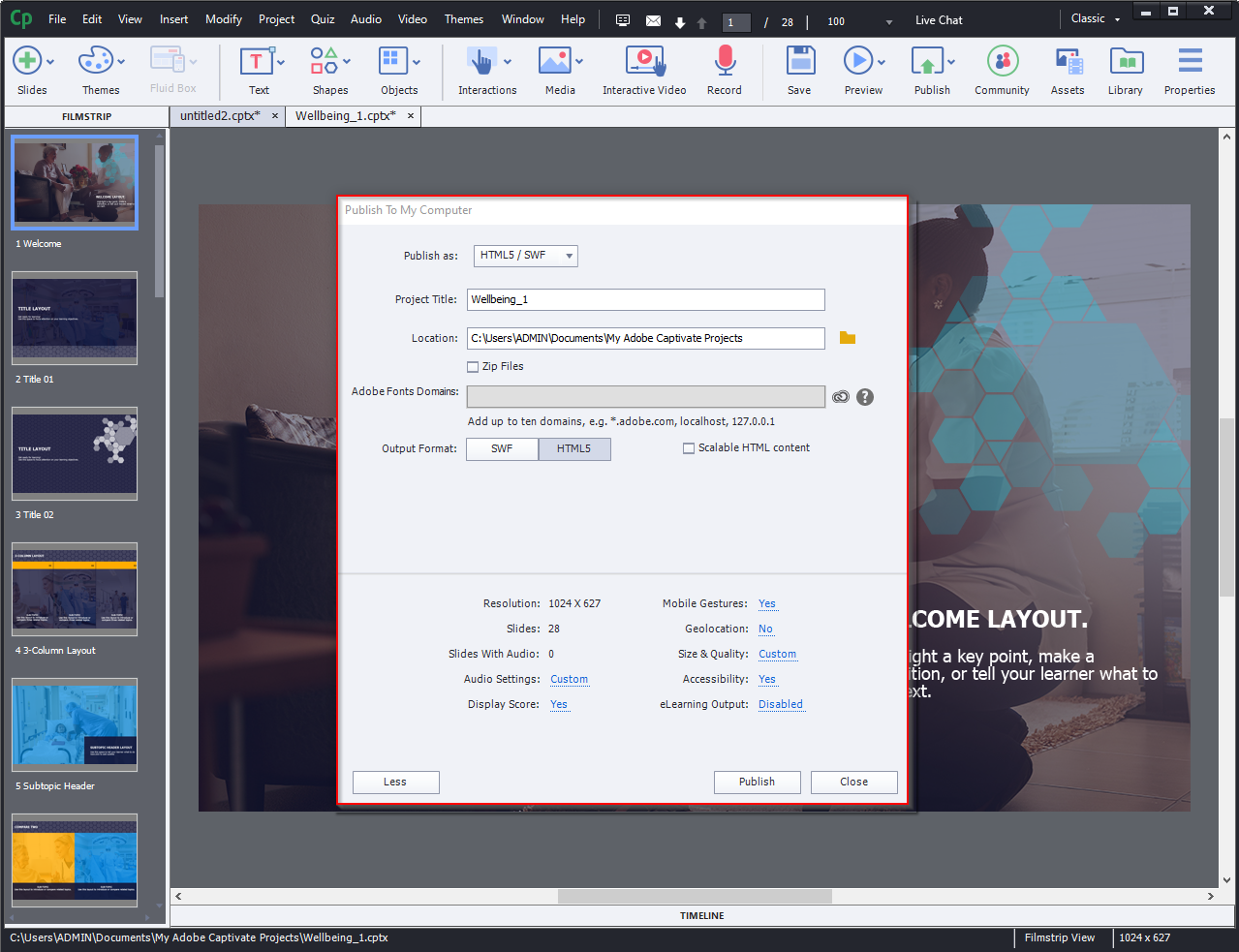
  9. Finally, publish the course.adobe captivate
custom elearning development