
Storyline 360 Tutorial

How to Remove the Play Button at Course Launch in Articulate Storyline 360

When launching an Articulate Storyline 360 course containing audio or video on the first slide, Google Chrome and other modern web browsers often display a large Play button overlay. This occurs due to browser media autoplay policies designed to block unprompted audio playback.

Manually clicking a play button before starting a course disrupts the user experience. Follow this step-by-step guide to bypass or remove the initial play button for seamless, automatic course launching.

Step-by-Step Guide: How to Bypass the Play Button in Chrome

To enable smooth auto play without the play button overlay, insert a silent, non-media cover screen at the very beginning of your project timeline:

  1. 01

    Insert a Silent Title/Intro Screen

    Add a new blank slide before your main course title or opening slide. Maintain the exact visual background design and branding as your main title screen so the transition is imperceptible.
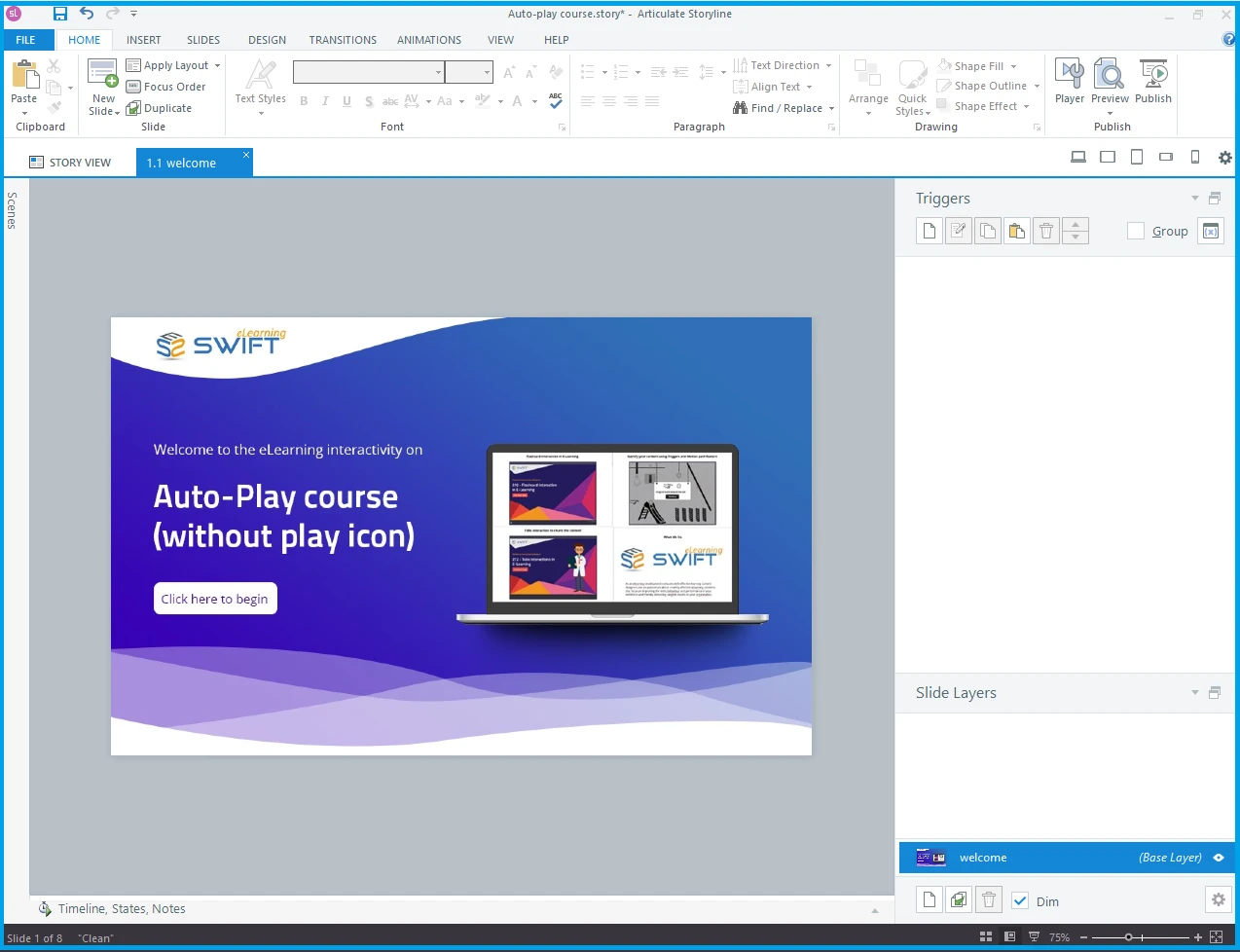
    Articulate Storyline 360 slide panel showing a new silent welcome slide inserted before the main course title, with no triggers yet added
  2. 02

    Add an Automated Jump Trigger

    On this new initial slide, set a trigger: Jump to slide [Next Slide] when timeline starts.
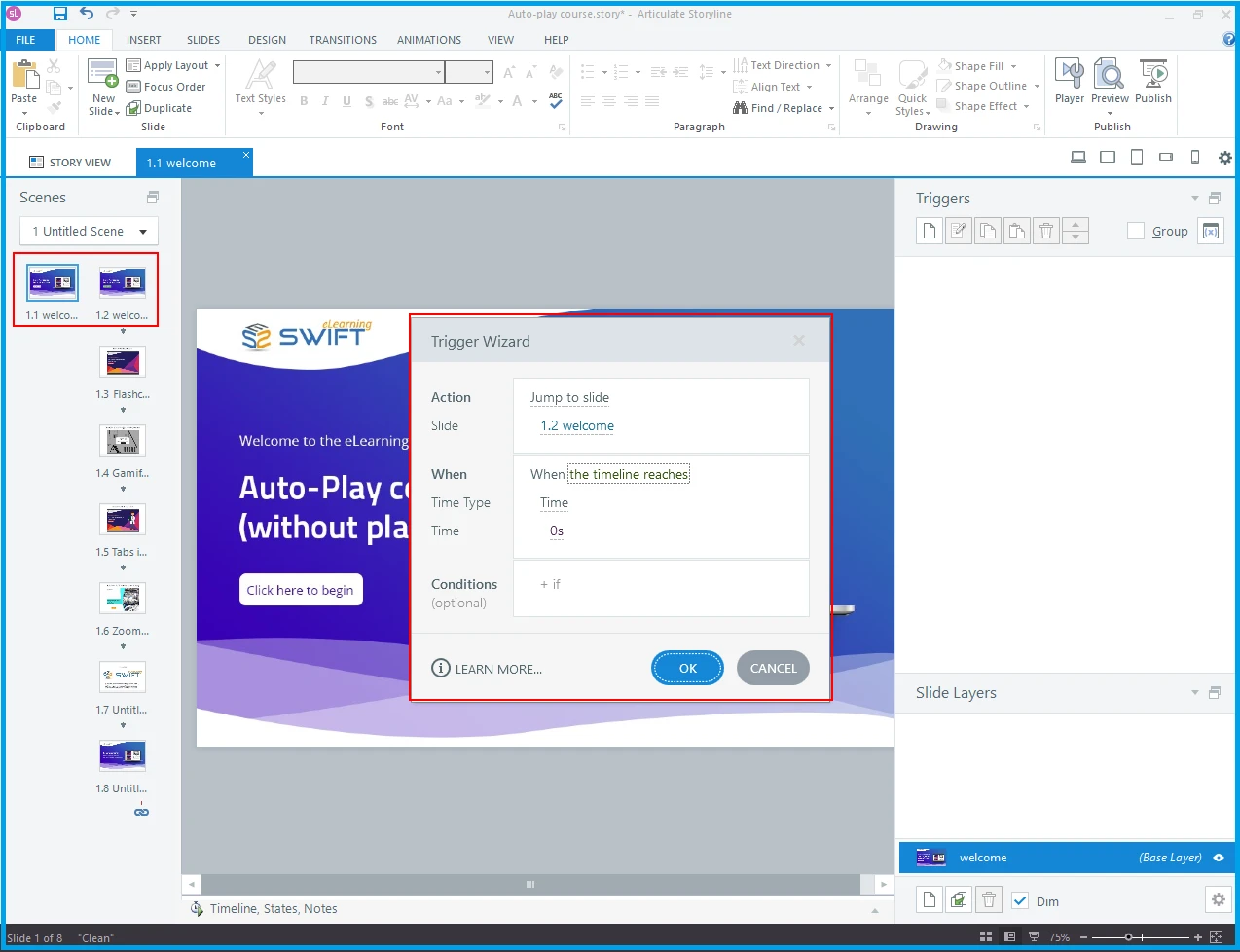
    Articulate Storyline 360 Trigger Wizard configured to jump to the next slide when the timeline reaches time 0 seconds
  3. 03

    Ensure Zero Audio/Video Media on Slide 1

    Verify there are no MP3, MP4, background audio, or video files placed on this newly inserted slide. Because no media is present, the browser will not trigger the media autoplay policy block.
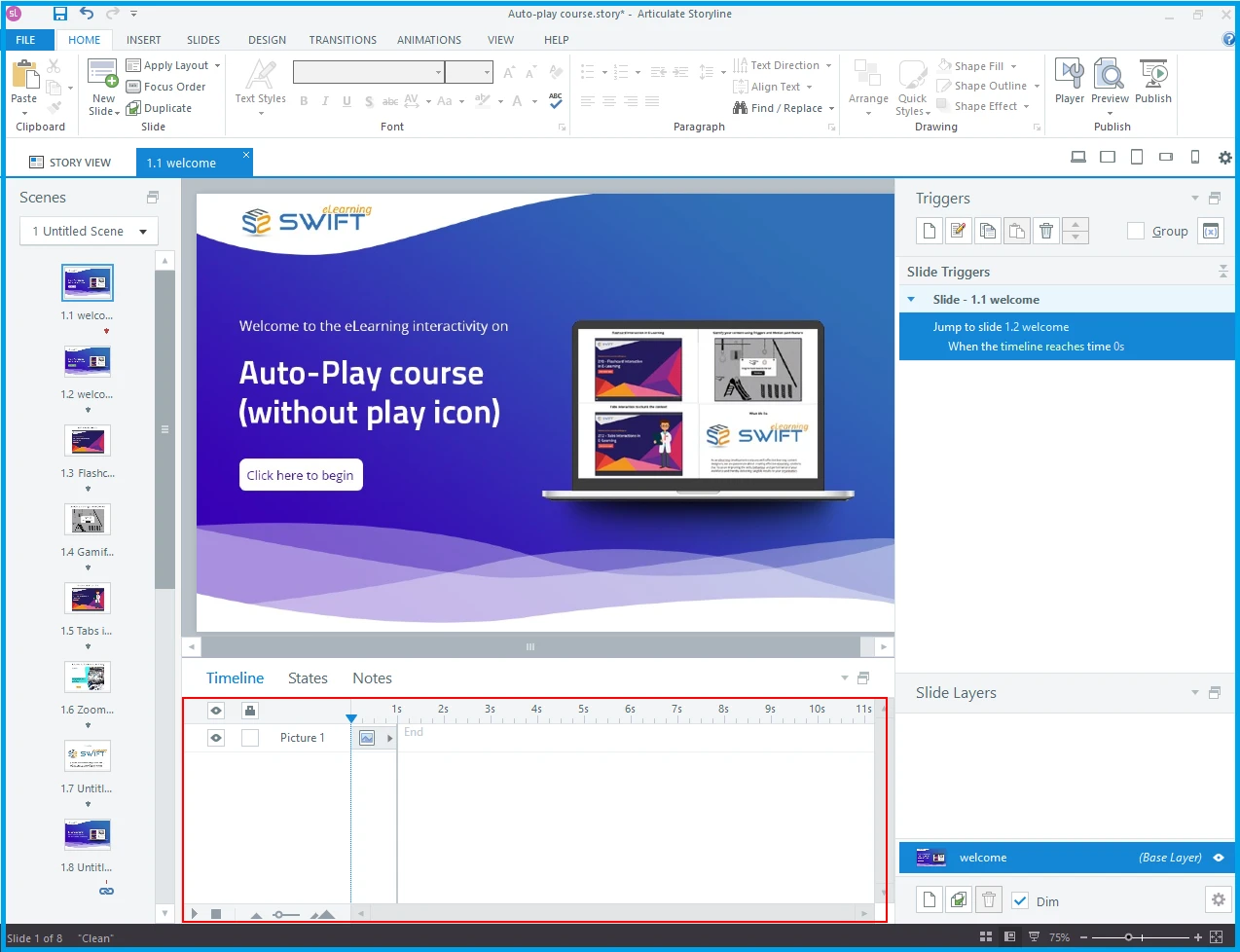
    Articulate Storyline 360 Timeline panel for the intro slide showing only a picture object and no audio or video track
  4. 04

    Publish and Test Your Course

    Publish your project to Web or SCORM/xAPI for your LMS. When launched in Chrome, the browser will instantly execute the silent slide trigger and jump straight into your main course content smoothly.
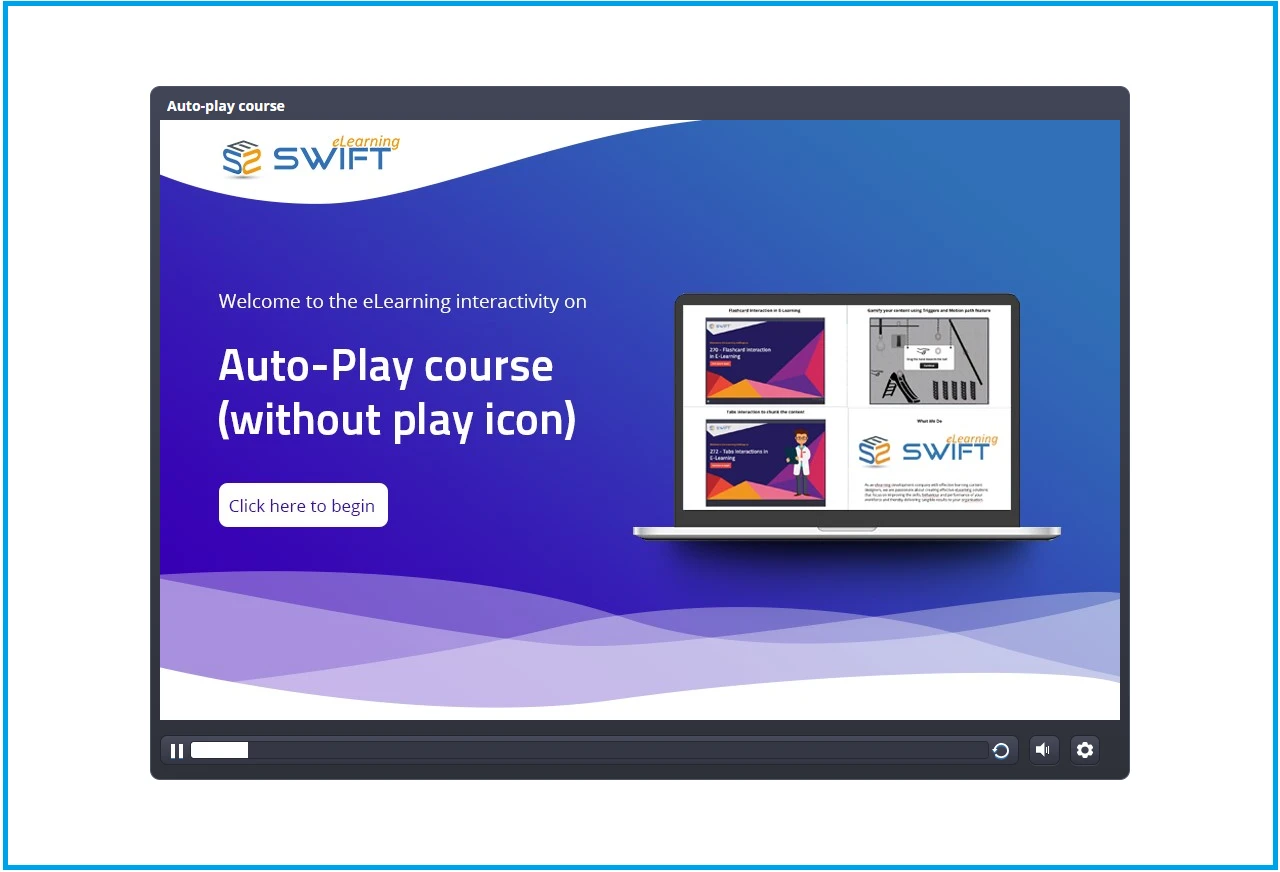
    Published Articulate Storyline 360 course player auto-playing past the welcome slide with no play button overlay

Free Articulate Storyline 360 Video Tutorials

Looking to master course authoring in Storyline 360? Access our step-by-step video training library covering custom animations, trigger logic, variables, branching scenarios, and quiz development.

FAQ

Frequently Asked Questions

Why does the play button appear in Chrome but not in other browsers?

"Media autoplay restrictions vary by browser version and user settings. Google Chrome and Safari enforce strict interaction policies" for media playback, whereas other browsers may allow unmuted auto play based on domain engagement scores.

How do I turn off player controls in Articulate Storyline 360?

"Go to the Home tab on the Storyline ribbon, click Player, select Features, and uncheck the Play/Pause option under Controls."

Why does the play button still appear in preview mode after making changes?

Ensure you saved your changes in the Player Properties window before testing. Additionally, local preview environments may handle media triggers differently than published HTML5 web servers or SCORM LMS packages.

Can I remove the play button by editing the published HTML5 output files?

"While custom JavaScript or HTML edits can alter player behavior, using the zero-media trigger slide method is the safest, standard-compliant solution" that persists without breaking after software updates.

Off-the-Shelf Training Catalog

Off-the-Shelf Occupational Health and Safety (OHS) Courses

Ready-to-Deploy Safety Training

Browse our ready-to-deploy catalog of SCORM-packaged safety courses tailored for industrial, operational, resources, and facility teams operating in Canada:

  • Workplace Hazardous Materials Information System (WHMIS) hazard communication and emergency response procedures.
  • Personal Protective Equipment (PPE) utilization guidelines, ergonomics, and workplace first-aid readiness.
  • Fire risk prevention, working safely in heights, cold-weather safety SOPs, and Lockout/Tagout (LOTO) protocols.
Free Professional Development Modules

Complimentary Corporate Soft Skills Training

Enhance your organization's capabilities with our complimentary corporate soft skills modules. Designed to drive workforce growth and operational efficiency, these complimentary professional development resources provide foundational training in essential workplace competencies. It includes high-impact communication, strategic leadership, effective team collaboration, and uncompromising workplace ethics.

Related Solutions

Explore Related eLearning Solutions

Custom Course Development

Build tailored corporate training aligned with your specific organizational and compliance objectives.

Learn more about Custom Course Development

PPT to E-learning Conversion

Convert static documentation and presentations into interactive, learner-centric modules.

Learn more about PPT to E-learning Conversion

Localization & Accessibility Services

Adapt courses for global teams with multi-language voiceovers, translation, and full WCAG compliance.

Learn more about Localization & Accessibility Services
Get in Touch

Ready to Transform Your Training?

Get a tailored project proposal, custom timeline, and a free SCORM sample built directly from a slice of your existing training materials.

  • Free Proof-of-Concept

    Send us a short document or presentation, and we'll transform it into an interactive SCORM sample so you can judge our instructional design.

  • Expert Consultation

    Talk directly with our eLearning specialist to align your business goals with the right technology stack.

  • Transparent Pricing

    Clear cost estimates and realistic project milestones delivered with zero hidden fees.

Prefer direct email? Reach our lead team at [email protected].

Send Us a Message

Fill in a few details and we'll get straight back to you.