Custom eLearning and Digital Training Solutions Provider
  • Home
  • eLearning Services
    • Custom Elearning Solutions
    • Convert PowerPoint to eLearning
    • Rapid eLearning Development
    • Translation and Localization
    • Flash To HTML5 Conversion
    • Legacy Content Conversion
    • Mobile Learning
    • Gamified Learning Solutions
    • Blended Learning Solutions
  • Software Development
    • Learning Management System
    • Workforce Management System
    • Human Resource Management System
    • Bug Tracker Software
    • Custom Software Development
  • Contact Us
  • Blog
  • Search
  • Menu Menu
  • 0Shopping Cart
  • Home
  • eLearning Services
    • Custom Elearning Solutions
    • Convert PowerPoint to eLearning
    • Rapid eLearning Development
    • Translation and Localization
    • Flash To HTML5 Conversion
    • Legacy Content Conversion
    • Mobile Learning
    • Gamified Learning Solutions
    • Blended Learning Solutions
  • Software Development
    • Learning Management System
    • Workforce Management System
    • Human Resource Management System
    • Bug Tracker Software
    • Custom Software Development
  • Contact Us
  • Blog

How to Use the Widget Gallery in Adobe Captivate

Click or tap on the play button below to watch the video for easier understanding.

Adobe Captivate stands as a powerful eLearning authoring tool, empowering users to create engaging and interactive content for training purposes. Whether you’re a seasoned eLearning developer or a beginner, mastering the utilization of the Widget Gallery can significantly streamline your workflow and enhance the quality of your content.

The Widget Gallery serves as a versatile collection of pre-built interactive elements designed to enhance the interactivity and functionality of your eLearning projects. With a diverse array of options, it caters to various learning objectives, effectively engaging your audience. Whether you need interactive quizzes, games, or multimedia presentations, the Widget Gallery provides a range of dynamic elements to make your courses truly captivating.

In this guide, we’ll delve into the intricacies of the Widget Gallery in Adobe Captivate, offering a comprehensive walkthrough on seamlessly integrating these dynamic elements into your projects. Whether you’re engaged in eLearning development, custom eLearning solutions, corporate eLearning, eLearning design, or rapid eLearning solutions, this guide is designed to help you maximize the capabilities of Adobe Captivate.

Explore the process of crafting interactive quizzes to elevate the learning experience, design engaging games for enjoyable training sessions, and integrate multimedia presentations for a more immersive approach. The Widget Gallery proves to be a valuable resource for custom eLearning solutions, enabling you to tailor content to meet specific training needs.

By following this guide, you’ll acquire insights into optimizing your eLearning development process, guaranteeing that your courses not only meet but surpass the expectations of your audience. Whether you’re aiming to develop corporate eLearning solutions or deliver rapid eLearning solutions, the Widget Gallery in Adobe Captivate will prove to be an invaluable tool in your toolkit.

Unleash the power of Adobe Captivate’s Widget Gallery to elevate your eLearning content, providing captivating and effective training experiences for your learners.

Step 1: 

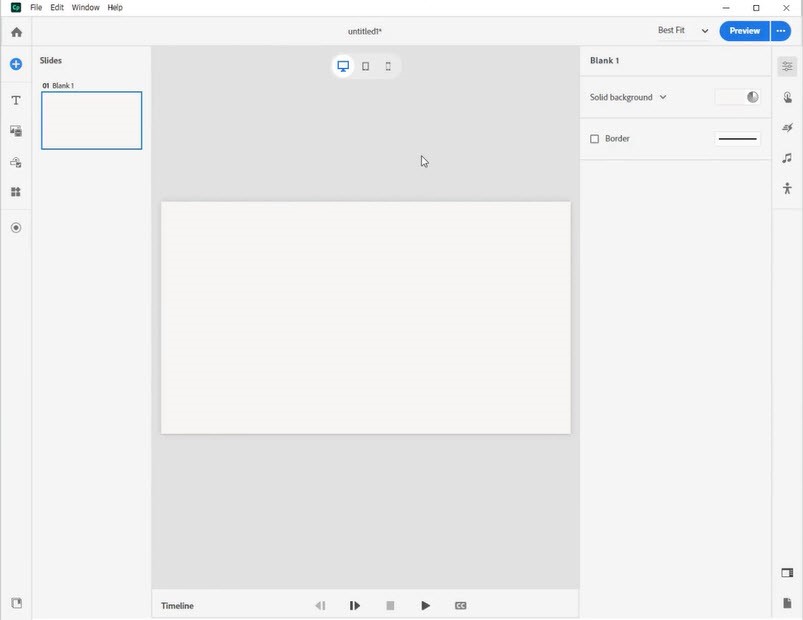
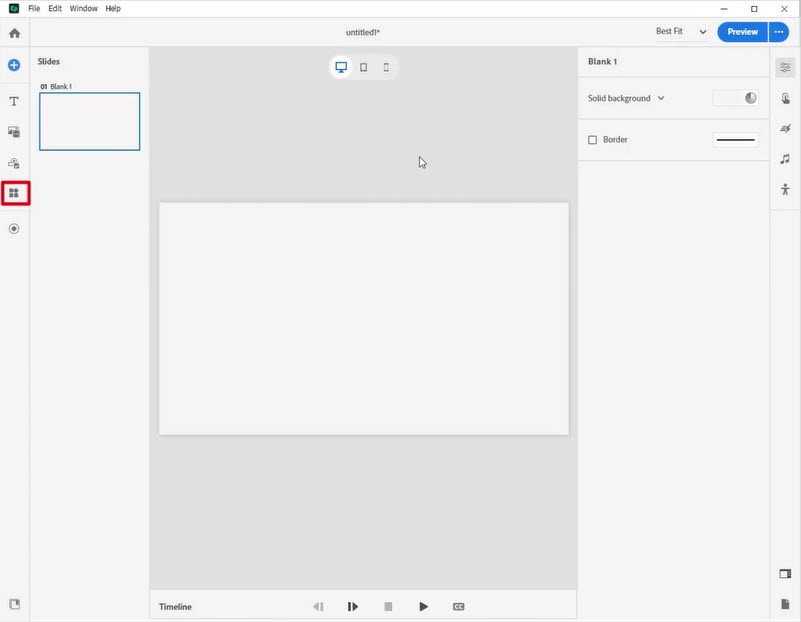
Open Adobe Captivate, create a blank slide, and on the left side of the screen, click the ‘Widget icon’ to add a widget.
adobe captivate

adobe captivate

Step 2: 

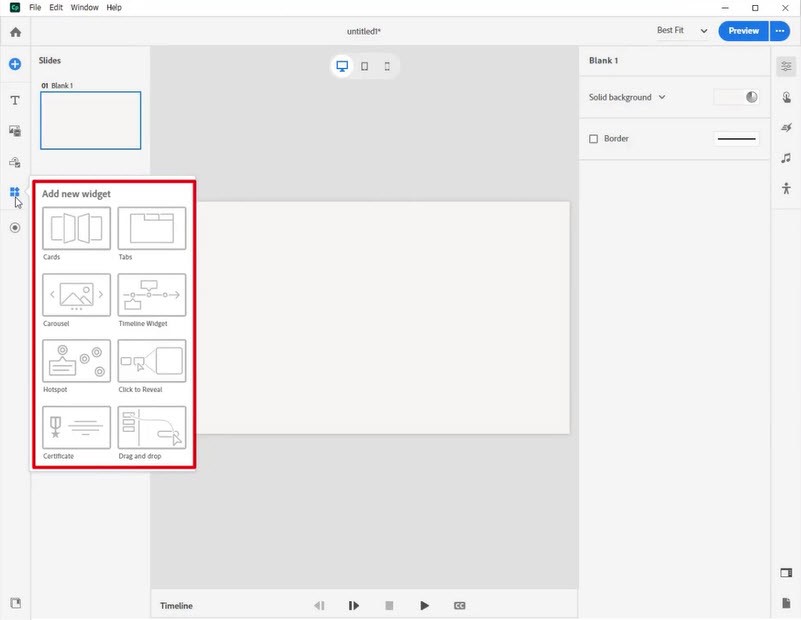
Explore the various widget types and choose one that suits your preferences.
adobe captivate

Step 3: 

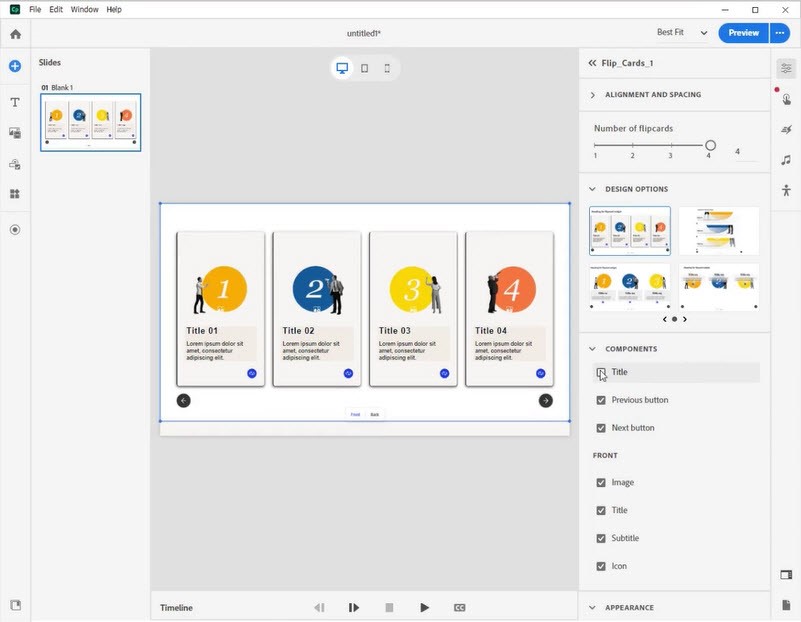
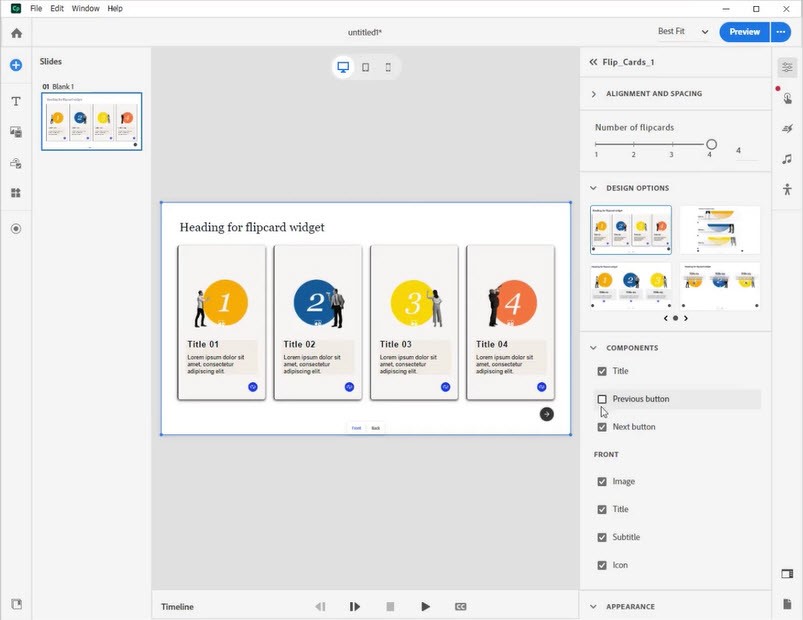
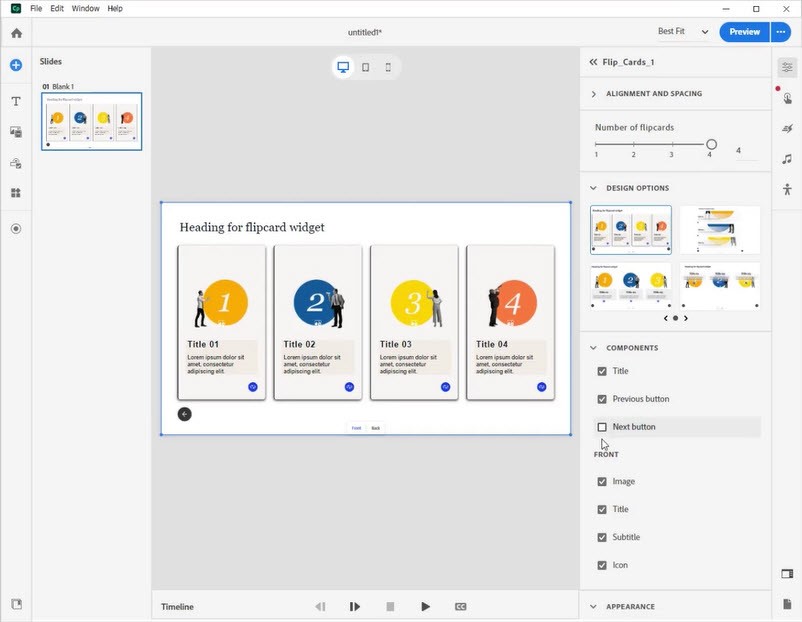
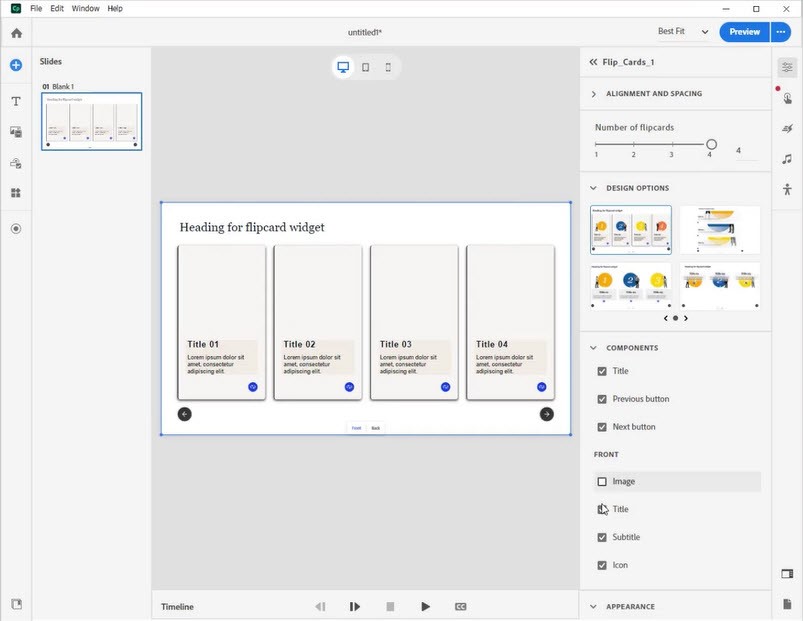
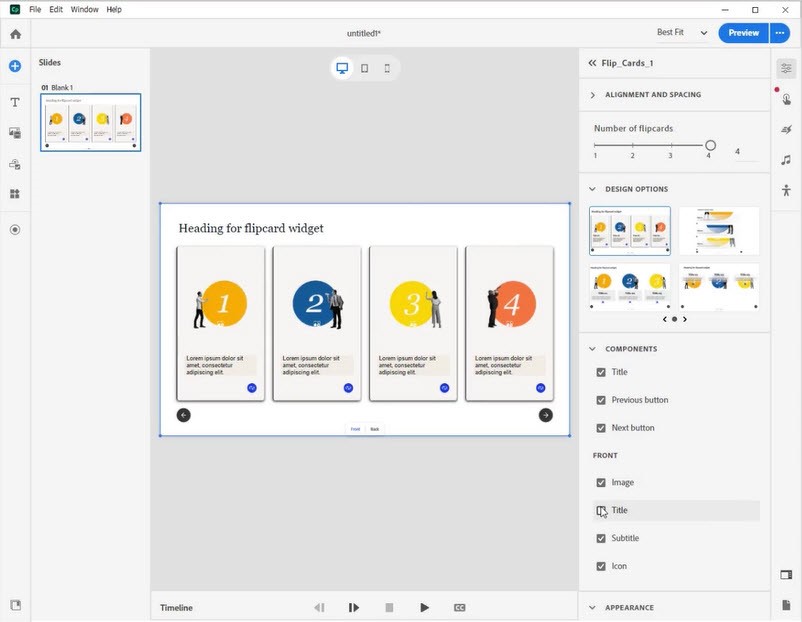
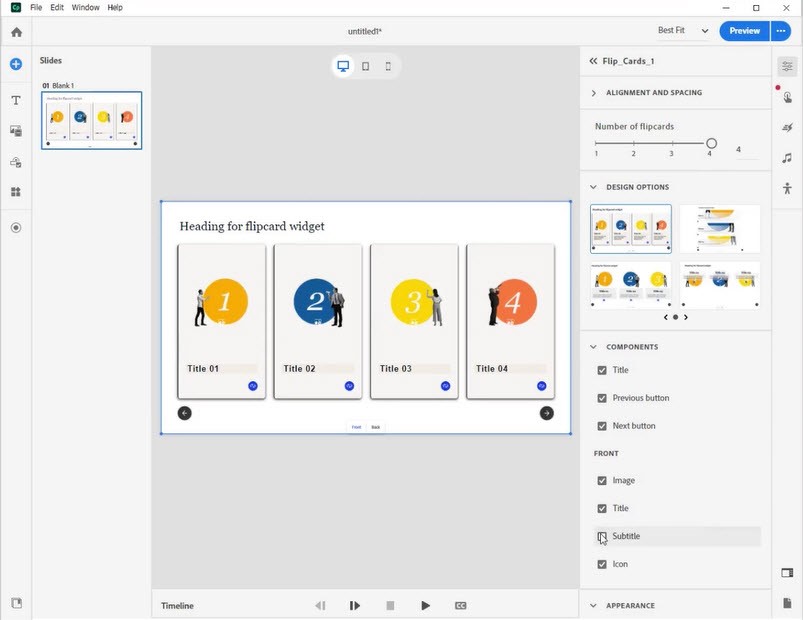
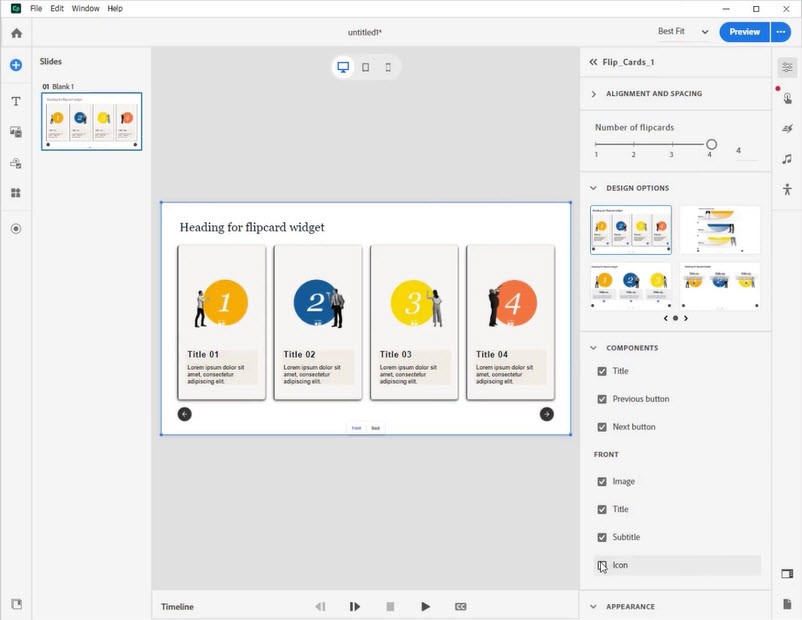
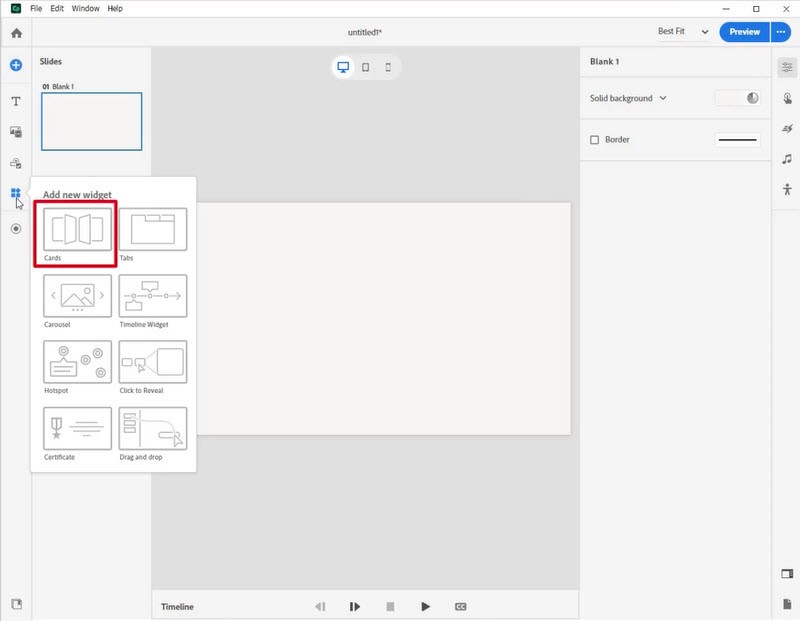
Begin with the cards widget, where you’ll find components for ‘Enable and Disable’ functionalities.
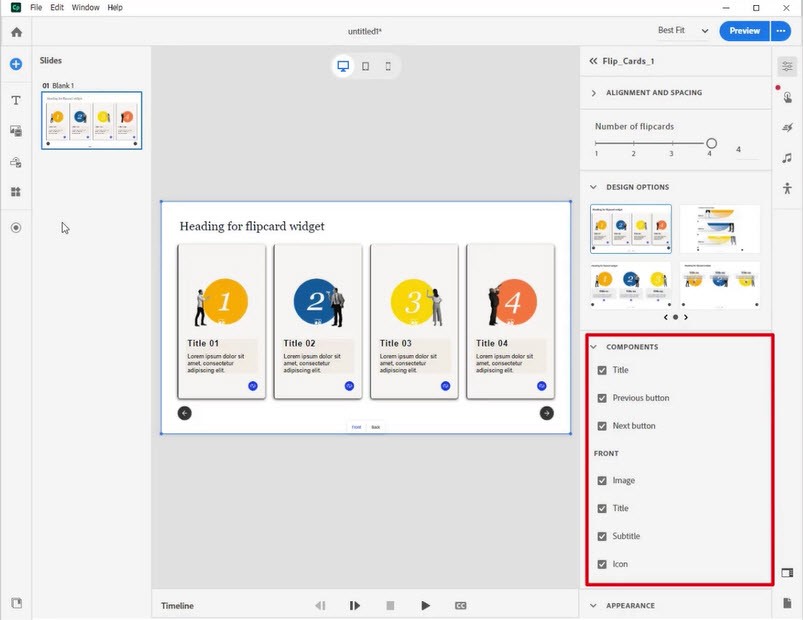
adobe captivate

adobe captivate

adobe captivate

adobe captivate

adobe captivate

adobe captivate

adobe captivate

adobe captivate

adobe captivate

Step 4: 

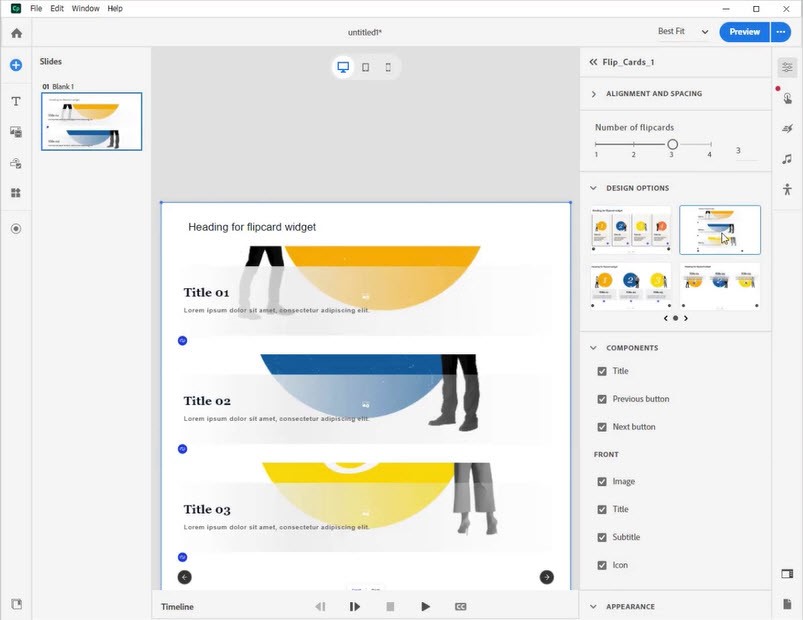
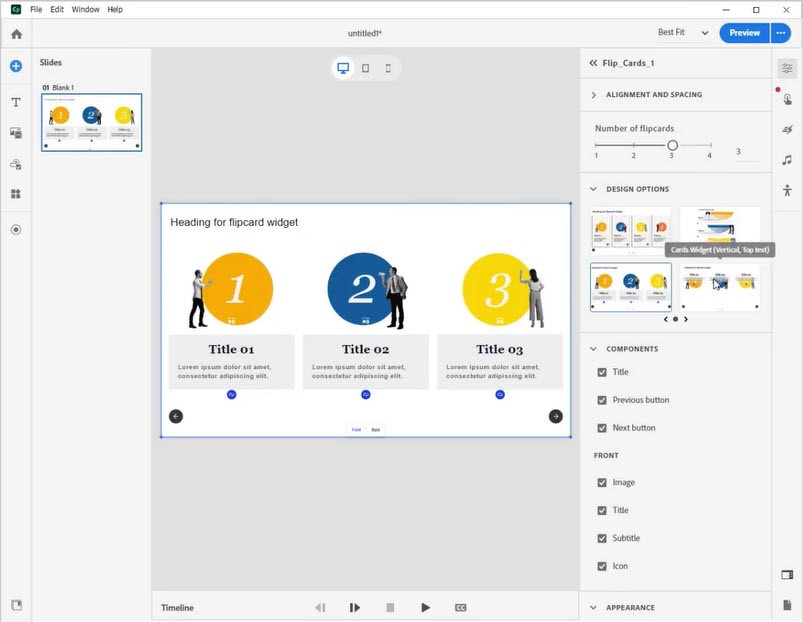
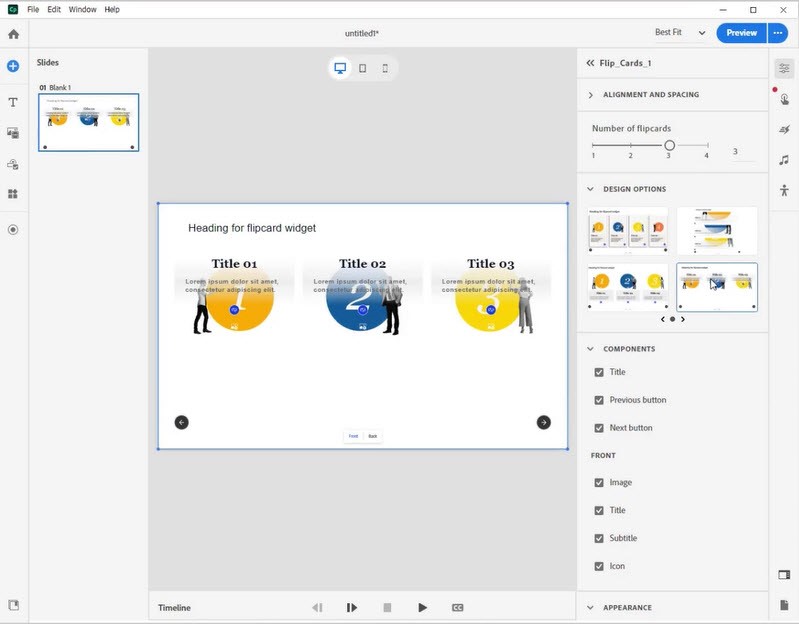
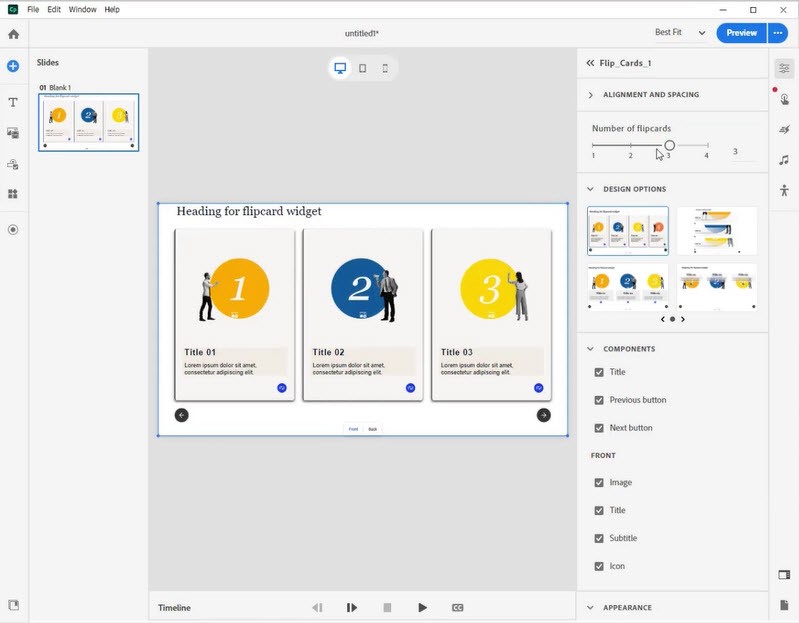
Navigate to the ‘DESIGN OPTIONS’ section to explore a range of customization choices.
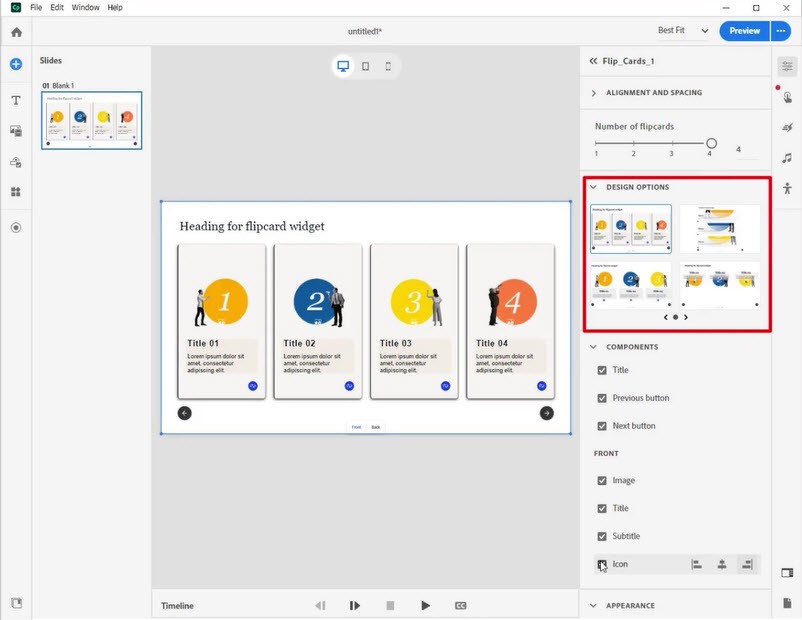
adobe captivate

adobe captivate

adobe captivate

adobe captivate

Step 5: 

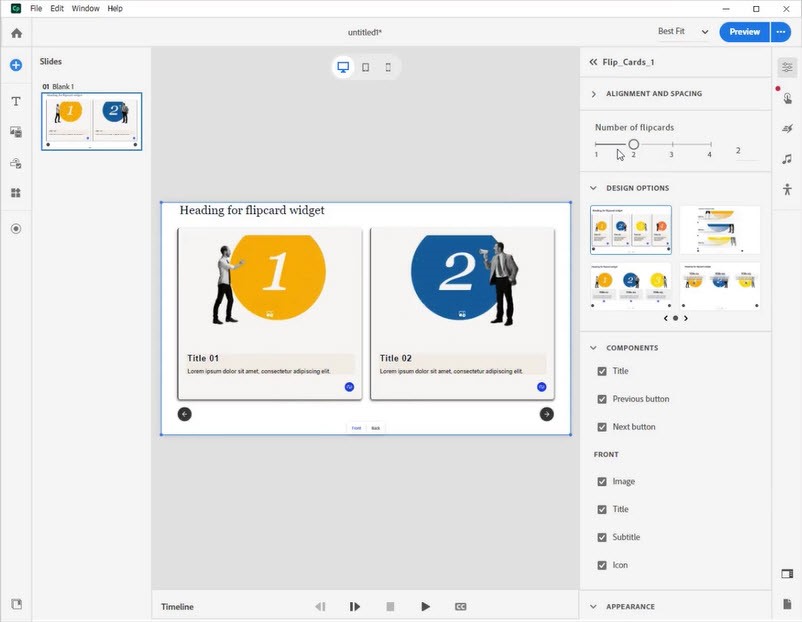
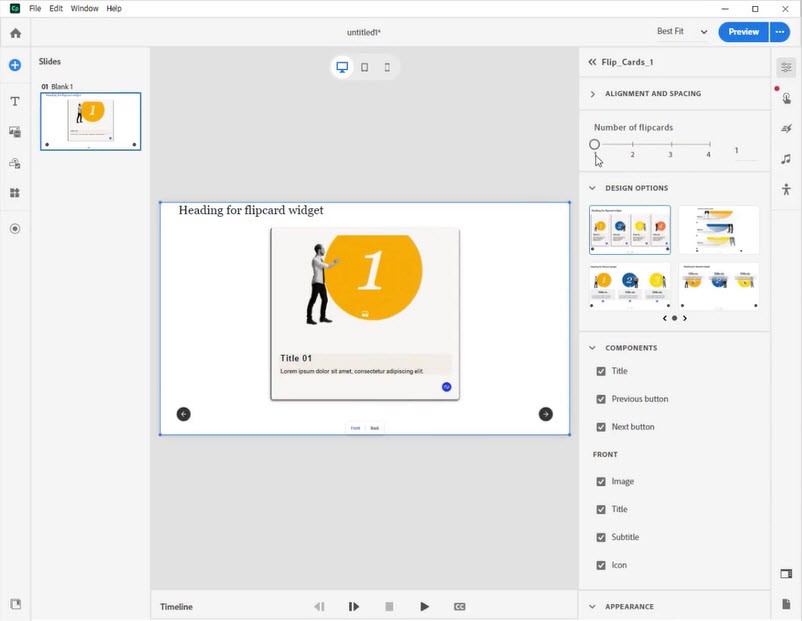
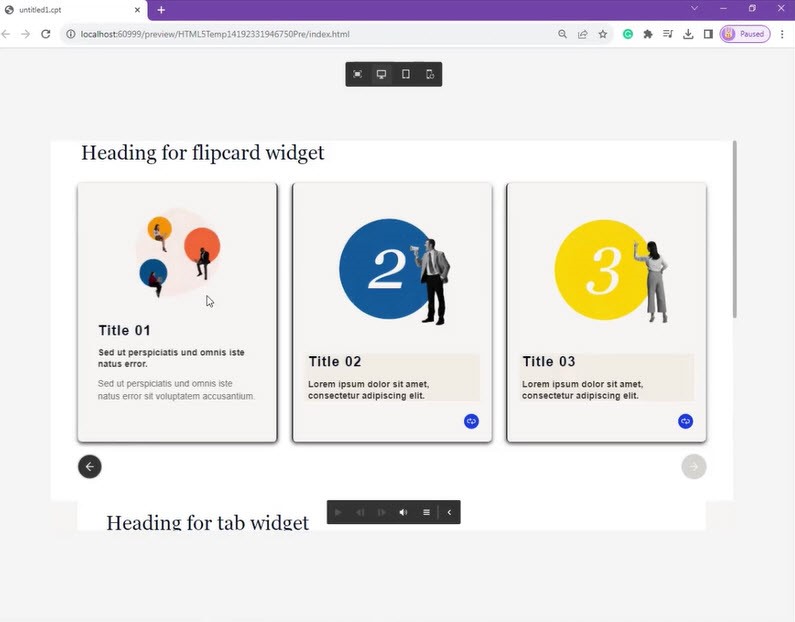
Adjust the number of flip cards and replace images and text as needed.
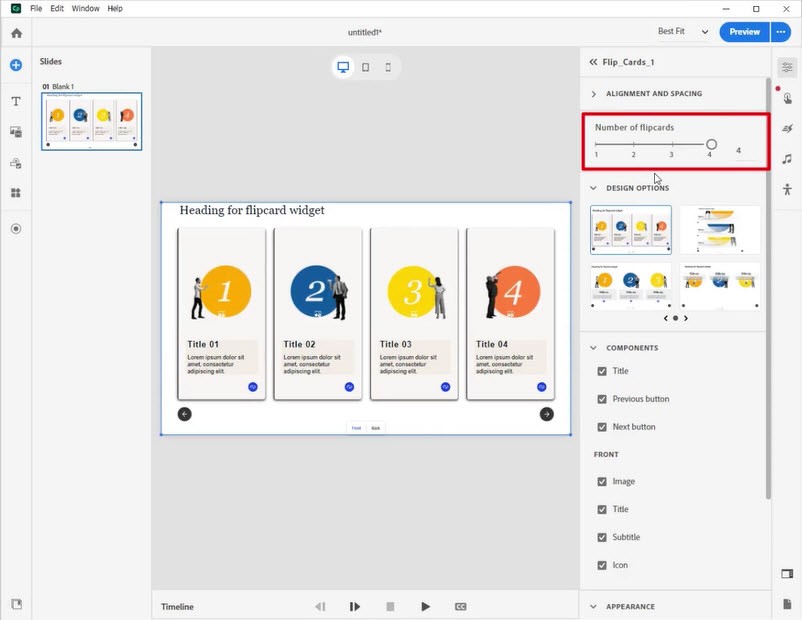
adobe captivate

adobe captivate

adobe captivate

adobe captivate

Step 6: 

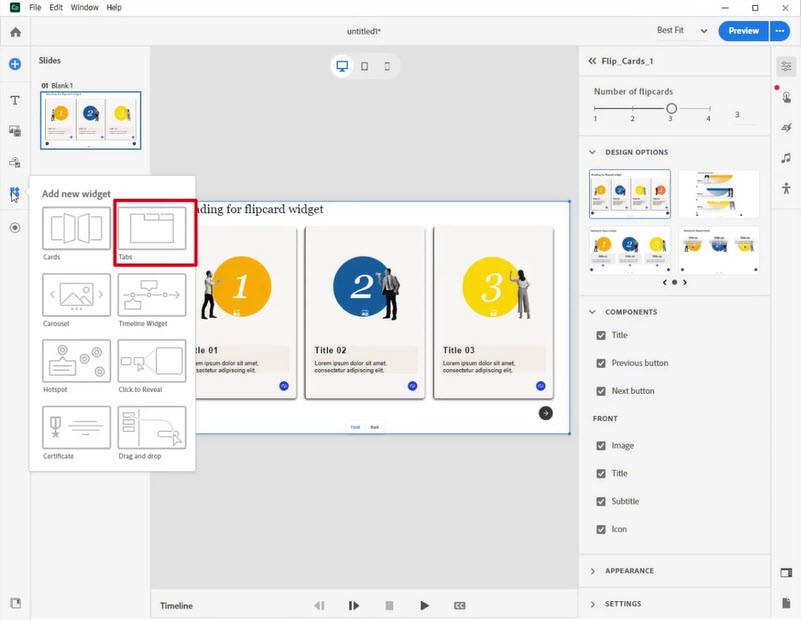
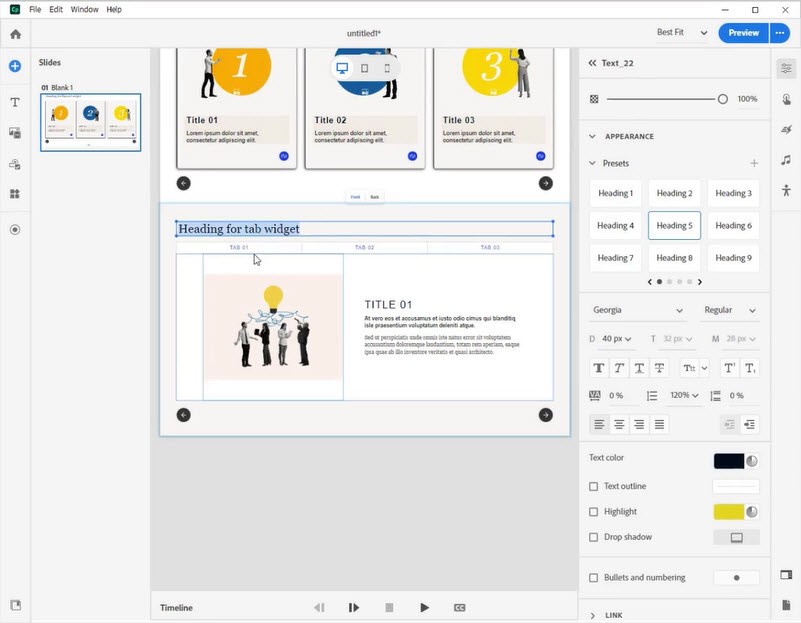
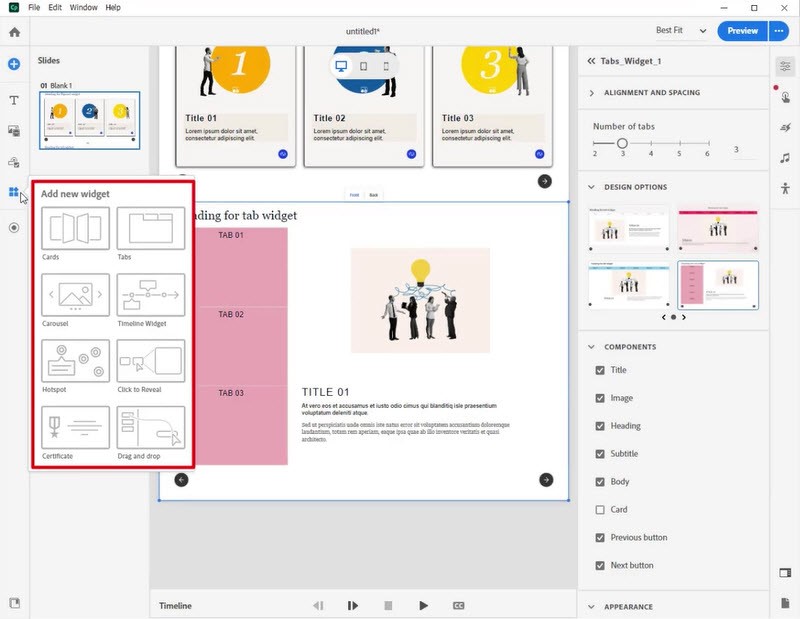
Introduce a new widget; opt for the ‘tabs’ widget and double-click on the text for editing.
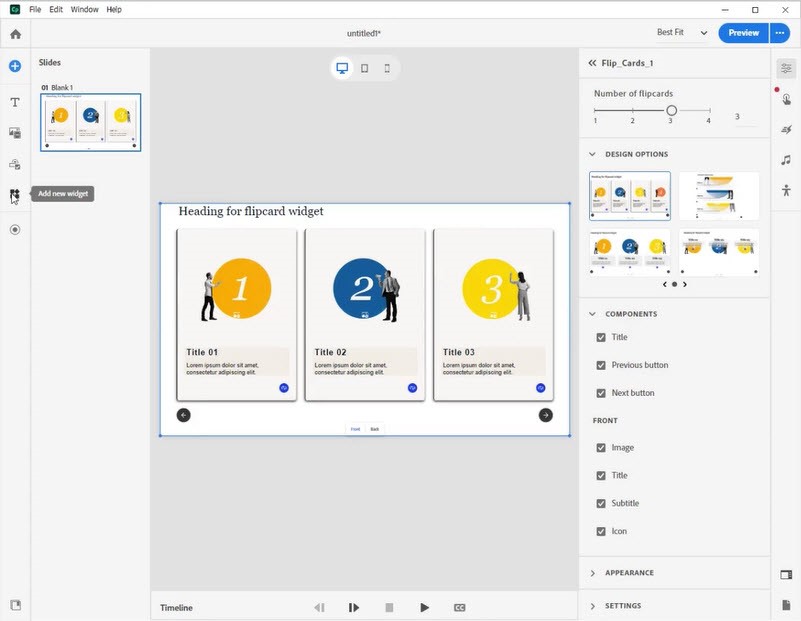
adobe captivate

adobe captivate

adobe captivate

Step 7: 

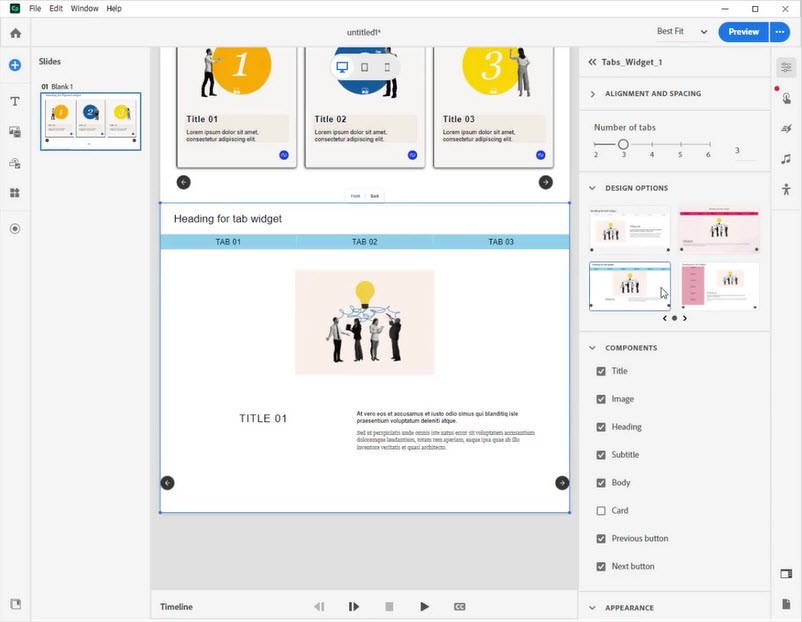
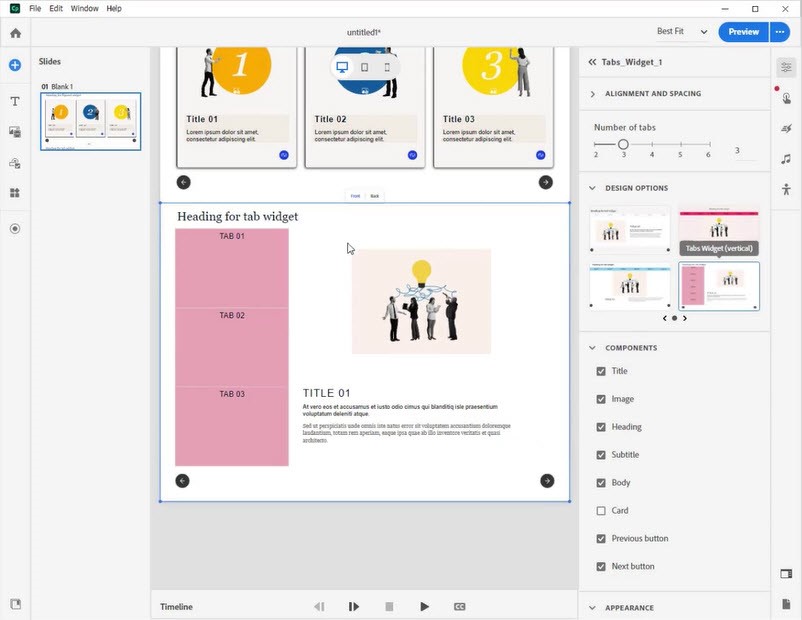
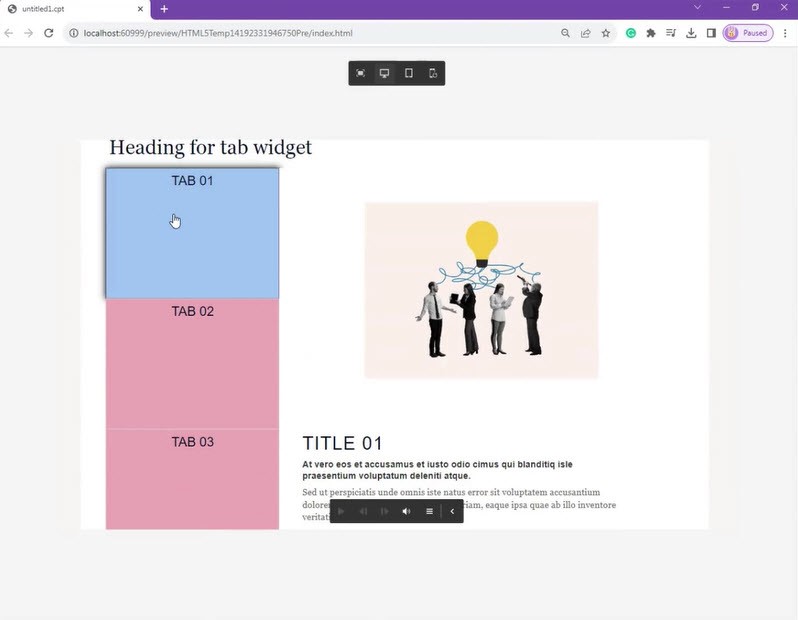
Utilize the ‘DESIGN OPTIONS’ feature to customize the appearance of the tab widget.
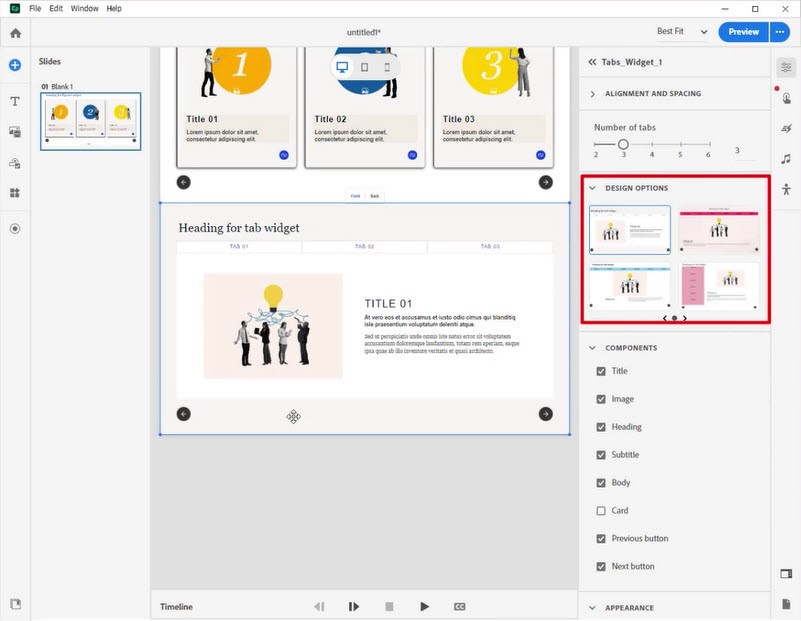
adobe captivate

adobe captivate

adobe captivate

Step 8: 

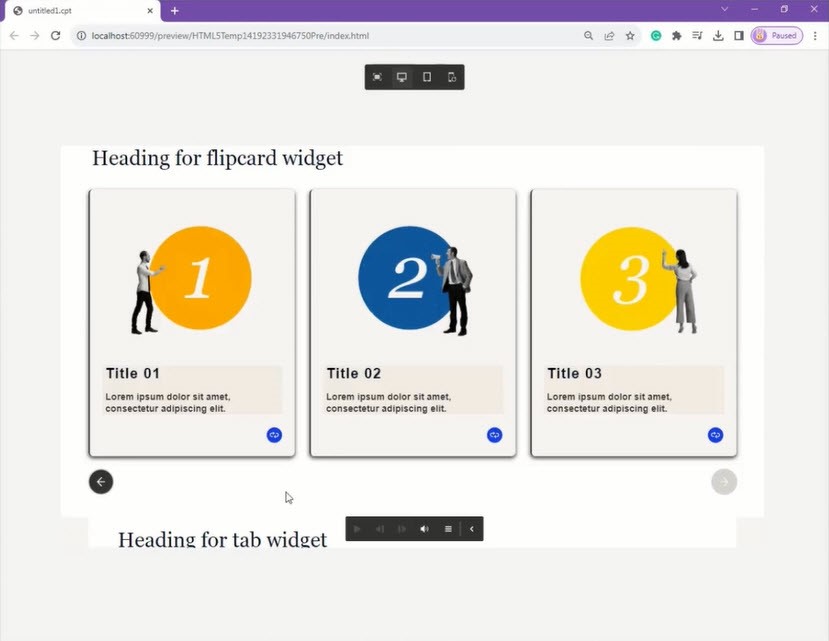
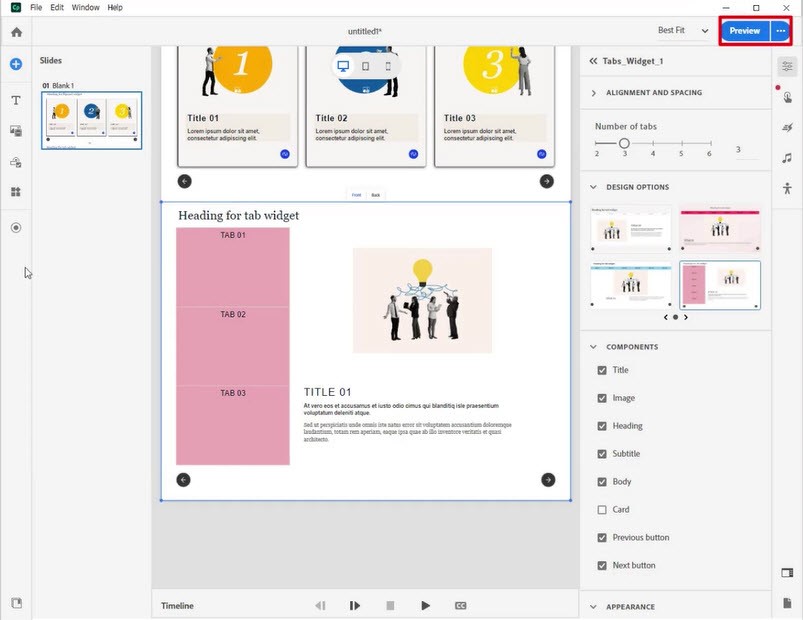
Explore additional widgets available. Finally, preview the created widgets by clicking the preview button.
adobe captivate

adobe captivate

adobe captivate

adobe captivate

adobe captivate

Conclusion

In conclusion, mastering the Widget Gallery in Adobe Captivate unlocks a realm of possibilities for crafting engaging and interactive eLearning content. Throughout this guide, we’ve delved into seamlessly integrating diverse widgets, spanning from interactive quizzes to multimedia components. We’ve also uncovered the tools to customize and optimize these elements to align with specific learning objectives.

The Widget Gallery not only streamlines the content creation process but also elevates the overall quality of eLearning modules, making them more immersive and impactful for learners. As you continue to leverage the Widget Gallery, explore various widgets, and incorporate best practices, you’ll enhance the interactivity and effectiveness of your Adobe Captivate projects. Armed with these newfound skills, you’re well-equipped to create dynamic and captivating eLearning experiences that both engage and educate your audience.

The last comment and 1 other comment(s) need to be approved.
0 replies

Leave a Reply

Want to join the discussion?
Feel free to contribute!

Leave a Reply Cancel reply

Your email address will not be published. Required fields are marked *

Share this entry
  • Share on Facebook
  • Share on Twitter
  • Share on Pinterest
  • Share on LinkedIn

ARTICULATE STORYLINE POSTS

  • step-by-step guide to customize quiz feedback colors in rise 360
    How to Customize Correct and Incorrect Answers Feedback Colors in Articulate Rise 360June 27, 2025 - 4:40 PM
  • removing labels and numbers from process blocks in articulate rise 360
    How to Remove Labels and Numbers from Process Blocks in Articulate Rise 360June 20, 2025 - 3:07 PM
  • easy-online-course-creation-ispring-suite-swift-elearning-services
    Create Online Courses with Ease Using iSpring Suite – The All-in-One eLearning Authoring Tool for PowerPointJune 16, 2025 - 11:18 AM
  • how to adjust padding in articulate rise 360 content blocks for custom e-learning
    How to Adjust Padding in Articulate Rise 360 Content Blocks for Custom E-LearningJune 9, 2025 - 5:23 PM
  • swift elearning services focuses on crafting custom elearning courses that enhance digital learning experiences.
    How to Use Snapshots to Recover Deleted Lessons in Articulate Rise 360April 23, 2025 - 3:58 PM
  • swift elearning services provides articulate 360 localization, offering tailored elearning solutions that adapt your content for global audiences.
    Articulate 360 Localization: Create, Translate, and Manage Training with EaseApril 17, 2025 - 11:24 AM
  • custom elearning solution with jump-to-time video control in storyline 360 for interactive video navigation.
    How to Use Jump-to-Time Trigger to Control Video in Storyline 360April 11, 2025 - 10:51 AM
  • how to import slides from other storyline projects
    Articulate Storyline 360 – How to Import Slides from Other Storyline ProjectsMarch 25, 2025 - 5:52 PM
  • ohs-traffic-control-training-for-construction-workers-featured-image
    OHS – Traffic Control Training Course for Construction WorkersSeptember 9, 2024 - 5:56 PM
  • ohs-road-traffic-control-training-for-road-maintenance-workers-featured-image
    OHS – Traffic Control Work Zone Safety Training for Road Maintenance WorkersAugust 1, 2024 - 3:22 PM

Get a Free Prototype Customized with Your Content.

Our Portfolios Explore Our Extensive Collection of eLearning Courses.

GET A FREE ELEARNING SAMPLE

We transform your training material into engaging, SCORM-compliant courses.

Request a Free Sample  

Our Services


  • Rapid eLearning Solutions

  • Custom eLearning Development

  • Flash to HTML5 Conversion Services

  • Mobile Learning Solutions

  • Translation and Localisation Services

  • Gamification eLearning

Our Office Address

Asia: 704, Topaz Plaza, Punjagutta, Hyderabad, Telangana, India 500082

Australia: P.O. Box 107, Brisbane, Queensland, 4030

Canada: 750 Oakdale Rd Suite 56, North York, ON M3N 2Z4, Canada

USA: 12218 Old Gage Ranch, San Antonio, Texas 78245

Copyright ©2026 Swift eLearning Services.
  • Facebook
  • Twitter
  • LinkedIn
  • Youtube
Using Background Audio and Music in E-Learning #442storyline 360animakerHow to Control the Speed of Video in Animaker
Scroll to top