
Primary Use Cases for Custom Course Timers
- ✓Compliance Requirements
Ensure corporate learners spend mandated time quotas on regulatory topics before completing modules.
- ✓Self-Paced Trackers
Help learners monitor their pace across comprehensive multi-topic modules.
- ✓Timed Case Studies
Introduce time-sensitive problem-solving constraints into scenario-based learning activities.
Step-by-Step Configuration Guide
-
01
Create the Master Layer Loop
- Open your project in Storyline 360 and navigate to View > Slide Master.
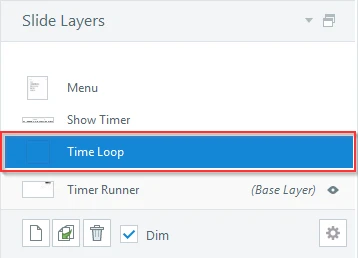
- Create a new layer on the top Master layout and name it Time Loop.
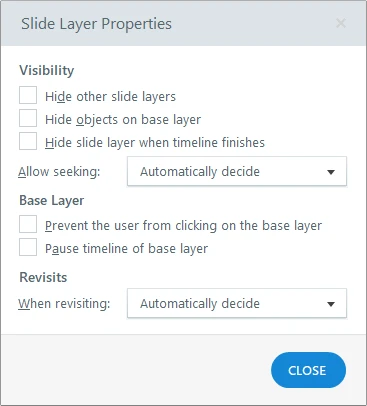
- Adjust the timeline length of the Time Loop layer to exactly 1 second.

-
02
Define Numerical Variables
Open the Variables Manager and create three Number variables with baseline values of 0:
ss(Seconds)mm(Minutes)hh(Hours)
Optional: Create string padding variables
s0,m0, andh0to format single digits with leading zeros like 01:05:09.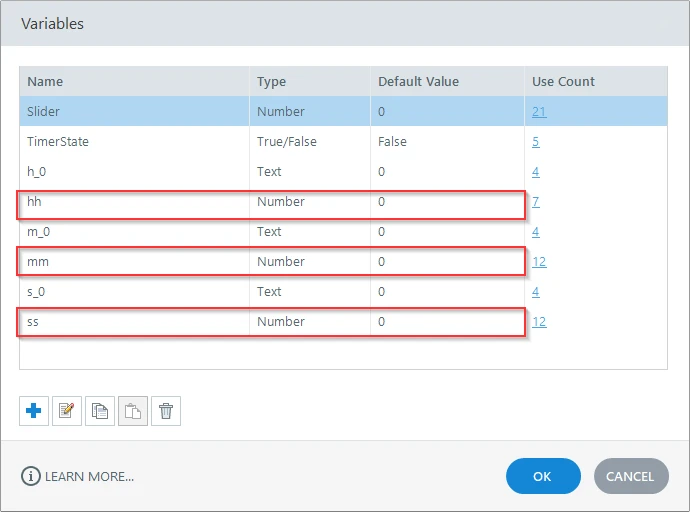
-
03
Add Layer Loop Triggers
Add the following sequential triggers to the Time Loop layer:
- Increment Seconds: Add 1 to
sswhen Time Loop layer timeline ends. - Rollover Minutes: Add 1 to
mmwhensschanges, on condition thatss == 60. - Reset Seconds: Set
ss = 0whensschanges, on condition thatss == 60. - Rollover Hours: Add 1 to
hhwhenmmchanges, on condition thatmm == 60. - Reset Minutes: Set
mm = 0whenmmchanges, on condition thatmm == 60. - Loop Hide Layer: Hide Time Loop layer when Time Loop layer timeline ends.
- Loop Show Layer: Show Time Loop layer when Time Loop layer timeline ends.
- Increment Seconds: Add 1 to
-
04
Display the Timer on the Master Canvas
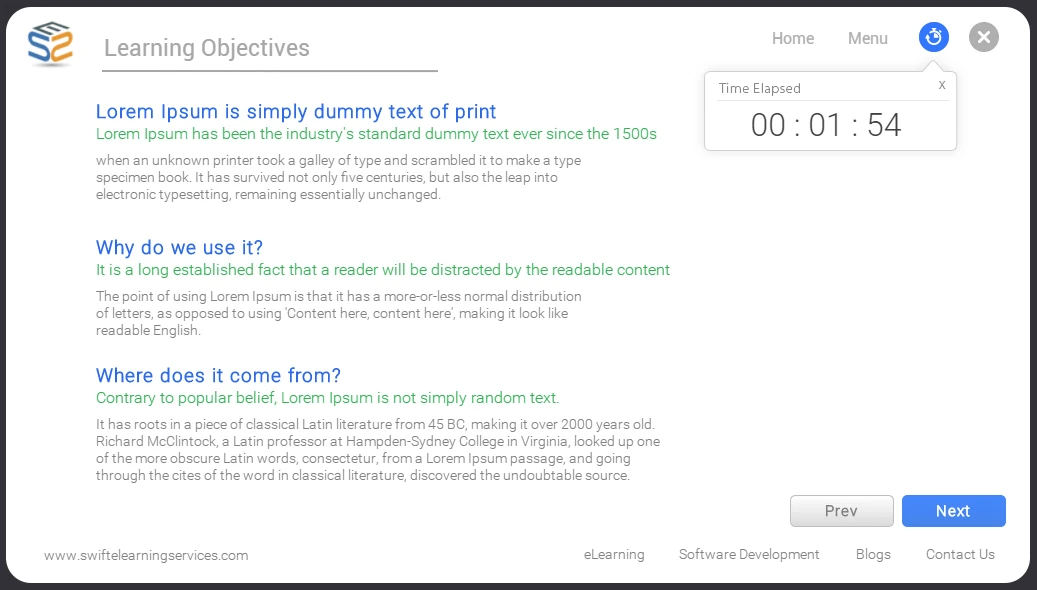
- On the Base Layer of your Master Slide, create a text box where you want the timer displayed.
- Insert variable references into the text box:
%hh% : %mm% : %ss%(or%h0%%hh%:%m0%%mm%:%s0%%ss%for padded formatting). - Add a trigger to the Base Layer: Show Layer Time Loop when Master Slide timeline starts.
-
05
Test and Verify
Close the Slide Master view and preview the course. The timer will automatically update every second across all slides that inherit the Master layout.
Video Walkthrough
Watch the visual demonstration of variable initialization and trigger sequencing:
Troubleshooting & Logic Summary
| Challenge | Cause | Resolution |
|---|---|---|
| Timer Pauses on New Slide | Master layer fails to re-trigger. | Ensure the base Master slide has a trigger to display the Time Loop layer on timeline start. |
| Timer Counts Too Fast | Layer duration is less than 1 second. | Verify that the Time Loop layer timeline is set to precisely 1.00s. |
| Single-Digit Formatting (0:1:5) | Standard numbers suppress leading zeros. | Implement padding triggers to set s0 / m0 to "0" when values fall below 10. |
Frequently Asked Questions
How does this custom timer differ from Storyline's built-in quiz timer?
Built-in quiz timers track test completion windows and auto-submit assessments upon expiration. This custom workaround acts as a continuous elapsed-time counter across standard informational slides.
Can I embed Storyline modules with custom timers into Articulate Rise 360?
Yes. Publish the Storyline course to Articulate 360 and embed it directly into Rise 360 using a Storyline Block. The timer will run natively within the embedded container.
Will the custom timer reset if a learner revisits a previously viewed slide?
No. Because the hh, mm, and ss variables are globally stored at the project level, the timer maintains its cumulative count throughout the learner's session.