Storyline 360 Tutorial

How to Change Text Box Color Using JavaScript in Articulate Storyline 360

In custom eLearning development, providing immediate visual feedback enhances learner engagement and supports accessibility standards. While Articulate Storyline 360 offers states for standard buttons, dynamically altering the background fill or font color of a complex text box based on learner interaction often requires custom JavaScript.

By assigning an accessibility tag (Alt Text) to your target text box, you can leverage a lightweight JavaScript snippet to modify CSS properties on the fly.

Primary Use Cases for Dynamic Color Changes

  • โœ“
    Interactive Highlights

    Focus learner attention on key terms, keypoints, or definitions when a user clicks a button.

  • โœ“
    Instant Knowledge Feedback

    Change text box backgrounds to green or red based on user selection or assessment answers.

Step-by-step Configuration Guide

  1. 01

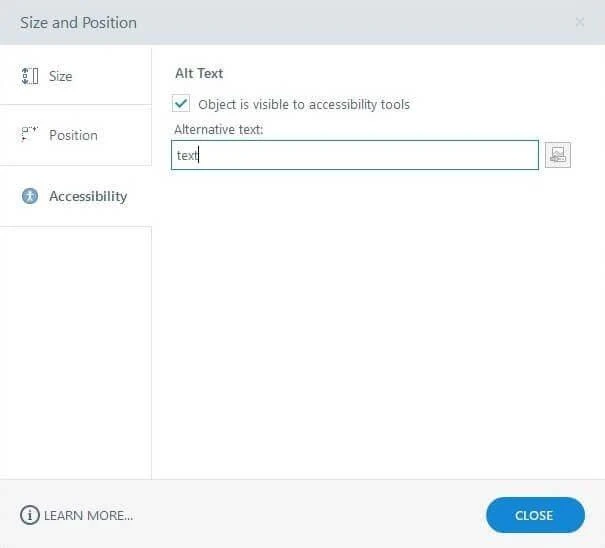
    Assign an Accessibility Identifier

    • Insert a text box onto your slide canvas.
    • Right-click the text box and select Accessibility (or open the Alt Text properties).
    • Ensure the alternative text checkbox is marked and enter text as the alternative text string.
    • Close the panel. Storyline will render this value as the data-acc-text attribute in the HTML5 DOM.
    Articulate Storyline Size and Position dialog, Accessibility tab, with Alternative text set to "text"
  2. 02

    Configure the JavaScript Trigger

    • Insert a shape or button component to serve as the trigger object.
    • Open the Triggers panel and select Create a new trigger.
    • Set the action parameters - Action: Execute JavaScript, When: User clicks, Object: Button or shape name.
    • Click the JavaScript link in the Trigger Wizard to open the code editor.
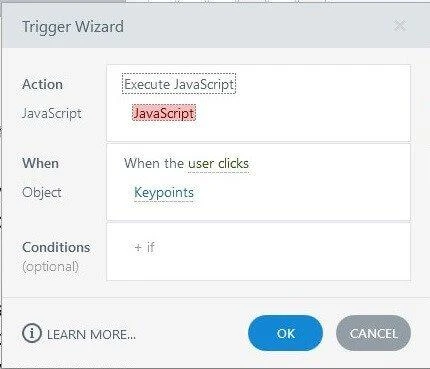
    Articulate Storyline Trigger Wizard set to Execute JavaScript, When the user clicks, Object Keypoints
  3. 03

    Option A: Change Both Background Fill and Text Color

    Paste the following code in the JavaScript Editor panel:

    const texts = document.querySelectorAll('[data-acc-text="text"]');
    texts.forEach(text => {
      text.style.backgroundColor = '#175FAD'; // Sets text box background color
      const txt = text.querySelector('text');
      if (txt) {
        txt.style.fill = '#ffffff'; // Sets font fill color
      }
    });
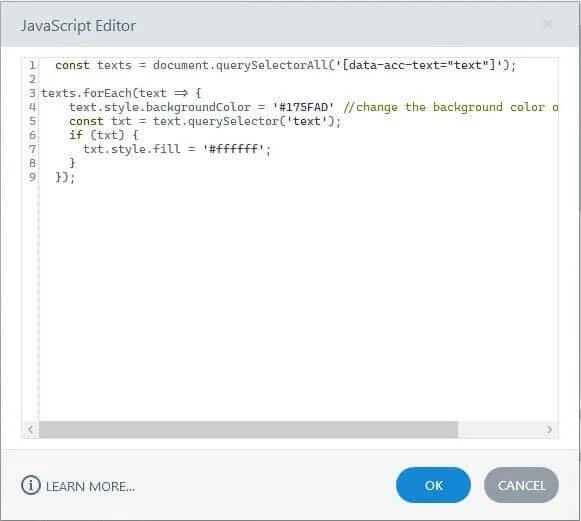
    Articulate Storyline JavaScript Editor with Option A code pasted in, setting background color and font fill
  4. 04

    Option B: Change Text Color Only

    Paste the following code in the JavaScript Editor panel:

    const texts = document.querySelectorAll('[data-acc-text="text"]');
    texts.forEach(text => {
      const txt = text.querySelector('text');
      if (txt) {
        txt.style.fill = '#C0504D'; // Sets font fill color
      }
    });
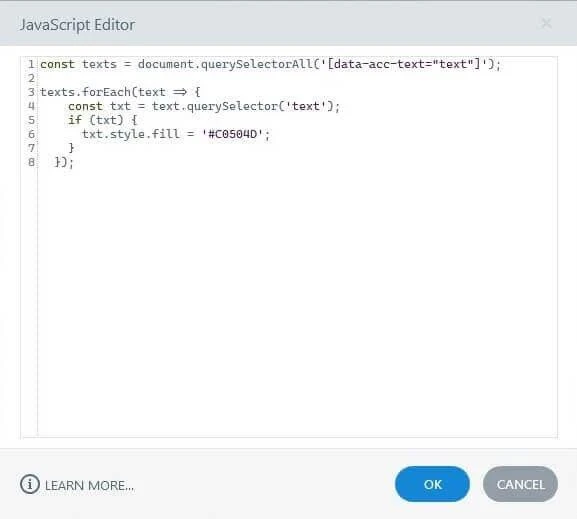
    Articulate Storyline JavaScript Editor with Option B code pasted in, setting font fill color only
  5. 05

    Test in Published Preview

    Save your trigger setup and launch Preview or publish the project to HTML5 to test the interactive color transformation upon clicking the target button.

DOM Selector Explanation

Script Function Technical Description
querySelectorAll('[data-acc-text="text"]') Scans the browser DOM for all elements matching the designated Accessibility text string (text).
text.style.backgroundColor Alters the CSS background color property of the outer container box.
txt.style.fill Alters the SVG fill color property of the child text node inside the Storyline element wrapper.
FAQ

Frequently Asked Questions

Why do we use Accessibility Alt Text to target elements in Storyline 360?

Storyline generates dynamic IDs for canvas elements upon publishing. Assigning a unique Accessibility Alt Text generates a predictable data-acc-text attribute that JavaScript can easily query.

Does this JavaScript technique work on mobile web browsers?

Yes. The script targets standard HTML5 DOM and SVG properties supported across modern desktop and mobile browsers.

Can I target multiple text boxes using the same script?

Yes. The querySelectorAll function loops through every text box sharing the specified accessibility text value and applies the style change simultaneously.

Turnkey Safety & Enterprise Training Suites

Off-the-Shelf Occupational Health and Safety (OHS) Courses

Workplace Safety & Health (OHS) Suite

SCORM-compliant safety modules engineered for immediate LMS integration across operations, manufacturing, and distribution:

  • WHMIS standards, hazardous material handling, and chemical spill control protocols.
  • Workspace ergonomics, heavy lifting techniques, personal protective equipment, and first-aid response.
  • Fall protection standards, elevated platform safety, and lockout/tagout (LOTO) procedures.
Free Professional Development Modules

Corporate Leadership & Upskilling Series

Targeted professional development packages designed for corporate teams:

  • Executive leadership development, crisis communication, and cross-departmental alignment.
  • Workplace ethics, data security policies, and dispute resolution frameworks.
Related Solutions

Instructional Design and Custom eLearning Services

Custom Course Architecture

Enterprise online learning modules designed around corporate performance metrics, interactive scenarios, and brand standards.

Learn more about Custom Course Architecture

PPT to E-learning Conversion

Upgrading outdated slide decks, printed manuals, and legacy Flash courses into responsive HTML5 training assets.

Learn more about PPT to E-learning Conversion

Global Course Localization

Multi-language course translation, right-to-left layout adjustments, localized audio dubbing, and global SCORM compliance.

Learn more about Global Course Localization
Get in Touch

Ready to Transform Your Training?

Get a tailored project proposal, custom timeline, and a free SCORM sample built directly from a slice of your existing training materials.

  • Free Proof-of-Concept

    Send us a short document or presentation, and we'll transform it into an interactive SCORM sample so you can judge our instructional design.

  • Expert Consultation

    Talk directly with our eLearning specialist to align your business goals with the right technology stack.

  • Transparent Pricing

    Clear cost estimates and realistic project milestones delivered with zero hidden fees.

Prefer direct email? Reach our lead team at [email protected].

Send Us a Message

Fill in a few details and we'll get straight back to you.